Do PDFs Have Version History? A Practical Guide
Explore whether PDFs track version history, how incremental updates work, and practical strategies for managing PDF versions across cloud storage and editors.


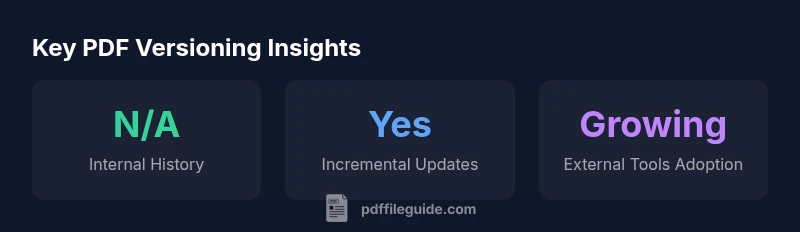
Do PDFs have version history? In short, no built-in changelog exists inside a PDF. They can support incremental updates, which preserve earlier content within the same file, but there is no log of edits. For formal version tracking, rely on external tools like cloud storage versioning or explicit Save As/versioned filenames.
Do PDFs Have Version History? A Quick Reality Check
According to PDF File Guide, the question do pdfs have version history highlights a fundamental distinction between features built into the file format and the versioning workflows that teams rely on. The PDF specification itself does not define a user-facing version history log. Instead, a PDF is a static snapshot that may contain historical content if you rely on incremental updates, but those updates do not create a public, browsable change log embedded in the file. For most professionals, version history lives in the surrounding workflow—how you save, name, and store files—not in the document alone. Understanding this distinction is essential when you design collaboration, review, and archival processes.
In practical terms, you should treat PDFs as containers of content rather than as records with an auditable history. If your team requires a detailed history of edits, you must implement a versioning strategy outside the file itself. That means naming conventions, cloud-based version histories, and a governance policy for how changes are tracked and approved.
How PDFs Handle Incremental Updates
PDFs were designed with a feature known as incremental updates. When you save changes to a PDF, a new cross-reference section can be appended to the end of the file, leaving earlier content technically intact and recoverable. This can be advantageous for preserving older content in the same document, and it can make rollbacks feel straightforward if you know how to extract the older portion. However, incremental updates are a performance and integrity feature, not a user-facing changelog. Some readers or tools may optimize only the latest revision, potentially obscuring or complicating access to prior iterations. Practically, incremental updates are best viewed as a mechanism for preserving data continuity rather than a documented version history. Experts recommend careful testing of your reader software to ensure it handles incremental updates consistently across platforms.
The Role of Metadata and Document Properties
Beyond the file body, PDFs carry metadata that can include dates, authors, and production details. Common fields like CreationDate and ModDate give you a sense of when a file was created and last modified, but they do not constitute a version history. XMP metadata can be extended to embed version-like information, subject to organizational conventions, but there is no standardized version field required by the PDF specification. When you need traceable changes, consider augmenting metadata with a separate changelog or a linked document in your document management system. Reading metadata is straightforward with most PDF editors and readers, but rely on it only as a pointer, not the sole source of version control.
Where to Find Version History: External Tools and Services
Because PDFs themselves do not maintain a built-in version history, teams commonly rely on external tools to track changes. Cloud storage services (e.g., Google Drive, Dropbox, OneDrive) offer native version histories for files, including PDFs, and can be configured to alert teams when edits occur. Document management systems (DMS) provide formal revision controls, approval workflows, and a centralized audit trail. Local OS backups and archive solutions can also preserve previous file states, albeit outside the PDF ecosystem. In practice, a robust versioning strategy combines a clear naming convention, cloud history, and a lightweight change log that documents what changed and why.
Practical Workflows for Versioning PDFs
A practical versioning workflow minimizes ambiguity and reduces the risk of lost work. Start with a clear naming scheme, such as ProjectName_V1.0_YYYYMMDD.pdf, and save new versions as V1.1, V2.0, etc. Use Save As or a controlled Save function to generate distinct files rather than overwriting; enable version history in your cloud storage and consider a lightweight changelog file that accompanies each PDF, summarizing edits. For reviewers, employ the Compare Documents feature in your editor to highlight differences between versions. Finally, document retention and archiving policies ensure older versions are preserved for required periods. These steps create a reliable, auditable history without relying on the PDF alone.
Common Misconceptions and Pitfalls
A common misperception is that a PDF inherently acts as its own archival record. In reality, the file stores content at a given moment, and changes are often tracked externally. Pitfalls include assuming ModDate reflects a full history, depending on incremental saves without testing reader compatibility, and letting large, versioned PDFs accumulate in a shared workspace without a governance policy. To avoid surprises, pair PDF edits with a documented versioning policy and routinely verify that the chosen tools retain the expected history across devices and platforms.
How to Set Up a Versioning Strategy for PDFs
Implementing a team-wide versioning strategy requires a simple, repeatable process. 1) Define a naming convention that includes project name, version, and date. 2) Store PDFs in a versioned cloud folder and enable auto-versioning. 3) Use a changelog document or notes field to summarize changes per version. 4) Use document comparison tools to review edits before final approval. 5) Schedule periodic audits of historical files to ensure historical data remains accessible. This structured approach provides consistent traceability while keeping PDFs lightweight and portable.
Comparison of history handling in PDFs
| Scenario | In-File History | External Tools | Notes |
|---|---|---|---|
| Built-in history | N/A | Cloud storage | PDFs do not embed a history log |
| Incremental updates | Preserves prior content within file | External viewers | Not a changelog |
| Version control workflow | Requires external system | Cloud backup | Best practice is separate versioning |
Questions & Answers
Do PDFs store a version history inside the file?
No. PDFs do not maintain an internal changelog. You can inspect metadata like ModDate, but this does not reflect a complete version history. For formal version tracking, rely on external tools and workflows.
PDFs don’t have an internal version history; use cloud tools or a manual log for changes.
Can incremental updates create multiple versions in a single file?
PDFs support incremental updates by appending changes to the existing file. This preserves prior data within the file, but it is not a user-facing change log. Test readers for compatibility.
Incremental updates keep earlier content, but don’t replace a proper changelog.
What is the best way to keep versions of a PDF?
Use a clear naming convention and save as separate files with dates or version numbers. Enable cloud storage version history and maintain a lightweight changelog linked to each version.
Name versions clearly and rely on cloud history for tracking.
Which tools provide real version history for PDFs?
Cloud storage services (Google Drive, Dropbox, OneDrive) provide file histories for PDFs. Some editors also sync with cloud storage. The history lives outside the PDF itself.
Cloud tools give you history; PDFs alone don’t.
Can I compare two PDF versions to see changes?
Yes. Most PDF editors offer a Compare Documents feature to highlight differences between versions, making review efficient.
Use the compare tool to see edits between versions.
“PDFs do not embed a built-in version history, so versioning is a workflow decision rather than a feature of the file itself.”
Key Takeaways
- Define a clear versioning policy.
- Rely on external tools for true history.
- Use PDF compare utilities to spot changes.
- Avoid assuming a built-in log exists.
- Log changes in a separate system for audit trails.