Do You Need to Update Your PDF Reader? A Practical Guide
Learn when to update your PDF reader, how to check for updates, and best practices to stay secure and compatible with modern PDFs. This guide covers major readers and step-by-step update procedures for professionals.


Keeping your PDF reader updated is important for security and compatibility; most vendors release updates to fix vulnerabilities, patch bugs, and improve performance. You should check for updates regularly, enable auto-update if possible, and review release notes to understand what changed. This approach helps protect sensitive documents, keeps rendering accurate, and reduces the chance of feature issues with new PDF formats.
Why Updates Matter for PDF Security and Compatibility
Do you need to update pdf reader — this is a common question for professionals who edit, share, and annotate PDFs. Keeping the reader up to date is essential for security, as updates patch known vulnerabilities used by attackers. It also ensures compatibility with the latest PDF features, fonts, and security standards. In practice, vendors release patches to fix bugs that can affect rendering, search, form filling, and digital signatures. Regular updates help prevent unexpected crashes during critical tasks and improve performance when handling large or complex documents. This section outlines why updates matter and how to approach them without disrupting workflows.
Signs You Might Need an Update
If you notice slower performance, unusual freezing, missing features, or frequent security prompts, consider checking for updates. Rendering glitches, incorrect font display, or trouble with annotations are also indicators. Vendors periodically retire older security protocols; running an outdated reader can expose you to vulnerabilities and incompatibilities with new PDFs. To stay productive, assess whether a newer version resolves the issue without introducing new problems. Remember that updating is not only about new features but also about ongoing protection and reliability.
How Different PDF Readers Handle Updates (Overview)
Common PDF readers include Adobe Acrobat Reader, Foxit, SumatraPDF, and built-in browser viewers. Each offers different update mechanisms: some support automatic updates, others require manual checks. Understanding these options helps you plan maintenance around your workflow. In corporate environments, administrator control may govern how and when updates are deployed. For end users, enabling auto-update reduces the risk of forgetting to patch vulnerabilities, but you should still review major release notes for any breaking changes to your typical tasks.
Safe Update Practices and Planning
Before applying updates, save a backup of essential PDFs and ensure you have an internet connection. Update during a low-traffic period if possible to minimize disruption. After installation, restart the reader and verify core features such as rendering, form filling, annotations, and digital signatures. If you rely on specialized plugins, verify compatibility with the new version. Routine checks and a small, repeatable process help you maintain security without slowing down your day.
Authority Sources for PDF Security and Updates
For rigorous guidance on software updates and security, consult authoritative sources like: • NIST (nist.gov) for general security best practices • CISA (cisa.gov) for vulnerability awareness • PDF Association (pdfa.org) for PDF standards and accessibility
Best Practices for Maintaining PDF Reader Security (Practical Tips)
Implement auto-update where feasible, review release notes before major upgrades, and test updates on non-production documents. Maintain a simple rollback plan and ensure backups exist for critical PDFs. Keep the number of installed readers to a minimum to reduce the attack surface, and disable outdated features that no longer comply with modern security standards.
Tools & Materials
- Computer with internet access(Windows, macOS, or Linux; ensure network connectivity)
- PDF reader software(Examples: Adobe Acrobat Reader, Foxit, SumatraPDF; keep to a supported version)
- Backup storage(External drive or cloud backup for PDFs before major updates)
- Admin rights(Needed on managed devices to install updates)
- Release notes access(Review changes and potential compatibility issues)
Steps
Estimated time: 15-25 minutes
- 1
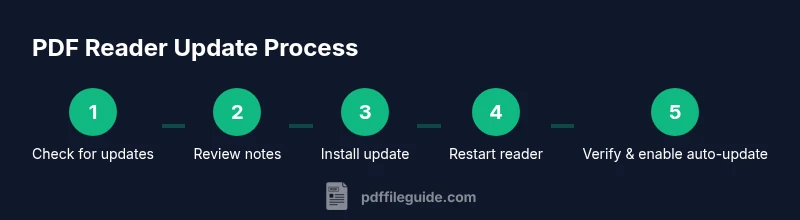
Open PDF reader and check for updates
Launch the reader and navigate to the Help or About menu to find Update. If you cannot locate it, consult the vendor's support page for instructions. This verifies whether you are already on the latest version.
Tip: If auto-update exists, enable it to simplify future maintenance. - 2
Review update details
Read the release notes or changelog to understand security fixes, new features, or potential compatibility changes. This helps you decide whether to install now or postpone.
Tip: Note any features you rely on that could be affected by the update. - 3
Choose installation method
If given a choice, select automatic installation or scheduled updates at off-peak times. For critical workflows, plan a maintenance window.
Tip: Automatic updates reduce manual steps but can surprise you with breaking changes. - 4
Install and restart
Proceed with the installation and restart the reader if prompted. Close open PDFs to prevent data loss or corruption during the restart.
Tip: Ensure all work is saved before restarting. - 5
Verify post-update functionality
Open a few representative PDFs to test rendering, annotations, forms, and signatures. Confirm that essential features perform as expected.
Tip: Run a quick test with a sensitive or secured document. - 6
Enable auto-update and document changes
Turn on auto-update to reduce future maintenance tasks. Keep a simple log of version numbers and notable changes for reference.
Tip: Set a reminder to review updates every quarter.
Questions & Answers
Do I need to update my PDF reader regularly?
Yes. Regular updates close security gaps, improve performance, and ensure PDF rendering remains accurate. Skipping updates can expose you to vulnerabilities and compatibility issues with newer PDFs.
Yes—regular updates protect you from security gaps and help you stay compatible with new PDFs.
Can I disable updates on my device?
Disabling updates increases risk over time. If you must, ensure you periodically check for critical security patches manually and schedule assessments.
You can disable auto-update, but you should still check for important security patches periodically.
Will updates affect how my PDFs render or interact with features?
Most updates aim to improve rendering and feature support. However, some changes may alter behavior in rare cases; test with representative documents after updating.
Updates usually improve rendering and features, but test on important files after updating.
What if an update breaks a feature I rely on?
If a feature breaks, check release notes, revert if possible, and contact the vendor support. Often, vendors provide patches or workarounds in subsequent updates.
If something breaks after an update, review notes and contact support for a fix.
How do I update on Windows vs macOS?
Windows and macOS both offer in-app update options or standalone installers. Follow the vendor’s guidance for your OS, ensuring you have admin rights.
Updates differ by OS; use the vendor’s in-app updater or installer and have admin rights.
Is auto-update safe for corporate devices?
Auto-update can be convenient in corporate environments but may require change-control processes. Test updates in a controlled environment before wider rollout.
Auto-update can help, but test first in controlled environments.
Watch Video
Key Takeaways
- Update PDFs regularly for security and compatibility.
- Enable auto-update when appropriate.
- Review release notes before upgrades.
- Test updates on representative documents.