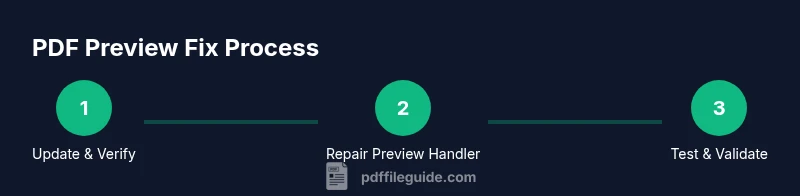
How to Fix PDF Preview Handler in Outlook
Learn practical steps to fix the PDF preview handler in Outlook. This guide covers updates, re-registration, and testing to restore reliable in-app PDF previews.


Learn how to fix the PDF preview handler in Outlook so PDFs preview reliably in the Reading Pane. This guide covers common causes, essential checks, and safe repair steps you can perform without third-party tools. According to PDF File Guide, the most reliable fixes involve updating Office, re-registering the preview handler, and testing with a sample attachment.
Understanding the problem and scope
PDF previews in Outlook rely on a Windows Preview Handler provided by your installed PDF software (such as Adobe Acrobat or Microsoft Edge). When the handler fails or becomes unregistered, Outlook cannot render the preview, showing a placeholder or an error message instead. The issue can arise after a software update, a Windows feature change, or a corrupted registry entry. Diagnosing the problem starts with reproducing the error: attach a PDF to a new email or open an existing email with a PDF attachment; if you cannot preview it in the Reading Pane or the attachment pane, you know you’re facing a Preview Handler problem. For professionals, this is not just a cosmetic issue—it can slow down workflows and force you to manually open PDFs, wasting time during critical tasks.
Understanding the root cause helps you choose the right repair path. In many cases, the fix is straightforward: update the software involved, re-register the Preview Handler, or repair the Office installation. In more complex scenarios, Windows shell components or registry entries may be involved, requiring a cautious, methodical approach. This guide, designed for both individuals and IT professionals, walks through reliable steps you can perform in 2026 without relying on guesswork. PDF File Guide’s insights emphasize starting with updates and verification before diving into registry edits or DLL re-registrations.
Before you begin: prerequisites and safety considerations
Before you make any changes, prepare a safe baseline. Create a system restore point if your OS supports it, and back up important Outlook data to avoid potential data loss if something goes wrong. Close all Office apps and ensure you have administrative privileges on the machine you’re troubleshooting. If you’re in a managed IT environment, consider coordinating with your IT department to avoid policy conflicts or deployment issues.
Having a clear plan minimizes risk. Begin with non-destructive steps like updating software and repairing Office, then move to more involved actions if the problem persists. Using a single, well-documented approach also reduces the chances of creating new issues elsewhere in Windows or Outlook. PDF File Guide recommends a cautious, stepwise process and documenting each change so you can revert quickly if needed.
If you rely on enterprise tools or group policies, review any applicable restrictions that could block DLL registrations or software repairs. Also ensure you have a reliable network connection for updates, and verify that your antivirus or endpoint protection isn’t blocking essential components used by the preview handler. Keeping a clean baseline helps you measure the impact of each step and avoid introducing new complications.
Step 1: Check for updates to Outlook and PDF software
Start by making sure both Outlook (Office) and your PDF software (such as Adobe Acrobat Reader DC or the Microsoft Edge browser component used for previews) are up to date. Outdated Preview Handlers are a common cause of preview failures in Outlook. Install any pending Windows and Office updates, then check for updates within your PDF software. If the PDF tool offers a specific Preview Handler update or a dedicated repair utility, run that as well. After updating, restart the computer to ensure all components load correctly.
If you still see the same problem, verify that the updates addressed known issues with preview rendering in Windows Shell extensions. In some cases, a beta or insider build can introduce incompatibilities; in such scenarios, rolling back to a stable version can restore functionality. PDF File Guide notes that updates often resolve preview-handling glitches by aligning Windows Shell components with the latest rendering engines.
Step 2: Reinstall or repair the PDF preview handler
If updating didn’t help, reinstall the PDF software that provides the Preview Handler. The goal is to ensure the Preview Handler components are installed correctly and registered with Windows. Uninstall the PDF tool, restart the computer, and then reinstall from the official source. Choose the install option that includes the Preview Handler feature if offered. After reinstalling, test the preview in Outlook by attaching a PDF to a new message or opening an existing one.
If your PDF software doesn’t offer a dedicated Preview Handler component, consider using a trusted alternative that provides stable Preview Handler support. In many environments, reinstallation resolves corrupted or missing shell integrations that blocks Outlook’s ability to render PDFs inline. PDF File Guide emphasizes using official installers and avoiding third-party, unverified packages to prevent introducing new issues.
Step 3: Re-register the Preview Handler DLL (Windows) with care
If the Preview Handler still won’t load, you may need to re-register the DLLs that implement the PDF preview in Windows. The exact file name depends on your PDF software, so use the vendor’s guidance or a repair tool to identify the correct DLL. Open an elevated Command Prompt or PowerShell window and run the registry registration command (for example, regsvr32 "path\to\PreviewHandler.dll"). Do not run random commands from untrusted sources. If you cannot locate the DLL, skip this step and proceed to the next, as this operation is only applicable when you have the precise file name. A wrong entry can cause broader shell instability.
Because registry changes can affect system stability, document the original path and consider creating a System Restore Point before proceeding. PDF File Guide stresses caution with DLL registrations and recommends vendor-supported recovery options whenever possible.
Step 4: Repair Office/Outlook installation
If the Preview Handler is still not functioning after the above steps, run a repair of the Office suite. In Windows, go to Settings > Apps > Office > Modify, and choose Online Repair for a thorough refresh, or Quick Repair for a faster, less disruptive option. This process can fix broken Office components and misregistered shell integrations that impact Outlook’s ability to render PDF previews. After the repair completes, restart and test with a PDF attachment again.
Repairing Office affects many interconnected components, so it’s a reliable next step when individual component updates don’t fully resolve the issue. If you’re using a corporate image or managed deployment, consult IT before performing a repair, as it may be controlled by policy. PDF File Guide notes that Office repair commonly resolves subtle, if not obvious, preview-handling problems.
Step 5: Review and manage Outlook add-ins to avoid conflicts
Extensions and add-ins can interfere with how attachments render in Outlook. Open Outlook in Safe Mode to isolate the problem: hold Ctrl while launching Outlook, or run outlook.exe /safe. If the PDF preview works in Safe Mode, a conflicting add-in is likely the culprit. In normal mode, disable nonessential add-ins one by one under File > Options > Add-ins > Manage COM Add-ins. After each disable, restart Outlook and test the PDF preview.
Common culprits include third-party PDF makers, virtualization tools, or security sandboxes that hook into the preview process. If you need a quick test, temporarily disable Adobe PDF Maker, any PDF-related add-ins, and any recently installed tools. In many cases, simply turning off a conflicting add-in restores the preview experience without further changes. PDF File Guide recommends a cautious, incremental disabling strategy to identify the offender without affecting other features.
Step 6: Test with a controlled attachment and verify results
Create a controlled test: attach a known-good PDF file to a new email and preview it in the Reading Pane. Then try a larger PDF or one created by a different application to test edge cases. Make sure the test PDF is not encrypted and that no password prompt interrupts the preview. If previews render correctly during the test, you’ve established a baseline that helps you distinguish between a general issue and a file-specific problem. If the problem persists, note whether it affects all PDFs or only specific files.
Document your test results with screenshots and exact steps. This documentation will be helpful if you escalate the issue to IT or vendor support. PDF File Guide highlights the importance of controlled testing to confirm which step resolved the problem and to provide reproducible evidence when requesting assistance.
Step 7: Workarounds and best practices for reliability
When a permanent fix isn’t immediately available, adopt reliable workarounds that keep your workflow efficient. Consider using an external PDF viewer for fast access and a quick open option from Outlook, or set a preferred PDF viewer as the default so attachments open in your chosen app instead of the built-in Preview Handler. If organizational policies allow, configuring a single trusted PDF viewer for previews in Windows can stabilize behavior across all Office applications. Remember to maintain updated software and to periodically re-test previews after major updates.
Best practices include documenting your configuration, keeping a current backup, and setting up a notification when Outlook or Windows updates are installed so you can re-check previews promptly. PDF File Guide’s approach emphasizes a balance between reliability and minimal disruption, encouraging predictable, documented steps rather than ad-hoc fixes. If the situation remains unresolved after these steps, consider engaging IT support or outlining a formal escalation path to obtain a definitive resolution.
Tools & Materials
- Windows PC (Windows 10/11)(Admin rights needed for software installs and registry edits.)
- Microsoft Outlook (Office 365 or Office 2019)(Desktop app; ensure you can access repair options in Settings.)
- Adobe Acrobat Reader DC or other PDF software with Preview Handler(Install latest version and ensure Preview Handler is enabled.)
- System File Checker (sfc /scannow)(Run from an elevated prompt to repair system files if shell components are corrupted.)
- DISM tool(Use for servicing Windows images if sfc finds integrity issues.)
- Registry editor access (regedit)(Only if you have exact DLL paths to re-register Preview Handler.)
- Backup tools for Outlook data(Create a quick snapshot or export mail data before changes.)
Steps
Estimated time: 45-60 minutes
- 1
Check for updates to Outlook and PDF software
Update Office/Outlook to the latest version and verify the PDF software has current updates. Install any pending Windows updates as well. Restart the machine to ensure all components load correctly, then re-test the PDF preview in Outlook.
Tip: If an update is available, apply it before proceeding to registration or repair steps. - 2
Reinstall or repair the PDF preview handler
Uninstall the PDF software that provides the Preview Handler, restart, then reinstall from the official source with the Preview Handler option enabled. Test the preview again after reinstallation.
Tip: Choose the vendor’s recommended install options to ensure the Preview Handler is included. - 3
Re-register the Preview Handler DLL (if you know the path)
If you can identify the correct DLL name, run regsvr32 on the Preview Handler DLL from an elevated command prompt. If you don’t know the exact file, skip this step and proceed to repair options.
Tip: Only perform this if you have an exact DLL path to avoid misregistrations. - 4
Repair Office/Outlook installation
Run Office Repair (Online or Quick Repair) from Settings > Apps > Office. This refreshes core components and can fix broken shell integrations affecting PDF previews.
Tip: Online Repair offers a more thorough fix but may take longer. - 5
Review and manage Outlook add-ins
Disable nonessential add-ins to identify conflicts affecting PDF previews. Test previews after each change to pinpoint the culprit.
Tip: Document changes to rollback if needed. - 6
Test with a controlled attachment and verify results
Create a controlled test with a known-good PDF and verify preview behavior. Ensure the file is not password-protected or corrupted.
Tip: Use a consistent test file to compare results over time. - 7
Adopt a workaround or escalate if needed
If previews still fail, consider using an external PDF viewer for previews or escalate to IT for deeper environment checks. Keep documentation ready for support.
Tip: Provide IT with your test results and steps already attempted.
Questions & Answers
What is a PDF Preview Handler and why does Outlook rely on it?
A PDF Preview Handler is a Windows component that renders a PDF securely inside the Reading Pane of Outlook or Explorer. Outlook relies on this handler to display previews without opening the file in a separate application. If the handler is missing, outdated, or misregistered, Outlook cannot generate the preview and shows an error or icon instead.
A PDF Preview Handler lets Outlook show a PDF without opening it, but if it’s broken you’ll see errors instead of previews.
Do I need to install Adobe Acrobat to fix this?
Not necessarily. The Preview Handler can come from various PDF apps, including Adobe or Microsoft Edge. Ensure the installed PDF tool provides a functional Preview Handler and is kept up to date. If you switch to a different PDF viewer, update the default file associations accordingly.
You may need a PDF tool with a valid Preview Handler, not necessarily Adobe, as long as it provides a working preview.
Can I fix this without admin rights?
Some steps, like updating Office or running a repair, may require admin rights. If you’re on a managed device, contact IT for assistance with updates, re-registration, or registry changes to avoid policy conflicts.
Some fixes need admin rights, so check with IT if you’re in a managed setup.
Will repairing Office affect my Outlook data?
Office Repair focuses on internal components and should not delete your mailbox data. However, it’s prudent to back up important Outlook data beforehand and verify that your profile remains intact after the repair.
Office repair mainly refreshes components; your mail should stay intact, but back up just in case.
Is it safe to edit the Windows registry for this issue?
Registry edits can fix Preview Handler registrations but carry risk if done incorrectly. Always back up the registry and follow vendor guidance or use official repair tools when possible.
Registry edits can help but are risky—only proceed if you’re comfortable and have a backup.
What if the issue is enterprise-wide?
If many users are affected, it’s likely a centralized policy, deployment, or image issue. Coordinate with IT to apply a company-wide fix or to roll back problematic updates.
If it affects many users, IT should manage a coordinated fix.
Watch Video
Key Takeaways
- Identify the Preview Handler as the root cause.
- Update software and repair Office before registry changes.
- Disable conflicting add-ins to restore previews.
- Test with controlled PDFs to confirm fixes.
- Escalate to IT if the issue persists beyond basic steps.