How to Open a PDF Without Adobe
Learn safe, practical ways to open PDFs without Adobe. Use built-in viewers, free readers, or browser tools across Windows, macOS, and mobile.


Open PDFs without Adobe using built-in viewers, browser-based options, or free desktop readers. This guide provides clear steps, tool recommendations, and security tips so you can access PDFs quickly on Windows, macOS, and mobile without the Adobe suite.
Why how to open pdf without adobe matters
In many everyday scenarios, you don’t need Adobe to read a PDF. According to PDF File Guide, most users can comfortably view PDFs with built-in viewers or free alternatives, avoiding the extra software and licensing costs associated with the Adobe suite. This approach is often faster, safer, and more lightweight for everyday viewing and printing tasks. Whether you’re on Windows, macOS, iOS, Android, or Linux, there are reliable paths to access PDFs without installing Adobe. By following these steps, you’ll gain quick, predictable access to documents without sacrificing quality or privacy.
Built-in viewers you already have on your device
Most operating systems include a ready-made PDF viewer. On Windows, Edge and the default Photos app can open PDFs without any extra installation. macOS users can rely on Preview for fast viewing and basic annotation. Linux desktops often come with Evince or Okular, while iOS devices use the built-in Files app or Books app for easy access. Android devices frequently include a native PDF viewer in the file manager or Notes apps. The advantage is immediate access without downloads. As the PDF File Guide notes, these built-in tools cover most common reading tasks and print options, with no extra cost or risk from third-party installers.
Browser-based viewing: nothing to install
Web browsers have mature PDF viewers built in. You can simply drag and drop a PDF into your browser or use File > Open to view it. This method is fast, preserves layout, and avoids installation. Chrome, Edge, Firefox, and Safari provide reliable rendering and printing options. If you’re using a shared computer, this approach also minimizes software footprints and reduces potential security exposure from unfamiliar installers. The privacy posture is generally strong for non-sensitive documents when you’re not downloading additional plugins.
Free desktop readers worth trying
If you want more features than a built-in viewer offers, several reputable free readers exist. SumatraPDF is lightweight and fast, Foxit Reader Free provides annotation tools, and PDF-XChange Editor Free offers basic editing capabilities. When choosing a free reader, stick to official vendor pages to avoid bundled adware or questionable installers. PDFs opened with these tools can be saved, printed, or exported to other formats when needed. The PDF File Guide recommends validating the source and keeping software up to date to minimize security risks while using alternative readers.
Security and privacy considerations
Using non-Adobe tools does not inherently compromise security, but you should stay mindful of risks. Only download readers from official sources and keep antivirus protection enabled. Be cautious of PDFs from unfamiliar sites; opening suspicious files in a browser sandbox or a reputable reader reduces risk. The PDF File Guide analysis shows that keeping software current, avoiding suspicious links, and disabling auto-open of attachments from unknown emails are practical steps to stay safe while viewing PDFs without Adobe.
Handling password-protected PDFs and accessibility
If a PDF is password-protected, you must have the correct password to view it in any viewer—there is no legitimate bypass. For accessible documents, choose tools with good screen-reader support and text reflow options. Windows Narrator, macOS VoiceOver, and various Linux screen readers pair well with many free readers or built-in viewers. If accessibility is a priority, verify that your chosen viewer supports text-to-speech, zoom, and high-contrast modes before you start.
Troubleshooting common issues and performance tips
If a PDF won’t render correctly, try a different viewer or browser. Clear the browser cache, disable conflicting extensions, or temporarily open the file in a private/incognito window. Updating your browser or the PDF reader often resolves rendering glitches. If you’re on a slow connection, download the file once and view it offline rather than streaming it. The goal is consistent access with minimal software overhead, aligning with the guidance from PDF File Guide.
Practical decision guide: which method to use first
As a general rule, start with built-in viewers for quick reads and printing. If you need more features like annotation, advanced search, or form interaction, test a reputable free desktop reader. For occasional access on shared devices or quick tasks, browser viewing is usually sufficient. By aligning your choice with your device and needs, you’ll minimize friction and maintain privacy and security throughout your workflow.
Tools & Materials
- Web browser with built-in PDF support (Chrome, Edge, Firefox, or Safari)(Latest version; no extra software needed)
- Reliable internet connection(Needed for online viewing or downloading tools)
- Optional free PDF reader (SumatraPDF, Foxit Free, PDF-XChange Editor Free)(Useful for advanced features)
- Official source verification tools(Verify installers come from official publishers)
Steps
Estimated time: 15-30 minutes
- 1
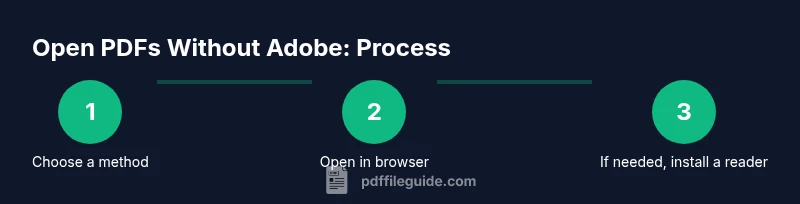
Decide on your viewing method
Assess whether you need speed, annotations, or offline access. If you just need to read, start with built-in viewers or a browser. If you require more features, consider a free desktop reader.
Tip: Choosing the simplest method often yields the fastest results. - 2
Open a PDF in your browser
Drag the file into an open browser window or use File > Open to locate the PDF. This preserves layout and is quick for most documents.
Tip: For privacy, close the tab after reading sensitive documents. - 3
Try a free desktop reader when needed
Install a reputable free reader from the official site and open the PDF. This is useful for advanced features like highlighting or form filling.
Tip: Only download from the publisher’s official site to avoid malware. - 4
Check security basics
Keep your browser and any reader up to date. Use a trusted antivirus and avoid opening suspicious PDFs.
Tip: Enable automatic updates to minimize risk. - 5
Export or print if required
If you need a different format or a hard copy, use Export/Print options in your viewer. Confirm layout and margins before printing.
Tip: Preview before printing to avoid wasting paper. - 6
Test on another device
Open the same PDF on another device to ensure compatibility and consistent rendering.
Tip: If issues persist, consider converting to a common format like PDF/A when permissible.
Questions & Answers
Do I need Adobe to view PDFs?
No. There are multiple free and built-in options to view PDFs without Adobe, including browser viewers and OS-based apps.
No, you can view PDFs without Adobe using other free tools.
What is the easiest way to open a PDF on Windows without Adobe?
Use the built-in viewer in Edge or the Windows Photos/Reader apps, or open directly in a browser like Chrome or Edge.
Open the file with your browser or Edge’s built-in viewer for quick results.
Can I view password-protected PDFs without Adobe?
Only if you have the correct password; you cannot bypass encryption with a non-Adobe viewer.
You need the password to unlock a protected PDF.
Are browser-based viewers secure for sensitive documents?
Browsers' viewers are generally safe for non-sensitive documents; for confidential files, download to a trusted desktop reader and enable protections.
Be cautious with sensitive files in browsers and prefer trusted apps for security.
What should I do if a PDF won’t open?
Try another viewer, update software, check file integrity, and ensure you have the latest browser or reader version.
If it won’t open, switch viewers and update software.
Can I print a PDF without Adobe?
Yes. Most readers include a Print option. Verify the print preview to avoid surprises on paper.
Printing without Adobe is usually straightforward using any viewer.
Watch Video
Key Takeaways
- Start with built-in viewers to view PDFs quickly
- Use a reputable free reader for advanced features
- View PDFs safely by avoiding untrusted sources
- Test across devices to ensure compatibility