How to Split a Long PDF into Pages
Learn how to split a long PDF into pages using desktop or online tools. This step-by-step guide covers methods, preparation, quality checks, and troubleshooting to preserve bookmarks and metadata.


Split a long PDF into pages or page ranges using desktop software or online tools. Start by opening the file, choosing a split method (single pages or ranges), and saving each segment as a new PDF. This guide covers universal workflows, bookmarks, and metadata preservation.
Why splitting long PDFs is common in professional workflows
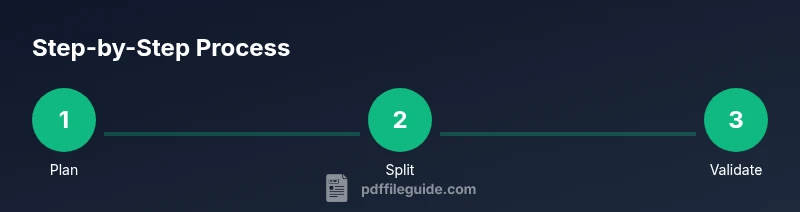
According to PDF File Guide, splitting long PDFs is a routine task for researchers, educators, and administrators. It helps with distributing materials, creating chapter-based archives, or preparing documents for targeted sharing. When you tackle 'how to split long pdf into pages', there are multiple viable workflows depending on your end goals: single-page outputs for scanning, or chunking into multi-page sections for review. The key is to preserve essential structure such as bookmarks, internal links, and metadata. In practice, the most reliable results come from tools that let you export page ranges directly or specify a custom page list. In professional environments, controlling the split at the file level reduces the risk of misordered pages and broken links. Before you start, decide how you'll name the resulting files and where you'll store them. A consistent naming convention makes it easier to locate specific sections later. Also consider whether you need to maintain annotations, form fields, or accessibility tags, because some tools handle these differently. If your PDF is part of a regulated workflow, plan a verification step to confirm that the output files match the source in terms of page count and critical metadata.
Choosing the right method: page-by-page vs range extraction vs bookmarks
Different splitting scenarios call for different methods. Page-by-page splitting is straightforward when every page becomes a separate file, such as when distributing chapters from a report. Range-based splitting is efficient for grouping sections (e.g., pages 1-10, 11-20) and is ideal when documents follow a clear structure such as chapters or appendices. Bookmark-based splitting uses the document's existing navigation structure to determine splits, which helps preserve user-friendly navigation in the resulting files. When choosing a method, assess: Do I need each page as its own file, or are the pages logically grouped? Will the job require maintaining bookmarks or internal links? Are there security concerns that make online tools less suitable? In many professional contexts, combining range-based splitting with bookmarks yields the best balance of accuracy and efficiency. Always run a quick validation after the split to confirm that each output file contains the expected pages and that navigation remains intact.
Desktop tools vs online services: pros and cons
Desktop tools offer deeper control, offline reliability, and better support for bookmarks, internal links, and metadata preservation. They reduce privacy risks since your files never leave your device. Online services are convenient for quick tasks or when you don’t want to install software, but they introduce privacy considerations, file-size limits, and potential data handling concerns. If you must use an online option, choose reputable services with clear privacy policies and delete your files promptly after processing. For sensitive material, prefer desktop workflows and encrypted storage. In either case, be mindful of how the tool handles annotations, form fields, and accessibility tags, as these can be affected by the split operation.
Preparation steps before splitting
Before you split a long PDF, create a safe baseline: back up the original file to a separate storage location, verify the document isn’t password-protected, and confirm you have enough disk space for all resulting files. Note the document structure: bookmarks, links, and metadata, so you can prioritize preserving them. Decide naming conventions for outputs (e.g., DocumentName_Range_001-010.pdf) to keep files organized. If you’re using a desktop editor, check whether you need to enable a specific split feature or export option. If you’re leaning toward an online tool, read the privacy policy and terms of service to ensure data safety. Finally, perform a quick test with a small sample (e.g., a 5–10 page section) to confirm the chosen method delivers the expected results.
How to preserve structure and metadata during split
Preserving bookmarks, internal links, and metadata is a common challenge when splitting. Start by choosing a tool that explicitly supports bookmark retention or range-based export with navigation intact. After splitting, verify that the top-level bookmarks still correspond to the main sections and that internal links in each output file remain clickable. Metadata such as author, title, subject, and keywords should be preserved if the tool copies document properties during export. If a tool strips metadata, you may need to re-embed it manually or use a post-processing script. For accessibility, ensure that any tagging or reading order remains logical in the resulting files. If you rely on form fields, test whether fields keep their positions and properties after the split.
Common scenarios and examples
A common scenario is splitting a 200-page report into 20-page sections for review. Use a page-range method (1-20, 21-40, etc.) and enable folder-level organization. Another scenario is splitting a book-length document by chapters using bookmarks as the split points; this keeps the navigation intuitive in each file. A third scenario is creating individual pages for archiving or distribution when each page must be a standalone file for scanning or indexing. For all scenarios, aim to maintain a consistent naming schema and verify that each file contains the expected page range and navigational structure.
Post-split validation and quality checks
After splitting, perform a quick quality check on the outputs. Confirm that the total number of pages across all outputs matches the source document. Open representative files to ensure pages are in the correct order and that there are no missing or duplicated pages. Check that bookmarks, hyperlinks, and metadata appear as expected in at least the major sections. If you split by ranges, verify each file begins and ends on the intended pages. For batch processes, run a spot-check on several outputs rather than every single file to save time while maintaining confidence. Finally, compare a sample of the split results against the source to confirm fidelity and accuracy.
Troubleshooting and caveats
Be aware of password protection, which can block splitting unless you have authorization or the password. Some lightweight tools may not retain bookmarks or links, so test a small sample first. Large PDFs can be memory-intensive; if you encounter crashes, try splitting in smaller chunks or using a different tool. Some tools embed fonts differently or reset reading order, so always validate accessibility and re-check metadata after the split. If links break, consider using a tool that re-creates or preserves cross-file hyperlinks during extraction. In regulated environments, document the tool versions and settings used for reproducibility.
Tools & Materials
- Computer or device capable of running PDF software(Modern systems with at least 8 GB RAM recommended)
- Desktop PDF editor or PDF tools(Feature: split/export pages, preserve bookmarks and metadata)
- Backup storage (external drive or cloud)(Always back up the original file before splitting)
- Stable internet connection (for online tools)(Only if you plan to use a web-based splitter)
- Sufficient disk space for outputs(Ensure you have space for all resulting PDFs)
Steps
Estimated time: 25-45 minutes
- 1
Open the PDF in your chosen tool
Launch the PDF editor or online splitter and load the document you want to split. Ensure you’re working with a local copy if using online tools, to avoid altering the original file.
Tip: If the file is large, give the program time to load; don’t rush the import. - 2
Select the split mode
Choose between single-page outputs or page-range splits. Some tools offer bookmark-based split as an option; select the method that matches your goal.
Tip: For review workflows, range-based splitting often reduces the number of files while preserving structure. - 3
Define page ranges or targets
Enter the specific page ranges (e.g., 1-10, 11-20) or choose to export every page as an individual file. Specify the output naming pattern to keep files organized.
Tip: Use a naming template that includes the document name, range, and sequence number. - 4
Configure output settings
Set the destination folder, decide whether to preserve bookmarks/links, and confirm whether metadata will be retained in each file.
Tip: If preserving bookmarks is essential, double-check that the option is enabled before starting. - 5
Run the split
Execute the operation and wait for the tool to generate the new PDFs. Avoid interrupting the process to prevent corrupted outputs.
Tip: For very large documents, consider splitting in batches to minimize risk. - 6
Perform a quick validation
Open a sample of the resulting files to verify page order, presence of all pages, and the integrity of bookmarks and links.
Tip: Cross-check the total pages against the original to ensure nothing was lost.
Questions & Answers
What is the best method to split a long PDF into pages?
There isn’t a single best method; choose based on whether you need individual pages, grouped ranges, or preserved bookmarks. Run a quick validation after splitting to ensure accuracy.
There isn’t a single best method; choose based on your needs and verify the results after splitting.
Can I preserve bookmarks when splitting a PDF?
Many tools offer bookmark preservation as an option. If it’s critical, test with a small sample first and use a tool known to retain navigation structures.
Yes, but not all tools preserve bookmarks. Test a sample first.
How do I split a PDF into specific page ranges?
Choose range-based splitting and input the exact page ranges you want (e.g., 1-10, 11-20). Save each range as a separate file with a clear naming convention.
Use range-based splitting and name files clearly.
What if the PDF is password protected?
You must obtain permission or the password from the document owner. Without access, splitting is not possible with standard tools.
If it’s password protected, you’ll need the password or permission to split.
Will online tools always preserve all metadata?
Not always. Some online tools strip or fail to preserve certain metadata. Prefer desktop tools for critical metadata retention and verify after splitting.
Online tools may not preserve all metadata; desktop tools are safer for important data.
Watch Video
Key Takeaways
- Plan output naming and storage before starting
- Choose page-by-page, range-based, or bookmark-based splits based on goals
- Verify page counts and metadata after splitting
- Preserve bookmarks and links when possible