How to Tell if a PDF Has Been Edited
Learn fast checks to determine if a PDF has been edited, including metadata, signatures, and content comparisons. This practical troubleshooting guide from PDF File Guide helps professionals protect document integrity.


The quickest way to tell if a PDF has been edited is to inspect metadata and compare the document against a known original using a diff tool, then check for digital signatures or document integrity indicators. If anomalies appear, proceed with deeper checks like font consistency and object-level analysis.
What It Really Means When a PDF Has Been Edited
In the world of document workflows, a PDF being edited can mean many things—from small font tweaks to content reflow. For professionals, the question isn't just whether changes exist, but where and how they were made. The primary keyword here is 'how to tell if pdf has been edited'; understanding the signs that indicate edits helps protect legal validity, audit trails, and client trust. The authoring and PDF production processes leave telltale traces, and recognizing them can save hours of manual sifting. According to PDF File Guide, robust checklists and reliable tools are essential when you suspect manipulation. By combining these indicators, you can decide whether to pursue deeper forensic analysis or re-create the document from a trusted source. PDF File Guide analysis shows that many edited PDFs slip past casual viewers when signatures are not verified, underscoring the need for a structured workflow. This section lays the groundwork for a practical, action-oriented approach that you can implement today.
Quick Visual and Metadata Clues You Can Check
A fast screen-level scan often reveals edits without needing specialized software. Look for unusual changes in the document properties, such as modified dates, author fields, or creator software inconsistencies. Small mismatches in font embedding, missing images, or altered page layouts can also hint at edits. Use your PDF viewer's properties panel to inspect the version, encryption settings, and any attached files. Remember that metadata can be misleading if someone manually edits the file; treat it as a clue, not proof. PDF File Guide emphasizes verifying with a baseline copy and, when possible, a signed version of the file for comparison. This low-friction check helps you triage quickly and decide if deeper analysis is warranted. In many cases, metadata alone cannot prove edits, but it can point you toward the most suspicious areas that demand closer inspection.
Using Metadata, Signatures, and Authentication to Verify Integrity
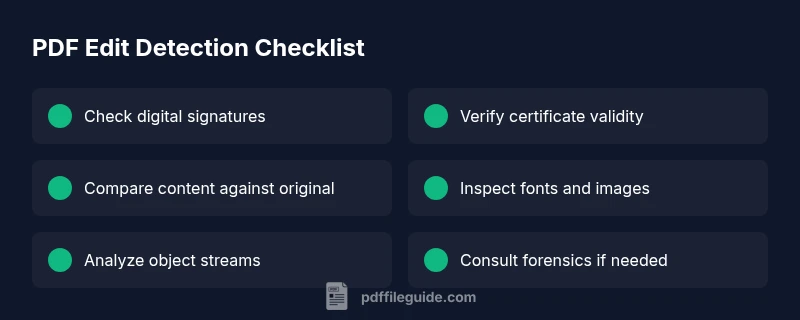
Digital signatures and certificates are designed to detect post-signing edits. If a signature is present, check its validity and the certificate chain. A valid signature means the file was not altered after signing, while an invalid or missing signature raises red flags. In some cases, a document can be edited and re-signed, which undermines trust; this is why you should also review the signing timestamp and any timestamp authority data. When signatures are absent, you must rely on content-based checks and forensic techniques described by PDF File Guide to confirm authenticity. Always verify the signing workflow against organizational policy to ensure you are applying the correct standards. The presence of a signature is not a universal guarantee of integrity if the signing process or a subsequent re-sign occurs, so treat signatures as one data point among many.
Content and Structure Clues: Fonts, Images, and Objects
Edits often leave traces in the content stream, font substitutions, or re-embedded images. Compare the visible text with what you expect from the source; look for garbled characters, hyphenation changes, or inconsistent line breaks. Examine font names, embedded subsets, and font mapping across pages; unexpected fonts can indicate edits. Inspect images for resolution changes or compression artifacts that differ from the rest of the document. If you suspect modifications at the object level, you may need specialized tools to view and compare the PDF objects and streams. PDF File Guide recommends a methodical approach: isolate suspect sections, then verify with original materials if available. This section helps you identify concrete areas where edits are most likely to occur.
Hands-On Verification: Tools and Stepwise Checks
This practical section walks you through real-world checks you can perform without immediately resorting to forensic software. Start with your PDF viewer's built-in comparison features to pull out text differences page by page. If your viewer lacks a diff tool, export the text content and run a line-by-line comparison. For deeper checks, use command-line or GUI tools that can compare font embeddings, image metadata, and object streams. Capture screenshots of suspect pages for side-by-side review. Preserve the original copy to ensure you have an unaltered baseline, and log all steps taken for auditability. This hands-on workflow aligns with the recommendations from PDF File Guide and helps you build a defensible assessment in a timely manner.
When to Escalate: Forensics and Professional Help
When the document's integrity has legal or compliance implications, or if you cannot confirm edits with confidence, escalate to a professional forensics service. Document the steps you took, preserve metadata, and keep multiple copies of the files at different stages. For critical workflows, establish a standard operating procedure for PDF integrity checks so you can respond quickly in the future. The goal is not to prove edit certainty in a casual moment but to build a reliable, auditable trail that stands up to scrutiny. The PDF File Guide team recommends adopting a formal verification process to minimize risk.
Steps
Estimated time: 20-40 minutes
- 1
Open document properties and baseline
Start by opening the PDF's properties to note the creator, producer, version, and timestamps. Compare these against your baseline original. If the baseline differs in key fields, you may be dealing with edits or a re-export. Document any discrepancies before moving on.
Tip: Keep a side-by-side screenshot of property panels for reference. - 2
Check digital signatures and certificates
If a signature exists, verify its validity and examine the certificate chain. Note whether the timestamp aligns with the signing event and whether any revocation data is present. If the signature is invalid or absent, flag this as a high-priority indicator.
Tip: If you suspect tampering, do not rely on a signature alone—combine with content checks. - 3
Export and compare textual content
Extract text from suspect pages and compare with the original using a diff tool or textual comparison. Look for lost paragraphs, altered wording, or reflowed text. Keep a log of differences and map them to potential edit sites.
Tip: Export both texts with identical encoding to avoid false diffs. - 4
Analyze fonts and images
Inspect embedded fonts for substitutions or unusual subsets. Check images for resolution shifts or compression artifacts inconsistent with the rest of the document. Such anomalies can signal post-edit changes.
Tip: Document any font or image anomalies with exact page coordinates. - 5
Inspect PDF structure and object streams
If you have technical fluency, inspect the PDF object tree, cross-reference table, and streams for anomalies in ordering or content injection. Tools that expose objects can help you isolate suspect regions without altering the file.
Tip: Work on a copy to avoid accidental modification during inspection. - 6
Decide next actions and preserve evidence
Based on findings, decide whether to re-create the document, request an original, or engage forensics. Ensure you preserve evidence, document steps, and keep all versions securely stored.
Tip: Establish an auditable trail so findings are defensible in audit or legal settings.
Diagnosis: Document integrity concerns: user suspects a PDF has been edited.
Possible Causes
- highModified content or object streams since original creation
- mediumAltered metadata (dates, author, software) without signatures
- lowMissing or invalid digital signature / certificate
Fixes
- easyCheck digital signatures and certificate validity using the PDF viewer's tools
- easyCompare current content with the original using a diff or content-extraction tool
- mediumInspect fonts, images, and embedded objects for inconsistencies
- hardRun forensic analysis with specialized PDF forensics software or services
Questions & Answers
Can a PDF appear unchanged even if it has been edited?
Yes. Edits can be subtle or occur in areas not captured by casual viewing. Use a combination of metadata checks, signature verification, and content diffing to uncover hidden changes.
Yes. Edits can be subtle; use metadata checks, signatures, and content comparisons to uncover changes.
Is metadata a reliable indicator that a PDF was edited?
Metadata can be altered without changing content. Treat it as a clue rather than proof of edits. Use it alongside signatures and content checks for a fuller picture.
Metadata is a clue, not proof. Combine with signatures and content checks for accuracy.
What if a PDF has a valid signature but I still suspect edits?
A valid signature generally means no changes since signing, but advanced scenarios exist where re-signing occurs. Check the signing timestamp and the certificate chain for integrity.
A valid signature usually means no edits since signing, but re-signing can complicate things. Verify timestamps and certificates.
Which tools should I use for detecting edits?
Use a mix of built-in PDF viewer tools, text diff utilities, and, when needed, forensic PDF analysis software for object-level checks.
Use viewer tools, text diffs, and forensic analysis for deeper checks.
When should I hire a professional forensics expert?
If the document is legally sensitive or if your checks are inconclusive, engage a professional for a formal forensic examination and documented findings.
Hire a professional if the document is legally critical or inconclusive.
Watch Video
Key Takeaways
- Verify digital signatures and certificate validity first.
- Compare current content with the original for differences.
- Inspect fonts and embedded objects for inconsistencies.
- Preserve a clear audit trail for legal defensibility.