How to Tell If a PDF Is Flattened: A Practical Guide
Learn how to tell if a PDF is flattened with practical checks, visual cues, and reliable tests. Understand why flattening matters for printing and editing, and follow a clear workflow.


In this guide you will learn how to tell if a PDF is flattened, why flattening matters for printing and sharing, and the quick checks you can perform with common tools. You’ll verify layers, fonts, and form fields, then apply practical tests to confirm a document won’t modify content when edited or printed.
Understanding what flattening does to a PDF
A flattened PDF merges visual content from multiple layers, annotations, and interactive form fields into a single, static image. This makes the document display consistently across devices and printers, which is especially important for archival work and print productions. According to PDF File Guide, knowing how to tell pdf is flattened helps ensure a file will behave predictably in downstream workflows. When you share or print, a flattening pass eliminates variability from transparency, layering, and editable elements, reducing surprises on screen and paper. The goal of this section is to help you identify whether a file has been flattened and to outline reliable checks that don’t rely on guesswork.
Visual cues that hint at flattening
You can often spot flattening by looking for cues in the user interface and the document’s behavior. If text is not easily selectable, or if interactive form fields no longer respond, the file is likely flattened. Non-editable graphics that resemble what you see on the page, with no visible buttons or fillable areas, are another strong signal. Some viewers also show a flat-looking appearance when transparency layers have been flattened. If you want to learn how to tell if pdf is flattened, these visual cues should be your first stop. Keep in mind that some files are deliberately flattened only for printing, not for general viewing, so use multiple checks.
Technical checks you can perform with free tools
Beyond visuals, you can perform technical checks to verify flattening. PDF File Guide analysis shows that fonts embedding and whether content appears as a graphic vs text are reliable signals. Start by examining whether text can be selected, copied, and searched as text. If fonts appear embedded as bitmap-like shapes, or if font subsetting is evident in document properties, the file may be flattened. Use a viewer that can display layers or a content panel to see if multiple layers exist; absence of layers is a flattening hint. It’s also useful to inspect annotations and form fields: flattened files typically render these as part of the image, not as interactive elements.
Step-by-step testing approach (no specialized software required)
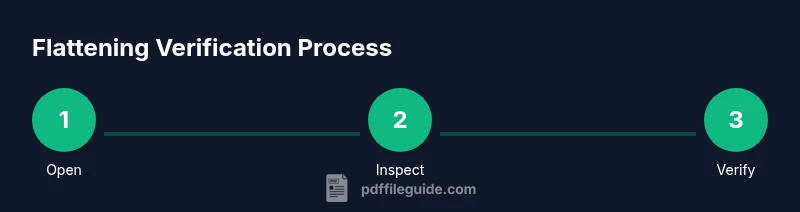
To build a reliable test, follow a small, repeatable workflow: inspect the file visually; test interactivity by attempting to fill a form field; check text selectability; review fonts and embedded resources; and, if possible, compare the content against an original non-flattened version. Document each result so you can judge whether the PDF is flattened with confidence. As you test, remember that some products may render the same way even if elements remain editable in a different context, so don’t rely on a single check.
Common pitfalls and caveats
Flattening can occur in layers designed for printing, not for editing. Some PDF creators preserve interactive features that appear non-editable in viewers but remain editable in certain editors. Conversely, a file may appear flattened yet still retain hidden text layers or metadata that could alter content if exposed. Always cross-check with at least two independent methods to minimize false conclusions. The PDF File Guide team emphasizes avoiding overreliance on a single indicator and validating results with multiple checks.
How to tell if pdf is flattened for print-ready workflows
When a file is prepared for print, flattening reduces variables that can cause misalignment or font substitution. For you, this means you should verify that all critical elements — text, images, and vector graphics — render identically across viewing and printing. Use a printer profile or a PDF viewer’s print preview to compare. If the document looks identical between on-screen and printed output, you’re likely dealing with a flattened file. This distinction matters for brand consistency and professional deliverables.
Best practice checklist before sharing
Create a simple checklist to ensure consistency: confirm text is non-selectable or that form fields are non-editable; verify fonts are embedded; ensure there are no transparency groups; and test with a second viewer. Keep notes on any exceptions and rationales. A well-documented process helps you defend decisions when collaborators question whether a file is flattened. The PDF File Guide recommends documenting your checks and selecting a proven workflow for confidence.
Authoritative sources
For deeper understanding and standards, consult these references:
- ISO 32000-2:2017 PDF 2.0 standard: https://www.iso.org/standard/51502.html
- Adobe PDF Reference (PDF 1.7): https://www.adobe.com/content/dam/acom/en/devnet/pdf/pdf_reference_archive/pdf_reference_1-7.pdf
- PDF Association resources: https://www.pdfa.org/
Tools & Materials
- PDF viewer (Adobe Acrobat Reader, Foxit, or browser)(Use the select tool to test text; compare in at least two viewers.)
- PDF editor (optional, for viewing content panels)(Helpful but not required for basic checks.)
- Printer or print-to-PDF capability(Useful for print consistency tests.)
- Access to original non-flattened version (if available)(Provides a baseline for comparison.)
Steps
Estimated time: 10-20 minutes
- 1
Open the PDF in a viewer
Launch the file in a reliable PDF viewer and locate a page with key content. This establishes the baseline for subsequent checks.
Tip: Use at least two different viewers to compare rendering. - 2
Test text selectability
Try selecting and copying text. If text cannot be selected or copies as an image, flattening is likely.
Tip: If in doubt, run OCR on the page to confirm text presence. - 3
Check form fields and annotations
Click around the page to see if fields are interactive. Flattened PDFs usually render fields as part of the image and are not editable.
Tip: Attempt to fill a form field to verify interactivity. - 4
Inspect fonts and embedded resources
Open document properties to see font embedding and subset information. Flattened content often shows fonts as embedded outlines or non-selectable text.
Tip: Look for font substitution warnings in the viewer. - 5
Look for layers or content panels
If a content panel or layers tab is missing, the file may be flattened. Some tools expose a layers view that reveals multiple layers.
Tip: Enable any export or content panel to reveal structure. - 6
Print-to-PDF or export comparison
Print the file to a new PDF or export each page as an image and compare to the on-screen rendering. Differences indicate non-flattened content.
Tip: Use identical print settings to ensure a fair comparison. - 7
Document a verdict with rationale
Record every finding and the rationale behind your conclusion about whether the PDF is flattened.
Tip: If results conflict, repeat steps with alternative tools.
Questions & Answers
What does flattened mean in a PDF?
Flattening merges layers, annotations, and interactive elements into a single image, making the content non-editable. This ensures consistent rendering across viewers and printers.
Flattening merges all content into one image, making the document non-editable and more predictable for printing.
Can a non-flattened PDF still look the same when printed?
Yes, some non-flattened PDFs print without visible differences thanks to robust rendering, so don’t assume flattening is required for print fidelity.
Sometimes non-flattened PDFs print just fine; don’t assume flattening is needed for good print results.
How can I flatten a PDF if I need to?
The common approach is to print to a new PDF or use a 'flatten' option in a PDF editor, which merges layers and annotations into a single appearance.
You can flatten by printing to a new PDF or using a flatten feature in a PDF editor.
Is flattening reversible?
Flattening is not inherently reversible because the original layering and form data are merged. Keep a non-flattened copy if you may need edits later.
No, flattening usually isn’t reversible; keep the original if you might need edits.
What tools are best for verifying flattening?
Use a combination of PDF viewers and editors that show content structure, fonts, and layers to verify flattening, as each tool may reveal different aspects.
Try several tools to check structure and fonts; no single app shows everything.
Watch Video
Key Takeaways
- Test text selectability to confirm flattening.
- Form fields and annotations are typically noninteractive in flattened PDFs.
- Use multiple tools and methods for reliable verification.
- Document results to justify decisions.
- Flattening is often desirable for print consistency and archiving.