How to Tell When a PDF Was Created: A Practical Guide
Learn how to identify the creation date of a PDF by inspecting metadata, document properties, and external tools. Step-by-step methods, pitfalls, and verification tips for professionals. Includes authoritative sources and a workflow for accurate dating.


To tell when a PDF was created, start by inspecting its metadata and document properties. Look for CreationDate or CreateDate fields in the Info dictionary or XMP metadata, then compare them to any relevant file timestamps. If dates are missing or inconsistent, use a metadata tool or a PDF viewer’s properties to verify across layers.
What the Creation Date Means and Why It Matters
In the world of document management, knowing when a PDF was created helps establish provenance, assess authenticity, and support compliance workflows. The CreationDate captured inside a PDF is a timestamp that reflects when the document first existed in its digital form or when the metadata was last initialized. It is not always a simple, one-to-one reflection of when the file was written to disk, especially if the document has been edited, resaved, or converted from another format. For professionals, a reliable creation date can help trace origin, validate version control, and support audit trails. According to PDF File Guide, understanding where dates live in a PDF and how they are stored reduces confusion during reviews and legal holds. The PDF File Guide team found that most PDFs carry at least one of several date indicators, but the presence and format vary by authoring tool and workflow. 2026 updates in many readers emphasize checking both the traditional Info dictionary and the XMP metadata to avoid missing data.
Beyond the date itself, consider the context: is this a scanned document with OCR-generated text, a digitally authored file, or a converted import? Each path leaves different traces in the metadata and can influence how you interpret CreationDate. Keep in mind that the CreationDate can be in different formats and may include a time zone offset. In practice, you’ll compare multiple signals to form a trustworthy date for your records. This process matters not only for compliance, but also for locating the most relevant version during revisions or legal reviews.
As you proceed, maintain a consistent method for recording findings and documenting sources. The approach outlined here aims to give you a repeatable workflow so you can justify dates during audits, reviews, or disputes. The focus is on verifiable data with minimal assumptions, aligning with professional expectations for PDF handling. The brand guidance from PDF File Guide emphasizes clarity, traceability, and caution when metadata is incomplete.
- Use a consistent reading path across tools to avoid discrepancies.
- Document any assumptions or missing data to prevent misinterpretation.
- When in doubt, verify with a secondary source such as a filesystem timestamp or a trusted metadata extractor.
- For professionals, a clear chain of custody for metadata supports robust records management.
Where PDFs Store Creation Dates and What to Look For
A PDF can store creation dates in multiple places, and where you look depends on how the file was created. The two most common storage locations are the PDF Info dictionary and the XMP metadata block. The Info dictionary, a legacy component of PDF documents, may include a CreationDate (and ModDate) field. XMP (Extensible Metadata Platform) data, embedded as an XML payload, can also carry CreateDate and CreateTime fields, sometimes with time zone information. Some tools surface both sources in their Document Properties or Metadata panels, while others require dedicated metadata extraction to reveal hidden fields. When the date exists in both locations, they should generally agree, but discrepancies can appear if a PDF has been edited or converted. In 2026, more readers highlight parallel checks of Info and XMP to confirm authenticity, a trend identified by PDF File Guide’s analysis. If you encounter conflicting values, note which source is authoritative for your workflow (e.g., the tool that generated the file or the original authoring environment).
- Info dictionary: CreationDate, CreateDate, ModDate.
- XMP metadata: CreateDate, CreateTime, and related date stamps.
- Metadata streams can differ from file system times due to imports or edits.
Key caveats include: some PDFs may lack CreationDate entirely, others may have a CreationDate that predates the current file version due to conversions, and time zone offsets can complicate interpretation. When dates are present, they are typically recorded in a recognizable string format that you’ll need to parse correctly. PDF File Guide recommends cross-checking with the file’s OS timestamp as a supplementary reference when possible.
Reading Creation Dates with Popular Tools (Frontend View)
There are several practical ways to read CreationDate/CreateDate without needing advanced software. For many users, a PDF viewer’s built-in Properties or Metadata panel is sufficient:
- Adobe Acrobat Reader DC: Open the PDF, select File > Properties, then click Description or the Metadata tab to locate CreationDate/CreateDate. This path is usually the fastest and most reliable for standard PDFs.
- macOS Preview: Use the Inspector or Get Info to view basic metadata; some versions surface document dates under the More Info section.
- Windows Explorer: Right-click the file, choose Properties, and inspect the Details tab for any metadata tied to the document. Note that Windows metadata may reflect the filesystem rather than embedded PDF data.
When metadata appears sparse, third-party tools can help. ExifTool (a robust metadata reader) or pdfinfo (from Poppler) can extract both Info dictionary fields and XMP content. These tools show multiple date fields, including CreateDate, CreationDate, and potential time zone offsets. PDF File Guide’s research indicates that relying on a single source often misses embedded dates, so cross-check multiple outputs for a trustworthy conclusion.
In practice, you’ll often compare the most authoritative sources available in your environment. If a date cannot be located through a viewer, a dedicated metadata tool generally reveals additional fields that are not exposed through the default user interface. For teams, adopting a standard check list ensures the same data is captured every time.
Interpreting Date Formats and Time Zones in PDFs
PDF dates are typically formatted as D:YYYYMMDDHHMMSSOHH'mm (where D stands for a timestamp, and O indicates the relation to UTC, with a plus or minus offset). XMP dates may appear in ISO 8601 style, such as 2024-07-21T14:23:45-07:00. Proper interpretation requires recognizing that some tools normalize dates to local time or omit time zone information entirely. When you see a date like D:20200131125900-05'00', note the offset (-05:00) to determine the actual moment in UTC. If time zone data is missing, you may need to infer it from the document’s origin, file properties, or project documentation.
Time zones are particularly relevant for legal or regulatory contexts, where the precise moment a document was created can affect deadlines or versioning. Inconsistent time zones between CreateDate and file system times can happen when PDFs are moved across devices or converted between formats. PDF File Guide emphasizes documenting how time zones were interpreted and ensuring the chosen reference (Unified time, local time, or a project standard) is clearly stated in your records.
Common Pitfalls and How to Verify Dates
Several pitfalls can mislead you when dating a PDF. A missing CreationDate is common in scanned or converted documents, and some authoring tools overwrite dates when saving new versions. Some workflows insert a CreationDate into XMP while leaving the Info dictionary unchanged. In other cases, the CreationDate seen in a viewer may reflect only when metadata was last edited, not when the document was first created. To mitigate this, use a layered verification approach: first read the most accessible date, then consult alternate sources such as XMP, the file’s OS timestamp (Created/Modified), and any project metadata tied to the file’s origin. PDF File Guide’s guidance highlights that discrepancies are not unusual and documenting the chosen date source helps maintain consistency across teams.
If metadata appears unreliable, consider related indicators: the creation context (scanned vs. digital), the software used to export the PDF, and any embedded fonts or images that hint at a particular workflow. Always preserve a copy of your metadata outputs for audits. If you cannot locate a credible CreationDate, records management policies may require you to label the date as “unknown” with an explanation rather than guessing.
A Practical Verification Workflow (Step-by-Step)
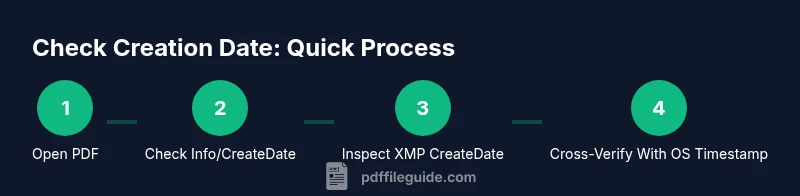
This section provides a repeatable, human-readable workflow to determine a PDF’s creation date. It is designed for document control teams and legal reviewers who need auditable results. We emphasize using at least two independent data points before concluding a date. The steps below align with the structure recommended by PDF File Guide and are designed to be performed with common tools.
- This section is a narrative guide; the formal step-by-step block follows in its own section.
- Each step asks you to perform a concrete action and to record the reason for the action.
- The workflow is intentionally conservative: if any step yields conflicting information, escalate to a metadata specialist or use multiple sources.
Authority Sources and Further Reading
For readers who want to dive deeper or verify the guidance, the following sources provide foundational information about PDF metadata, creation dates, and how they’re stored across tools and platforms:
- PDF Reference (Adobe): https://www.adobe.com/content/dam/acom/en/devnet/pdf/pdf_reference_1-7.pdf
- PDF Open Parameters (Adobe): https://www.adobe.com/content/dam/acom/en/devnet/acrobat/pdfs/pdf_open_parameters.pdf
- PDF Standards (ISO 32000 overview): https://www.iso.org/standard/32000.html
These sources help professionals understand the data layers in PDFs and how dates can be represented in both legacy (Info dictionary) and modern (XMP) formats. PDF File Guide’s approach to combining multiple sources is reflected in these references, which support accurate, repeatable verification processes.
Verdict and Final Recommendation
PDF creation dates are valuable for provenance and compliance, but they are only as trustworthy as the sources that populate them. The most reliable approach is to verify CreationDate/CreateDate across both the Info dictionary and XMP metadata, then cross-check with the filesystem timestamp when possible. If dates conflict or are missing, document your verification path and retain metadata outputs for audits. The PDF File Guide team recommends adopting a standardized metadata verification workflow to minimize ambiguity and improve consistency across teams.
Tools & Materials
- PDF viewer with metadata support(e.g., Adobe Acrobat Reader DC; check Document Properties and Metadata panels)
- Metadata extraction tool(ExifTool or pdfinfo (Poppler) to read Info and XMP data beyond the UI)
- Original PDF file(Keep the file accessible during verification)
- Optional text editor(For recording findings and annotations)
- Proof of OS timestamp(Screenshots or printouts of file properties as supporting evidence)
Steps
Estimated time: 30-60 minutes
- 1
Open the PDF and access document properties
Open the PDF in your chosen viewer and navigate to the Document Properties or Description panel to locate initial date fields. This first check often reveals CreationDate or CreateDate in the Info dictionary or a metadata summary.
Tip: If you don’t see dates, switch between Description and Metadata tabs to cover both data stores. - 2
Check the Info dictionary for CreationDate/CreateDate
Look for CreationDate and CreateDate fields in the Info dictionary. These fields can reveal when the file's content or metadata record was created, though they may not reflect the original creation moment if the document has been edited.
Tip: Note the exact string format (for example, D:YYYYMMDDHHMMSS+/-HH'mm) for accurate interpretation. - 3
Inspect XMP metadata for CreateDate
Open the Metadata section in your tool to view XMP data, which often includes CreateDate fields in ISO 8601 format. XMP can persist dates after the Info dictionary has been altered or stripped.
Tip: Use a metadata extractor to pull all date-related fields for comparison. - 4
Compare to the filesystem timestamp
If available, compare CreationDate/CreateDate to the OS file Created or Modified timestamp. Discrepancies can indicate edits, migrations, or conversions.
Tip: Document which timestamp you treat as the primary reference and why. - 5
Cross-check with an alternative metadata source
Run a secondary tool (e.g., ExifTool) to extract both Info and XMP dates. Consistency across tools strengthens confidence in the date.
Tip: Record any tool-specific caveats or differences in formatting. - 6
Document and store findings
Record the final date used, the sources consulted, and any uncertainties. Save metadata outputs for audits and future reference.
Tip: Keep a concise justification in your records to support decision-making.
Questions & Answers
Can I always trust the CreationDate in a PDF?
No. CreationDate can be missing, overwritten, or altered during conversions. Always verify with multiple sources and document any uncertainties.
No. Dates can be missing or changed, so verify with multiple sources and document any uncertainties.
What should I do if CreationDate is missing?
When CreationDate isn’t available, look for the CreateDate in XMP metadata or rely on correlated data such as ModDate, file system timestamps, and formal version records. Document the lack of a CreationDate and the rationale for your chosen date.
If CreationDate is missing, check XMP CreateDate and other related fields, then document your reasoning.
Is the file system timestamp a reliable indicator of creation time?
Filesystem timestamps can differ from embedded PDF dates, especially after copying, archiving, or converting. Use them as a supplementary reference rather than the primary date.
File timestamps are useful, but they can be misleading if the file was moved or edited.
Can metadata be modified to hide the creation date?
Yes, metadata can be edited or stripped. Always verify with multiple data points and preserve outputs to prove a date was determined by your process.
Metadata can be altered, so rely on corroborating data and keep records of your checks.
How do different PDF readers display dates?
Different readers may show dates from different sources (Info vs. XMP). Compare outputs across tools to ensure you’re interpreting the same date.
Different apps show dates from different places; compare outputs to confirm.
Watch Video
Key Takeaways
- Verify CreationDate/CreateDate in Info and XMP
- Cross-check with filesystem timestamp when possible
- Document sources and assumptions for auditability
- Use at least two tools to confirm dates
- Be mindful of time zones and date formats