How to Fix a PDF That Is Not Searchable
Discover practical steps to make a non-searchable PDF searchable again. Learn how to spot OCR gaps, apply proper text recognition, and verify results across pages.


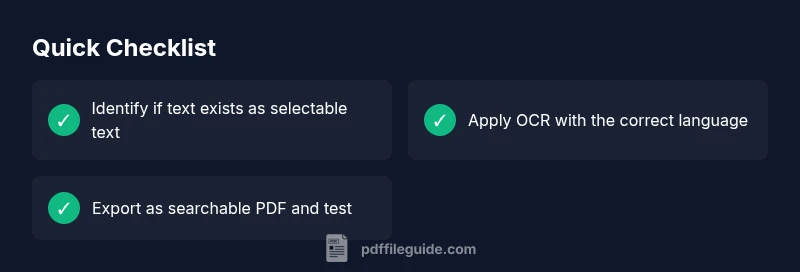
Most often, pdf is not searchable because the content is stored as images or the OCR/text layer is missing or corrupted. Quick fix: confirm whether any pages contain selectable text, run OCR with the proper language, and save a new searchable PDF. After re-export, test a search across the document to verify success.
Understanding Why PDF Is Not Searchable
According to PDF File Guide, the common reason pdf is not searchable is the absence of a text layer. When a document is scanned or created from an image, the content is stored as raster images rather than text. Without OCR, search tools cannot locate words. Without a viable text layer, the document feels readable but is opaque to search engines and indexing tools. This is not a fault of the PDF format itself but of how the content was created or exported. If you want fast searchability, you must confirm the presence of a text layer and, if needed, apply OCR to expose it. This remains a core workflow for editors who need fast access to content.
Common Causes at a Glance
- Text-only images: Many scans are captured as images; there is no underlying text to search.
- No OCR applied: Some exports skip OCR entirely, leaving a non-searchable file.
- OCR layer damaged: The text layer exists but is corrupted during export or embedding.
- Security restrictions: Some PDFs disable text selection or search, often via encryption or permissions.
- Mixed content: A document can have some searchable pages and some not; inconsistent OCR yields partial search results.
Practical Checks You Can Do Immediately
- Open the PDF in a reader and try to select and copy text. If you cannot select anything on several pages, OCR is likely needed.
- Check document properties or fonts to see if text is embedded. If the text is not selectable, you probably have an image-only page.
- Run a quick search on common words (like 'the', 'and') across multiple pages. If the search fails on all pages, OCR is required; if it works on some pages, focus on the non-searchable sections.
How OCR Turns Images into Text: A Practical Tutorial
OCR (optical character recognition) analyzes bitmap images and converts glyph shapes into actual text. When applied correctly, it creates a text layer that sits behind or alongside the image layer, enabling search and copy-paste. To maximize accuracy, choose the appropriate language, correct any misrecognized characters, and decide whether to embed the text as a separate layer or replace the image region with text. After OCR, export or save the document as a searchable PDF and verify by searching keywords.
Special Cases: Security, Fonts, and Mixed Content
Security settings can disable text search even if OCR exists. If you see a padlock icon or a permissions warning, you may need a password or to adjust restrictions to allow text selection. Font quality and color contrast affect OCR results; low-resolution scans or unusual fonts lead to poorer recognition. In mixed-content documents, ensure OCR is applied page-by-page where needed, and consider splitting the file if some sections require higher accuracy.
Preventive Practices for Future PDFs
- OCR during export: If you routinely scan documents, enable OCR as part of the export workflow and choose a language that matches the document.
- Maintain originals: Keep high-resolution scans and work on duplicates to avoid data loss.
- Validate after export: Always search for multiple keywords on several pages to confirm consistent results.
- Document permissions: Configure read permissions so text remains searchable in downstream workflows and archiving.
Steps
Estimated time: 30-60 minutes
- 1
Assess the document
Open the PDF and test if any text is selectable. If none can be selected on most pages, OCR is likely required. Note which pages lack text.
Tip: Mark a couple of pages as test cases. - 2
Choose OCR language
In your tool, select the correct document language and any other relevant languages for multilingual content.
Tip: Correct language dramatically improves accuracy. - 3
Apply OCR
Run the OCR process, choosing to embed or create a separate text layer. Do not replace images unless you intend to reflow the layout.
Tip: Preview a few pages to check recognition quality. - 4
Export as searchable PDF
Save or export the document with the option for a searchable text layer enabled. Avoid lossy formats that might strip the layer.
Tip: Choose a version name to track changes. - 5
Verify searchability
Open the newly saved file and search for several keywords across multiple pages to ensure consistency.
Tip: Test on both light and dark page backgrounds for visibility. - 6
Review security settings
Check if any permissions restrict text search; if so, adjust or remove restrictions and re-test.
Tip: Keep a copy of the original secure file for compliance.
Diagnosis: PDF is not searchable
Possible Causes
- highText is stored as images (no OCR layer)
- highOCR layer missing or corrupted during export
- mediumDocument security settings disable text search
Fixes
- easyRun OCR with proper language settings and export as a searchable PDF
- easyRe-export or save a new version ensuring the OCR layer is included
- easyCheck security permissions and remove restrictions that block text search
- mediumIf the source is a scan, re-scan at higher resolution and re-run OCR
Questions & Answers
What does 'searchable PDF' mean?
A searchable PDF contains an OCR text layer that can be selected and indexed by search tools.
A searchable PDF has text you can select and search within the document.
Why is my PDF not searchable after scanning?
If a document was scanned as an image, OCR was not applied or failed. You need to run OCR and save a new searchable PDF.
If you scanned it as an image, OCR is needed to add the text layer.
How do I OCR a PDF in a PDF editor?
Open the editor, locate the OCR function, select the document language, and export the file as a searchable PDF. Verify by searching keywords.
Use the OCR feature in your editor, pick the right language, and save as searchable.
Can I OCR encrypted PDFs?
If text search is blocked by encryption, unlock with the proper password or permissions before applying OCR.
You must unlock the file to enable OCR and search.
Will OCR degrade image quality?
OCR adds a text layer and does not alter the underlying images, though misreads can occur on poor scans.
OCR doesn’t change your images, but misreads can happen if the scan is bad.
Watch Video
Key Takeaways
- Test for a text layer before OCR.
- Apply OCR with correct language settings.
- Export as a searchable PDF and verify across pages.
- Preserve original and OCR-ed versions for records.