How to Fix a PDF That Won't Print
Learn to diagnose and fix why a pdf will not print. This step-by-step guide covers common causes, quick fixes, and prevention tips to ensure reliable pdf printing across devices.


The most common reason a PDF will not print is a conflict between printer drivers and the PDF viewer, misconfigured print settings, or restricted document permissions. Start by printing a different file to verify the printer works, then check the printer status, update drivers, and test with another viewer. If needed, export the PDF to print as an image for printing.
Why pdf will not print: understanding the core issue
When you press Print and nothing happens, the problem can feel urgent. According to PDF File Guide, many pdf printing failures begin with the basics: printer-driver conflicts, a restricted PDF, or misapplied print settings. Before blaming the document, verify the printer is online, has paper, and is not paused. If other documents print normally, the issue is likely within the PDF workflow rather than hardware. Testing with a different PDF or a different viewer helps isolate the fault quickly. In many cases, the root cause is a combination of software settings and document permissions, not a broken printer.
Quick checks you can perform before deep diving
- Ensure the selected printer is the correct one and is online.
- Print another PDF or a non-PDF file to verify the printer itself works.
- Check the print queue for stuck jobs and clear the queue if needed.
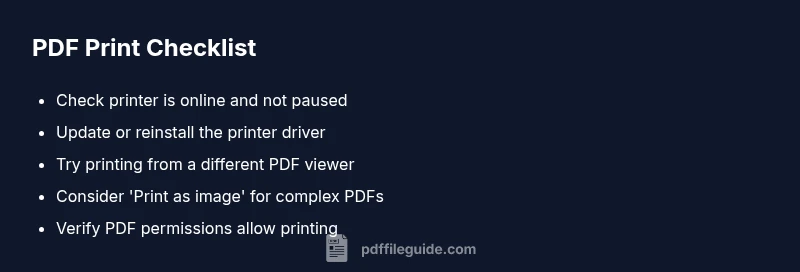
- Update or reinstall the printer driver to rule out driver issues.
- Try printing from a different PDF viewer or using a web-based viewer to test consistency.
- If the PDF has security restrictions, confirm you have permission to print.
Common causes of pdf printing failures
- PDF security settings restrict printing; permissions can be embedded by the author.
- Printer drivers are outdated or incompatible with the PDF viewer.
- The PDF viewer or OS print subsystem has a bug or misconfiguration.
- The PDF uses nonstandard fonts or large images that overwhelm the printer.
- The print spooler on the computer is stuck or corrupted.
Safe fixes to try first
- Restart both the printer and the computer to refresh the print pipeline.
- Clear the print queue and restart the print spooler service on Windows or
When to escalate and what to tell IT
If basic fixes fail, escalate to IT or the printer vendor with details: operating system, PDF viewer version, printer model, and any error messages. Provide a sample PDF that reproduces the issue, and note whether other PDFs print successfully. Escalation may involve driver rollbacks, firmware updates, or more advanced PDF permissions auditing.
Prevention: keep PDFs printing smoothly
- Keep printer drivers up to date and maintain the operating system’s print subsystem.
- Prefer standard PDF versions and avoid nonstandard fonts when preparing PDFs for distribution.
- Use print-as-image sparingly; reserve it for problematic PDFs only.
- When sharing PDFs, include lifting permissions where possible to prevent future blocks.
Steps
Estimated time: 20-40 minutes
- 1
Check printer status and basic hardware
Confirm the printer is online, not paused, and has paper/toner. Print a test page from another application to ensure the device works. If the test fails, resolve hardware or connection issues first.
Tip: If your printer is wireless, ensure it remains connected during testing. - 2
Test with another PDF and viewer
Open a different PDF and attempt to print. If it works, the problem is likely specific to the original file's permissions or encoding. If it fails, continue with driver and viewer checks.
Tip: Use a trusted viewer or the OS built-in print dialog for cleaner results. - 3
Update or reinstall the printer driver
Visit the manufacturer’s site, download the latest driver, and install it. A fresh driver often resolves compatibility issues with PDFs and various viewers.
Tip: Restart after installation to ensure changes take effect. - 4
Check PDF permissions and security settings
Open the PDF in a reader, view its properties, and verify that printing is permitted. If restricted, request an unprotected copy or obtain printing permissions from the author.
Tip: Try printing a copy of the PDF at a different security level if available. - 5
Try Print as Image or adjust rendering options
In Acrobat or similar viewers, enable Print as Image to avoid font rendering issues. If the document is graphics-heavy, this setting can bypass complex rendering.
Tip: Print as image may increase file size and printing time. - 6
Clear the print queue and restart the spooler
Cancel all pending print jobs, restart the spooler service, and re-send the print job. This resolves many stuck or corrupted queue problems.
Tip: On Windows, services.msc -> Print Spooler -> Restart. - 7
Fallback: print from another viewer or export as image
If the problem persists, use a different PDF viewer or export the file to an image for printing. This isolates viewer-specific rendering issues.
Tip: Exporting to image preserves layout but reduces text fidelity.
Diagnosis: PDF will not print
Possible Causes
- highPrinter offline or paused
- highOutdated or corrupted printer driver
- highPDF restrictions prevent printing
- mediumPrint spooler or driver conflict with PDF viewer
- lowIncompatible page size, color management, or complex fonts
Fixes
- easyVerify printer status and clear any paused jobs
- easyUpdate or reinstall the printer driver from the manufacturer
- easyCheck PDF permissions to ensure printing is allowed
- easyRestart the print spooler/service and clear the print queue
- easyTry printing from another PDF viewer or export the PDF as an image
Questions & Answers
Why won't my PDF print even though other documents print fine?
The issue is often PDF-specific: restricted permissions, embedded fonts, or rendering quirks in the viewer. Start by testing the PDF in another viewer and checking printing permissions.
PDF-specific restrictions or rendering issues are usually the cause; try another viewer and check permissions.
How do I print a secured PDF with restrictions?
You must have printing permissions from the author or remove the security if you’re authorized. If the file is legitimately restricted, request an unsecured copy for printing.
You need permission or an unsecured copy to print secured PDFs.
Should I install a different PDF viewer to fix printing issues?
Trying a different viewer can reveal whether the problem is with the PDF reader itself. If another viewer prints correctly, the issue is viewer-specific.
Yes—try another viewer to see if printing works there.
Can an outdated printer driver cause pdf printing problems?
Yes. An outdated or corrupted driver can cause compatibility problems with PDFs. Update or reinstall the driver to rule this out.
An old driver often causes pdf printing problems; update it.
What is 'Print as image' and when should I use it?
Print as image renders the PDF as a bitmap, bypassing font and rendering issues. Use it for complex PDFs or when normal printing fails.
Print as image bypasses rendering issues; use when normal printing fails.
If none of this works, who should I contact?
If problems persist, contact your IT department or the printer vendor with details about your OS, PDF viewer, and the affected PDF.
If issues persist, contact IT or the printer vendor with details.
Key Takeaways
- Start with the printer and file basics to isolate issues.
- Update drivers and verify PDF permissions before deeper fixes.
- Use alternative viewers or print-as-image as a last resort.
- Document problems and escalate to IT when needed.