What Causes PDF Files Not to Open: Troubleshooting Guide
Discover why PDFs won't open and how to diagnose quickly. This guide covers corrupted files, outdated viewers, passwords, permissions, and security blocks, with practical steps to restore access for professionals who edit and manage PDFs.


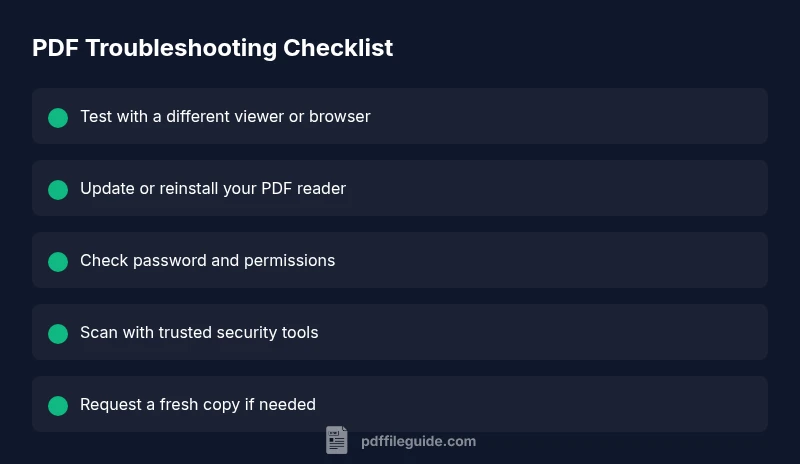
Most common causes are a corrupted file, an outdated or incompatible PDF viewer, and security or password restrictions. Quick fixes: try opening the file with a different viewer or browser, update or reinstall your PDF app, and verify you have permission or the correct password. If the file still won’t open, move to a clean copy or run a file-repair check.
Why PDFs fail to open: the most common culprits
When a PDF won't open, the underlying causes are usually practical rather than mysterious. In 2026, the most frequent culprits are a corrupted or partially downloaded file, an outdated or incompatible PDF viewer, and access restrictions such as password protection or restricted permissions. Other contributors include security software blocking the file, sandboxed environments, and simple file naming or extension errors. Understanding these common factors helps you choose the right quick fixes before diving into longer repairs. This section breaks down each factor with concrete signs and actionable steps you can take to verify whether the issue is at the file level or your software. If you downloaded the file from email or a website, corruption can occur during download; checking the file on a second device can help determine where the fault lies.
File corruption and incomplete downloads
Damaged PDF files are a frequent reason for opening failures. Symptoms include error messages such as cannot open file, there was a problem reading this PDF, or a blank viewer. If a second copy opens fine, the original is likely corrupted. To test, download the file again from a trusted source or ask the sender for a fresh copy. If re-downloading doesn’t help, the issue may be broader than the file itself and tied to your viewer or system.
Outdated or incompatible viewers
Software evolves, and PDF features can outpace older readers. An outdated viewer might crash or refuse to render modern PDFs, especially if the file uses advanced features or fonts. Check for updates, reinstall the viewer, or try an alternate viewer (browser-based PDFs count). If opening works in another program, you’ve isolated the problem to your primary reader.
Passwords, permissions, and access controls
Some PDFs are intentionally restricted. If a password is required and you don’t have it, the file won’t open. Similarly, owner permissions can prevent printing or viewing on certain devices. Ensure you have the correct password and necessary permissions. If you’re the owner, adjust security properties or remove restrictions via legitimate tools or by contacting the source.
Security software and sandboxing
Antivirus, firewall, or sandboxing can block PDFs from opening, especially if the file is flagged as suspicious. Temporarily disable real-time protection (carefully) or whitelist the PDF viewer? as needed, and re-test. Always re-enable security tools after testing to avoid exposing the system to risk.
Steps
Estimated time: 15-25 minutes
- 1
Verify the file integrity
First, try opening the same PDF on a different device or with a different viewer to determine if the problem is intrinsic to the file. If it opens elsewhere, the issue is likely your viewer or device configuration. If it fails everywhere, proceed to the next steps to test file integrity and source reliability.
Tip: Always use a trusted source for downloads to minimize corruption. - 2
Update or switch viewers
Check for updates to your current PDF reader or install an alternative reader. Modern PDFs may rely on features not supported by older software, causing crashes or non-opening behavior. After updating, reboot and try the file again.
Tip: If you have multiple devices, test the file on a mobile device or tablet as a quick cross-check. - 3
Test password and permissions
If the file prompts for a password, enter it or contact the sender for access. If permissions restrict viewing, adjust the security settings if you own the file or request access from the owner. Some corporate environments enforce stricter controls that require IT help.
Tip: Keep passwords in a secure password manager; never reuse passwords across sensitive files. - 4
Check security software
Temporarily disable antivirus/firewall or add your PDF viewer to the allowed apps list. Run the PDF again after disabling to determine if security software is blocking it. Remember to re-enable protection promptly after testing.
Tip: Use reputable security software and ensure you’re downloading PDFs from trustworthy sources. - 5
Obtain a fresh copy
If all else fails, request a new copy from the sender or source. Sometimes file corruption is unrecoverable in the current version, and a clean download resolves the issue.
Tip: Compare file sizes between the old and new copies; a significantly different size can indicate corruption. - 6
If persistent, consider professional help
For mission-critical PDFs or proprietary formats, seek professional assistance from IT, data recovery experts, or your organization’s helpdesk. They can run deeper diagnostics and use recovery tools.
Tip: Avoid untrusted repair tools; use reputable software and keep backups.
Diagnosis: PDF cannot open; error message appears or viewer stays blank
Possible Causes
- highCorrupted or incomplete PDF file
- highOutdated or incompatible PDF viewer
- mediumPassword protection or restricted permissions
- lowSecurity software blocking access
Fixes
- easyTry opening the file with a different viewer or browser to confirm if the issue is file-related or viewer-related.
- easyUpdate or reinstall your PDF viewer; ensure you’re using a stable, modern version.
- easyObtain the correct password or confirm you have permission; adjust permissions if you’re the owner.
- mediumCheck security software settings or temporarily disable protection to retest (re-enable immediately).
Questions & Answers
Why can't I open a PDF I just downloaded?
The file may be corrupted, still downloading, or blocked by your viewer. Try re-downloading from a trusted source or opening it with another reader to isolate the problem.
The PDF may be corrupted or in the process of downloading. Try re-downloading or using a different viewer to check.
What should I do if the PDF is password-protected?
Obtain the correct password from the sender or owner. If you have legitimate rights, ensure you entered the password accurately and check for caps-lock or locale variations.
Get the password from the sender and double-check you entered it correctly.
Is it safe to repair PDFs with third-party tools?
Use reputable, well-known tools and scan any recovered file for malware. Avoid untrusted software that could introduce risks.
Only use trusted repair tools and scan results for safety.
Will updating my viewer fix most issues?
Yes. Updates fix compatibility gaps, security blocks, and bug fixes that prevent opening newer PDF features.
Updater fixes many opening problems by addressing compatibility and bugs.
What if the file opens on another device but not mine?
This points to a local issue—your viewer, settings, or security software. Focus on updating apps, checking extensions, and testing with another viewer on the same device.
If it works elsewhere but not on your device, check your software and settings.
Watch Video
Key Takeaways
- Start with the simplest fix: try another viewer.
- Different devices help confirm whether the issue is file- or software-related.
- Passwords and permissions can block access—verify rights first.
- Keep backups and software updated to prevent repeats.