What to Do When a PDF Freezes: A Troubleshooting Guide
Urgent, practical steps to fix a freezing PDF. Learn causes, quick fixes, a diagnostic flow, and a step-by-step approach to recover your document.


Start by identifying whether the freeze is file- or software-related. The most likely causes are a corrupted PDF or an overwhelmed viewer, especially with large files. Quick fixes include restarting the reader, updating software, and trying a different viewer. If the problem persists, follow the depth-rich troubleshooting flow below for deeper remedies.
Understanding PDF Freezes and What It Signals
PDF files can suddenly freeze during viewing or editing, leaving you stuck and frantically searching for answers. What to do when pdf freezes is a common frustration for professionals and casual users alike. According to PDF File Guide, freezes are often a sign of file corruption, memory limits, or software incompatibilities, and they tend to show up with large or password-protected PDFs. In this section we break down what causes freezing and how to approach fixes in a systematic, non-destructive way. The goal is to restore smooth performance without risking data loss. We’ll start with quick checks and then move into deeper diagnostics, so you can respond quickly in urgent work scenarios, such as reporting to clients while keeping the project on track. This overview frames the problem and sets expectations for each fix you’ll try, so you know what to do when pdf freezes.
Immediate Quick Fixes You Can Try Right Now
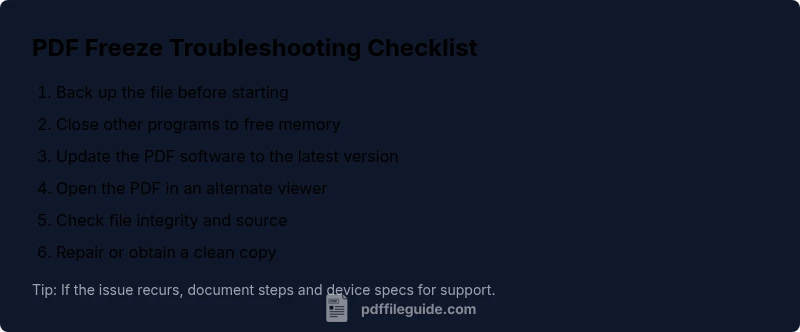
When a PDF freezes, the fastest route to relief is to reset the environment and verify the simplest culprits. First, save your work and back up the file to a secure location. Then close other memory-hungry applications and restart the PDF viewer. Check for software updates; a newer version may resolve known freezing bugs. If possible, try opening the document in a different viewer or on a secondary device to confirm whether the issue is file-specific or software-related. Finally, attempt to open a smaller or different PDF to see if the problem is isolated. These are low-risk steps that often resolve the issue without data loss.
Diagnosing the Likely Cause: A Practical Checklist
PDF File Guide analysis shows that most freezes arise from three core issues: corrupted files, outdated software, or insufficient system resources. Start by inspecting the file's size, age, and source; if shared via email or cloud, re-download from the original source. Next, verify your viewer's version and security settings; ensure protections or add-ons aren't interfering. Finally, observe your system's resource usage during the freeze (CPU and memory spikes) to determine if hardware limits are the bottleneck. If you notice memory saturation, closing other apps or adding RAM can dramatically improve stability.
Step-By-Step Troubleshooting Flow For PDF Freezes
- Reproduce the issue with a simple, known-good PDF and note the exact steps that trigger the freeze. 2) Test the file by opening it in another viewer or exporting to a safe format (print to PDF) to see if the behavior persists. 3) Update or reinstall the PDF software and install any available patches. 4) Check for corrupted content by running a repair utility if available, or request a clean copy of the file. 5) Clear cache or disable problematic plugins and then restart. 6) If everything fails, salvage content by exporting into images or a text layer, then rebuild the PDF if needed.
Preventing Future Freezes: Maintenance and Best Practices
Prevention is better than cure. Regularly update your PDF software and operating system, and keep backups of important documents. Avoid opening extremely large PDFs on devices with limited RAM, and close other programs when working with heavy files. Enable auto-recovery features if supported and configure cloud-sync to run outside peak editing times. Consider converting suspect PDFs to a more stable intermediate format (like image-based or text-only) if you frequently encounter freezes. Monitoring disk health and memory usage can also help preempt issues before they affect productivity.
When to Seek Professional Help and How to Document the Issue
Some freezes require expert intervention, especially for critical documents or when data integrity is uncertain. If standard fixes fail, collect device specs, software versions, steps to reproduce, and the original file's hash where possible. Contact the software vendor or your IT team with this information and any error messages. For mission-critical workflows, request a clean copy from the source and consider a temporary workaround, such as printing to PDF or saving as a different format, while you resolve the root cause.
Steps
Estimated time: 30-60 minutes
- 1
Back up and prepare
Save your work and copy the PDF to a backup location before making changes. This preserves your original for comparison and recovery.
Tip: Always have a verified backup before edits. - 2
Close inessential apps
Shutdown or pause noncritical software to free RAM and CPU resources. This reduces competition for memory during the fix.
Tip: Check task manager to confirm which programs consume the most memory. - 3
Restart and test variants
Close and reopen the PDF reader, then test the same file in another viewer or on another device to isolate the cause.
Tip: If another viewer works, the issue is likely with the original software. - 4
Update or reinstall the software
Apply the latest updates for your PDF viewer or reinstall to repair corrupted installation files.
Tip: Use the official installer from the vendor. - 5
Check file integrity
If the file still freezes, try repairing the PDF with built-in tools or import content into a new PDF. If this fails, obtain a clean copy.
Tip: Avoid editing the original file until integrity is confirmed. - 6
Salvage content if needed
If all else fails, export pages as images or text, then rebuild a new PDF from the recovered content.
Tip: Document every step for support and audits.
Diagnosis: PDF freezes during opening, scrolling, or editing in a desktop PDF reader or editor
Possible Causes
- highCorrupted or damaged PDF file
- highOutdated or buggy PDF software
- mediumInsufficient system resources (RAM/CPU)
- lowConflicting plugins or background processes
Fixes
- easyRestart the PDF viewer and reopen the file
- easyUpdate the PDF software to the latest version
- mediumOpen the PDF in a different viewer or export to a safe format
- hardRepair the PDF or obtain a clean copy from the source
Questions & Answers
Why does my PDF freeze during viewing?
Common reasons include corrupted file, outdated software, or insufficient memory. Identifying the exact cause requires testing across viewers and devices.
PDFs freeze often because of a damaged file, old software, or limited memory. Testing across viewers helps identify the cause.
What should I do first if a PDF keeps freezing?
Start with safe steps: back up the file, restart the viewer, and check for software updates. If it still freezes, try a different viewer.
First back up, restart the viewer, and update the software; then try another viewer if needed.
Is it safe to repair a corrupted PDF?
Yes, use trusted repair tools and back up first. Avoid editing the original file directly unless you have a clean, guaranteed copy.
Yes, but only use trusted tools and back up first; don't edit the original file directly.
Can a frozen PDF indicate a hardware problem?
Yes. Memory or disk issues can cause freezes. Check RAM usage and disk health to rule out hardware as a cause.
Yes, hardware can cause freezes. Check memory and disk health to rule out hardware causes.
When should I contact support?
If the file is critical and none of the fixes work after multiple attempts, contact the software vendor or IT for deeper diagnostics.
If it's critical or keeps failing after multiple fixes, contact support for deeper diagnostics.
Watch Video
Key Takeaways
- Back up before fixes.
- Update PDFs and OS regularly.
- Test with multiple PDFs to isolate issues.
- Document steps for support and future reference.