Why is PDF downloading instead of opening? A Troubleshooting Guide
Discover why a PDF downloads instead of opening and how to fix it quickly. This PDF File Guide troubleshooting guide covers browser settings, MIME types, and server headers.


PDFs downloading instead of opening is usually due to browser settings or server headers. Quick fixes: 1) verify browser’s PDF handler and disable auto-download, 2) clear cache and try a different browser, 3) check the link uses the correct MIME type (application/pdf) and that the PDF viewer is enabled, 4) ensure the file isn’t corrupted.
why is pdf downloading instead of opening
If you are asking why is pdf downloading instead of opening, you're not alone. This common trouble arises when a browser or server instructs the browser to save the file instead of rendering it inline. In many cases the fix is straightforward: adjust the browser's PDF handler, verify the server's headers, and confirm the PDF viewer is available. According to PDF File Guide, many download-for-open issues originate from server headers and browser settings, a pattern seen across Windows, macOS, and mobile devices. The goal is to restore inline viewing without changing the file itself. By understanding the root cause, you can apply targeted fixes that work across sites and networks.
Key idea: the browser should render PDFs inline unless a server or browser setting tells it to save.
Quick browser checks for the PDF handler
Most modern browsers offer a built-in or plug-in PDF viewer. If PDFs keep downloading, start by checking the browser's settings for handling PDF files. Look for phrases like "Open PDFs in browser" or "Inline display" and toggle them to prefer in-browser viewing. Disable any extensions that force downloads, and test by opening a simple locally stored PDF to confirm the viewer works. If the problem persists, try another browser to determine if the issue is browser-specific.
Understanding server headers: Content-Type and Content-Disposition
Servers tell browsers how to handle files through headers. If the Content-Type is not application/pdf, or if Content-Disposition is set to attachment, the browser will download or save the file instead of displaying it. When you administer a site, verify that the MIME type is correctly configured on the server and that attachments aren’t forced for PDFs. If you’re a user, you can’t change server headers, but you can test the behavior with different URLs or report the site owner with your observations. PDF File Guide emphasizes testing across environments to confirm the root cause.
How to test across devices: consistency matters
Test the same PDF on different devices and networks to determine if the issue is device-specific, network-restricted, or site-specific. If a PDF downloads on desktop but opens on mobile, the problem likely lies with the browser’s default handling or a local PDF viewer. Conversely, if the download happens across devices, server headers or site configuration are likely the culprits. Document the behavior to help support teams reproduce the issue.
Step-by-step fixes you can apply now
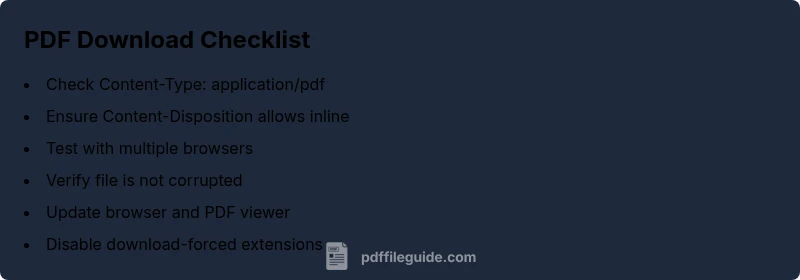
Even if you’re not a system admin, you can apply practical fixes. Clear browser cache, disable problematic extensions, try a direct link to the PDF, and verify the URL ends with .pdf. If you control the site, adjust the Content-Type to application/pdf and ensure Content-Disposition allows inline display. If the issue persists, try a local viewer to rule out file corruption, then escalate to the site administrator with your test results.
Common safety and reliability notes
Be cautious about downloading PDFs from unknown sources. Malicious files can be disguised as legitimate PDFs; always ensure you’re downloading from trusted sites and keep your antivirus updated. If a PDF consistently fails to open across multiple sites, consider reinstalling or updating your PDF viewer, and verify your browser version is current. Regular maintenance reduces recurring download-or-open issues.
Preventing future issues
To minimize occurrences, keep browser settings aligned with inline viewing, maintain up-to-date PDF software, and periodically verify server configurations for PDFs on your own sites. Encourage sharing test URLs with IT or content teams when issues arise. PDF File Guide recommends establishing a quick-retest routine after any browser or server change to catch regressions early.
When to seek professional help
If PDFs still download after applying standard fixes, you may be confronting a deeper server configuration or network security policy. In that case, consult your IT team or a PDF workflow expert. Document the exact URLs, browser versions, and server headers you observed to speed up diagnosis.
Steps
Estimated time: 25-40 minutes
- 1
Identify the symptom
Confirm the PDF consistently downloads across sites or is isolated to one source. Note browser, device, and network when the behavior occurs.
Tip: Take screenshots of the download prompt and any error messages. - 2
Check browser PDF handling
Open browser settings and locate the PDF handling option. Set to open PDFs inline if available, or use the built-in viewer. Disable any extensions that force downloads.
Tip: Test saving a PDF vs opening it directly to compare results. - 3
Test with a known good PDF
Try a locally saved PDF or a trusted example from a reputable site. If it opens inline, the problem may be with the original source file or server headers.
Tip: If local PDFs open fine, focus on server configurations for the source site. - 4
Inspect server headers (for site admins)
Check Content-Type and Content-Disposition headers. Ensure Content-Type: application/pdf and Content-Disposition allows inline display when appropriate.
Tip: Use curl -I to inspect headers from the server. - 5
Test across browsers/devices
Open the same link in Chrome, Firefox, Edge, and a mobile browser. Consistent results point to server config; inconsistent results indicate a client-side setting.
Tip: Record version numbers of each browser for support reports. - 6
Update software components
Update the browser, PDF viewer, and any plugins. Outdated software can fail to render PDFs inline.
Tip: Back up bookmarks and settings before updating. - 7
Apply inline-display fixes and re-test
If server headers are corrected, re-test the original link. Confirm the PDF now opens inline without prompting to download.
Tip: Clear caches after configuration changes to avoid stale results. - 8
Escalate if needed
If issues persist across sites or networks, escalate to IT or a PDF workflow specialist with documented test results.
Tip: Provide the exact URLs, headers observed, and browser versions when asking for help.
Diagnosis: PDF files download instead of opening in the browser.
Possible Causes
- highContent-Disposition: attachment header set by server
- highIncorrect or missing Content-Type: application/pdf
- mediumBrowser PDF viewer disabled or absent
- mediumBrowser is configured to force downloads
- lowCorrupted or misnamed PDF file
- lowSecurity software or network filtering interfering with inline display
Fixes
- easyCheck server headers: ensure Content-Type is application/pdf and Content-Disposition allows inline display
- easyEnable or reinstall the browser's built-in PDF viewer; disable extensions that force downloads
- easyClear browser cache and test in another browser
- easyTest with a local/known-good PDF file to rule out file corruption
- mediumIf problem persists site-wide, consult the site administrator about server configuration
Questions & Answers
Why does my PDF download instead of opening in the browser?
This happens when the server sends a header that forces download or the browser is configured to save PDFs instead of displaying them. Checking headers, MIME type, and browser settings usually resolves it.
PDFs download instead of opening because the server or browser tells the browser to save the file rather than display it. Check headers, MIME type, and browser settings.
How can I verify the server is sending the correct Content-Type header?
Site admins can inspect response headers using developer tools or command-line tools. Ensure Content-Type is application/pdf and that Content-Disposition allows inline viewing when appropriate.
Admins can inspect headers with dev tools or a command; make sure the server sends application/pdf and allows inline viewing.
What should I do if the PDF viewer is disabled in my browser?
Re-enable or reinstall the browser’s built-in PDF viewer, or install a trusted plugin. After enabling, reload the page and try opening the PDF again.
Re-enable or reinstall the browser’s PDF viewer, then refresh and try again.
Is it safe to download PDFs if I’m unsure of the source?
Only download PDFs from trusted sources. Use a reputable antivirus and sandbox or test environment when unsure.
Only download from trusted sites and scan with antivirus before opening.
What if the issue happens on every site I visit?
If every site prompts a download, your browser or OS settings are likely causing inline display to fail. Update software and reset PDF handling preferences.
If it happens on every site, update your software and reset PDF handling settings.
When should I involve IT or a professional?
If you cannot identify or fix server headers or cross-site issues, involve IT or a PDF workflow expert with documented test results.
If you can’t fix it, involve IT with documented test results.
Watch Video
Key Takeaways
- Identify whether the issue is server- or client-side
- Check Content-Type and Content-Disposition headers
- Test across browsers and devices to isolate causes
- Enable inline PDF viewing and update software