Troubleshoot: why is pdf opening in edge instead of adobe
Discover why a PDF opens in Edge instead of Adobe and how to fix it. Step-by-step Windows and macOS tweaks, Edge settings, and Adobe installation tips from PDF File Guide.


Edge is currently acting as your default PDF handler, or Edge's built-in viewer is intercepting PDFs. To fix quickly, set Adobe Acrobat or Acrobat Reader as the default PDF app and configure Edge to use the system default or external viewer. Then test with a sample PDF to confirm it opens in Adobe by default.
Why is pdf opening in edge instead of adobe
If you’re dealing with the question why is pdf opening in edge instead of adobe, you’re not alone. In many setups, Edge becomes the default PDF handler because the operating system or the browser has been configured to route PDFs through Edge’s built‑in viewer. This behavior is especially common after Windows updates, new Edge installations, or when a corporate image enforces a specific PDF handler. According to PDF File Guide, the most frequent cause is a system or browser default that points to Edge, effectively bypassing Acrobat from launching. Understanding this baseline helps you target the right fix without chasing unrelated issues. The good news is that for most users, the solution is to restore a dedicated PDF app (Adobe) as the default and to adjust Edge so it respects that choice. A correct default makes PDFs open in Adobe automatically, preserving features like annotation, fillable forms, and higher fidelity rendering. The moment you re-establish Adobe as the primary PDF handler, the path from double-click to display should align with your expectations and workflow.
Quick checks: confirm your current defaults
Before making changes, verify what your system and Edge are currently using to handle PDFs. On Windows, you can inspect the default apps by file type (.pdf) and by protocol associations. On macOS, use the Get Info window for a PDF file to see which app is set to open PDFs and whether you have a global default override. If Edge is listed as the default for .pdf, that directly explains the observed behavior. If another app is listed, the issue may be something else (like a browser extension or a misconfigured file type association). The key is to confirm that the system default aligns with Adobe, and that Edge isn’t intercepting PDFs unintentionally. This initial audit, recommended by PDF File Guide, often resolves the mystery without deeper changes.
How to set Adobe as the default PDF app on Windows
To ensure PDFs open in Adobe on Windows, start with Settings. Open Settings > Apps > Default apps. Look for the .pdf file type in the list and select Adobe Acrobat or Adobe Acrobat Reader as the default. If you don’t see Adobe listed, install Adobe Acrobat or Acrobat Reader from the official site or Microsoft Store, then recheck. After selecting Adobe, test by opening a PDF file to confirm it launches in Adobe rather than Edge. You may also want to set Adobe as the default for related formats like .fdf or .xdp if your workflow uses fillable forms or dynamic PDFs. Rebooting the system after changes can help ensure the bindings stick.
How to set Adobe as the default PDF app on macOS
On macOS, locate a PDF file in Finder, right‑click it, choose Get Info, and expand the Open with section. Select Adobe Acrobat (or Acrobat Reader) and click Change All to apply the change to all PDF files. If Adobe isn’t listed, install it from the official source. After applying the change, try opening a PDF file again to verify it now launches with Adobe. macOS users should also ensure that any sandboxing or security settings aren’t restricting the default application binding. This approach creates a consistent, system-wide PDF experience in line with professional workflows.
Edge-specific steps to open PDFs with external viewer
If Edge persists in opening PDFs, adjust Edge settings to respect the system default or to download PDFs for external viewing. In Edge, open Settings, then go to Site permissions or Privacy, search for PDF documents, and toggle options like Always download PDF files or Open PDFs in Edge off. The goal is to stop Edge’s built‑in PDF viewer from intercepting files that you want Acrobat to handle. After adjusting Edge, test by opening a PDF and confirming it launches in Adobe. If needed, re‑start Edge or the computer to refresh the configuration. This step is crucial when corporate policies or browser profiles override local defaults.
What to do if you still see Edge taking over
If PDFs still open in Edge after changing defaults, check for Edge extensions or policies that override file handling. Some organizations enforce Edge as the primary PDF viewer via group policy or device management. In such cases, you’ll need to coordinate with IT or your administrator to remove the policy or grant user-level control over PDF associations. Additionally, inspect any PDF viewer settings within Edge profiles or recommended enterprise configurations. Persisting issues may indicate a corrupted user profile, in which case creating a new user profile or resetting Edge can help. This section emphasizes resilience: when standard fixes fail, isolate the cause via policy, profile, or software integrity checks.
Mac and Windows cross‑checks + safety notes
Regardless of OS, keep Acrobat up to date, ensure you have a valid license or a recent installer, and verify that security software isn’t blocking new associations. Some security tools prompt you to approve changes to file handling; accept those prompts if you recognize the changes as legitimate. Regularly updating both Windows/macOS and Adobe compensates for changes in PDF rendering engines and improves compatibility with complex PDFs. If you manage multiple devices, consider documenting a standard operating procedure for PDF handling to prevent drift in defaults across machines.
Steps
Estimated time: 15-25 minutes
- 1
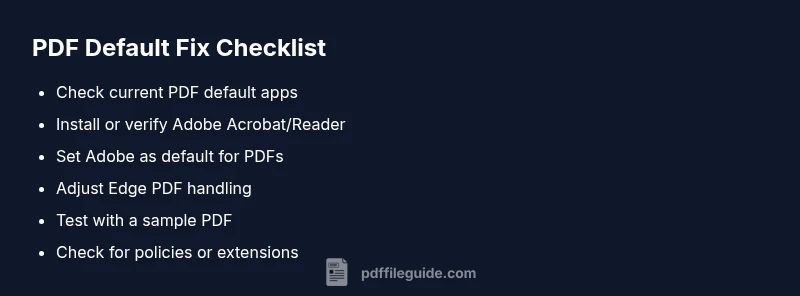
Audit current PDF handling
Open system settings to verify the current default PDF app and confirm Edge behavior. Look for the .pdf association in the system default apps list, and check Edge's own PDF handling settings if available. This step sets the baseline before changes.
Tip: Document your current defaults so you can revert if needed. - 2
Install or verify Adobe Acrobat/Reader
Ensure Adobe Acrobat or Acrobat Reader is installed and up to date. If not present, download from the official source and run the installer. After installation, reopen any PDF to verify that Adobe is recognized as the default handler.
Tip: Keep your Adobe software up to date to avoid compatibility issues. - 3
Set Adobe as the default PDF app (Windows/macOS)
On Windows: Settings > Apps > Default apps > set .pdf to Adobe Acrobat. On macOS: Get Info on a PDF and choose Adobe as the default app for all PDFs. Apply changes and reboot if necessary.
Tip: If you don’t see Adobe in the list, reinstall and retry. - 4
Adjust Edge to respect the system default
In Edge, access Settings > Site permissions or Privacy, search for PDF documents, and disable options that force Edge to open PDFs internally. Prefer options that allow the system default to take precedence or enable external viewer behavior.
Tip: Restart Edge after changing these options to ensure the new behavior sticks. - 5
Test with a sample PDF
Double-click a sample PDF file to confirm it opens in Adobe. If it still opens in Edge, repeat the default-app steps and re-test. Consider testing on another user profile or another device to isolate profile-specific issues.
Tip: Use a known-good PDF file to avoid file-specific rendering problems. - 6
Check for policy or extension conflicts
If your device is managed by IT, verify there are no group policies or browser extensions forcing Edge. In unmanaged environments, review any third-party PDF viewers or system utilities that might override defaults.
Tip: Coordinating with IT can prevent future policy-based overrides. - 7
Maintenance and fallback
Maintain up-to-date software, and periodically revalidate defaults after major OS or browser updates. If issues recur, consider creating a dedicated PDF workflow profile or script to set defaults automatically.
Tip: Automate checks with a simple startup script where feasible.
Diagnosis: PDF opens in Edge instead of Adobe
Possible Causes
- highSystem default PDF handler points to Edge
- mediumAdobe Acrobat/Reader not installed or disabled
- lowEdge is set to handle PDFs internally or a browser policy overrides defaults
Fixes
- easySet Adobe Acrobat/Reader as the default PDF app in Windows/macOS
- easyDisable Edge's built-in PDF viewer or configure Edge to use external/default viewer
- mediumInstall or repair Adobe Acrobat/Reader and ensure it's up to date
- hardCheck for enterprise policies or parental controls that force Edge handling of PDFs
Questions & Answers
Why does Windows keep opening PDFs in Edge even after I set Adobe as default?
This usually means either the OS default for PDFs still points to Edge or Edge's own PDF viewer is intercepting the file. Recheck the .pdf file association, ensure Adobe is installed, and disable any Edge settings that bypass the system default.
Edge is still handling PDFs because the default app might point to Edge or Edge is set to open PDFs internally. Update your defaults and try again.
How can I tell which app opens PDFs on my computer?
On Windows, check Default Apps and the .pdf association in Settings. On macOS, use Get Info on a PDF and view the Open With setting. If Acrobat isn’t listed, install or repair it.
Check the file association for .pdf in your system settings to see which app is configured to open PDFs.
Is Edge’s PDF viewer harmful or unsafe?
Edge’s built-in PDF viewer is not harmful by itself, but it can interfere with your preferred workflow if you want PDFs to open in another app. It’s safer to use system defaults that you control.
No, Edge’s viewer isn’t dangerous, but it can override your preferred PDF app if not configured.
What if Adobe isn’t installed on my computer?
Install Adobe Acrobat or Acrobat Reader from the official source, then set it as the default PDF app. If your environment restricts installations, contact IT for approved alternatives.
Install Adobe and then set it as the default PDF viewer.
Can group policies force Edge to handle PDFs?
Yes. In managed environments, IT may enforce Edge as the PDF handler. If so, request policy changes or a user exception to restore Adobe as the default.
Policies can force Edge; coordinate with IT to modify the policy if needed.
Will changing the default PDF app affect other file types?
Changing the PDF default typically only affects .pdf files. Other file types use their own associations, which you can adjust separately.
Mostly just PDFs are affected by this change.
Watch Video
Key Takeaways
- Check current PDF defaults first.
- Set Adobe as the default PDF app.
- Configure Edge to respect system defaults or use external viewer.
- Test with a sample PDF after each change.
- If problems persist, review IT policies and device profiles.