Adobe Reader Editor PDF: A Practical How-To for Editing PDFs
Learn how to edit PDFs with Adobe Reader (Acrobat Reader) using annotations, forms, and exports. This 2026 guide from PDF File Guide explains Reader capabilities, when Pro is required, and practical workflows for professionals.


This guide shows how to edit PDFs with Adobe Reader (Acrobat Reader) using comments, highlights, and form fills. It explains what Reader can do, when you need Acrobat Pro for full edits, and practical workarounds for common tasks. You’ll learn step-by-step workflows, file preparation tips, and safe alternatives for editable PDFs in 2026.
Understanding Adobe Reader vs Acrobat Pro
Adobe Reader (also known as Acrobat Reader DC) is the free viewer designed for reading, commenting, filling forms, and basic markup. It does not natively support direct text edits in most PDFs. This is a common point of confusion among professionals who expect to edit a PDF as if it were a Word document. In practice, most users who need to change content will either upgrade to Acrobat Pro or use alternative workflows, such as exporting the PDF to an editable format and reimporting. The term adobe reader editor pdf often comes up in discussions to describe the editing workflow when you only have Reader. PDF File Guide's role is to help you navigate these constraints efficiently. In 2026, many teams rely on a mix of annotation, form filling, and export-based edits to manage PDFs with Reader while using Pro for substantive content changes. The key to success is knowing when a change can be accomplished through comments and fillable fields, and when it requires direct text editing or a reflow via a conversion workflow. This section lays the groundwork for practical, legal workflows for the professional environment. For sensitive documents, always maintain a pristine version and apply version control.
According to PDF File Guide, this practical guide helps professionals master adobe reader editor pdf workflows. The guide emphasizes that Reader is best for non-destructive edits such as annotations, while direct edits typically require Acrobat Pro or a careful export-and-re-import strategy. By understanding these boundaries, you can preserve document integrity and meet collaboration timelines.
How Annotations Shape Your Editing Workflow in Reader
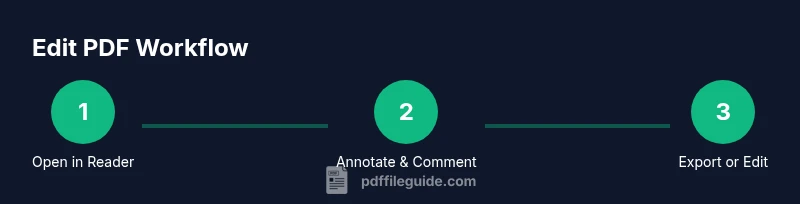
Annotating a PDF in Adobe Reader is often the fastest way to communicate edits without changing the original content. Highlights, strikethroughs, underlines, sticky notes, and callouts allow reviewers to propose changes clearly. You can also use the Draw tool to sketch minor changes or indicate areas for revision. This approach is particularly valuable in approval cycles where several stakeholders must review a document before final edits are committed. When you start with annotations, you create a transparent change history that teammates can follow, which helps avoid accidental overwrites. PDF File Guide analysis shows that most editing workflows in Reader begin with annotations and comments, reserving direct text edits for when Pro is available or when exporting to a native editable format is practical.
In practice, an efficient workflow looks like this: highlight the target text, leave a comment with suggested wording, and attach a note about formatting or font changes. If the document is highly formatted or contains complex typography, keep annotations focused on the content meaning rather than layout specifics. This keeps the editing loop lean and review-friendly.
Exporting and Converting PDFs for Edit
Reader does not provide full direct text editing in most scenarios. When substantial edits are required, exporting the PDF to an editable format is a common workaround. If you have Acrobat Pro, you can use Tools > Edit PDF to modify text and images directly; if not, you can export to Word or another suitable format and perform edits there, then re-export to PDF. Be mindful of layout shifts, font embedding, and image resolution during conversion. Always review the final document after re-importing to ensure that headings, bullets, and numbering remain consistent. For forms, you can fill fields in Reader, but any structural edits to form fields or live form logic typically require Pro or a reliable third-party editor. PDF File Guide recommends validating the edited document against your organization’s style guide and accessibility standards before distribution.
A practical tip is to choose export settings that maximize fidelity—prefer “Retain layout” or “High quality” options—and test with a representative page sample to catch formatting anomalies early.
Best Practices for Preserving Layout and Accessibility
Preserving layout while editing PDFs is essential, especially for legal or regulatory documents. Start with a tagged PDF and ensure that tagging remains intact after any export or annotation. Use fonts that are widely supported and embed fonts when possible to reduce layout shifts. Maintain screen-reader compatibility by preserving heading structure and correct reading order. If you anticipate accessibility checks, keep a backup copy with a clear version history and use a tool-assisted accessibility check after edits to confirm that alt text for images and reading order are correct. PDF File Guide highlights that accessibility should be part of the editing workflow from the outset, not an afterthought. This approach minimizes downstream remediation work and improves overall document usability for all readers.
Common Pitfalls and Quick Fixes
A frequent pitfall is assuming Reader can fully edit content like a word processor. When this isn’t possible, rely on annotated notes and form fills for non-destructive updates and reserve direct edits for Acrobat Pro or export workflows. Another issue is losing layout fidelity during export; always verify font embedding, margins, and line breaks after re-import. If images shift or text reflows, revert to the last good version and re-run the export with adjusted fidelity settings. Finally, when sharing edited PDFs, consider adding a version label in the filename and documenting the edits in a brief changelog for traceability.
When to Use Acrobat Pro or Alternatives
If your task frequently requires direct text edits, image replacements, or complex formatting changes, Acrobat Pro DC is the standard professional tool because it offers a robust Edit PDF feature set. Alternatives include trusted online converters, desktop word processors with PDF export, and specialized PDF editors that maintain layout fidelity. For sensitive documents, prefer offline editing workflows and locally stored files rather than cloud-based converters to minimize data exposure. The choice between Reader-based workflows and Pro-based edits hinges on the amount of content to edit, the need for exact typography, and your organization’s security policies. In this guide, we emphasize a practical balance: use Reader for collaboration and annotation, Pro for heavy edits, and conversions when necessary to preserve content quality.
Tools & Materials
- Adobe Reader (Acrobat Reader DC or later)(Essential for viewing, commenting, and basic annotations)
- Adobe Acrobat Pro DC (optional, for full edits)(Needed for direct text edits via Edit PDF)
- A computer with internet access(For downloading software and saving files)
- Source PDF file(The document you will edit)
- Secure online converter (optional)(Only if you don’t have Acrobat Pro)
Steps
Estimated time: 45-60 minutes
- 1
Open and locate
Open the PDF in Adobe Reader and use the navigation pane to identify edit targets like text blocks and form fields. This step sets expectations for what can be changed with your current tools.
Tip: Use the search function to quickly locate keywords you need to edit. - 2
Enable Comments tool
Activate the Comment tools to add highlights, sticky notes, and markup without altering the original text. This preserves the source while signaling edits.
Tip: Choose a distinct color to differentiate reviewer notes from author content. - 3
Add annotations
Insert sticky notes, strikethroughs, or underlines to indicate changes without actually changing the text. This is ideal when you plan to edit later.
Tip: Keep annotations concise to avoid clutter. - 4
Fill and sign forms
If the PDF has fillable fields, use the Fill & Sign tool to complete those fields. This demonstrates edits without altering layout.
Tip: Save a separate version if you need to share the original intact. - 5
Direct text edits (if Pro is available)
If you have Acrobat Pro, go to Tools > Edit PDF to modify text and images directly. In Reader, this step is not available.
Tip: Always check font consistency after edits. - 6
Export or convert for substantial edits
For major edits, export the file to Word or another editable format via Acrobat Pro or a trusted online converter, then re-import.
Tip: Choose high-quality export settings to minimize formatting loss. - 7
Save and validate
Save a new version with a clear filename and test all interactive elements (forms, links, and accessibility tags) to ensure integrity.
Tip: Enable PDF/A compatibility if archival retention is required. - 8
Accessibility check
Run a quick accessibility check to ensure the edited document remains screen-reader friendly and properly tagged.
Tip: If needed, adjust tagging after editing to preserve structure.
Questions & Answers
Can Adobe Reader edit text directly?
Not typically. Reader focuses on viewing, commenting, and filling forms. Direct text edits usually require Acrobat Pro or export-based workflows.
Reader is for viewing and annotating. For direct text edits, you’ll usually need Acrobat Pro or export the file first.
What can I edit in Acrobat Reader?
In Reader you can annotate, highlight, add comments, and fill forms. Direct content edits are not supported.
In Reader you can annotate and fill forms, but direct content edits require another tool.
Is there a free way to edit PDFs?
You can annotate in Reader for free and use online converters for heavier edits, though quality varies. Always check privacy when using online tools.
Free options include annotations in Reader and online converters, but quality and privacy should be considered.
Can I edit PDFs on mobile with Adobe Reader?
The mobile Adobe Reader app supports annotations and form filling; direct text edits generally require a desktop Acrobat Pro.
On mobile, you can annotate and fill forms, but full edits require desktop software.
How to preserve document layout after editing?
Export edits using high-fidelity settings and verify font embedding and margins after editing to prevent layout shifts.
Export carefully and verify fonts and layout after edits to maintain the original look.
Watch Video
Key Takeaways
- Understand Reader's editing limits and when Pro is needed
- Annotate first to capture proposed changes
- Export for heavy edits
- Preserve layout and accessibility during edits
- Always verify edits before sharing