How to Edit PDFs in Apps: A Practical, User-Friendly Guide
Learn to edit PDFs within a dedicated app: select the right tool, perform text and image edits, annotate, secure, and export with accessibility in mind for professional workflows.


You can edit PDFs directly in a dedicated app by opening the file, using text and image tools, and saving or exporting with the appropriate settings. This guide covers choosing the right app, performing common edits, annotating, and securing your document. According to PDF File Guide, app-based editing speeds up workflows.
Why editing PDFs in modern workflows matters
In today’s knowledge economy, PDFs are the lingua franca of professional documents. Teams rely on consistent formatting, searchable text, and compact file sizes for distribution. Editing in-app reduces handoffs, preserves metadata, and keeps collaboration tight. According to PDF File Guide, choosing a capable application editor is a strategic move that improves accuracy, speeds up revision cycles, and lowers the risk of introducing errors during updates. This approach is especially valuable when multiple stakeholders must review a document, when you need to correct data without recreating layouts, or when you must maintain a consistent brand voice across departments. In practice, an app-based workflow lets you perform edits, annotate changes, and immediately re-check pagination and accessibility without exporting to an intermediate format. That immediacy can save hours over the course of a project and reduce the likelihood of mismatches between the source files and the published version. Consider contracts, product specs, and training materials—each benefits from a streamlined, in-app editing routine that preserves fidelity and reduces risk.
Key capabilities of an application-based PDF editor
Modern in-app editors provide a robust suite of features designed to preserve layout while enabling precise updates. You can edit paragraph text directly, adjust fonts and line spacing, and realign columns without disturbing margins. Image handling includes replacing, resizing, and wrapping images with anchor points. Vector graphics can be edited for shapes and colors, and you can move objects with alignment guides. Many editors include OCR to convert scanned pages into editable text; this is essential for legacy documents. Redaction tools let you permanently remove sensitive content. Batch processing lets you apply templates, metadata, or accessibility tags to multiple pages at once. Finally, export presets support printing, web, or accessible publishing, preserving bookmarks, metadata, and document structure. The result is a single-file workflow that reduces mistakes and keeps revision history intact, so you can track what changed and why.
How to choose the right editor for your needs
Choosing the right app means weighing platform availability (desktop vs mobile), pricing models (one-time purchase vs subscription), and feature sets. Look for reliable text editing, robust image and layout controls, OCR accuracy, and form support. Security matters too: password protection, encryption, and certificate-based signing protect sensitive content. If collaboration is a priority, confirm real-time commenting, version history, and cloud sync options. Finally, verify compatibility with your existing file formats and brand guidelines. A good app should integrate with your workflow without forcing you to recreate documents elsewhere, and it should preserve accessibility structure when you share or publish.
Real-world tasks: text edits, image edits, and formatting
In practice, you’ll encounter tasks like updating a product spec, correcting a contract clause, or reorganizing a multi-column layout. Start by selecting the text tool and making precise changes to paragraphs, headers, or captions, then verify font consistency and spacing to maintain the original look. For images, replace with higher-resolution assets or adjust cropping, ensuring the new image maintains the intended aspect ratio. If the document uses columns, verify that reflow didn’t push content off the page. Finally, review page breaks and keep an eye on bullets and numbering to preserve readability. This hands-on approach keeps edits grounded in the document’s purpose and user expectations.
Working with annotations and forms
Annotations help reviewers capture feedback without altering the core content. Use highlights, strikeouts, and sticky notes with clear, actionable comments. When editing forms, ensure field properties, default values, and actions are correct; test tab order and data capture with sample entries. If your PDF includes fillable fields, confirm that calculations and validations still function after edits. For long documents, rely on a consistent annotation scheme and a shared legend so contributors interpret marks uniformly. Finally, export a copy with all annotations embedded or as an overlay, depending on how the recipient will view the edits.
Accessibility, security, and compliance while editing
Editing PDFs must honor accessibility requirements. Maintain proper reading order, alt text for images, and logical tagging so screen readers can navigate the document. Keep metadata accurate and avoid embedding sensitive data where it can be extracted. Security matters; use password protection, restrict editing rights, and consider certificate-based signing for publication approvals. Compliance considerations vary by industry, so align your edits with internal policies and external regulations. If possible, run an automated accessibility checker to catch issues you might miss manually, and document changes for audit trails.
Performance, collaboration, and file management
Large PDFs or complex layouts can slow editors down. Look for performance optimizations like partial page editing and efficient rendering. When collaborating, enable version control and track changes to avoid overwriting colleagues’ work. Maintain a clear file naming convention and use folders or a document management system to organize revisions. Backups should be routine, with archived previews available for quick comparisons. For distributed teams, consider cloud-based editors with strong access controls to protect confidential content while allowing seamless collaboration.
Troubleshooting common issues when editing PDFs
If you encounter font substitution, review embedded fonts and font licensing within the editor. Low image quality after edits may indicate compression settings or color profile changes; adjust export presets for the final destination. If text is missing after paste operations, re-check the text encoding and ensure OCR was applied if you’re editing scanned pages. Editor crashes or freezes are often resolved by updating the software, clearing cache, or restarting the device. When problems persist, consult vendor support and your organization’s IT policies for safe workarounds. For complex layouts, consider exporting to an intermediate format only as a last resort, to preserve fidelity.
Best practices and next steps for application-based PDF editing
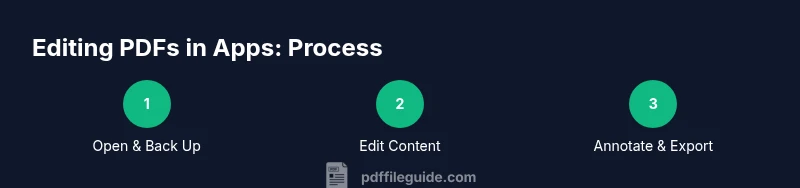
Adopt a repeatable workflow: define goals, back up, edit in-context, annotate for review, test accessibility, verify metadata, and export with appropriate settings. Maintain version history and clear documentation of changes. Regularly update your editing tools to stay aligned with new PDF standards and security recommendations. Build a small library of templates for common documents to speed up future edits and ensure consistency. Finally, schedule periodic reviews with stakeholders to ensure final outputs meet brand and compliance requirements.
Tools & Materials
- Computer or tablet with internet access(Stable device; ensure your OS supports the chosen editor.)
- PDF editor app (subscription or free)(Choose based on needed features: text, images, OCR, forms, and security.)
- Original PDF file(Keep an unedited copy for reference and rollback.)
- Backup storage (cloud or external drive)(Versioned backups help recover from mistakes.)
- Stylus or mouse (input device)(Helpful for precise edits on touch devices.)
- Fonts or font licenses (if replacing fonts)(Ensure rights to embed or substitute fonts.)
- Quality test assets (sample text/images)(Use representative content to verify edits before final export.)
Steps
Estimated time: 45-90 minutes
- 1
Define editing goals
Clarify exact edits needed, such as which paragraphs, images, or tables require changes. Decide output requirements (print, web, accessibility) and the target audience.
Tip: Create a concise edit checklist before touching the file. - 2
Open and back up the PDF
Open the document in your chosen app and immediately save a backup version with a clear version label. This preserves the original in case you need to revert.
Tip: Use Save As with a versioned name (e.g., Project_v1_Backup). - 3
Edit text and fonts
Use the text tool to modify content, adjust fonts and spacing, and preserve the document’s typography. Avoid unintended layout shifts by validating margins after edits.
Tip: Keep a note of any font substitutions and embed fonts when sharing. - 4
Replace images and adjust layout
Swap out outdated graphics, resize images, and reflow content as needed. Check anchor points and ensure the final layout remains balanced.
Tip: Verify image resolution and crop to maintain aspect ratio. - 5
Annotate and review
Add comments, highlights, and questions for reviewers. Save a labeled version showing annotations and ensure the review path is clear.
Tip: Use a consistent color scheme for all annotations. - 6
Test forms and interactions
If the document contains fillable fields, test data entry, calculations, and actions. Adjust field properties as needed to ensure usability.
Tip: Check tab order and required fields with test data. - 7
Check accessibility and metadata
Review reading order, alt text, and tagged content. Update metadata to reflect edits and ensure assistive technologies can navigate the PDF.
Tip: Run an accessibility checker and fix flagged items. - 8
Export, archive, and share
Export with the appropriate preset (print-ready, web-optimized, or accessible). Archive the final version and share via secure channels.
Tip: Choose export settings that balance quality and file size.
Questions & Answers
What is the best app to edit PDFs for professionals?
There isn't a single Best app; the right choice depends on your needs for text editing, image handling, form support, and collaboration. Compare features, performance, and security against your typical document types.
There isn't one best app; pick based on features you actually use, like text editing or forms.
Can I edit scanned PDFs without OCR?
Editing text in scanned PDFs generally requires OCR to convert images to editable text. Without OCR, edits are usually limited to annotations or re-creating sections.
If the PDF is scanned, you typically need OCR to edit the text.
How do I preserve accessibility when editing PDFs?
Keep tagging, alt text for images, and proper reading order. After edits, run accessibility checks and ensure screen readers can navigate the document.
Maintain tags and alt text, then verify with an accessibility checker.
Should I compress PDFs after editing?
Compression can reduce file size for sharing, but too much compression degrades quality. Use appropriate presets and test readability before final distribution.
Yes, compress if the file is too large, but check readability.
Is it safe to edit PDFs in the cloud?
Cloud editing is convenient but requires strong access controls and encryption. Avoid handling highly sensitive documents on unsecured networks.
Cloud editing is convenient if security controls are in place.
What should I do if the editor crashes?
Save frequently, keep backups, and restart the app. If instability persists, try another editor or reinstall, and reach out to support if needed.
If it crashes, save often and try again or contact support.
Watch Video
Key Takeaways
- Define clear editing goals before starting.
- Back up the original file to prevent data loss.
- Preserve layout and typography during edits.
- Validate accessibility and metadata post-edit.
- Export with settings suitable for the final channel.