How to Use a PDF Editor: A Practical Step-by-Step Guide
Learn how to use a PDF editor to edit text, annotate, sign, convert, and secure PDFs. This comprehensive guide covers tools, workflows, best practices, and pitfalls for professionals and beginners.


According to PDF File Guide, mastering a PDF editor starts with understanding the interface, defining a simple workflow, and practicing on non-critical documents. This guide helps you edit text, annotate, sign, fill forms, and export PDFs with confidence. By following a clear, repeatable process, you’ll save time and preserve layout fidelity across devices.
What a PDF editor is and common use cases
A PDF editor is specialized software that lets you modify the content of Portable Document Format files after they’re created. With a modern editor you can edit text, adjust fonts, replace or reposition images, reorganize pages, and update layout without recreating the document from scratch. You can also annotate (highlights, sticky notes, drawings), fill forms, apply digital signatures, and perform redaction to protect sensitive data. Because PDFs are designed to preserve appearance across devices, editors focus on preserving layout during edits rather than reflowing content the way a word processor would. This makes PDF editing ideal for contracts, reports, brochures, filled forms, and archival records where fidelity matters. According to PDF File Guide, a solid editing workflow starts with selecting the right tool for your needs and practicing on non-critical documents to build confidence. In this article you’ll learn how to approach editing with structure, safety, and efficiency.
Typical tasks you’ll perform include:
- Edit and correct text without altering the document’s overall layout
- Replace or reposition images without distorting margins
- Add comments, highlights, and sticky notes for collaboration
- Fill forms and apply digital signatures to approve content
- Redact sensitive information while preserving document structure
- Export to other formats (Word, Excel, images) for reuse
Understanding these capabilities helps you pick the right editor and plan edits with minimal risk.
Choosing the right PDF editor: features that matter
When selecting a PDF editor, focus on the features that map to your daily workflow. Core capabilities include robust text editing (font, size, color, and delete/insert), image handling (replace, crop, resize), page management (reorder, delete, rotate), and reliable form support (create, fill, save form data). OCR (optical character recognition) is essential for scanned documents; choose editors with high accuracy and batch processing if you routinely convert invoices or receipts. Annotations and commenting tools (sticky notes, highlights, drawing) are invaluable for review cycles, while digital signatures provide a legally binding workflow. Security controls—password protection, permissions, and redaction—help safeguard confidential files. Export options (to Word, Excel, or image formats) enable reuse, but verify that fonts embed correctly to maintain appearance. Cloud syncing and cross‑platform compatibility matter for teams. As part of PDF File Guide analysis, 2026 notes, professionals prioritize annotation, form support, and secure signing when choosing an editor. Consider trialing several options to gauge speed, reliability, and ease of use.
Key decision criteria:
- Editing fidelity and font handling
- Form creation and field types
- Signature and security features
- OCR accuracy and batch processing
- Export formats and font embedding
- Collaboration features and version history
- Platform support (Windows, macOS, mobile)
A good editor supports your primary tasks now and scales as your needs grow over time.
Getting started: workspace setup and file prep
Before you begin editing, prepare your workspace and the source file to minimize errors. Start by creating a duplicate of the original document to preserve the untouched copy. Ensure your PDF editor is up to date and compatible with your operating system. If the file is scanned or image-based, verify whether OCR is enabled or needed. Check that fonts are embedded or available on your system, since missing fonts can alter layout after editing. If the PDF is password-protected, obtain permission or remove protection only if you’re authorized to do so. Gather any assets you’ll need during edits (images, logos, fonts) and decide the intended output format from the outset. Finally, set up a logical folder structure for revisions and backups. A clean project setup reduces mistakes and makes it easier to track changes over time.
Best practice tip: Always work on a copy of the file and keep a changelog of edits to support traceability and collaboration.
Core editing tasks: text and images
Editing text is usually the core task. Activate the text tool, click the target paragraph, and type to insert or delete content. Pay attention to font family, size, color, and line spacing to preserve readability and layout. When editing images, select the image, then replace, replace‑with, or resize while maintaining aspect ratios. Use alignment guides and margins to keep the page balanced. If you need to tweak the layout, adjust margins, line breaks, and spacing rather than reflowing entire sections. For multilingual documents, verify that accented characters render correctly and that right‑to‑left scripts align as expected. Save frequently during larger edits to avoid data loss.
Pro tip: Use Find and Replace for repeated terms to maintain consistency, and enable a preview mode to review edits across pages.
Advanced features: forms, signatures, redaction
Forms are a powerful time-saver when you need structured data capture. Add text fields, checkboxes, radio buttons, dropdowns, and digital signature fields, then test input and validation rules. Digital signatures certify authenticity; ensure you use trusted certificates and verify the signing workflow with recipients. Redaction hides sensitive information permanently—never rely on visual hiding; use the editor’s redaction tool to permanently remove content. For accessibility, consider tagging form fields properly so assistive technologies can interpret them. Plan form layouts to align with common data collection workflows, such as client intake, purchase orders, or applications. Finally, if you collaborate on forms, enable comments and track changes to coordinate feedback with teammates.
Best practices and common pitfalls
To avoid common pitfalls, maintain a versioned editing approach: save incremental versions and provide meaningful file names. Keep the original document intact and document every major change. Always check the final document against the source: confirm fonts, margins, line breaks, metadata, and accessibility attributes. Be mindful of color spaces; some editors may not preserve color accuracy exactly as in the source. When sharing, apply appropriate permissions so collaborators can review without overwriting critical content. Finally, be cautious with automatic OCR on low‑quality scans; pre‑process images (deskew, crop) to improve recognition accuracy. Regularly test exports in the target environment (print, mobile, or web) to ensure fidelity across devices.
A note from the PDF File Guide team: consistent practice with real documents improves speed and reduces errors over time.
Integrating with workflows: collaboration, cloud storage, and automation
In modern teams, PDFs flow through collaborative workflows. Store files in a shared drive or cloud workspace and use version history to revert if needed. Use comments and annotation threads to capture feedback, assign tasks, and track approvals. For repeated tasks, explore automation options such as batch processing for redaction, OCR, or form field creation. When sharing final PDFs externally, apply password protection and set appropriate permissions to limit copying or editing. Finally, develop a standard operating procedure (SOP) for PDF editing within your organization to improve consistency, speed, and quality across projects.
Authority and further learning
To deepen your understanding of PDF standards and interoperability, consult authoritative references such as the ISO 32000-2 standard for PDF 2.0, the official PDF Reference, and accessibility guidelines. These sources provide foundational knowledge on how PDFs are structured, rendered, and interpreted across platforms, which informs better editing practices and ensures long-term compatibility. For readers seeking more technical detail, see the following resources:
- ISO 32000-2:2017 (PDF 2.0) – https://www.iso.org/standard/63534.html
- Adobe PDF Reference – https://www.adobe.com/content/dam/acom/en/devnet/acrobat/pdfs/pdf_reference_1-7.pdf
- PDF Association and accessibility guidance – https://www.pdfa.org/ and https://www.w3.org/WAI/standards-guidelines/
These materials help professionals understand the boundaries of PDF editing and how to preserve fidelity when modifying complex documents.
Tools & Materials
- A computer or tablet with a modern PDF editor installed(Ensure you have an editor that supports editing, annotations, forms, and signing.)
- Sample PDFs for practice and testing edits(Use non-confidential documents to learn workflows safely.)
- Headphones or quiet workspace(Helpful for reviewing audio comments in collaborative reviews.)
- Optional stylus or touchscreen(Useful for precise annotations on touch devices.)
- External storage or cloud account(Back up originals and edited copies; enable version history.)
- Font list or font embedding awareness(Check whether fonts are embedded during export to preserve appearance.)
Steps
Estimated time: 60-90 minutes
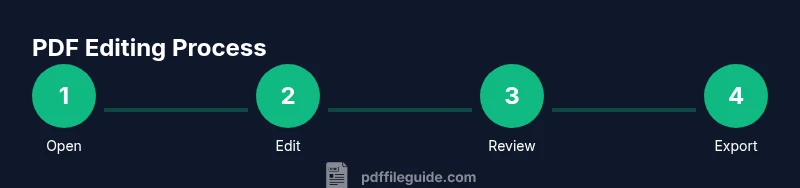
- 1
Open and inspect the PDF
Open the file in your editor and review essential attributes: fonts, images, form fields, and security settings. Note sections that will require edits and confirm you have permissions to modify the document. If the file is protected, determine whether you may unlock or work on a copy.
Tip: Always start by creating a duplicate and outlining the edits you plan to make. - 2
Enter edit mode and adjust text
Activate the text tool, select the target paragraph, and edit content. Maintain original typography by choosing matching fonts, sizes, and colors. Use Find and Replace for consistency across the document.
Tip: Use the spell-check and grammar tools built into your editor to catch mistakes. - 3
Edit images and objects
Select an image or object to replace, resize, or reposition. Preserve aspect ratios by holding Shift (or the equivalent) while resizing. Check margins and alignment after changes to keep the page balanced.
Tip: If replacing an image, keep a copy of the original for easy fallback. - 4
Annotate and comment for collaboration
Add highlights, underlines, sticky notes, and callouts to convey feedback. Organize comments into threads and assign tasks if your editor supports it. Export a review summary for stakeholders.
Tip: Use clear, actionable notes and reference page numbers or section headings. - 5
Fill forms and add fields
Create or fill text fields, checkboxes, radio buttons, and dropdowns. Test data entry and validation rules. Ensure fields are accessible and properly labeled for assistive technologies.
Tip: Preview forms in reader mode to confirm usability. - 6
Apply security and redaction
Set passwords and permissions when sharing. Use permanent redaction for sensitive content and verify that redacted areas cannot be recovered. Keep an encrypted backup of the original document.
Tip: Redact in a separate pass and verify by exporting a test copy. - 7
Export, share, and archive
Save as a new PDF to preserve the original draft. Export to other formats if needed (Word, image, or HTML) and verify layout fidelity. Store the final version in a secure location with proper metadata.
Tip: Always review the final export on multiple devices before distribution.
Questions & Answers
What is a PDF editor and what can it do?
A PDF editor is software that lets you modify PDF content, annotate, sign, fill forms, and manage document security. It helps preserve layout while enabling practical edits.
A PDF editor lets you modify content, annotate, sign, and fill forms while preserving layout.
Do I need to buy software or can I use free tools?
Both free and paid tools exist with varying capabilities. Start with a reputable free option or trial, then consider a paid version if you need advanced features like OCR or form design.
There are free and paid options; start with a trial to test features.
Can I edit scanned PDFs?
Yes, with OCR-enabled editors you can convert scans into editable text. The accuracy depends on the scan quality and preprocessing.
OCR helps, but accuracy depends on scan quality.
How do I annotate and comment for collaboration?
Use highlights, sticky notes, and comment threads to capture feedback. Share the document with teammates and review changes together.
Annotate and share changes with your team.
Is it safe to edit PDFs with sensitive information?
Always use passwords, permissions, and trusted editors. Redact as needed and avoid editing on unsecured networks.
Protect with passwords and permissions.
What are the limitations of PDF editing?
PDFs are designed to preserve final appearance; extensive reflow or layout changes may require the original source document.
Editing has limits; perfect reflow isn’t always possible.
Watch Video
Key Takeaways
- Plan edits before you start.
- Choose an editor with the required features.
- Validate exported results for fidelity.
- Keep originals and maintain versions.