Can You Modify a PDF Document? A Practical How-To Guide (2026)
Learn how to modify a PDF document with step-by-step workflows, tools, and best practices. This guide covers direct edits, conversions, forms, and security considerations for professionals editing PDFs.


Yes, you can modify a PDF document using dedicated editors, conversion workflows, and form tools, provided you have permission and the file isn’t locked by security settings. Basic edits include text changes, image replacements, annotations, and form filling. For advanced changes, expect to manage fonts, vector objects, and layout fidelity.
Can you modify a PDF document? What editing means in practice
If you’re wondering can you modify a pdf document, the short answer is yes in many cases—though it depends on file protections, fonts, and the type of content (text, images, forms, or annotations). According to PDF File Guide, a lot rests on whether the PDF is password-protected or has restricted editing rights. When those barriers are not present, you can update text, swap images, add comments, and complete forms without recreating the entire document. In some situations, you’ll need to convert the PDF to an editable format (like a Word document) and then reconvert it back to PDF. The key is understanding both the capabilities of your tools and the specific file’s permissions. This initial assessment helps set expectations about what can be changed and how to preserve layout integrity during the process.
In this guide, PDF File Guide emphasizes the importance of verifying what can be edited before starting. If you’re editing a sensitive or legally binding file, ensure you have the right to modify it and that you keep a clear trail of changes for auditing purposes. The following sections break down practical methods, the limits you’ll encounter, and best practices to minimize formatting drift when you modify a PDF document.
Tools & Materials
- PDF editing software (e.g., Adobe Acrobat Pro, Foxit PhantomPDF, Nitro Pro)(Choose a tool that supports direct editing, OCR, and font handling for your file type.)
- Word processor or editor capable of exporting to PDF (Microsoft Word, Google Docs)(Useful for converting PDFs to editable formats when in-place editing is limited.)
- Reliable backup storage (external drive or cloud storage)(Always back up the original before editing.)
- OCR tool (for scanned PDFs)(Needed when the source is image-based to convert to selectable text.)
- High-quality font resources (optional)(Needed if you plan to adjust typography and preserve layout precisely.)
- High-resolution image assets (optional)(Prepare replacements or updates for graphics if needed.)
Steps
Estimated time: 2-3 hours
- 1
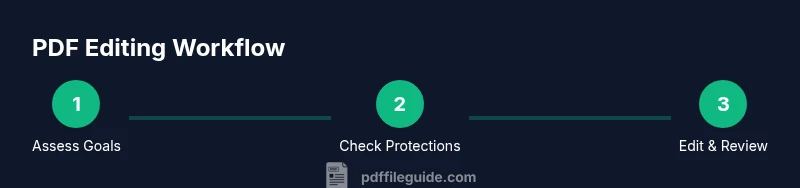
Define your editing goal
Clarify what changes are required: text edits, image replacements, form updates, or structural reflow. Documenting the objective helps choose the right tool and method, reducing unnecessary revisions later.
Tip: Write a brief checklist of edits to stay focused during the process. - 2
Check document protections
Look for password protection or restricted permissions that block editing. If you’re authorized, use the correct method to unlock or request access. If not, consider asking the author for a non-protected copy.
Tip: If you’re unsure, verify with the file owner before attempting to bypass protections. - 3
Choose the editing method
Decide between direct in-PDF edits or a conversion workflow (PDF → editable format → PDF). Direct edits preserve layout when supported; conversions can handle heavy text changes but may alter formatting.
Tip: Start with the least invasive method to minimize drift. - 4
Prepare source assets
If you’ll replace images or graphics, gather high-quality assets in advance. Prepare fonts if typography changes are needed, and ensure they’re licensed for use in documents.
Tip: Keep originals organized by versioning assets. - 5
Make edits in your chosen tool
Apply changes to text, adjust images, annotate, and fill form fields as required. Maintain consistent font choices and spacing to preserve readability and professional appearance.
Tip: Use versioned saves to track progress and roll back if needed. - 6
Check typography and layout
Verify font embedding, kerning, line breaks, and page flow. Ensure that replacements align with margins and column structure so the document remains visually cohesive.
Tip: Test on multiple viewers to catch rendering differences. - 7
Verify accessibility and metadata
Ensure the edited document remains accessible: alt text for images, tagged structure, and correct metadata. Accessibility preserves usability for assistive technologies.
Tip: Add or update document properties to reflect edits clearly. - 8
Export to PDF and validate
Export the final version and compare it with the original for content integrity. Run checks for font rendering, image quality, and hyperlinks to catch drift.
Tip: Use a side-by-side diff if your tool supports it. - 9
Document changes and back up
Create a revision record detailing what changed, when, and by whom. Save a final copy and store a versioned backup alongside the original.
Tip: Keep a changelog to simplify future edits or audits.
Questions & Answers
Can I modify a secured PDF?
If a PDF is password-protected or has restricted permissions, editing may be blocked. You may need authorization or a proper tool to unlock features legally. Always verify rights before attempting edits on secured documents.
If a PDF is secured, you may need permission or the right tools to unlock editing features, and you should verify your rights first.
What is the best tool to edit PDFs?
The best tool depends on your needs: professional editors like Adobe Acrobat Pro support extensive editing, OCR, and form handling; other options include Foxit, Nitro, and free viewers with limited editing. Choose based on required features and budget.
Professional editors offer more features, but choose based on your needs and budget.
Can you modify a PDF without losing formatting?
Preserving formatting is possible with direct in-PDF editing and careful font management; conversions can introduce drift. Always compare the final PDF side-by-side with the original to catch any layout changes early.
Be mindful of layout drift after editing or converting, and compare with the original.
Is it legal to modify PDFs?
Editing a PDF is legal when you own the document or have explicit permission from the rights holder. Modifying someone else’s work without authorization can violate terms of use or copyright law. Always verify ownership before editing.
Make sure you have rights to edit, or you may be violating terms or copyright.
How do I edit text in a PDF?
Use a PDF editor with text-editing capabilities, select the text you want to change, and apply your edits. Check font consistency and reflow as needed to maintain readability. For complex text changes, consider converting to a Word document first.
Open the editor, select text, edit, and verify font and layout.
What about editing scanned PDFs?
Scanned PDFs require OCR to convert images into searchable text before editing. The quality of OCR affects accuracy, so choose a tool with good OCR and proofread the result carefully after conversion.
If it’s a scan, OCR first, then edit and proofread for accuracy.
Watch Video
Key Takeaways
- Define/edit goals before starting.
- Back up originals and version progress.
- Check permissions and security before editing.
- Preserve fonts and layout when possible.
- Test accessibility and metadata after edits.