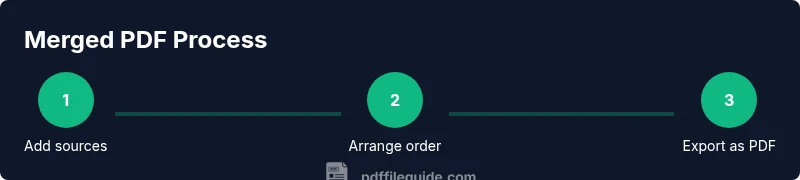
Combining Files into One PDF: A Step-by-Step Guide
Learn how to merge multiple files into a single PDF, choosing the right tool, arranging pages, and exporting a polished document for sharing, archiving, or collaboration.


You will learn how to combine multiple files into a single PDF. This guide covers choosing the right tool, arranging pages, and saving the result with consistent settings. By the end, you'll have a unified document ready for sharing, archiving, or collaboration, with tips for maintaining print quality and searchability.
What combining files into one pdf achieves
According to PDF File Guide, combining files into one pdf can streamline how you share, review, and archive documents. When you merge contracts, reports, or graphics into a single file, you reduce clutter and avoid misplacing pages. This approach is particularly valuable for teams coordinating revisions across multiple departments. PDF File Guide's research indicates that a well-structured merged PDF improves consistency in branding and metadata across a set of documents. In practice, you gain a single source of truth, easier searchability, and better file management. Beyond convenience, a merged document lays a solid foundation for accessibility, version control, and standardized distribution workflows. For professionals who regularly juggle proposals, appendices, and appendices in different formats, the ability to unify into one file saves time and reduces the risk of missing pages during review cycles.
Tools and methods: built-in options vs. third-party tools
There are several paths to merge files into a single PDF. Built-in options on macOS (Preview) and Windows (a combination of File > Print to PDF workflows or modern PDF editors) are convenient for quick merges without extra software. For more complex needs—such as combining large image collections, maintaining bookmarks, or preserving metadata—dedicated tools like desktop PDF editors or reputable online services can be worth the investment. When choosing a tool, consider whether you need offline privacy, batch processing, or advanced features like automated table of contents generation. Regardless of the tool, ensure it preserves fonts, image quality, and document structure. PDF File Guide recommends testing the final document on different devices to confirm that layout and accessibility remain intact.
Preparing files for merging: formats, sizes, and order
Start by standardizing the source materials. If possible, convert everything to a compatible, high-quality PDF before merging. Align page sizes, margins, and orientation across files to avoid unexpected gaps or cropped content. Decide the page order in advance—clear naming and a planned sequence prevent last-minute rearrangements. Check for embedded fonts, image resolutions, and color profiles; inconsistent fonts or low-resolution images can degrade the final document’s readability. Keep a backup of the originals in their native formats in case you need to redo sections after the merge.
Merging workflows across platforms: a quick reference
On macOS, Preview lets you drag and drop files into a single window and export as a PDF with bookmarks preserved. Windows users can utilize built-in printing-to-PDF workflows or a trusted PDF editor to merge multiple documents. Linux users often rely on command-line tools like Ghostscript or PDF tools that arrange pages before writing a new PDF. Online tools can be convenient for quick merges, but they require uploading sensitive content to a third-party service, which may raise security concerns. Always verify that the final file preserves bookmarks, metadata, and searchability after the merge.
Accessibility, metadata, and security considerations
A merged PDF should be accessible to a broad audience. Enable tagging, alt text for images, and a logical reading order to support assistive technologies. Preserve or edit metadata to reflect the document’s author, title, and subject; this improves searchability and helps with archiving. If the document contains sensitive information, consider applying password protection or encryption, especially for externally shared files. When distributing the file, provide a version history or a clear naming convention so recipients know they’re working with the latest iteration.
Troubleshooting & optimization: common issues and fixes
Common problems include font substitution, cropped margins, and unexpectedly large file sizes. If fonts fail to embed, switch to a font that supports embedding or adjust the export settings. For stubborn margins, double-check page scaling and printer settings before exporting. Large image-based PDFs can be compressed by adjusting image quality or downsampling resolution, while avoiding excessive compression that harms readability. If bookmarks or internal links disappear after merging, re-check the tool’s merge options to ensure these features are retained in the final document.
Best practices for sharing and archiving merged PDFs
Adopt a consistent file-naming convention that includes a date and version number (e.g., ProjectReport_2026-03-v1.pdf). Store merged PDFs in a well-organized folder structure with backups. Create a short summary document or table of contents within the PDF to guide readers through sections, appendices, and references. For archival purposes, consider saving a lossless version and a compressed version tailored for distribution. Finally, test the file on multiple devices and PDF readers to confirm compatibility and readability.
Tools & Materials
- Computer or mobile device(With internet access or offline tools available)
- PDF merging tool (software or online)(Choose based on privacy needs and features)
- Source files ready for merging (PDFs, images, DOCX, etc.)(Prefer standardized PDFs when possible)
- Stable internet connection (for online tools)(Offline tools are safer for sensitive documents)
- Backup copies of originals(Keep original formats in case you need to redo parts)
Steps
Estimated time: 15-25 minutes
- 1
Gather files and determine order
Collect all source documents and decide the sequence for merging. A clear order reduces later rearrangements and ensures logical flow for readers.
Tip: Label files clearly (e.g., Intro, Methods, Appendix) to avoid misplacement. - 2
Choose merge method and tool
Select the tool that best fits your needs—offline for sensitive content, or online for speed and convenience. Ensure the tool preserves fonts, bookmarks, and metadata.
Tip: If privacy matters, favor offline desktop software over online services. - 3
Load files into the tool in the desired order
Import each file in the planned sequence. Verify that all pages are present and that there are no duplicates or missing sections.
Tip: Use a drag-and-drop interface when available to minimize shuffling. - 4
Review and adjust page settings
Check page size, orientation, margins, and scaling. Correct any inconsistencies before merging to prevent cropped or misaligned content.
Tip: Enable a preview mode to quickly spot layout issues. - 5
Export as PDF
Save or export the merged document as a single PDF. Choose options that preserve bookmarks, metadata, and accessibility tags where possible.
Tip: Name the file with a version and date to simplify future updates. - 6
Verify final document
Open the resulting PDF to confirm page order, links, fonts, and searchability. Check metadata and accessibility features if required.
Tip: Run a quick accessibility check and test on a different PDF reader.
Questions & Answers
What is the best tool to merge PDFs?
There isn’t a universal best tool; choose based on your platform, privacy needs, and required features like bookmarks or metadata retention.
There isn’t a single best tool; pick one that fits your platform and features you need.
Can I merge PDFs without losing quality?
Yes, by using tools that preserve fonts and image quality, and by exporting with high fidelity settings. Avoid re-encoding content when possible.
Yes, use a tool that keeps fonts and images intact and export at high quality.
Is it safe to merge PDFs online?
Online mergers can be convenient, but they pose security risks for sensitive documents. Prefer offline tools for confidential material.
Online merging is convenient but risky for sensitive data; use offline tools for privacy.
Will merging rearrange my document structure?
You should pre-define the page order and use the merge tool’s arrange feature to ensure the final document matches your plan.
Predefine the order and use the tool to arrange pages before final export.
How do I preserve metadata during merging?
Many tools let you retain or edit metadata during export. Check the export options to ensure title, author, and subject are preserved.
Check export options to keep or adjust metadata like title and author.
What should I do if fonts aren’t embedded?
Switch to an embed-capable font or adjust the export settings to embed fonts. This prevents substitution on other devices.
Embed fonts or choose an export setting that supports embedding.
Watch Video
Key Takeaways
- Plan file order before merging.
- Choose the right tool based on privacy needs.
- Verify final PDF accessibility and metadata.
- Standardize page size to prevent layout issues.