Delete Text on PDF: A Practical How-To
Learn safe methods to delete text on PDF, including editing vs. redaction, best practices for preserving document integrity, and a practical, step-by-step workflow for professionals.


In this guide you will learn how to delete text on pdf using editing or redaction tools. You’ll compare erase vs redact methods, choose the right approach for your document, and follow a safe, step-by-step process. PDF File Guide provides practical tips for professionals handling sensitive content. We’ll cover common tools, how to verify results, and how to document redactions for audits.
What deleting text on a PDF actually means
Deleting text on a PDF can mean two distinct things: erasing the visible characters so they no longer appear in the document, or redacting the information so it is permanently hidden and inaccessible. The choice depends on your goal. If you simply want to remove the content from view, a normal text edit might suffice. If you need to ensure the information cannot be recovered, redaction is the safer and more compliant option. The PDF File Guide team emphasizes understanding the difference between these methods, especially when handling confidential or legally sensitive material. When you delete text on pdf, you should also consider how the change affects searchability, accessibility, and audit trails. Always keep a backup copy of the original file before making edits to protect against accidental deletions or metadata leakage. For professionals, clarity about the method chosen helps maintain document integrity and compliance with internal policies.
When to use edit vs redact
Edit vs redact is not merely a cosmetic decision; it determines whether content can later be recovered and whether the document remains auditable. If the text is part of a working draft and you anticipate future revisions, editing might be acceptable—provided you retain a version history and a backup. Redaction, on the other hand, permanently removes the content and hides it behind a black bar or other masking technique, ensuring that extraction or OCR cannot reveal the redacted information. The decision often hinges on legal requirements, privacy concerns, and the intended audience. The PDF File Guide analyses typical workflows across corporate, legal, and academic use cases to help you decide which approach fits best.
Tools and techniques for deleting text on pdf
A modern PDF editor with text editing or redaction capabilities is essential. Look for features like “Edit Text” for simple deletions and a built-in “Redact” tool for permanent hiding. If your editor lacks redaction, a two-step workaround is possible: first erase the text, then add a solid background rectangle to mask underlying content. For scanned PDFs, OCR becomes necessary to identify text before deleting it. If you’re working with sensitive documents, ensure you enable document sanitization options to remove hidden metadata. Always verify the final file by searching for the removed text and checking metadata fields that could still reveal the deleted content, such as author notes or file properties. In addition to primary tools, maintain a versioned backup strategy to trace edits and facilitate audits.
Practical workflow: from backup to verification
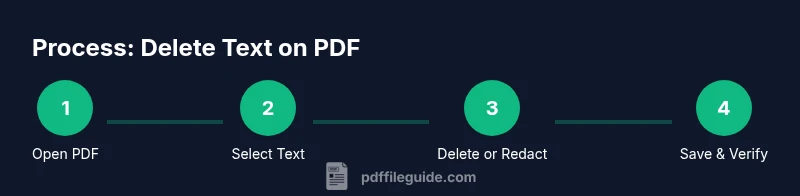
Begin with creating a backup copy of the original PDF and saving it to a secure location. Open the file in your preferred editor, locate the target text, and decide whether to erase or redact. If erasing, delete the characters and consider adding a small background shape to prevent any residual marks from showing through if the PDF is printed. If redacting, apply the redaction tool to permanently remove the text; review a redacted preview to confirm no hidden text remains. Next, perform a metadata cleanup and run a quick search for the redacted terms to ensure there are no recoverable traces. Finally, export or save the updated document under a new version name, preserving the original file for compliance records. PDF File Guide recommends documenting each step in your audit trail so reviewers can understand the changes made.
Safety and accuracy considerations when deleting text
Deleting text on a PDF can inadvertently alter the document’s meaning or cause accessibility issues if not handled carefully. When you remove content that changes the context or the narrative, consider adding a note in the document explaining the change, or providing a separate changelog for readers. If the file is shared externally, ensure that redactions are applied using the editor’s built-in redaction feature rather than simple erasing, which can leave traces in metadata. After editing, test with search functions, confirm the readability of the document, and verify that screen readers can still access the structure where appropriate. These checks help maintain professional standards and reduce the risk of misinterpretation.
Examples and troubleshooting: before and after
Before deleting, a page might show sensitive terms embedded in headers or footnotes. After deletion or redaction, those terms should be absent from the visible text and from the searchable index, while the page layout remains intact. If the text seems to have moved or the layout appears broken, re-check the text box selections and re-apply deletion to the correct sections. If you encounter issues saving the file after redaction, try exporting to a new file name, clearing the temporary cache of the editor, and ensuring the file isn’t protected by access permissions. In persistent cases, consult your editor’s help center or contact the PDF File Guide Editorial Team for best-practice guidance.
Tools & Materials
- PDF editor with text editing and redaction features(Examples include editors with Edit Text and Redact tools; ensure you have a licensed copy and up-to-date security patches.)
- Backup copy of the original PDF(Create a separate file before editing; label with a version suffix.)
- Redaction tool(Permanently hides text with masking; verify no recoverable content remains.)
- Eraser/whiteout tool(Use only if a built-in redact tool is unavailable; safer to redact if content is sensitive.)
- OCR software (for scanned PDFs)(Needed to convert image-based text to editable text before deletion.)
- Version control method(Log edits and maintain version history for audits.)
Steps
Estimated time: 25-45 minutes
- 1
Open the PDF in your editor
Launch your chosen PDF editor and open the file you need to modify. Confirm you have a backup copy saved elsewhere before making changes.
Tip: Verify you’re editing the correct document version to avoid accidental deletions. - 2
Select the text to delete
Use the Edit Text tool to highlight the exact characters you want removed. Zoom in if needed to avoid deleting adjacent content.
Tip: Make precise selections to prevent unintended gaps in the layout. - 3
Decide between erase vs redact
If the goal is temporary removal, erasing may be sufficient. For confidential content, apply redaction to permanently hide and mask the information.
Tip: Redaction is generally safer for sensitive information and audit compliance. - 4
Apply the deletion or redaction
Perform the deletion or activate the redaction tool. If redacting, ensure the redaction is applied to all layers and check the preview.
Tip: Double-check that no underlying text is recoverable after redaction. - 5
Clean up metadata and verify
Search the document for any remnants of the deleted text in metadata or hidden fields. Remove or sanitize as needed.
Tip: Always verify by performing a full-text search across the file. - 6
Save and document the changes
Save the edited file as a new version and log the changes in your audit trail. Consider exporting to a compatible format if required.
Tip: Keep the original file as a reference for compliance purposes.
Questions & Answers
What is the difference between deleting text and redacting text in a PDF?
Deleting text removes it from display, but redacting hides it permanently and prevents recovery. Redaction also signals compliance with privacy policies.
Deleting text removes it, but redaction hides it permanently and is better for compliance.
Can I delete text from a scanned PDF?
Yes, but you must run OCR to identify editable text first. If OCR isn’t feasible, you may need to recreate the page content.
You can delete text from a scanned PDF after running OCR to convert it to editable text.
Will deleting text affect accessibility?
Deleting or redacting can impact screen readers if structure or headings are altered. Restore proper document structure and provide alternate text where needed.
Yes, it can affect accessibility; ensure structure and alt text are preserved where required.
How can I ensure redactions are permanent?
Use the built-in redaction tool, then export a final version and verify that no redacted content can be recovered from the file.
Use redaction tools and verify there’s no recoverable content.
What should I do if the PDF becomes corrupted after editing?
Revert to the backup file, re-run the changes, and consider reducing edits in one pass to minimize risk.
If it corrupts, revert to backup and try again carefully.
Do editing changes apply to document metadata?
Yes, some text may linger in metadata. Always sanitize metadata and verify with a metadata search.
Text can linger in metadata; sanitize and recheck.
Watch Video
Key Takeaways
- Back up the original file before editing.
- Choose redaction for permanent content removal.
- Verify no hidden text or metadata remains.
- Document changes for audits and compliance.