How to delete pages from PDF: Step-by-step guide
Learn how to delete pages from pdf safely using desktop software, online tools, or open-source editors. This step-by-step guide covers planning, execution, and verification to keep your documents clean and secure.


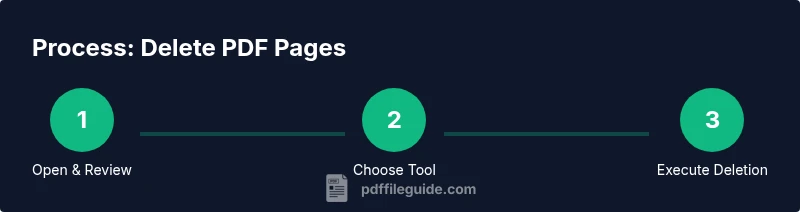
You will learn how to delete pages from a PDF using desktop, online, or open‑source tools. The guide covers safe prep, step‑by‑step deletion, handling bookmarks and metadata, and after‑care checks to prevent data loss. You’ll also see common pitfalls and how to verify the final document meets your needs. This approach minimizes accidental removal of important content.
Why deleting pages from pdf matters
Deleting pages from pdf is a common, practical editing task that helps you focus on the most relevant content, reduce file size for sharing, and protect sensitive information. When you remove pages you no longer need, you also reduce the risk of exposing outdated data. According to PDF File Guide, removing unnecessary pages helps teams share focused documents and protect sensitive information. Understanding the context—why a page exists, what it contributes, and whether it requires archiving—is essential to a clean result. In professional workflows, deleting pages is not just about trimming content; it’s about preserving the integrity of the document’s structure, metadata, and any linked resources. This foundation ensures downstream recipients have a precise, usable file rather than a bloated, confusing one. Remember: the goal is clarity, not simply smaller file sizes. By planning what to keep and what to remove, you set yourself up for a smoother editing process and fewer follow-up revisions.
Before you remove pages: planning the edit
Before you delete any pages, take a few minutes to plan the edit. Start by inspecting the document’s table of contents, index, and bookmarks to see how pages are interrelated. Identify any critical sections, appendices, or references that must stay intact. Create a list of pages to remove, and consider deleting in small batches to minimize accidental data loss. If you’re unsure, build a reversible plan: save the original file, then perform edits on a duplicate and compare results. This preparation not only saves time but also provides a reliable rollback if you spot unintended omissions later. PDF File Guide emphasizes that careful planning reduces errors and speeds up the review process, especially for long reports and manuals.
Method 1: Delete pages in Adobe Acrobat (DC)
Adobe Acrobat DC provides robust page management features, including deleting pages via the Organize Pages tool. To begin, open the PDF and choose Tools > Organize Pages. Select the page range or individual pages you want to remove; you can hold Ctrl (Windows) or Command (Mac) to select multiple pages. Click the Delete icon and confirm. Save the edited document with a new name to avoid overwriting the original. If you use Acrobat’s optimization options, you can balance page deletion with file size reductions. This method works well for complex documents with many internal links and bookmarks because Acrobat preserves much of the document structure during the operation.
Method 2: Delete pages using free online tools
Free online tools offer quick deletion for simple PDFs, but they come with privacy considerations. Upload your file to a reputable service, use the page selection controls to remove unwanted pages, and then download the edited PDF. Always review the tool’s privacy policy and avoid uploading any confidential or regulated content. After deletion, recheck that links, forms, and metadata still function as expected. Online tools are convenient when you don’t have access to desktop software, but always weigh convenience against security and compliance.
Method 3: Delete pages with open-source editors
Open-source editors can handle page deletion without the cost of paid software. For example, PDF editors like PDFsam Basic or LibreOffice Draw provide page management capabilities. Load your PDF, navigate to the page view, and select pages to remove. Some tools require you to save or export a new PDF after editing. Open-source options are attractive for users who prioritize privacy and control, but interfaces may be less polished, and feature parity with commercial products can vary. Always verify output in a second viewer to ensure all content is intact.
How to delete multiple pages efficiently
If you know exactly which pages to remove, use page range deletion to speed up the process. Many tools accept ranges like 5-9 and 12, 14-16. Deleting ranges reduces the chance of missing a page in the middle and helps maintain consistent pagination. When possible, perform a trial deletion on a duplicate file to confirm that all pages have been removed correctly and that the remaining content maintains logical flow. This approach is especially valuable for large documents or reports with extensive cross-references.
Preserve your document: avoid data loss
Before any deletion, create a backup copy of the original PDF. Store it in a separate location or versioned folder. After deleting pages, compare the new version with the backup to ensure no essential content was removed inadvertently. If available, enable version history in your storage service so you can revert changes quickly. This discipline saves time during reviews and prevents costly mistakes in regulated workflows. PDF File Guide recommends keeping at least one untouched copy until you’re satisfied with the result.
Handling bookmarks, links, and metadata after deletion
Pages deletion can affect bookmarks, internal links, and metadata. After editing, review the document’s navigation pane to ensure bookmarks point to the correct sections. Test internal links by clicking through from the table of contents and cross-references. Update metadata (title, author, subject) if necessary to reflect the new structure. If your workflow relies on automated accessibility checks, re-run them to confirm no broken anchors or navigation problems were introduced during deletion.
Troubleshooting common problems when deleting pages
If you encounter restrictions, check the file’s permissions or password protection. Some PDFs disable editing and require an owner password to proceed. If pages won’t delete or the file becomes corrupt, try a different tool or export the content to a new PDF file, then re-import it. Inconsistent pagination after deletion can happen if the document includes complex headers, footers, or section breaks; adjust these elements in your editor to reestablish uniform pagination. When issues persist, consult the tool’s help resources or try a fresh start with a copy of the original.
Security and privacy considerations when deleting pages
Deleting pages can involve sensitive information. If the document contains confidential data, avoid using public or shared computers and online services for deletion. Prefer offline tools or trusted in-house software to minimize leakage. After deletion, securely delete the original copies if you no longer need them, or retain them under controlled access. Finally, verify that no hidden data, metadata, or embedded objects remain that could reveal prior content. Following best practices protects both you and your organization from inadvertent data exposure.
Tools & Materials
- Computer or mobile device(With a capable PDF tool, availability of offline editing preferred)
- PDF editor or tool (desktop, online, or open-source)(Choose based on environment and privacy needs)
- Backup copy of the original PDF(Store separately in case you need to revert)
- Stable internet connection (optional for offline editing)(Only required when using online tools)
- Page range list (e.g., 3-5,7,9-11)(Prepare a precise list of pages to remove)
Steps
Estimated time: 30-60 minutes
- 1
Open the PDF and review the content
Launch your chosen editor and load the target PDF. Skim the document to identify sections, tables, and images that should remain intact. Note any pages that contain critical data or cross-references to other sections.
Tip: Mark page ranges you plan to delete in a separate note before editing. - 2
Create a backup copy
Save an exact copy of the original file with a clear suffix (e.g., _backup). This preserves the original in case you need to revert or compare differences.
Tip: Store backups in a different folder or drive from edited files. - 3
Choose your deletion method
Decide whether to delete pages in a desktop editor, an online tool, or an open-source solution. Consider file size, sensitivity, and whether you need to preserve special features like bookmarks.
Tip: For sensitive documents, prefer offline editors to minimize data exposure. - 4
Select the pages to delete
In the page view, select the exact pages or range you plan to remove. Use range notation when supported to speed up the process.
Tip: Double-check the first and last page of each range to avoid off-by-one errors. - 5
Delete the selected pages
Execute the delete action and confirm. If the tool prompts about removing associated objects (annotations, forms, or links), review these prompts carefully.
Tip: If available, perform a test deletion on the backup first. - 6
Save the edited file as a new document
Save the result with a new filename to avoid overwriting the backup. Include a version indicator in the name if appropriate.
Tip: Avoid spaces in file names for compatibility across systems. - 7
Verify page count and content
Reopen the new PDF and confirm the page count matches your plan. Scroll through to ensure no content was inadvertently removed.
Tip: Use a quick skim to catch missing figures or misaligned pages. - 8
Test bookmarks and links
Click through internal links and bookmark entries to ensure navigation remains correct after deletion.
Tip: If broken, rebuild bookmarks to maintain document flow. - 9
Check metadata and properties
Review the document’s metadata (title, author, subject) and adjust if the structure changed significantly.
Tip: Metadata updates help searchability and accessibility. - 10
Handle restricted PDFs
If editing is blocked, determine if you can remove restrictions legally or use a permitted workflow. If not allowed, seek proper permissions.
Tip: Respect copyright and access controls; do not bypass protections unauthorized. - 11
Finalize and archive
Store the final version securely, with a clear audit trail of changes. Archive the original and edited versions in a controlled manner.
Tip: Maintain an accessible log of the edits for future reference. - 12
Document the process
Record the steps you took, tool settings, and rationale for page deletions to support future edits.
Tip: A short changelog helps teammates understand the revision history.
Questions & Answers
Can I delete pages from a password-protected PDF?
If you have the authorization to edit the file, remove protection with the proper password and proceed with deletion. Do not attempt to bypass protections without permission.
If you’re authorized, unlock the PDF first, then delete the pages. If not, obtain permission before proceeding.
Will deleting pages affect bookmarks or internal links?
Deleting pages can disrupt bookmarks and links. Always review navigation after editing and update any affected references.
Yes, you should check bookmarks and links after deletion and fix any broken paths.
Is it better to delete pages in one tool or split across methods?
Use the tool that best preserves structure for your document. If needed, perform deletion in a test file first to compare results across methods.
Choose the method that keeps your document structure intact and test before finalizing.
What should I do if my file won’t save after deletion?
Check for permission issues, corrupted content in the deleted sections, or conflicting metadata. Try saving under a new name or exporting to a fresh PDF.
If saving fails, try a different tool or save with a new filename after ensuring permissions.
How can I ensure privacy when deleting pages online?
Prefer offline tools for sensitive documents. If you must use online tools, read privacy policies and avoid uploading confidential data.
Online tools aren’t ideal for sensitive material; use offline options whenever possible.
Watch Video
Key Takeaways
- Back up before editing to prevent data loss
- Delete pages in small, testable batches
- Verify bookmarks, links, and metadata after deletion
- Choose tools based on document sensitivity and workflow
- Archive final and original versions for auditability