Editing in PDF: A Practical Guide for Professionals
A comprehensive, step-by-step guide to editing in PDF, covering text edits, image updates, form changes, accessibility, and final quality checks. Learn tools, workflows, and best practices for professional results.


Editing in PDF lets you refine text, adjust layouts, and update forms without recreating the document. It’s essential to pick a capable editor, confirm permissions, and preserve fonts and accessibility. This guide walks you through a practical, step-by-step workflow that covers text edits, image replacements, form updates, and final checks.
Why editing in pdf matters for professionals
Editing in pdf is a foundational skill for professionals who finalize documents for clients or internal use. Unlike source formats like Word or InDesign, PDFs preserve layout and content across platforms, so accurate edits require precision and discipline. The PDF File Guide team notes that reliable editing depends on tool capability, permission management, and a clear workflow that minimizes layout drift. According to PDF File Guide, mastering inline text edits, image replacement, and form field updates without breaking fonts or spacing is essential for legal, marketing, and technical documents. When teams adopt a standardized approach, they reduce revision cycles, improve accessibility, and maintain brand integrity. In practice, you’ll often need to adjust typography, hyperlinks, annotations, and metadata while ensuring that the document remains searchable and machine-readable. This section sets the stage for a practical, repeatable process you can apply across industries.
Core capabilities: what you can edit in a PDF
A PDF supports a broad range of edits, from simple text adjustments to complex layout changes. You can modify text content, font styles, and font embedding to preserve visual consistency. Image replacements and scaling let you refresh visuals without recreating pages. Annotations, sticky notes, and drawing tools help reviewers communicate feedback directly on the document. Form fields can be updated or reconfigured to capture data, and hyperlinks can be corrected or added for better navigation. For those working with accessible PDFs, tagging, reading order adjustments, and alternative text are essential for compliance. While many editors offer all-in-one features, the best choice depends on document type, security settings, and collaboration needs. The goal is to keep the original structure intact while implementing the necessary edits smoothly.
Choosing the right tools and formats
The landscape of PDF editors ranges from robust desktop suites to streamlined online services. Desktop editors like Adobe Acrobat Pro and Foxit PDF Editor provide advanced typography controls, precise object editing, and reliable OCR for scanned documents. Online editors can be convenient for quick fixes and collaboration but may have limits on file size, fonts, or security. When editing in pdf, you should consider whether you need persistent form fields, layer management, or accessibility tagging—features that are often stronger in desktop apps. If your PDFs originate from scanned paper, OCR quality becomes critical; evaluate editors with reliable OCR language support and layout preservation. Finally, align your tool choice with your workflow: batch processing, version control, and secure sharing capabilities are essential for professional environments. The aim is to select a toolset that minimizes rework and preserves document integrity.
The anatomy of a robust editing workflow
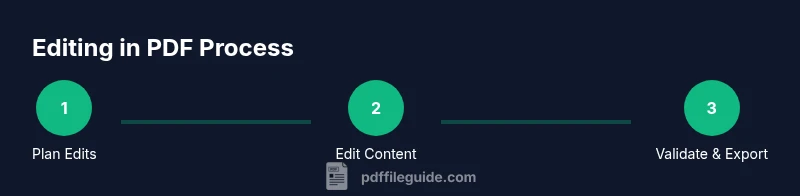
A robust workflow for editing in pdf starts with planning and consent checks, continues with controlled edits, and ends with verification and export. Begin by outlining the required edits, locating source assets, and establishing a baseline version. Next, perform edits in a dedicated copy, keeping original files untouched. Use styles and object alignment anchors to preserve typography and spacing as you adjust text and images. Regularly compare the edited version with the baseline to catch drift, fonts, or metric inconsistencies. Run built-in checks for accessibility, hyperlinks, and metadata. Finally, export in the correct format (print-ready vs. web-ready) and create a shareable version with a version history. A structured workflow reduces rework, improves consistency, and supports compliance requirements, such as accessibility and branding standards.
Accessibility and compliance considerations when editing PDFs
Editing in pdf must consider accessibility from the start. Ensure proper reading order, alternative text for images, and clear navigation for assistive technologies. Tagging and structure should reflect the document’s logical order, with headings, lists, and semantic tags that screen readers can parse. When you modify content, preserve tagging relationships and ensure hyperlinks remain descriptive. Font choices should support readability and contrast, and metadata should be accurate to aid search and indexing. For regulated or publicly shared documents, apply a formal review process to confirm continued compliance with branding guidelines and accessibility standards. The goal is not only to edit content but also to preserve or enhance accessibility and searchability while maintaining document integrity.
Common pitfalls and how to avoid them
Editing in pdf can drift if you skip backups or ignore font metrics. Common issues include font substitutions that break layout, image rescaling that distorts proportions, and form field misalignment after edits. Links and interactive elements may become inactive if annotations aren’t updated properly. In multi-page documents, header and footer elements can lose alignment after text edits. To avoid these pitfalls, maintain a strict versioning scheme, compare page-by-page after edits, and test interactive elements in a final viewer. Regularly run accessibility checks and verify export settings to ensure consistency across formats and devices. By anticipating these challenges, you can preserve professionalism and reliability in every PDF you edit.
Real-world examples and checklists
Real-world editing scenarios include updating a client proposal with new figures, refreshing a product brochure with updated specifications, and revising a contract to reflect current terms. Use checklists to standardize edits: confirm permissions, verify fonts, test all form fields, review links, and validate accessibility tags. In long documents, split edits into logical sections to reduce cognitive load and prevent drift. Maintain a change log with dates and descriptions to simplify audits. Finally, assemble a final proof with colleagues for a second set of eyes before distributing the corrected PDF.
Tools & Materials
- Computer with internet access(Modern OS; ensure adequate RAM (8GB+) for smooth editing)
- PDF editing software(Examples: Adobe Acrobat Pro, Foxit PDF Editor; consider trial if exploring options)
- Keyboard and pointing device(Mouse or trackpad; a stylus can help with precise selections)
- OCR capability (for scanned PDFs)(Useful for text recognition in images; ensure language packs are installed)
- Backup storage(External drive or cloud storage for versioned copies)
- Font resources (optional)(Licensed fonts to preserve typography if fonts are substituted)
Steps
Estimated time: 1.5-2 hours
- 1
Identify goals and gather sources
Define the edits needed (text changes, image swaps, form updates) and collect the original file, fonts, and any supporting assets. This upfront planning reduces rework later and keeps the layout intact.
Tip: Create a concise edit brief listing each change and its priority. - 2
Open the PDF and verify permissions
Launch your editor and confirm you have rights to modify the document. If security settings block edits, request access or unlock the document using the proper workflow.
Tip: If permissions are restricted, document the limitation and seek approval before proceeding. - 3
Edit text and fonts to match style
Make targeted text edits, adjust fonts, and ensure spacing matches the document’s style guide. Preserve font metrics and avoid unintended line-wrap changes.
Tip: Use paragraph and character styles to maintain consistency across sections. - 4
Update images, tables, and forms
Replace outdated visuals, check table alignments, and adjust form fields to reflect new data. Ensure images maintain resolution and cropping isn’t distorted.
Tip: Re-link image paths to prevent broken assets after export. - 5
Test accessibility and tagging
Run accessibility checks, verify tag order, and add or adjust alternative text for images. Validate reading order so screen readers interpret content correctly.
Tip: Always verify that navigation via heading structure remains logical. - 6
Review, compare, and export
Compare edited pages against the baseline, confirm hyperlinks work, and export in the appropriate formats. Save a versioned copy and run a final quality check before distribution.
Tip: Store exports with clear version numbers and dates for traceability.
Questions & Answers
What is editing in PDF?
Editing in PDF involves changing text, images, forms, and layout within a PDF while preserving its overall structure. It requires appropriate tools, permissions, and a careful workflow to avoid breaking typography or spacing.
Editing in PDF means updating content and visuals without altering the document’s core design. It helps you keep files professional and up to date.
Can I edit scanned PDFs?
Yes, but you need OCR (optical character recognition) to convert the image text into editable text. Quality depends on the scan clarity and the language models installed in your editor.
You can edit scanned PDFs after running OCR so the text becomes selectable and editable.
What are the best tools for editing in pdf?
The best tools balance capabilities and your workflow. Desktop editors like Adobe Acrobat Pro and Foxit PDF Editor offer strong text, image, and form editing, while online editors suit quick fixes and collaboration.
Choose a tool that matches your needs, whether you require advanced typography or simple online edits.
How can I preserve formatting after edits?
Use consistent styles, avoid manual spacing tweaks, and keep fonts embedded. After edits, compare page layouts to ensure paragraphs, headers, and margins remain aligned.
Stick to your document’s style guide and reuse styles for unchanged sections.
Is it safe to edit confidential PDFs?
Editing confidential PDFs requires secure tools, encrypted storage, and strict access controls. Audit trails and restricted sharing help protect sensitive information.
Yes, with proper security practices and controlled access you can edit confidential PDFs safely.
What about accessibility when editing PDFs?
Maintain or improve accessibility by preserving or updating tagging, reading order, alt text, and keyboard navigation. Re-check after edits to ensure assistive technologies can interpret content correctly.
Accessibility should be a continuous consideration throughout edits, not an afterthought.
Watch Video
Key Takeaways
- Plan edits before touching content
- Preserve fonts and layout throughout edits
- Test accessibility and links in final export
- Maintain versioned backups for every change