How to Change Text in PDF: A Complete How-To
Learn how to change text in a PDF using desktop or online editors. This guide covers editable text, OCR for scans, font consistency, and best practices from PDF File Guide.


To change text in a PDF, you’ll need a capable PDF editor and the document’s editing permissions. According to PDF File Guide, start by choosing the right tool (desktop editors like Adobe Acrobat Pro, Foxit, or PDFelement, or trusted online editors), then follow the steps to locate text, modify it, and save a clean version. This quick guide highlights how to handle text edits, whether the PDF includes editable text or requires OCR for scanned pages.
Understanding editable text in PDFs
PDFs differentiate between text that is truly editable and text that appears as an image. When text lives as a selectable text layer, modern editors let you directly modify characters, adjust fonts, and reflow paragraphs without recreating the document. If the content is embedded as an image (common with scanned PDFs), you’ll need OCR (optical character recognition) to convert the image into editable text before you can modify it. PDF File Guide emphasizes the first step: determine whether the page contains a text layer or a bitmap image so you pick the correct editing path. In practice, you’ll often see mixed pages where some blocks are editable and others require OCR, especially in multi-page reports or government forms. Understanding this distinction helps you avoid wasted steps and lost formatting. As a best practice, always keep a backup before editing and check fonts after editing to maintain consistency with the original document.
Why this matters for professional workflows
For professionals, text edits aren’t just about changing words. They involve font compatibility, line wrapping, and preserving accessibility tags. If a font isn’t embedded or substituted, the edited text can look off or break the layout. PDF File Guide notes that maintaining the document’s visual integrity is essential for legal and archival purposes. Therefore, before editing, locate the font used in the original document, assess whether you can embed it during saving, and plan a quick reflow if the text box is too narrow for the new content. This foresight saves time and reduces the need for reformatting after edits.
Tools and permissions you’ll need
Before editing, confirm you have editing rights or a password if the PDF is secured. Then pick a tool that supports Edit Text or Edit Content. Some editors offer trial modes, so you can test features like Find and Replace, spell check, or font compatibility before committing changes. If the document contains forms, ensure you don’t accidentally remove form fields or alter field properties. A typical setup includes a computer with a stable editor, the target PDF, and a reliable backup strategy to preserve the original.
Handling mixed content: text vs image
A common challenge is mixed content pages where some text is editable and others are embedded as images. In such cases, you’ll edit the text portions first, then run OCR on the image sections. After OCR, verify text accuracy and re-check for font and spacing alignment. PDF File Guide advises performing an end-to-end quality check after edits, including readability, searchability, and accessibility tagging where applicable.
Tools & Materials
- PDF editor software(Choose a desktop editor (e.g., Adobe Acrobat Pro, Foxit PhantomPDF, PDFelement) or a trusted online editor. Ensure it supports Edit Text and, for scans, OCR.)
- Source PDF file(Have the exact document you need to modify ready for editing.)
- Backup copy(Create a saved version before editing to preserve the original.)
- OCR capability (if needed)(Necessary when the PDF is scanned or contains non-selectable text.)
- Font reference or embedded font(If you’re changing text, having the original font helps preserve appearance. Check if the font is embedded.)
- Stable internet connection (for online editors)(Needed if you’re using a cloud-based tool and the file is large.)
Steps
Estimated time: 40-90 minutes
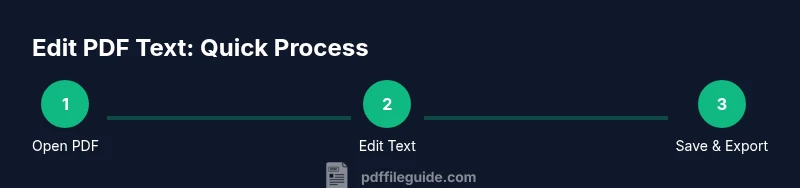
- 1
Open the PDF in a suitable editor
Launch your chosen PDF editor and open the target file. Confirm you have edit permissions; if not, request access or export a copy with editable rights. This step sets the foundation for reliable editing and avoids accidental data loss.
Tip: If the file is large, enable offline editing mode to reduce lag. - 2
Enter Edit Text or Edit Content mode
Switch to the Edit Text or Edit Content tool. This mode highlights text blocks and shows bounding boxes. If you don’t see text selectable, the page may be an image and require OCR first.
Tip: Use the dedicated text editing option rather than just annotating, to ensure proper font and spacing handling. - 3
Select the text you want to modify
Click and drag to select the exact characters you need to change. Take care to include adjacent punctuation if needed to maintain grammar and flow.
Tip: For long edits, use Find and Replace to speed up the process. - 4
Type new text and adjust styling
Enter the replacement text and adjust font, size, color, and alignment to match the document. Check that ligatures and spacing look natural in the surrounding lines.
Tip: After typing, review that the new line breaks align with existing layout. - 5
Use Find and Replace for repetitive edits
If the same word or phrase appears multiple times, use Find and Replace with a scope limited to the current document or selection. This avoids manual edits across pages.
Tip: Perform a quick search pass after replacements to catch unintended changes. - 6
Check fonts and embeddings
Ensure the edited text uses a font that is available in the document or embedded. Mismatched fonts can disrupt readability and layout when sharing.
Tip: If the original font is unavailable, choose a visually similar option and test on multiple devices. - 7
Tweak layout to preserve readability
Review line wrapping, hyphenation, and paragraph spacing. Adjust text box sizes or margins if the new text causes overflows or crowding.
Tip: Turn on preview mode to see how edits appear in the final print or export. - 8
Run OCR for image-based sections (if needed)
If you edited pages with images, run OCR to convert those regions to editable text. Verify the recognition accuracy and correct misreads.
Tip: Choose the correct language pack for OCR to improve accuracy. - 9
Save the edited PDF and archive
Save a new file name that reflects edits (for example, Document_v2.pdf). Keep the original intact as a fallback and, if needed, export to a different format (Word) for further edits.
Tip: Create a clearly labeled version history to track changes over time.
Questions & Answers
Can I edit text in a scanned PDF without OCR?
No. Scanned PDFs are images; you must run OCR to convert them to editable text before making changes. Then verify the text for accuracy.
No, you need OCR to convert the scanned image into editable text before editing.
Are free PDF editors sufficient for text edits?
Some free editors allow basic text edits, but they may lack advanced features like reliable OCR, font embedding, or batch processing. For professional needs, a paid editor is usually preferable.
Free editors can work for simple edits, but require caution for accuracy and formatting.
How can I keep the original font in edits?
Check if the font is embedded in the PDF. If not, either embed the font or choose a close match that preserves layout and readability.
Embed the font or select a close match to maintain the look.
Can I edit PDFs on mobile devices?
Yes, several mobile apps support text editing and OCR. However, the editing experience may be more limited than desktop software.
Yes, but expect fewer features on mobile than desktop.
What should I do if Find and Replace changes multiple unrelated sections?
Limit the scope to the current document or specific pages, and review results to avoid unintended edits.
Limit the scope and review results to avoid unwanted changes.
Is it safe to export edited PDFs to Word?
Exporting to Word can be convenient for heavy edits, but it may alter formatting. Re-export to PDF and review carefully.
Exporting to Word can help editing, but check formatting after re-export.
Watch Video
Key Takeaways
- Identify text vs image before editing.
- Choose the right tool with Edit Text and OCR capabilities.
- Preserve fonts and layout to retain document integrity.
- Always back up and verify edits across devices.