How to Only Save One Page of a PDF
Learn to save a single page from a PDF across Windows, macOS, and online tools. Step-by-step methods, safety tips, and best practices for keeping content focused and shareable.


You can save a single page by exporting or extracting a page range to a new PDF. Use a PDF editor or browser tool that supports page extraction; select the page, choose 'Extract' or 'Save as', and save as a separate file. This approach works on Windows, macOS, and many online tools, ensuring you share only the needed content.
Why saving a single page matters
Saving a single page from a PDF can save time, protect sensitive content, and make collaboration more focused. According to PDF File Guide, mastering page extraction can dramatically streamline workflows for editors, researchers, and students. When you share or archive a document, isolating the precise page you need reduces email clutter and the risk of exposing unrelated information. This is especially important for legal, academic, and professional contexts where precision matters and miscommunication is costly. By understanding the exact page you want, you also improve accessibility for readers who may only need a specific section of a larger report.
Methods at a glance: how to only save one page of a pdf
There are multiple routes to extract a single page from a PDF. Professional editors like Adobe Acrobat Pro provide robust extraction features, while built-in viewers on macOS and Windows offer basic capabilities. Internet-based tools can be convenient when you’re away from your main workstation, but privacy and file size limits matter. In practice, choose the method that balances ease, security, and accuracy for your particular document. This quick overview helps you decide whether to start with a desktop app, a built-in viewer, or an online service for extracting one page from a PDF.
Using Adobe Acrobat Pro for precise extraction
Adobe Acrobat Pro includes a dedicated extract feature you can use to isolate one page or a range. Open the PDF, switch to the Page Thumbnails pane, select the target page, and choose Tools > Organize Pages > Extract. In the dialog, specify the page range (e.g., 3-3) and choose 'Extract as separate file' or 'Delete pages after extraction' if you want to split the document. Click 'Save' to create the new PDF. Verify that the new file contains only the selected page, and adjust the filename to reflect the page number for clarity. This method preserves layout and embedded content when used correctly.
Using macOS Preview for quick extractions
Preview makes page extraction straightforward without third-party software. Open the PDF in Preview, display the Thumbnail view, click the target page, and choose 'File' > 'Export as PDF' or 'Print' > 'Save as PDF' with the page range set to the single page. If you use 'Print' to export, ensure the 'Pages' field reflects the single page (e.g., '3'). Name the file clearly, pick a destination, and save. Open the new PDF to confirm that only the chosen page is included. For frequent tasks, add Preview to your dock for faster access.
Save with Windows: Print to PDF or built-in readers
Windows users can often create a single-page PDF by printing the page to a PDF printer or using the built-in 'Microsoft Print to PDF' option. In your PDF viewer, choose the print command, set the page range to the exact page, and select 'Microsoft Print to PDF' as the printer. The system will prompt you to save a new PDF containing only that page. This approach is simple but may not preserve annotations or interactive elements; always verify the result and consider using a dedicated tool when precise extraction matters.
Free online tools: pros, cons, and safety tips
Online services can extract a page without installing software, but they require uploading your document to a remote server. Look for privacy policies, allowlisted domains, and size limits. Choose reputable providers and avoid PDFs containing sensitive data. After extraction, download the single-page file and delete the upload from the service if possible. If you must use online tools, restrict to non-confidential documents and review the output for completeness and readability. Always consider encrypting or redacting content before upload when privacy matters.
Preserve metadata and security when sharing single-page PDFs
Extraction can carry over metadata, document permissions, and hidden content. Before sharing, inspect the new PDF for metadata leakage and correct any sensitive fields like author or title. Use your editor to remove or anonymize metadata if needed and ensure that the document remains readable by your target audience. Consider password-protecting the page if confidentiality is required, especially if the page contains private data or client information. Security-conscious workflows benefit from keeping the original file in a secure location and delivering only the extracted page to collaborators.
Visual and accessibility checks
After extraction, review typography, images, and hyperlinks to ensure legibility. Check that the page looks correct on mobile devices by opening the file in a PDF reader on a phone or tablet. If accessibility is important, confirm that images have alt text and that headings are preserved for screen readers. If the page contains forms or interactive elements, test whether those elements function in the extracted file and, if not, provide a static alternative or a separate document with the necessary form fields.
Practical scenarios and best practices
Common use cases include sharing a single-page summary, sending one page of a contract for review, or delivering a specific chart from a research report. Adopt a consistent naming convention, such as DocumentName_PageX.pdf, to keep files organized. Always back up the original PDF before extraction, and consider creating a checksum or hash to verify file integrity after saving. For collaborative work, include a brief note in the filename or metadata describing why this page was extracted and who the intended recipient is.
Tools & Materials
- PDF editor with page extraction tools (e.g., Adobe Acrobat Pro, Foxit PhantomPDF)(Essential for precise control over single-page extraction and optional behavior like 'Extract' vs. 'Split'.)
- Original PDF file(Keep a backup before performing any extraction.)
- MacOS Preview or Windows built-in viewers(Useful for quick, no-cost extractions.)
- Web browser with PDF support( handy for online tools when offline options aren’t available.)
- Internet connection(Needed for online tools and some cloud-based workflows.)
- Printer or 'Save as PDF' option(Relevant if you choose a print-to-PDF workflow.)
Steps
Estimated time: 5-15 minutes
- 1
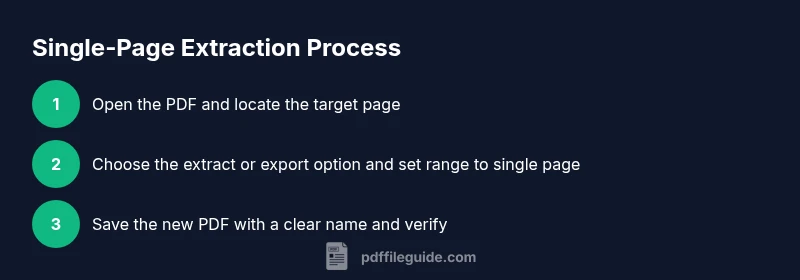
Open the PDF and locate the page
Open your PDF in your preferred tool and navigate to the exact page you want to save. Use the page thumbnails or the page navigation controls to confirm the correct page before proceeding. This step reduces errors and ensures you extract the right content.
Tip: Using thumbnail view speeds up locating the correct page. - 2
Choose the extraction option
Initiate the extraction function in your tool. In Acrobat, this is Organize Pages > Extract; in Preview or browser tools, look for 'Export' or 'Print to PDF' with a range. Set the range to a single page (e.g., 3-3).
Tip: If a tool defaults to a range, manually enter your single-page range. - 3
Create the new PDF from the single page
Confirm the range and choose the option to extract as a new file. Save the result with a descriptive name so it’s clear which page was saved (e.g., Report_Page3.pdf).
Tip: Name with the source document and page number for clarity. - 4
Save and verify the new file
Choose a destination folder and save the file. Open the new PDF to verify that it contains only the intended page and that the formatting is preserved. Check for missing images or corrupted content.
Tip: Run a quick check on two different PDF viewers if possible. - 5
Check metadata and accessibility
Inspect the new PDF’s metadata to ensure no sensitive information was copied unintentionally. If needed, remove or anonymize metadata and confirm accessibility settings meet your needs (e.g., tag structure, alt text).
Tip: Metadata can reveal author and project details; sanitize as needed. - 6
Share or archive the single-page PDF
Distribute the extracted page to collaborators or store it in a project folder. Keep the original file in a secure location for future reference and avoid overwriting it with the extracted version.
Tip: Maintain backups to prevent data loss.
Questions & Answers
Can I extract multiple pages at once, and how do I specify a range?
Yes. Most tools allow you to specify a start and end page (e.g., 2-4). Extract or save as a new PDF, and confirm the resulting file contains only the chosen pages.
Yes—you can extract a range by setting the start and end pages, then saving as a new PDF.
Will metadata copy to the new PDF after extraction?
Most extraction tools copy basic metadata. Review and edit fields like author, title, and subject if privacy or accuracy matters.
Most tools copy metadata; check and adjust it if needed.
Is extracting pages secure for confidential documents?
Offline tools are generally safer for confidential documents. If you must use online services, avoid uploading sensitive content and delete uploads promptly.
Offline tools are safer for confidential PDFs; online tools require extra caution.
What happens to forms in the extracted page?
If the page includes interactive forms, the extraction might not preserve form functionality. You may get a static image or text, depending on the tool.
Forms may not work after extraction; expect a static page in some cases.
Can I do this on mobile devices?
Yes. Several mobile apps support page extraction, but features and reliability can vary. Check updates and permissions before starting.
Mobile extraction is possible with the right app; features vary by tool.
Why might the extracted page look different across viewers?
Different PDF viewers render fonts, images, and colors slightly differently. Always verify the extracted page in at least two viewers.
Viewers can render pages differently; test across apps.
Watch Video
Key Takeaways
- Identify the exact page you need before extraction
- Choose a method that preserves layout and content
- Verify the new file by opening it in multiple viewers
- Back up the original PDF and document the process
- Be mindful of metadata and privacy when sharing