How to Extract a Page from PDF: A Practical Guide
Learn reliable methods to extract a single page or a page range from a PDF using desktop editors, offline tools, or online services. This step-by-step guide covers safety, verification, and common pitfalls for professionals editing PDFs.


You can extract a single page from a PDF by using a dedicated PDF editor, a free tool, or an online service. This guide shows quick, reliable methods for Windows, macOS, and Linux, with step-by-step actions and safety checks to preserve the rest of your document. Choose the method that fits your workflow and security needs.
What extracting a page from a PDF entails
In practical terms, extracting means creating a new document from selected pages, while the original file remains intact. For editing workflows, this is a routine step that helps share specific sections, deliver excerpts for review, or assemble client-ready pages. According to PDF File Guide, extracting a page relies on the PDF's internal page tree, which maps logical page numbers to visual content and metadata. Understanding this structure helps prevent missing fonts, annotations, or form fields when you save the extracted page. The goal is to produce a pristine, standalone PDF that contains only the requested pages, with consistent margins, orientation, and bookmarks if needed. This foundation supports choosing the right tool and method with confidence.
When you might need to extract a page
Extraction is useful for sharing a contract clause without the entire file, generating an executive summary from a longer report, or separating a scanned endorsement page for archival. It also helps when QA teams need to review a specific section, or when you must deliver a subset to a client without exposing unrelated content. The act is simple in principle but requires attention to page ranges, metadata, and any linked annotations. As you plan, consider whether you need the extracted pages to stand alone as a file or simply be placed back into the original document after edits.
Prerequisites and safety considerations
Before you begin, back up the original PDF to avoid accidental data loss. Verify you have permission to extract pages, especially from sensitive or confidential documents. If the file is password-protected, you'll need the password or a trusted workflow to handle permissions. Check that the tool you choose preserves essential elements like hyperlinks, annotations, and form fields. Depending on your content, you may want to preserve bookmarks or metadata in the extracted file for easy navigation later. These preparatory steps help maintain document integrity throughout the extraction process.
Desktop editors: reliable options for extraction
Many professional PDF editors include a dedicated page extraction feature. Popular choices provide a graphical interface (e.g., Organize Pages or Page Management) that lets you select a page range, choose the destination for the new PDF, and apply optional options like including bookmarks. Desktop editors are typically favored for sensitive documents because data remains on your device, reducing exposure to the internet. When selecting a tool, confirm it supports the output format you need (PDF/A, embedded fonts, and preserved annotations). Consistency in output naming and storage location also saves time in larger workflows.
Free desktop tools that work well for extraction
Free tools can handle page extraction without a paid license, making them attractive for occasional tasks. Tools like PDF splitting utilities and command-line utilities provide robust options for selecting page ranges and exporting to new PDFs. While free solutions can be powerful, verify that they preserve critical content such as embedded fonts and form fields if those are important to your workflow. Always test on a duplicate copy of the original to ensure the output matches your expectations.
Online services: pros, cons, and precautions
Online extraction services offer quick results without installing software. They are convenient for one-off tasks or when you work on multiple devices. However, uploading PDFs to a cloud service introduces privacy considerations. If your document contains sensitive data, prefer offline methods or use reputable services with strong privacy policies and client-side encryption. When using online tools, review the file retention policy and download securely to a trusted device. If in doubt, use offline options for high-security documents.
Step-by-step example: extract a single page with a popular editor
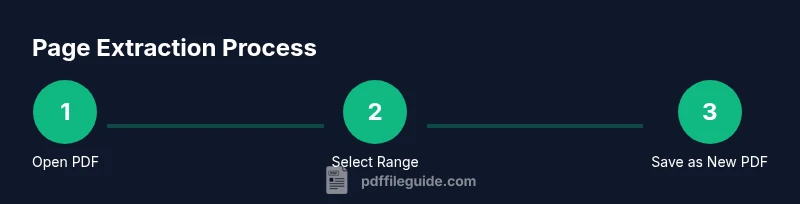
Imagine you have a 10-page contract and you need page 3 as a standalone file. Open the PDF in the editor, navigate to the page management area, select page 3, and choose Extract or Save As New. Ensure the resulting file includes only page 3 and is named clearly (e.g., Contract_Page3.pdf). Save it to a designated folder and re-check that links and annotations render correctly. This practical example mirrors common workflows and helps illustrate the steps involved.
Working with page ranges and multiple extractions
Some tasks require multiple pages or non-contiguous ranges. Most tools allow you to specify ranges like 1-3, 7, 9-11. Be mindful of overlapping ranges or reordering pages, as this can affect indexing and bookmarks. If you need several extractions, consider creating a workflow or script to batch process files, ensuring consistent naming conventions and output locations. This approach reduces manual errors and speeds up repetitive tasks.
Quality checks and finalizing the extracted file
After extraction, verify that the new PDF contains exactly the intended pages, with correct margins, orientation, and rotation. Open the file in a reader to confirm all links, forms, and annotations function as expected. If your workflow requires accessibility features, confirm that tags and structure are preserved. Finally, store the extracted page file in a secure, organized location and update any relevant project documentation to reflect the change.
Troubleshooting common issues and workarounds
If the extraction fails, check for password protection, document security restrictions, or corrupted content in the source file. For image-based (scanned) PDFs, you may need OCR to preserve text searchability in the extracted file. If bookmarks disappear, explore whether the tool supports re-creating or preserving bookmarks during extraction. When privacy is a concern, avoid online tools for sensitive documents and opt for local processing instead. The goal is a reliable, faithful extraction that preserves the content and structure of the selected pages.
The role of page extraction in professional PDF workflows
Efficient page extraction is not a one-off task; it’s a reusable step in many professional workflows. By using trusted tools, maintaining backups, and validating results, you can integrate extraction into larger processes like-redactions, client deliveries, and regulatory compliance. The PDF File Guide team recommends adopting consistent naming conventions, documenting the chosen method, and keeping a log of extracted pages for future reference. This disciplined approach improves accuracy, speed, and auditability across your PDF operations.
Tools & Materials
- PDF editor (desktop)(Examples: Adobe Acrobat Pro, Foxit PhantomPDF, Nitro Pro; includes Organize Pages or similar feature)
- Backup copy of the original PDF(Always keep a safe copy before extraction)
- Free desktop tools (optional)(Tools like PDFsplit or similar can handle simple extractions)
- Online extraction service (optional)(Use only for non-confidential documents; review privacy policies)
- Password or permission access(Needed for password-protected PDFs)
- Descriptive filename strategy(Use consistent naming (e.g., OriginalName_Page3.pdf))
Steps
Estimated time: 15-25 minutes
- 1
Open the PDF in your chosen tool
Launch the PDF editor and load the file from its saved location. Confirm you have permission to extract pages, and verify that the document opens without errors.
Tip: Use a duplicate of the original during testing to avoid data loss. - 2
Access the page extraction feature
Navigate to the page management area (often labeled 'Organize Pages' or 'Extract'). Select the pages you want to extract by range or individual pages.
Tip: If you’re unsure about page numbers, use the preview pane to confirm selections. - 3
Choose the extraction option
Select the option to export as a new PDF, or to save the extracted pages within a new document with a clear filename.
Tip: Check whether bookmarks and annotations are included in the new file. - 4
Save the extracted pages
Pick a destination folder, enter a descriptive filename, and save. If your tool asks about metadata, retain relevant properties like author or title.
Tip: Use a naming convention that makes retrieval easy later. - 5
Verify the new PDF
Open the extracted file and confirm it contains exactly the intended pages with correct layout and accessible content.
Tip: Run a quick link and form-field check if present. - 6
Optional: update the original document
If you need to replace the original with an excerpt, carefully insert or delete pages and save with versioning.
Tip: Keep a log of edits to maintain an auditable trail.
Questions & Answers
Can I extract multiple pages into separate PDFs at once?
Yes. Many tools support batch extraction where you specify multiple ranges and export each range as its own PDF. Check the tool's batch processing or scripting options to automate the task.
Yes, you can batch extract multiple page ranges so each range becomes its own PDF.
What should I do if the PDF is password-protected?
You need the password or permission from the document owner. Some tools offer secure handling for authorized extractions, but you must not bypass protections.
If the file is password-protected, obtain the password or access rights before extracting.
Will extracted pages retain bookmarks and links?
Most modern tools can preserve hyperlinks, but bookmarks and structural tags may vary by method. Test the resulting PDF to confirm.
Most tools keep links, but bookmarks might vary—test the output.
How do I handle image-only scans when extracting pages?
If pages are scans, you may need OCR when preserving text searchability in the extracted file. Some tools include built-in OCR for the output.
For scans, you might need OCR to keep text searchable.
What safety checks should I perform after extraction?
Open the extracted file in a reader to verify content integrity, check margins, and confirm that no unintended pages were included.
Open and verify the extracted PDF to ensure accuracy.
Can I replace the original PDF with the extracted page(s)?
Yes, but do so only after confirming the extracted content meets requirements and you have a current backup of the original.
You can replace the original after confirming the extracted pages are correct.
Are there privacy concerns with online extraction?
Yes. Uploading sensitive documents to online services can pose privacy risks. Prefer offline tools for confidential content.
Be mindful of privacy when using online tools; offline is safer for sensitive PDFs.
Watch Video
Key Takeaways
- Identify your extraction goal and choose the right tool.
- Back up files and verify the extracted pages thoroughly.
- Prefer offline methods for sensitive documents.
- Use consistent naming and documentation across extractions.