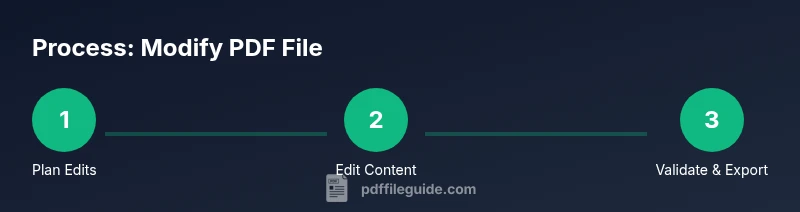
How to Modify a PDF File: A Complete How-To
Learn how to modify a PDF file safely and effectively. This guide covers editing text and images, annotations, forms, and accessibility considerations, with practical tool recommendations and a repeatable workflow.


You can modify a PDF file by editing text and images, annotating, filling forms, and adjusting structure, using a capable PDF editor. Start by backing up the original, choose a tool that supports your target changes, and follow a repeatable workflow to preserve formatting and accessibility.
What qualifies as modifying a PDF file?
Modifying a PDF file means making deliberate changes to its content, structure, or metadata while preserving the document’s core format. This includes editing text, replacing or repositioning images, adding or removing annotations, filling in interactive form fields, reordering pages, and adjusting document properties such as metadata, filenames, or accessibility tags. The goal is to achieve the desired outcome with minimal disruption to layout, fonts, and embedded resources. For professionals who regularly work with PDFs, this often requires a plan: identify the exact edits, choose the right tool, and test the document across viewers and devices to ensure the changes render correctly. In practice, the most successful edits are those that maintain readability, accessibility, and fidelity to the original document’s intent. The keyword here is intent: always align modifications with the document’s purpose and the audience’s needs.
How PDF modification differs from conversion and recreation
Many users confuse modification with conversion (exporting to Word or another format) or recreation (creating a fresh document). Modification stays within the PDF paradigm, altering existing content without changing the file’s fundamental type. This distinction matters because preserving fonts, embedded media, and document structure is easier when you edit directly in PDF rather than transforming to another format and risking layout shifts. PDF modification also entails checking compatibility with assistive technologies and screen readers, ensuring that any edits do not degrade accessibility. When done correctly, the final file remains a compliant, portable document that can be shared broadly without requiring the original source files.
Tools & Materials
- PDF editor software (e.g., Adobe Acrobat Pro, Foxit PhantomPDF, Nitro Pro, PDF-XChange Editor)(Choose one with OCR, form editing, redaction, and batch processing capabilities)
- Backup copy of the original PDF(Always preserve the unmodified file in case you need to revert)
- OCR-enabled scanner or pre-scanned PDFs(Needed if editing scanned documents to convert to selectable text)
- Fonts and embedding plan(If you modify text with different fonts, plan on embedding or subset fonts to preserve appearance)
- Note-taking device or software(For keeping track of changes and version history)
Steps
Estimated time: 45-90 minutes
- 1
Prepare backups
Create a secure backup of the original PDF and note the exact edits you plan to make. This helps you revert if something goes wrong and provides a rollback point for quality checks.
Tip: Use a consistent naming convention like file_v1_original.pdf and file_v1_modified.pdf - 2
Open the file in a capable editor
Launch your chosen PDF editor and open the target document. Verify you have editing rights (some PDFs may be protected). If needed, apply the password or permission changes before proceeding.
Tip: Enable 'Show fonts' and 'Show metadata' to anticipate potential layout shifts - 3
Identify target areas for edits
Use the editor’s selection tools to locate text blocks, images, or form fields you intend to modify. Map these edits to avoid touching unrelated content and to maintain consistency.
Tip: If redacting, plan your redaction blocks before applying a permanent blackout - 4
Make the edits
Edit text with the appropriate font and size, replace images with replacement assets, or adjust form fields. Ensure changes align with the document’s design language and accessibility needs.
Tip: Avoid changing font metrics drastically to prevent reflow of surrounding content - 5
Review formatting and accessibility
Check headings, lists, tables, and figure captions for consistency. Validate that the PDF remains accessible (tagged structure, alt text for images, and correct reading order).
Tip: Run an accessibility checker if available in your editor - 6
Save as a new version and test
Save the edited document as a new file version to preserve the original. Open the file in multiple PDF viewers and on devices to verify rendering and navigability.
Tip: Export to PDF/A if long-term archiving is required
Questions & Answers
Can I modify a PDF without the original source files?
Yes, you can modify a PDF directly, but you may need to recreate formatting carefully. When possible, keep a backup and verify that fonts and images render consistently after edits.
Yes, you can edit the PDF directly, but expect some layout adjustments. Always back up first and check font and image rendering after editing.
What’s the difference between editing and converting a PDF?
Editing changes content within the PDF without leaving the PDF format, while converting exports content to another format like Word. Conversion can offer easier text edits but may risk formatting and layout changes.
Editing keeps you in the PDF format; converting moves content to another format with potential layout changes.
Is OCR required for all PDF edits?
OCR is only necessary for scanned PDFs or images containing text. If the PDF already has selectable text, you can edit directly without OCR.
OCR is needed mainly for scanned documents; if text is selectable, you can edit it directly.
How can I ensure accessibility after modifications?
Ensure the document is properly tagged, alt text is present for images, and reading order is correct. Use built-in accessibility checkers in your editor and validate with assistive technologies.
Tag the document correctly, provide alt text, and verify reading order to keep accessibility intact.
Should I redact content when modifying PDFs?
Yes, if sensitive information must be removed, use proper redaction tools to permanently obscure data. Do not rely on simple whiteout overlays.
If you need to remove sensitive data, use true redaction tools so the information is irrecoverable.
How do I maintain font consistency after edits?
Choose fonts available in the PDF or embedded in the document, and avoid introducing new fonts that may not render on other systems.
Stick to embedded or standard fonts to keep appearance consistent across devices.
Watch Video
Key Takeaways
- Choose the right editor with OCR and form tools
- Back up the original before editing
- Test across viewers for compatibility
- Preserve accessibility and font embedding