Foxit PDF Editor: A Practical How-To Guide
Master Foxit PDF Editor: edit text, annotate, convert, and secure PDFs with practical workflows and best practices for professionals for daily document tasks.


You will learn how to use Foxit PDF Editor to edit text, annotate, convert, and secure PDFs. This guide covers essential features, from editing and formatting to OCR, form filling, and file management. Before you start, ensure Foxit PDF Editor is installed, you have a licensed or trial version, and your files are accessible.
Why professionals choose Foxit PDF Editor
Foxit PDF Editor is favored by many professionals for its balance of speed, accuracy, and a familiar UI. It integrates drafting, editing, and collaboration into a single workflow, which helps teams move from redline reviews to finalized documents without switching tools. According to PDF File Guide, Foxit PDF Editor delivers robust text editing, reliable form support, and responsive performance on large files, making it a practical centerpiece in busy legal, finance, and design workflows. The editor shines when you need precise control over fonts, layouts, and annotations, and it supports batch processing to save time on repetitive tasks. For teams evaluating options, Foxit’s modular feature set often translates into measurable productivity gains, especially when combined with cloud storage and integration with existing document management systems.
Core editing capabilities
Foxit PDF Editor provides a rich set of editing tools that let you modify text, adjust fonts, and reflow layouts without breaking the document structure. You can edit existing paragraphs, resize or reposition images, and replace graphics with a few clicks. If you work with scanned files, the built-in OCR converts images into editable text, making later changes straightforward. Keep in mind that font substitutions can occur when exporting to other formats, so confirm the final appearance in the target format. For best results, use the Edit Text tool to select entire blocks, then apply font styles from the right-hand panel to maintain consistency across pages.
Working with forms and OCR
Foxit PDF Editor excels at form creation and data capture. Create fillable fields, checkboxes, and drop-down menus that align with your document branding. The program supports form field validation, calculations, and auto-fill scripts to speed up data entry. OCR is available for scanned documents, enabling searchable text and form autofill from images. When preparing forms for distribution, test field tab order and field appearances across devices to ensure a smooth user experience.
Annotation, commenting, and collaboration
Review workflows shine in Foxit PDF Editor through robust annotation tools. You can highlight, underline, or strike-through text and attach sticky notes with context. Comments can be threaded for clear conversations, and changes can be tracked with version history when stored in compatible cloud locations or document management systems. Use stamps, callouts, and shapes to emphasize key points without altering the underlying content.
Convert, export, and optimize PDFs
Conversion possibilities include exporting to Word, Excel, PowerPoint, and image formats, enabling downstream edits in other applications. Foxit also offers batch processing and compression options to reduce file size without sacrificing readability. When exporting, double-check font embedding and image quality in the target program to preserve layout fidelity. For archiving, use the Optimize PDF feature to balance quality and file size when sharing large documents.
Security and protection features
Protect PDFs with passwords, set permissions, and apply redaction to permanently remove sensitive data. Foxit PDF Editor supports certificate-based signing and metadata sanitization, helping you meet compliance requirements. Before sharing, review security settings on the document summary pane and test access for different user roles. Regularly update the software to stay current with threat protections and vulnerability fixes.
Practical workflow: common tasks in a typical day
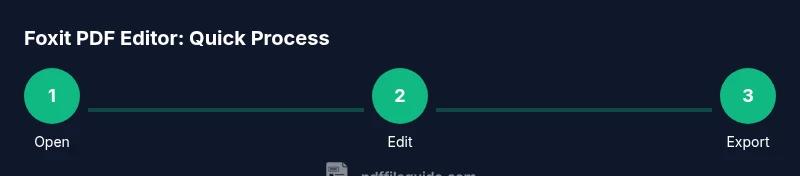
A practical daily workflow starts with opening the document, applying edits, and saving a version history. Create a consistent annotation schema, annotate changes for reviewers, and export the final version for distribution. If you work with forms, scan incoming submissions, fill fields automatically where possible, and archive copies with proper metadata.
Troubleshooting common issues
If text reflow looks wrong after editing, try reflowing the paragraph block and verify font compatibility across export targets. When OCR misses characters, re-run OCR with higher resolution and adjust recognition settings. If a form field stops accepting input, check field properties and ensure the PDF isn’t locked by security settings.
Getting the most from Foxit: tips and best practices
Customize your toolbar to place frequently used tools within reach. Enable autosave and versioning to avoid losing edits. When sharing PDFs, embed fonts and select appropriate compression to maintain readability while reducing size. Finally, test your edited PDFs on multiple devices to ensure consistency.
Tools & Materials
- Computer or laptop with internet access(Stable internet for activation and updates)
- Foxit PDF Editor (trial or licensed)(Choose the edition that fits your needs)
- Target PDFs to edit(Source files for practice and projects)
- Mouse or stylus(Helpful for annotations, not mandatory)
- Active license or trial key(Required to activate the full features)
- Cloud storage access(Syncs edited files across devices)
Steps
Estimated time: 20-30 minutes
- 1
Open the PDF in Foxit PDF Editor
Launch Foxit PDF Editor and use File > Open to load the document you’ll edit. Verify you have the latest version installed to ensure compatibility with fonts and features.
Tip: If the file is large, allow a few seconds for the document to render before editing. - 2
Enable editing mode and select text
Click the Edit tool to activate text editing. Highlight the target paragraph to enable in-place changes without disrupting layout.
Tip: Use the right-hand panel to lock any font attributes that must remain consistent. - 3
Edit text and adjust formatting
Type the new content, adjust font, size, and color, and use alignment options to preserve document structure.
Tip: For long edits, use the Find and Replace feature to update multiple occurrences at once. - 4
Add annotations and comments
Select annotation tools (highlight, underline, note) and attach comments to explain changes or questions for reviewers.
Tip: Keep notes concise and reference page numbers for quick review. - 5
Export or save changes
Save the edited PDF or export to another format (Word, Excel) as needed. Check embedded fonts and image quality in the target app.
Tip: Choose Save As to preserve the original draft and create a tracked version. - 6
Apply security or optimization
If needed, set a password, restrict edits, or compress the file for sharing while maintaining readability.
Tip: Test the final file by opening it in a different viewer to confirm accessibility.
Questions & Answers
How do I edit text in Foxit PDF Editor?
Open the document, select the Edit tool, and click the text to modify. Use the right panel to adjust fonts and formatting as needed.
Open the document, select the Edit tool, and click the text you want to change to begin editing.
Can I convert PDFs to Word with Foxit?
Yes. Use the Export or Save As option to choose Word format and preserve layout where possible.
Yes, use Export to Word to preserve layout as best as possible.
Is Foxit PDF Editor free?
Foxit offers a free trial with full features for a limited period; ongoing use typically requires a license or subscription.
There’s a free trial, but ongoing use usually requires a license.
How do I redact information in a document?
Select redaction, mark the areas to remove, and apply; ensure redacted areas are permanently removed from the file.
Choose Redact, mark areas, and apply to permanently remove content.
Does Foxit support OCR?
Yes, Foxit includes OCR to convert scanned content into searchable, editable text.
Yes, OCR converts scanned text into editable content.
How do I annotate and share feedback?
Use highlights, notes, and stamps, then share the annotated file via your preferred cloud service.
Highlight, note, and share the annotated file via cloud storage.
Can I password-protect my PDFs?
Yes. Apply password protection and permissions to control access and edits.
Yes, you can password-protect PDFs and set permissions.
Watch Video
Key Takeaways
- Plan edits before touching text.
- Use OCR to make scanned PDFs editable
- Annotate clearly for reviewers
- Export options balance quality and size
- Secure PDFs when sharing sensitive content