Where Is the Redact Tool in PDF? A Complete How-To Guide
Learn where the redact tool sits in popular PDF editors, how to use it for permanent content removal, and best practices for compliant document redaction across platforms.


Permanent redaction hides sensitive content in PDFs and depends on your editor. In most apps, find the redact tool under Protection or Security menus, then select content to redact and apply the change. This quick guide will show you where to locate the feature, how to apply it properly, and what to verify before saving. Whether you use Adobe Acrobat, Foxit, or a web editor, you can redact text, images, and metadata with confidence by following the steps outlined here.
Why redaction matters and what it does
Redaction is the process of permanently removing sensitive information from a PDF so it cannot be recovered or revealed during sharing, printing, or archiving. For professionals who edit, convert, and optimize PDFs, understanding redaction is essential to meet privacy rules, data governance, and contractual obligations. When someone asks where is the redact tool in pdf, they’re often surprised to learn that redaction sits in a dedicated feature set rather than a simple hide/show option. This tool not only conceals text and images but also purges the content from metadata and searchable text in many editors.
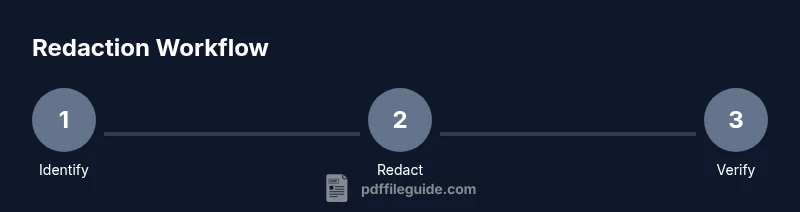
A proper redaction workflow begins with identifying confidential material, selecting the exact content to redact, and applying permanent redactions that become a fixed part of the file. After redaction, you should verify that the redacted areas render as opaque blocks and that no underlying text remains in the document's visible or hidden layers. This ensures recipients cannot extract the redacted information through copy-paste, OCR, or document inspection tools. According to PDF File Guide, adopting a standardized redaction routine reduces risk, protects clients, and keeps your workflow compliant across platforms.
Where to find the redact tool across major PDF editors
Locating the redact feature varies by editor, but most programs place it under a dedicated protection or redaction area. In common desktop editors, you’ll typically find the redact tool within Tools, Shield, or Protect sections, sometimes labeled Redact or Permanent Redaction. For Adobe Acrobat Pro, expect a Tools panel with Redact under the Protect or Tools umbrella. Foxit and Nitro PDF editors generally place redaction under a Protection or Security group, sometimes titled Redact or Remove Content. If you’re using a free or online editor, look for Redaction in the editor’s security or privacy settings. If you’re unsure, consult the editor’s help resources and look for terms like “redact,” “remove content,” or “permanent hide.”
Step-by-step: applying redaction in a typical editor
-
Start by opening the document you need to redact in a capable PDF editor. Ensure you’re working on a duplicate to preserve the original file for safety. Then navigate to the redact feature, typically under Tools/Protect/Redact.
-
Mark the content to redact. You can select text, images, or whole blocks. Some editors offer a Mark for Redaction tool that highlights regions and ensures they are treated as confidential content rather than simply hidden.
-
Apply permanent redactions. Use the editor’s option to Apply Redactions or Confirm Redaction. This step removes the selected material from the document and often generates a fixed, non-editable redacted layer.
-
Verify the results by attempting to copy redacted areas, inspect hidden layers, and check any metadata fields for sensitive values. If anything remains, repeat the marking process or redo the redaction.
-
Flatten any layers if the editor supports multiple layers, and review the document to ensure the redacted sections render as solid blocks and are non-recoverable. Some programs require a separate Flatten option to finalize the redaction.
-
Remove or sanitize metadata. Redaction should extend to metadata that may reveal sensitive details. Use the editor’s metadata viewer and scrub tools to remove or anonymize information like author names, comments, and file properties.
-
Save the redacted file as a new document. Do not overwrite the original unless you have a verified backup. Choose a descriptive filename that indicates redaction status (e.g., CompanyReport_Redacted_V2.pdf).
-
Conduct a quick second pass or invite a colleague to review. A second set of eyes helps catch content that might have been missed and ensures compliance with internal policies.
-
Log the redaction activity for audit purposes. Record what was redacted, the date, the tooling used, and the justification. This creates an auditable trail for regulatory or contractual reviews.
Verifying redactions are permanent
After redacting, it’s crucial to confirm that nothing can be recovered. Attempt to copy and paste redacted sections into a text editor; nothing should paste. Open the document in a different viewer—some applications render redactions differently, and you want to ensure consistent concealment. If the PDF contains images or scanned content, verify that the redaction overlay obscures the content beneath, and ensure there is no OCR layer that could reveal information. Finally, inspect metadata and document properties for any sensitive strings that were not removed during the redaction process.
Redacting scanned PDFs vs. native text
Redacting native text is generally straightforward, but scanned documents introduce additional complexity. Scanned PDFs are often images embedded in the PDF, so you must either run OCR to interpret and then redact the text or redact the image blocks themselves. In some editors, you may need to re-run OCR after redaction to update the document’s accessibility and indexability. If you redact without handling the underlying image properly, you risk leaving a visible redaction border or a faint outline where text existed before. Always test with a variety of viewers and ensure the redaction remains intact across platforms.
Best practices for compliance and record-keeping
Establish a consistent redaction policy that covers who can perform redactions, what content qualifies, and how to document changes. Keep a versioned file trail, noting the date and purpose of redactions, the software used, and the rationale. When sharing redacted files externally, prefer secure channels and disable editing rights if your tool supports restriction settings. Finally, consider implementing automated checks for sensitive terms or data patterns (like Social Security numbers or personal identifiers) to support human review and improve accuracy.
Common mistakes to avoid
Avoid relying solely on the visual appearance of redacted text—ensure the content is removed from all layers and metadata. Don’t forget to scrub metadata and hidden data such as comments, annotations, and hidden forms. Never reuse a redacted file without confirming that there are no residuals from earlier versions. Finally, don’t assume online tools are always secure; verify the editor’s privacy policy and ensure you’re using trusted software, especially for confidential documents.
Saving, sharing, and post-redaction considerations
Always save redacted PDFs as new files and maintain original, unaltered copies in a secure archive. When sharing, verify recipient permissions and consider additional protections like password protection or encryption. If the document will be stored long-term, periodically verify that redactions remain intact after software updates or format changes. Document the redaction process in a brief report or checklist to support regulatory audits and client expectations.
Tools, platforms, and final thoughts
Redaction workflows share core concepts across editors, but the exact steps differ by platform. The most important takeaway is to apply permanent redactions and verify their effectiveness before distribution. By adopting a standardized approach, professionals can protect sensitive data while maintaining professional workflow efficiency across desktop and online environments.
Tools & Materials
- A PDF editor with a redact tool (e.g., Acrobat Pro, Foxit, PDF-XChange, or equivalent)(Must support permanent redaction and non-recoverable output.)
- Original PDF copy(Work on a duplicate to avoid data loss.)
- Backup storage(Cloud or external drive for safety.)
- Content inventory/checklist(List of items to redact to guide the process.)
- Audit/log template(Record what was redacted, why, and by whom.)
Steps
Estimated time: 20-40 minutes
- 1
Identify sensitive content
Scan the document to locate personal data, confidential terms, and restricted images. Create a list of keywords and sections to redact. This upfront step saves time and reduces oversight risk.
Tip: Use the search function to locate PII and other sensitive terms. - 2
Open the document in a redact-capable editor
Launch your chosen PDF editor and open the document. Verify you’re not editing the original file directly; work on a duplicate to preserve an untouched version.
Tip: Confirm the software supports permanent redaction and search-free output. - 3
Mark the content for redaction
Select the text, images, or blocks identified for redaction. Use the dedicated Mark for Redaction tool if available to ensure the content is flagged for permanent removal.
Tip: Double-check that you’ve selected all targeted regions and avoid over-redacting. - 4
Apply permanent redactions
Apply the redactions and confirm. The software should replace the content with a non-recoverable block and prevent further editing of those areas.
Tip: Run a quick test by copying redacted text to ensure it cannot be pasted. - 5
Review and verify
Inspect the document for any residual text, hidden layers, or OCR data that could reveal redacted content. Perform a cross-view test in multiple PDF readers.
Tip: Check for invisible metadata strings that might leak information. - 6
Flatten layers and sanitize metadata
If your editor supports layering, flatten the document to lock the redactions in place. Remove sensitive metadata such as author names or document properties.
Tip: Use the editor’s metadata panel to scrub fields thoroughly. - 7
Save as a new file
Save the redacted document as a new file with a clear, redacted suffix. Maintain a separate original version for auditing and compliance.
Tip: Avoid overwriting the original file until you’ve completed all checks. - 8
Log the redaction
Document who performed the redaction, when, and why. Include the tools used and a brief rationale for future audits.
Tip: Store the log in your compliance system or project folder for easy retrieval. - 9
Test distribution readiness
Before sharing, re-check the recipient’s access controls and consider additional protections like encryption. Confirm that the redaction holds up under typical workflows.
Tip: Perform a final read-through of the redacted file to catch anything missed.
Questions & Answers
What is redaction in a PDF?
Redaction permanently removes sensitive content from a PDF so it cannot be recovered or revealed. It affects text, images, and often metadata, ensuring confidential information stays concealed when the file is shared.
Redaction permanently removes sensitive content from a PDF, making sure it can’t be recovered when the file is shared.
Where is the redact tool in popular editors?
In most editors, the redact tool sits under a protection or security section, often labeled Redact or Permanent Redaction. Look for Tools, Protect, or Security menus to locate it.
Look under protection or security menus to find the redact tool in most editors.
Can redactions be recovered after saving?
If the redaction is applied correctly, it should be non-recoverable. Always verify by trying to copy redacted content and by checking that no underlying text remains in layers or metadata.
When done properly, redactions cannot be recovered. Always verify after applying.
Does redaction remove metadata automatically?
Many editors offer separate metadata scrub tools. Redaction itself may not delete metadata automatically, so you should scrub metadata intentionally to avoid leaking sensitive information.
Redactions remove content, but metadata scrub is usually a separate step you should perform.
What if I redact incorrectly?
If you suspect an error, revert to the original file if possible, re-mark the content, and reapply redactions. Always re-check the final document before sharing.
If you make a mistake, revert, redo the redaction properly, then verify before sharing.
Are there free tools for redaction?
There are free and online editors with redaction features, but they may have limitations or security concerns. For sensitive documents, prefer trusted, reputable editors and review their privacy policies.
Free tools exist, but for sensitive docs, choose reputable editors and review privacy policies.
Watch Video
Key Takeaways
- Identify all sensitive content before starting.
- Apply permanent redactions, not just hiding text.
- Verify redactions across viewers and metadata.
- Save as a new file and maintain an audit trail.