Difference Between PDF and Accessible PDF: A Comprehensive Guide
Explore the essential differences between standard PDFs and accessible PDFs, with practical steps to create, test, and adopt accessible documents for inclusive digital workflows. Learn how tagging, structure, and metadata improve usability for all.


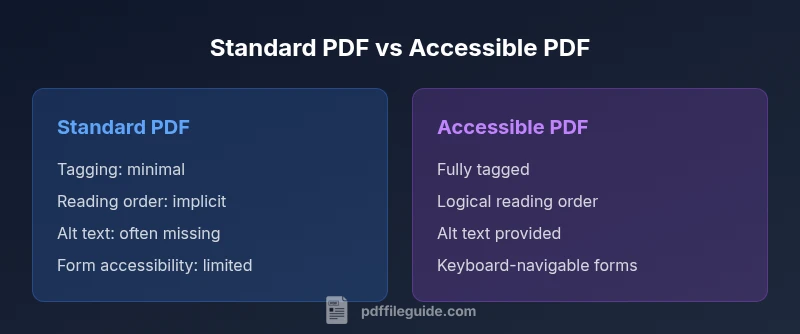
difference between pdf and accessible pdf refers to whether a PDF contains the semantic structure, tagging, and metadata that allow assistive technologies to accurately interpret content. A truly accessible PDF adheres to standards such as PDF/UA, enabling screen readers to navigate headings, lists, tables, and alternate text for images. A standard PDF may render visually correctly but often lacks the structural information needed by assistive tech.
difference between pdf and accessible pdf
A PDF is a portable document format designed to preserve visual appearance across platforms. However, not all PDFs are equally usable for people who rely on assistive technology. The key distinction lies in accessibility features: a standard PDF focuses on visual fidelity, while an accessible PDF embeds a logical reading order, tagging, alt text for images, and structured metadata. According to PDF File Guide, accessibility is not a nicety but a usability requirement for inclusive digital workstreams. When you compare the difference between pdf and accessible pdf, you are evaluating whether the file can be perceived, navigated, and understood by screen readers, mouth-to-text devices, and other assistive tools. This distinction matters for legal compliance, user experience, and long-term content resilience. In practice, an accessible PDF supports predictable navigation and content extraction, which benefits all users, including those who rely on search or mobile devices.
Why accessibility is more than a checkbox
Accessibility features in PDFs aren’t decorative; they create a navigable content map. Tags describe the document’s structure (headings, lists, tables), while the reading order ensures that text is presented in a logical sequence. Alt text conveys what images communicate to users who cannot see them. Form fields must be labeled, focusable, and operable via keyboard. When you evaluate the difference between pdf and accessible pdf, you’re weighing how the document behaves under screen readers, how well content can be searched, and how reliably content can be repurposed for other formats. The result is a document that is usable by people with vision, motor, or cognitive differences and by assistive technologies that interpret its content.
Practical implications for teams
Teams responsible for producing PDFs should consider accessibility from the outset. For publishers, educators, and corporate document owners, the accessible path reduces the need for retrofits later and minimizes accessibility-related support. The difference between pdf and accessible pdf becomes most evident during review cycles when stakeholders test navigation, reading order, and alt text. Accessibility also influences metadata quality, document language tagging, and the potential for automated extraction by indexing services. Implementing accessibility early aligns with inclusive design principles and broader accessibility mandates that affect public sector and regulated industries.
The anatomy of an accessible PDF: core elements
An accessible PDF typically includes a tagged structure tree, well-defined reading order, descriptive alternative text for graphics, properly labeled form fields, and metadata that describes the document’s content. The structure tree provides a hierarchy of headings, lists, and tables that screen readers can navigate. Reading order ensures that text appears in a logical sequence when read aloud. Alt text supplies meaning for non-text content, and language attributes help screen readers switch linguistic rules when needed. When you assess the difference between pdf and accessible pdf, these elements are the differentiators that determine how usable a document is for people using assistive technologies.
How this translates to authoring workflows
In practice, creating an accessible PDF requires tagging during the export process, validating the reading order, adding alt text to images, and ensuring forms are accessible. Designers and editors should collaborate with accessibility specialists to validate color contrast, font choices, and semantic markup. The difference between pdf and accessible pdf becomes a workflow decision: do you invest in proper tagging and structure, or do you rely on a quick visual match that may not be usable by all readers? The answer is often governed by project scope, audience needs, and regulatory requirements.
Accessibility testing: a practical checklist
Testing an accessible PDF involves both automated checks and manual verification. Automated tools can verify tagging presence, reading order integrity, and basic conformance, but human checks are essential for real-world usability: listen to the reading sequence, verify image descriptions, and test keyboard navigation. Testing should include screen reader demonstrations (e.g., NVDA or VoiceOver) and basic searchability checks to confirm that content can be located and extracted. The difference between pdf and accessible pdf reveals itself in the reliability of these tests; a well-tested accessible PDF should reveal a coherent content flow and meaningful metadata when evaluated with assistive technologies.
Real-world outcomes: user experience and compliance
Users encountering accessible PDFs experience less cognitive load when navigating complex documents, improved comprehension, and fewer barriers to information retrieval. For organizations, accessible PDFs support compliance with legal and policy requirements and improve overall readability for diverse audiences. The difference between pdf and accessible pdf is not merely technical; it translates into inclusive outcomes, better collaboration with vendors and clients, and mitigated risk related to accessibility audits and remediation projects.
Comparison
| Feature | Standard PDF | Accessible PDF |
|---|---|---|
| Tagging & reading order | Often minimal or absent | Fully tagged with logical order |
| Document structure | No explicit structure tree | Explicit structure tree for headings and lists |
| Alt text for images | Rarely provided | Descriptive alt text for images and charts |
| Form accessibility | Form fields may be unlabeled | Labeled and keyboard-accessible forms |
| Fonts and encoding | Standard embedding, risk of font substitution | Embedded fonts and accessible encoding |
| Screen reader compatibility | Variable compatibility | High compatibility across major screen readers |
| Search and extraction | Content may be harder to extract | Text is easily searchable and extractable |
| Compliance standards | Limited or no formal conformance | Conforms to PDF/UA and related guidelines |
Strengths
- Improved usability for people with disabilities
- Better interoperability with assistive technologies
- Easier to search and repurpose content
- Enhanced long-term accessibility readiness
Disadvantages
- Requires more authoring time and workflow discipline
- Can increase file size due to tagging and metadata
- Retrofits can be challenging for very large archives
- May demand specialized training for authors
Accessible PDFs are the recommended standard for inclusive, future-proof documents
If accessibility is a priority or mandated, choose accessible PDFs. They offer predictable navigation, better search, and compliance benefits. In scenarios where time or legacy constraints dominate, plan a staged transition.
Questions & Answers
What is the fundamental difference between pdf and accessible pdf?
The fundamental difference lies in accessibility features. An accessible PDF includes tagging, a logical reading order, alt text for images, and properly labeled forms, enabling assistive technologies to interpret content. A standard PDF may look correct visually but can lack these essential structures.
Accessible PDFs add structure and descriptions so screen readers can interpret content; standard PDFs may not.
Do I need special tools to create an accessible PDF?
Most modern PDF authoring tools offer accessibility features like tagging and alt text. You may also use dedicated accessibility checkers and manual verification steps to ensure conformance to PDF/UA. The effort is typically justified by improved usability and compliance.
Yes. Use authoring tools that support tagging and run accessibility checks during the workflow.
Can an existing PDF be made accessible after creation?
Yes, many PDFs can be retrofitted by adding a tag structure, reading order, alt text, and labeled forms. The success depends on the document’s original structure and how content was created. Some PDFs may require more extensive remediation.
It’s often possible to retrofit, but some files are easier to fix than others.
Are there standards for accessible PDFs?
Yes. The primary standard is PDF/UA (ISO 14289) that defines a baseline for accessibility. Many organizations also reference WCAG guidelines for web accessibility when delivering PDFs online. Compliance signals can vary by region and industry.
PDF/UA is the core standard; WCAG considerations also apply for online delivery.
What are common mistakes when making PDFs accessible?
Common mistakes include insufficient tagging, ignoring reading order, missing alt text for images, and unlabeled form fields. Regular testing with screen readers and user feedback helps identify and fix these issues.
Tagging, order, and alt text are common problem areas; test with a screen reader.
Key Takeaways
- Prioritize tagging and reading order from the start
- Accessible PDFs unlock better screen reader experience
- Not all PDFs are created equal—evaluation matters
- Standards like PDF/UA guide best practices
- Test with real assistive technology to verify usability