Change from EPUB to PDF: A Practical How-To
A comprehensive, educator-friendly guide to converting EPUB to PDF while preserving layout, fonts, and accessibility. Step-by-step workflow, tools, tips, and verification for professionals who edit, convert, and optimize PDFs.


Goal: You will change from epub to pdf while preserving layout, images, and metadata. You’ll need a trusted converter, the original EPUB file, and a PDF viewer to verify results. This guide provides a repeatable workflow with practical checks and tips.
What changes when you switch from EPUB to PDF?
Switching from EPUB to PDF represents a shift from a reflowable, device-friendly format to a fixed-layout document. In EPUB, text reflows to fit different screen sizes, which means font sizing, line breaks, and pagination can change across readers. PDF creates consistent pages; what you see on one screen should resemble the printed page, but fonts and assets may render differently depending on the converter and embedded resources. When you move from epub to pdf, you should expect potential shifts in typography, hyphenation, spacing, and image placement. This is not inherently bad, but it requires careful tool selection and verification. According to PDF File Guide, a thoughtful EPUB-to-PDF workflow minimizes layout drift and preserves critical metadata.
In practice, you’ll want to plan for the possibility that some design decisions—such as multi-column layouts, large tables, or advanced CSS—do not map perfectly to PDF without adjustments. Keeping expectations aligned with your target audience (e.g., readers on desktop vs. mobile) helps you decide whether to prioritize readability, fidelity, or accessibility. The goal is a reliable, legible PDF that supports your readers without surprising them with layout quirks.
Why tool choice matters for change from epub to pdf
Your choice of tool determines how faithfully content transfers from EPUB to PDF. Desktop applications like Calibre offer broad compatibility and batch processing, while professional tools such as Adobe Acrobat DC provide advanced settings for fonts, image handling, and security features. Online converters can be convenient for quick checks, but they may impose file-size limits or privacy considerations. The right tool often depends on file complexity, licensing, and the need for accessibility tagging. PDF File Guide analysis shows that, for many projects, offline or desktop software yields more consistent font embedding and layout preservation than lightweight online services. When you plan the change from epub to pdf, test with a representative sample file to compare font rendering, image quality, and hyperlink behavior across devices. Also verify whether the tool preserves metadata like author, title, and subject, which can matter for filing and archiving.
Preserving layout and typography during change from epub to pdf
Preserving typography is one of the most common challenges when converting from EPUB to PDF. Ensure your tool supports font embedding to prevent font substitutions that alter letterforms, kerning, and spacing. If fonts aren’t embedded by default, explicitly enable embedding during conversion, or provide the font files if licensing permits. Page sizing and margins are another critical factor; set the PDF page size to match your target output (A4 or letter, commonly). For complex layouts—such as columns, floats, or tables—adjust image resolution and compression to maintain legibility. If the source uses scalable vector graphics, verify they render crisply in the PDF. In many workflows, a two-pass approach (convert first, then adjust settings and re-convert) yields the most faithful result. The goal is a PDF that visually mirrors the EPUB’s intent while staying accessible and printable.
Accessibility and metadata considerations when converting EPUB to PDF
Accessibility should be a primary consideration when changing from epub to pdf. Ensure the PDF includes tagging to define reading order, alternative text for images, and proper heading structure so screen readers can navigate logically. metadata such as title, author, and subject should carry over to support searchability and archiving. If your EPUB contains embedded multimedia or interactive features, decide whether to include corresponding equivalents in the PDF or to provide a separate accessibility-friendly version. Check image alt text, table of contents tagging, and the reading order with a PDF accessibility checker. When in doubt, run a quick accessibility audit after conversion and adjust tagging or structure as needed to comply with guidelines and organizational policies.
Images, hyperlinks, and multimedia in the conversion from EPUB to PDF
Images and hyperlinks often present the most noticeable differences after conversion. Confirm that all images transfer at an appropriate resolution and that captions, alt text, and figure references remain intact. Hyperlinks should resolve correctly; if the converter converts them to non-clickable text or breaks URLs, you’ll need to fix them manually. If the EPUB includes linked chapters or external media references, consider embedding or replicating the links in a way that remains usable in the PDF. For rich media, provide a supplementary PDF or an accessible alternative since PDFs may not support all EPUB multimedia features. A careful check ensures readers can navigate images and links with the same intent as the source.
DRM, licensing, and legal considerations when changing from epub to pdf
Digital Rights Management (DRM) can block conversion entirely. If you encounter DRM, ensure you have permission to convert the content or use legally obtained, DRM-free files. Respect licensing terms for fonts and embedded graphics; some fonts require licenses for embedding. When converting, keep a record of permissions and source files in case you need to prove compliance. If DRM is present and you’re authorized to convert, use compliant tools that respect encryption rules and do not bypass protections. For archival purposes, consider providing a PDF/A version if your institution requires long-term preservation while adhering to copyright terms.
Practical workflow for busy professionals: EPUB to PDF in a real-world setting
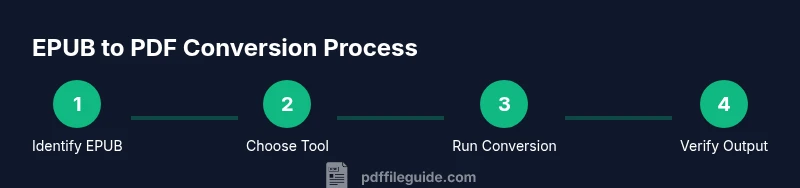
Time-constrained readers can still achieve a reliable EPUB-to-PDF change by following a streamlined workflow. Start with a representative sample file, then select a trusted converter and confirm settings for font embedding and page size. Convert, review a few pages, and adjust as needed before batch-processing any additional files. Build a simple checklist: verify fonts, check image rendering, test key hyperlinks, and confirm that the document’s structure (headings, TOC) remains intact. If accessibility is required, run tagging and alt-text checks and correct any issues. Finally, save a clean, backed-up PDF and document the exact tool, version, and settings used. Keeping a reproducible process helps teams onboard quickly and reduces the risk of drift across large libraries.
Final verification and best practices for the EPUB-to-PDF transition
End-to-end verification is essential after the change from epub to pdf. Open the PDF in multiple readers, including a mobile device, to confirm consistent rendering. Check cover fidelity, font embedding, and image quality, as well as the PDF’s metadata. If available, run an accessibility checker to ensure tagging, reading order, and alt text meet your requirements. Maintain a changelog for each batch and store originals in a secure archive. For continued success, keep your tools up to date and run periodic audits on sample files to catch any drift introduced by software updates. Authority and guidance can be found in ISO standards and professional publications for best practices in digital document conversion.
Tools & Materials
- EPUB file(s)(Original EPUB file(s) to convert)
- Conversion tool (Calibre, Adobe Acrobat DC, or reputable online service)(Choose based on features, licensing, and batch capability)
- PDF viewer(To verify results on multiple devices and readers)
- Backup location(External drive or cloud storage for originals and outputs)
- Stable internet connection(Optional for online converters; ensure privacy considerations)
Steps
Estimated time: 1-2 hours
- 1
Identify source EPUB and assess licensing
Locate your EPUB file and confirm you have rights to convert for your intended use. Check for DRM or license restrictions that may block or limit changes. If DRM exists and you are authorized, plan how to handle it within legal boundaries.
Tip: Start with a small sample file to validate the workflow before a full conversion batch. - 2
Choose a conversion tool and prepare settings
Select a trusted converter. Review font embedding, page size, color management, and image handling options. Decide whether to prioritize fidelity, accessibility, or file size.
Tip: Favor tools that offer explicit font embedding and accessibility tagging options. - 3
Configure output preferences for fonts and pages
Set the target page size (e.g., A4 or Letter) and enable font embedding to preserve typography. Enable image compression settings that balance quality and file size. If available, enable tagging for accessibility.
Tip: Always preview font rendering with a sample page to catch substitutions early. - 4
Open EPUB and map content to PDF structure
Load the EPUB into the converter and map chapters, TOC, and images to the PDF structure. Ensure headings become navigable bookmarks and the table of contents links remain functional.
Tip: If a chapter header level is inconsistent, adjust headings before conversion. - 5
Run the conversion process
Execute the conversion with the chosen settings. Monitor for warnings about missing fonts or high-compression images that may affect readability. Save the initial PDF in a dedicated output folder.
Tip: Keep a log of the tool version and settings used for reproducibility. - 6
Review the resulting PDF for layout and assets
Open the PDF in multiple viewers to check layout fidelity, font rendering, image quality, and hyperlink integrity. Note any pages with layout drift or missing elements and prepare to adjust settings.
Tip: Mark pages with issues and re-run a focused re-conversion with adjusted options. - 7
Ensure accessibility and metadata are intact
Verify reading order, tagged structure, and alt text presence for images. Confirm metadata fields (title, author, subject) are populated. If accessibility is required, run a tagging audit and fix issues.
Tip: If you lack a dedicated accessibility checker, use a free tool to inspect tagging order. - 8
Save, backup, and document the process
Store the final PDF and the original EPUB in a versioned folder. Document the tool, version, and settings used to reproduce the result. Consider creating a quick-reference checklist for future conversions.
Tip: Create a compact changelog to track changes across batches.
Questions & Answers
What is the difference between EPUB and PDF?
EPUB is reflowable and adapts to screen size, while PDF preserves fixed layouts and pagination. Converting between them may affect typography and the reading order, so testing is essential.
EPUB adapts to devices; PDF has fixed pages. Expect changes and test carefully.
Can I edit a PDF after converting from EPUB?
Yes, but editing PDFs is generally more cumbersome than working with EPUB. You’ll typically use a PDF editor to adjust text, images, and layout.
You can edit it, but it's usually harder than editing EPUB.
Will all formatting be preserved when changing from EPUB to PDF?
Not always. Some CSS-driven layouts or complex EPUB features may not map perfectly to PDF; settings and tools influence fidelity.
Formatting may shift; test and tweak settings.
Are there DRM restrictions when converting EPUB to PDF?
DRM-protected EPUBs cannot be legally converted without permission. Respect licensing terms for fonts and embedded media.
DRM can block conversion; ensure you have rights.
Which tool is best for beginners converting EPUB to PDF?
Calibre is a popular free option; Adobe Acrobat DC offers advanced features for professionals. Choose based on needs and licensing.
Calibre for beginners, Acrobat for advanced users.
How can I verify the accessibility of my converted PDF?
Check that tagging, reading order, and alt text exist for images. Use a simple accessibility checker to ensure compliance.
Verify tags, order, and image alt text.
Watch Video
Key Takeaways
- Choose a trusted converter to minimize drift.
- Embed fonts and verify layout across devices.
- Check accessibility and metadata after conversion.
- Back up originals and document the workflow.