Download PDF Safely: A Practical How-To for 2026
Learn how to download PDFs securely, verify sources, and save files with confidence. This comprehensive guide from PDF File Guide offers practical steps, safety tips, and best practices for 2026.


By following this guide, you will confidently download PDFs from reputable sources, verify authenticity, and safely save files to your device. You’ll learn how to identify trustworthy domains, avoid malware-heavy attachments, and configure your browser settings to control automatic downloads. This step-by-step approach helps both individuals and professionals manage PDF files efficiently, reducing risk while preserving document quality.
Understanding download pdf: safety starts with source awareness
Downloading a PDF is not just about clicking a button; it’s about evaluating the source, the file itself, and your device’s defenses. The PDF File Guide team emphasizes that safe downloading begins before you click—recognize that legitimate publishers, academic institutions, and established vendors publish PDFs on secure domains. In 2026, the landscape of digital documents is vast, and attackers frequently exploit unsecured pages or misleading links. A mindful approach, combined with standard protections like HTTPS, up-to-date antivirus, and cautious browsing, significantly reduces risk. This section lays the groundwork for the practical steps that follow, helping you move from curiosity to confident, safe download behavior. Throughout this guide, reference to trusted sources and best practices will keep you aligned with industry norms and your organization’s policies.
Where PDFs typically come from and how to trust them
PDFs appear across websites, email attachments, cloud storage links, and educational portals. Trusted sources include official university domains, government sites, and recognized publishers. When you land on a page, look for clear branding, contact details, and a URL that begins with https://. If any of these signs are missing, pause and reassess before downloading. Reliability also comes from the presence of a privacy policy and a terms page that describes file handling. The goal is to establish a mental checklist you apply every time you download a document, so you don’t have to reinvent the wheel for each site. In practice, keep a list of primary sources you trust and bookmark them for quick access.
How to verify a PDF source and the file itself
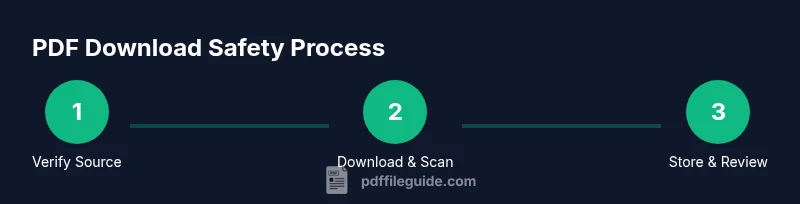
Verification involves multiple layers. First, confirm the site is legitimate and uses HTTPS with a valid certificate. Second, inspect the file name and size; suspiciously small PDFs or duplicates of known templates can be red flags. Third, preview the download link by hovering to reveal the actual URL—if it redirects to unknown domains or prompts you to download a .exe or .zip, abort. Finally, once downloaded, scan the file with your antivirus before opening. These steps align with best-practice security guidance from reputable authorities and help keep your systems clean. Remember, if anything feels off, trust your instincts and seek an alternate, verified source.
Step-by-step: initiating a download from an official page
This section outlines the practical flow when pulling a PDF from a trusted site. Begin on the official page, locate the clearly labeled PDF link or download button, and click it. When prompted, choose a secure destination on your device (for example, a dedicated Downloads/PDFs folder). If your browser presents security prompts, review them carefully—don’t bypass warnings. After the file has finished downloading, verify the extension is .pdf and note the file size to ensure it matches the expected document.
Handling email attachments safely: what to watch for
Phishing emails may include PDFs intended to trick recipients into executing malicious code or revealing sensitive information. Before opening any attachment, confirm the sender’s identity and verify the message through a separate channel if possible. Do not enable macros or active content in PDFs. If you receive a request to download a document from an unfamiliar sender, delete the email or forward it to your security team for screening. This practice reduces the risk of ransomware or data breaches via compromised attachments.
Managing downloads from cloud storage and browser settings
Cloud storage services often offer direct viewing of PDFs within the browser. If you download from such services, verify the source link (the sharing URL can be deceptive) and ensure you are not auto-downloading multiple files. In your browser settings, enable prompts for downloads, disable automatic execution of downloaded files, and turn on phishing/malware protection. Organize your downloads by creating a dedicated folder structure (e.g., Downloads/PDFs/2026) and routinely clear out stale files to minimize clutter and potential exposure.
Best practices and common mistakes to avoid
Avoid clicking unknown shortened URLs or pop-ups claiming a needed PDF update. Do not download from sites lacking contact information or a privacy policy. Always check the file extension, don't trust the file size alone, and avoid downloading PDFs if you’re on an unsecured or public computer. Maintain updated security software, enable sandboxing for opened PDFs if available, and back up important documents regularly. Remember to review the metadata and permissions embedded in PDFs when necessary.
Accessibility considerations after downloading a PDF
Accessible PDFs support screen readers and assistive technologies. After downloading, check that the document is tagged properly, has meaningful heading structures, and contains alternative text for images where applicable. If you’re sharing or archiving, ensure the PDF's accessibility features meet your organization’s standards and any relevant accessibility guidelines. This ensures content is usable by all readers, including those relying on assistive devices.
Troubleshooting common download issues and when to seek help
If a download stalls, cancel and retry on a different network or device. Clear the browser cache and verify that the source remains active. If the PDF won’t open, try a different viewer or update your reader. When in doubt, consult your IT department or security team, especially in organizational contexts. PDF File Guide recommends documenting recurring issues to improve your team’s response and reduce downtime.
Tools & Materials
- Web browser with up-to-date security features(Ensure phishing/malware protection is enabled and prompts are shown for downloads)
- Reliable PDF reader(Prefer reputable, well-supported viewers)
- Current antivirus/anti-malware software(Real-time protection helps catch threats during download)
- Stable internet connection(Avoid interrupted downloads; consider using a wired connection for large files)
- Secure storage location(A dedicated PDFs folder with restricted access improves organization)
- Optional download manager(Use only from trusted sources; can help with resume-able downloads)
Steps
Estimated time: 15-25 minutes
- 1
Identify trusted sources
Before clicking download, verify the domain, resolve legitimacy, and look for HTTPS. Hover the link to see the exact URL. If anything looks suspicious, back away and seek an official source.
Tip: Never download from unverified emails or pop-ups; navigate manually to the known site. - 2
Prepare your device
Update your antivirus, enable browser security prompts, and close unnecessary programs. Ensure your firewall is active and your system is patched against known vulnerabilities. A prepared device reduces risk during the download process.
Tip: Run a quick system scan after updating protections before downloading large files. - 3
Initiate download from official page
Click the official download button and choose a secure location on your device. Avoid using download managers that override prompts. Confirm the page is still the legitimate source before initiating.
Tip: If a button redirects to an unfamiliar domain, cancel and re-access the source from a trusted bookmark. - 4
Verify the file type and size
Ensure the file name ends with .pdf and the reported size matches expectations. Be wary of files labeled as PDF but with unusual sizes or hidden extensions. If the file looks wrong, abort and re-check the source.
Tip: Do a quick check of the file’s MIME type after download if your OS supports it. - 5
Scan the file with antivirus
Run a full scan on the downloaded PDF before opening it. Rely on real-time protection and quarantine any suspected files. This reduces the chance of executing malicious code.
Tip: Keep antivirus definitions current to catch new threats. - 6
Open with a trusted viewer
Use a reputable PDF reader and avoid opening directly from the download location if your browser offers a quick view. Apply sandboxing if the viewer supports it. Disable auto-run features that could execute embedded content.
Tip: Prefer opening from the viewer rather than the browser when possible. - 7
Handle password-protected PDFs safely
If a file is password-protected, obtain the password from a legitimate source and verify it matches the file’s origin. Do not attempt to bypass protections, as this can signal a malicious file.
Tip: Ask the source to share the password through a separate secure channel. - 8
Store and organize securely
Move the validated PDF to a dedicated, organized folder, and consider encryption for sensitive documents. Regularly back up important PDFs to a secure location.
Tip: Create a year-based subfolder (e.g., PDFs/2026) to simplify retrieval. - 9
Review and clean up
Delete temporary files and keep a minimal, well-managed Downloads folder. Periodically audit your PDFs to ensure nothing suspicious remains. That discipline lowers risk over time.
Tip: Set a monthly reminder to review and purge outdated or suspicious downloads.
Questions & Answers
Is it safe to download PDFs from unknown websites?
Generally no. Unknown sites can host malicious PDFs. Always prefer official sources with HTTPS and clear contact information. If in doubt, look for alternative, verified links.
Usually not safe to download from unknown sites; stick to verified sources and HTTPS sites instead.
Should I enable antivirus before downloading a PDF?
Yes. Ensure your antivirus is active and up to date. Run a scan after download and before opening the file.
Yes, enable antivirus and scan after download before opening the file.
Can PDFs contain malware?
Yes, PDFs can be used to deliver malware or phishing content. Always verify the source, scan files, and avoid enabling any suspicious prompts within the PDF.
Yes, PDFs can contain malware; scan and verify before opening.
What should I do if a PDF is password-protected?
Obtain the password from a legitimate source and ensure you have authorization to access the file. Do not try to bypass protections.
If it’s password-protected, get the password from a legitimate source and don’t bypass protections.
Which browser settings help with safe downloads?
Enable security prompts, enable Safe Browsing, and disable automatic downloads from unknown sites. Regularly update browser security features.
Turn on security prompts and keep Safe Browsing updated.
What to do if a download fails or looks suspicious?
Cancel the download, verify you’re on the official site, check your connection, and try again. If issues persist, consult IT or security support.
If it looks suspicious or fails, stop and verify the source, then try again or seek help.
Watch Video
Key Takeaways
- Identify trusted sources before downloading.
- Verify file type and scan for malware before opening.
- Store PDFs in an organized, secure location.
- Use browser prompts and up-to-date antivirus protections.
- The PDF File Guide team recommends verifying sources and following a consistent safety process.