How to Save a PDF as PowerPoint: A Practical Conversion Guide
Learn practical methods to convert a PDF into PowerPoint slides, with step-by-step instructions, safety tips for online tools, and best practices for preserving content and layout.


You can save a PDF as PowerPoint by converting each PDF page into a PPT slide using specialized tools. Start by choosing a conversion method: online converter, desktop software, or manual export. Expect layouts, fonts, and images to adjust; always review slide content and reorganize for readability. Also verify that hyperlinks and metadata transfer correctly.
Understanding the goal: turning a PDF into PowerPoint slides
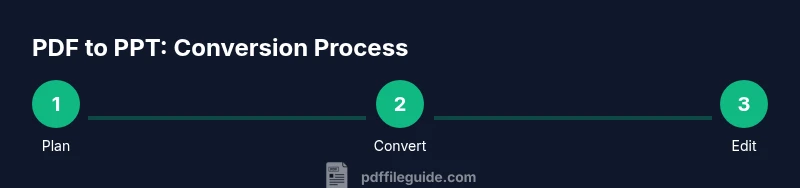
For professionals who edit, convert, and optimize PDFs, transforming a document into a presentation saves time and preserves key visuals. The process isn't perfect—PDFs are fixed layouts, while PowerPoint is a flexible editing canvas. According to PDF File Guide, the best approach depends on your PDF's complexity and the level of fidelity you require. The PDF File Guide team finds that understanding the structure of your source PDF—such as whether it is text-heavy, contains vector graphics, or includes scanned pages—helps you pick the right conversion path. In this guide, we define conversion in practical terms, outline what content can be reliably preserved, and set expectations for layout, fonts, and media after transfer. You'll learn how to decide between automated conversion and manual post-processing, plus preparation steps that increase your chances of achieving a clean, presentation-ready result. Keep in mind: this stage shapes the rest of the project, so take a moment to plan before you convert.
Methods to convert PDF to PowerPoint
There are three broad paths to turning a PDF into PowerPoint slides: online conversion tools, desktop software with export capabilities, and a manual approach that recreates slides from scratch using the content you extract. Online converters can be fast and convenient, but they introduce privacy considerations for sensitive documents. Desktop tools often provide more control and better fidelity for complex layouts, though they may require more time and a subscription. The manual route offers the greatest accuracy for tricky pages, especially when charts, fonts, or diagrams must be recreated as editable objects. In practice, many teams use a hybrid workflow: convert what you can automatically, then refine the rest in PowerPoint. This approach minimizes rework while preserving critical visuals.
Using online conversion tools safely
If you decide to use an online PDF-to-PPT converter, start by selecting a reputable service with clear privacy policies and data retention terms. Upload only non-confidential documents or documents that you’re comfortable sharing. After conversion, download the PPTX and review every slide for layout, fonts, and image fidelity. If anything looks off, use the original PDF as a reference and manually adjust slides in PowerPoint. For added safety, delete the uploaded files from the service after you download the results and run a quick check for any embedded links or metadata that did not transfer correctly.
Desktop software workflow for higher fidelity
Desktop tools that support exporting PDFs to PowerPoint typically offer a structured workflow: open the PDF, choose an export or save-as option, select PPTX as the destination, and run the conversion. The fidelity of text, images, and tables is usually better than online services when the PDF uses standard fonts and vector graphics. After exporting, open the PPTX and audit each slide for alignment, font consistency, and image sharpness. If sections look crowded, consider splitting long paragraphs into multiple slides and reflowing content to fit standard slide layouts. This route requires fewer privacy concerns and is ideal for professional presentations.
Manual conversion: best for complex layouts
For PDFs with heavy formatting, mixed media, or nonstandard fonts, the manual path is often the most reliable. Start by creating a new PowerPoint deck that mirrors the PDF's section structure. Copy text where possible, but paste as plain text to avoid carrying over unwanted styles, then apply your corporate fonts and consistent slide themes. Re-create charts and diagrams using PowerPoint’s native tools, and replace raster images with vector equivalents when available. This method demands more time, but it yields a presentation that feels cohesive and editable without layout drift. Always maintain a clean file organization strategy to simplify future updates.
Post-conversion editing tips to save time
After any conversion, promote consistency by using Slide Master to set fonts, colors, and logos across all slides. Check page order and slide transitions, ensuring that images don’t overflow slide boundaries. Replace non-editable graphics with editable shapes where possible, and re-link any external data sources or charts. A quick readability check—contrast, font size, and line length—helps ensure your slides are accessible in live presentations and recordings. Finally, save a backup copy of both the original PDF and the final PPTX in a project folder for future reference.
Accessibility, fonts, and links: key checks
Fidelity and accessibility matter in professional contexts. Verify that fonts used in the PPTX are embedded or widely available to prevent substituted fonts on other machines. Ensure sufficient color contrast for readability, add alt text to images, and confirm that hyperlinks from the PDF carry over correctly if required. If the PDF included structured data or forms, consider recreating those elements as native PowerPoint objects to preserve accessibility and keyboard navigation. A careful review at this stage reduces the need for post-delivery edits.
Troubleshooting common issues and how to fix them
Conversion can introduce issues such as broken layouts, missing images, or misaligned text. If slides look scrambled, revert to the original PDF to verify page order and try a different method or tool. If fonts don’t render as expected, switch to fall-back fonts and reapply your brand typography in Slide Master. Image quality can suffer in some conversions; if so, reinsert high-resolution versions from the source PDFs or re-create charts in PowerPoint. For hyperlinks, test each link on multiple devices to ensure reliability. Finally, maintain a versioned log of changes to track edits and decisions.
Best practices for professional PDFs to PPT
Adopt a repeatable workflow that fits your organization's needs. Start with a quick audit of the PDF’s structure—sections, headings, and figures—before choosing a method. Use consistent slide layouts with a strong master template, and reserve slide counts that align with your messaging. When possible, preserve source references or appendices as separate slides for context. Finally, document your conversion choices and create a fallback plan in case you need to revert to the original PDF or re-export from updated source files.
Tools & Materials
- PDF file(Source document you want to convert)
- PPTX-capable presentation software(Software that supports editing and exporting PPTX)
- Internet connection(Optional for online converters)
- Backup storage(External drive or cloud storage for originals and outputs)
- Fonts reference kit(Brand fonts or a font library to match typography)
- Notes on page structure(Optional: outline of sections/pages to guide layout)
Steps
Estimated time: 45-90 minutes
- 1
Decide target slide structure
Outline how many slides you want per PDF page, or if you will consolidate content into fewer slides. Establish a logical flow that mirrors your narrative and keeps bullets crisp.
Tip: Draft a rough sitemap of sections before starting. - 2
Choose conversion route
Select online, desktop, or manual method based on content sensitivity and fidelity needs. For confidential PDFs, prefer offline or desktop options.
Tip: Always test on a non-sensitive document first. - 3
Prepare the PDF
If possible, split very long pages or extract key pages. Flatten annotations or interactive elements to avoid conversion errors.
Tip: Remove unnecessary whitespace before converting. - 4
Run the conversion
Execute the conversion tool of your choice and save the resulting PPTX in a dedicated project folder.
Tip: Keep the original PDF untouched for reference. - 5
Review and edit slides
Go slide by slide to adjust layout, fonts, and spacing. Replace non-editable graphics with editable PowerPoint equivalents when needed.
Tip: Use Slide Master to enforce consistency across all slides. - 6
Restore accessibility and links
Add alt text to images, embed fonts if possible, and verify hyperlinks. Ensure content remains navigable for assistive technologies.
Tip: Test keyboard navigation to confirm accessibility. - 7
Finalize and archive
Save as PPTX, create a backup, and document the conversion approach for future updates.
Tip: Store both the original PDF and the final PPTX together in a project folder.
Questions & Answers
Can all PDFs be converted to PowerPoint without losing formatting?
Not always. Simple, text-heavy PDFs convert more faithfully than documents with complex layouts, heavy graphics, or nonstandard fonts. Expect some adjustments after conversion.
Not always. Simple PDFs convert well, but complex layouts often need manual tweaks after you convert.
Is online conversion safe for sensitive documents?
Online tools can expose content to third parties. Use offline desktop tools for sensitive files, or choose services with clear privacy policies and data handling terms.
Online tools pose privacy risks. Prefer offline options for sensitive documents.
Can I convert a scanned PDF into PowerPoint?
Yes, but you need OCR to extract editable text. Without OCR, text may remain uneditable, requiring manual re-entry.
Yes, with OCR you can extract text for editing; otherwise it may be non-editable.
What should I do about fonts and images that don’t match?
Switch to your brand-friendly fonts in PowerPoint, re-create or adjust images for clarity, and ensure images aren’t stretched or pixelated after conversion.
Use your standard fonts and rework images for clarity after conversion.
How can I preserve hyperlinks after conversion?
Some methods carry links automatically; always test every hyperlink in the final PPTX, and re-link any that don’t transfer.
Test and re-link any links that don’t survive the conversion.
Should I index or tag slides for accessibility?
Yes. Add alt text to images, use descriptive slide titles, and organize content logically to aid screen readers.
Add alt text and logical structure to help accessibility.
Watch Video
Key Takeaways
- Plan slide structure before starting.
- Choose the right conversion method for content complexity.
- Review fidelity and adjust layouts post-conversion.
- Preserve links and metadata where possible.
- Back up originals and final outputs.