HTML to PDF: A Step-by-Step Guide for Web-to-PDF Conversion
Learn how to reliably convert HTML to PDF using in-browser, server-side, or offline tools. This guide covers workflows, fonts, accessibility, validation, and common pitfalls, with actionable steps and examples from PDF File Guide.


You will learn how to reliably convert HTML to PDF, choosing between in-browser render, server-side processing, or offline tools. This quick guide covers recommended workflows, preserves layout, fonts, and images, and helps you validate output for accessibility and compliance. It also compares free and paid options and licensing considerations. PDF File Guide analysis highlights practical tips.
What HTML to PDF really means
HTML to PDF is the process of rendering HTML and CSS into a fixed-layout document that can be viewed, printed, or archived as a PDF. For professionals who edit, convert, or optimize PDFs, the goal is to preserve typography, layout, colors, and embedded resources across platforms while maintaining accessibility compliance. In this guide, PDF File Guide shares practical workflows, with examples that work for simple pages and complex documents alike. We’ll discuss when to render on the client, when to render on the server, and when offline tools are the best fit. The guidance here is designed to help you deliver predictable results, reduce rework, and ensure consistent document output across devices and printers.
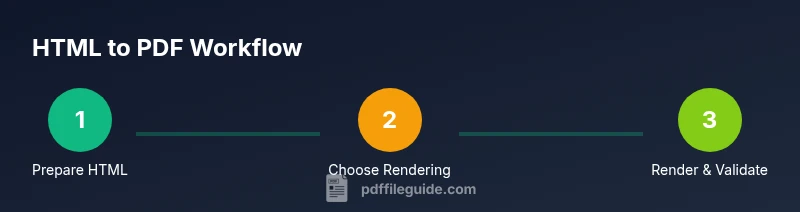
From a strategic perspective, HTML-to-PDF conversion is not a single feature but a workflow. Start by understanding your source HTML, the CSS that controls print behavior, and the fonts you rely on. If you license fonts, ensure embedding rules permit their use in PDFs. For teams, documenting a standard workflow helps reproduce results and improves collaboration with designers, developers, and stakeholders. The PDF File Guide team emphasizes testing with representative pages and real assets (images, fonts, and interactive elements) so you can catch issues early.
In practice, you’ll balance speed, fidelity, and accessibility. Quick wins include adding a print stylesheet, using font-face with licensed fonts, and avoiding layout tricks that rely on viewport-based sizing. If your HTML includes dynamic content or client-side scripts, you’ll want a rendering approach that executes the same code paths as your final document. This consistency is essential for trustworthy PDFs.
Finally, always validate output against your requirements. Check for correct page breaks, correct font rendering, proper image scaling, and accessible structure (tags, bookmarks, alt text). PDF File Guide’s recommendations emphasize a repeatable process and clear criteria for success so you can reliably convert HTML to PDF on time, every time.
noteTypeOfBlock_content_1_1_12_1_1_1_1_1_1_1_1_1_1_1_1_1_1_1_1_1_1_1_1_1_1
Tools & Materials
- Modern web browser(Chrome/Edge/Firefox recommended for testing and in-browser rendering.)
- HTML/CSS editor(Sublime Text, VS Code, or any editor you are comfortable with.)
- Headless browser or PDF rendering tool(Puppeteer/Playwright, wkhtmltopdf, or PrinceXML depending on needs.)
- Fonts and license for embedding(Have the font licenses available if you plan to embed fonts in PDFs.)
- Sample HTML file and assets (images, CSS)(Include at least one image and a stylesheet to test layout fidelity.)
- PDF viewer for validation(Any PDF reader to check typography, images, and accessibility.)
- Internet access (optional but helpful)(Needed for online converters or projects requiring remote assets.)
Steps
Estimated time: 60-120 minutes
- 1
Prepare HTML and assets
Gather the HTML page and all assets (images, fonts, CSS) used by the page. Ensure fonts are properly loaded and test with a local browser to confirm layout before converting. This step reduces surprises later in the PDF render.
Tip: Keep assets in predictable paths and use relative URLs for portability. - 2
Choose your rendering path
Decide whether to render in-browser, on the server, or with an offline tool. In-browser rendering is quick for prototypes, server-side rendering offers batch processing, and offline tools give offline or automation-friendly workflows.
Tip: Consider scalability and licensing when choosing the path. - 3
Install and configure the tool
Install the chosen rendering tool (e.g., Puppeteer, wkhtmltopdf, PrinceXML) and set up a basic script that loads your HTML and triggers a PDF export. Verify that fonts, images, and CSS are loaded in the render.
Tip: Check the tool’s docs for font embedding options and print-media support. - 4
Create print styles and font strategy
Add a dedicated print stylesheet (or print CSS within your HTML) to optimize layout for PDF. Specify font-face rules and font subsets to ensure consistent typography across devices.
Tip: Prefer vector-friendly fonts and subset fonts to balance fidelity and file size. - 5
Render the page to PDF
Run the rendering tool to produce the PDF. Ensure the output captures all required pages, margins, and colors. If necessary, adjust page size, margins, and orientation.
Tip: Use landscape vs portrait thoughtfully for content-heavy pages. - 6
Validate typography and images
Open the PDF and verify font rendering, image resolution, and color accuracy. Confirm no missing assets and that images scale correctly across pages.
Tip: Zoom in on text to confirm crisp rendering and legible letter forms. - 7
Check accessibility and structure
Ensure the PDF includes bookmarks, alt text for images where appropriate, and logical reading order. Tagging improves accessibility and search indexing.
Tip: Enable tagging in your rendering tool if supported. - 8
Automate for batch processing
If you need multiple pages or many HTML files, wrap the rendering into a script that loops through files, preserving the same settings for consistency.
Tip: Use a config file to keep output paths and options centralized. - 9
Document and version your workflow
Record the steps, tool versions, and settings used for later audits. Version control ensures you can reproduce results as the HTML evolves.
Tip: Maintain a changelog for HTML, CSS, and fonts used in PDFs.
Questions & Answers
What is HTML to PDF and when should I use it?
HTML to PDF converts web content into a fixed-layout document suitable for distribution, archiving, and printing. Use it when you need consistent formatting across devices or offline access to web pages, such as reports, invoices, or documentation.
HTML to PDF turns web pages into print-ready documents for reliable sharing and archiving.
Which tools are best for starting with HTML to PDF?
Start with browser-based print-to-PDF for quick tests, then consider headless browsers like Puppeteer or a dedicated tool like PrinceXML for complex layouts. Each option has a trade-off between fidelity, speed, and licensing.
For quick results, try browser print-to-PDF; for complex layouts, use a headless browser or a commercial tool.
Can I embed fonts in PDFs created from HTML?
Yes, embed licensed fonts using @font-face in your HTML/CSS and ensure the rendering tool supports font embedding. This preserves typography but may increase file size.
You can embed fonts if you have the rights and the tool supports it.
Are HTML-to-PDF outputs accessible and searchable?
Accessible HTML can translate to accessible PDFs if you enable tagging, provide alt text for images, and maintain a logical reading order. Verification with a screen reader is recommended.
Yes, with proper tagging and alt text, PDFs can be accessible.
Is HTML to PDF suitable for very long documents?
Yes, with a robust workflow and batching, HTML to PDF scales to long documents. Pay attention to memory usage in server-side renderers and consider chunking content.
It works for long documents when you batch and optimize resources.
What about mobile pages and responsive layouts?
Test using responsive HTML and responsive print styles. Some mobile nav or dynamic content may render differently; ensure you lock critical content into predictable regions.
Test on mobile-like pages and ensure the print CSS holds up.
Watch Video
Key Takeaways
- Plan print styles before rendering
- Choose a rendering path that fits volume and licensing
- Embed fonts responsibly and validate output visually
- Automate and document your workflow for repeatability