Online HTML to PDF: A Practical How-To Guide
Learn how to convert HTML to PDF online without installing software. This guide covers choosing the right tools, preserving styles, and protecting privacy.


Online HTML to PDF turns web pages or HTML sources into portable documents directly in your browser, without installing software. You will learn how to prepare your HTML, select a converter, and export a faithful PDF. The guide also covers layout fidelity, privacy considerations, and practical troubleshooting tips.
What online html to pdf means
Online HTML to PDF refers to browser-based services that convert HTML content into a PDF document without requiring you to install software on your device. These tools can accept a local HTML file or a live URL, render the page using the browser's rendering engine, and generate a downloadable PDF. For professionals who edit, convert, and optimize PDF files, online conversions offer a quick, accessible option for sharing web content in a fixed, printable format. According to PDF File Guide, such browser-based workflows have grown in popularity for routine conversions because they minimize setup time and maintain a familiar workflow. Still, users should verify fidelity, particularly for pages with complex CSS, dynamic content, or interactive elements. The core idea is to translate HTML structure, styles, and assets into a stable document suitable for archiving, distribution, or offline viewing.
Why people rely on online HTML to PDF tools
There are several compelling reasons to choose online HTML to PDF tools. First, they require no installs, which is useful for temporary workstations or shared devices. Second, many services offer quick URL-based conversions, letting you convert a live page without touching the HTML source. Third, these tools can be integrated into workflows via APIs or browser extensions, enabling automation for batch conversions. From a professional standpoint, the speed and simplicity are appealing for client deliverables, reports, or web-to-print tasks. However, privacy-conscious users may prefer offline software for sensitive material, and advanced users may need options that preserve fonts and complex layouts more faithfully. PDF File Guide emphasizes balancing convenience with security and fidelity when selecting an online converter.
Key considerations when selecting an online converter
Choosing the right tool involves assessing several factors. Look for a clear privacy policy and data handling practices, especially if you upload HTML files that contain proprietary or personal data. Check supported sources (URL vs. file upload), font rendering fidelity, and whether the tool embeds fonts or relies on system fonts. Consider page size options (A4, Letter, custom), margins, orientation, and the ability to control image quality. If your HTML includes interactive elements or scripts, understand how the converter renders a static PDF and whether interactivity is preserved or converted to static visuals. Finally, compare export options (download, email, cloud storage) and any watermarks on free plans. PDF File Guide suggests starting with a small test page to validate CSS, fonts, and layout before committing to a larger conversion.
How to prepare your HTML for conversion
Preparation matters for achieving a faithful PDF. Validate your HTML and CSS to catch markup errors that could cause layout shifts in the PDF. Ensure external assets like fonts, images, and stylesheets are accessible from the converter’s environment; blocked resources can lead to broken layouts. If your page relies on dynamic content loaded by JavaScript, test how the converter handles it—some tools render a static snapshot, while others fetch and render content more fully. For best results, optimize CSS for print media by using print-specific styles (media="print") or ensuring that critical styles load early in the document. Keeping fonts consistent and using web-safe fonts improves fidelity across different converters.
Step-by-step workflow overview
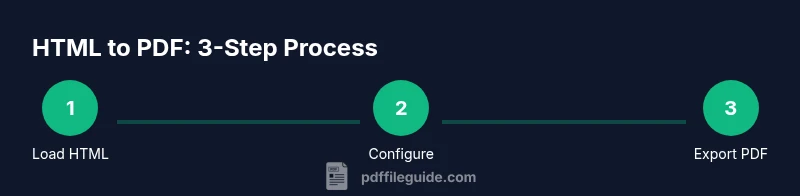
A typical online HTML to PDF workflow follows a simple sequence: you provide the HTML source (file or URL), configure output options (page size, margins, orientation, and image quality), preview the result, and finally export the PDF. Some tools also offer advanced options like header/footer insertion, password protection, or metadata customization. The general approach is to minimize surprises by testing with a representative page before converting entire sites or large documents. If you’re integrating this into a workflow, consider API-based converters that trigger conversions automatically and can be scripted for batch jobs.
Preserving styles, fonts, and interactivity in PDF
Layout fidelity depends on how the converter handles CSS and fonts. Inline styles tend to reproduce more reliably than deeply nested or external CSS. If exact fonts are critical, choose tools that support font embedding or host fonts that are widely available on user systems. Be aware that some fonts may substitute when embedded fonts are unavailable, affecting typography and spacing. Interactivity, like forms or JavaScript-driven features, is typically flattened in PDF output, with interactive fields becoming static form fields or omitted entirely. To maximize fidelity, provide a print-friendly stylesheet and test with your target fonts and images.
Privacy, security, and best privacy practices
When using online HTML to PDF services, privacy and data security are paramount. Avoid uploading highly sensitive personal data or confidential client content to unknown or dubious tools. Where possible, prefer services with clear data retention policies, encryption in transit (TLS), and options to delete uploaded content after processing. For sensitive tasks, offline or self-hosted converters offer greater privacy control. If you must use an online tool, review the privacy policy, terms of service, and any limits on data usage. PDF File Guide recommends treating each conversion as a potential exposure point and implementing a data-handling checklist for your team.
Troubleshooting common issues and fixes
If your PDF shows missing images, broken fonts, or misaligned layouts, try several practical fixes. First, verify that all assets are accessible and that relative URLs resolve correctly in the converter’s environment. Second, test multiple page sizes or margins to find a layout that preserves content without clipping. Third, switch fonts to web-safe options to avoid substitution. If a page includes dynamic content, consider using a URL-based approach rather than a file upload, or use a converter that supports rendering JavaScript. Finally, compare output across two or more converters to determine consistency and pick the most faithful result.
Authority sources and further reading
For deeper understanding of PDF rendering and HTML/CSS considerations, consult authoritative publications. The following sources provide background on PDF formats, font embedding, and accessible document structure. These references help professionals validate the tools they use and the methods they apply when converting HTML to PDF online.
Accessibility and compliance considerations
Accessibility is an important aspect of PDF documents derived from HTML. Ensure that the resulting PDF retains meaningful reading order, alternative text for images, and properly tagged structure for screen readers when possible. If accessibility is a priority, test with assistive technologies and consider generating tagged PDFs from HTML where supported. Some converters offer accessibility-related options such as tagging and reading order checks; use them to improve the end-user experience for all audiences.
Tools & Materials
- Internet-connected computer(Stable connection to avoid timeouts during upload/download)
- Web browser(Updated Chrome/Edge/Firefox recommended)
- HTML source file or URL(Local file or accessible web URL)
- Online HTML-to-PDF converter(Choose reputable sites with privacy policies and clear terms)
- Optional: CSS and fonts prepared for fidelity(If fidelity is critical, ensure fonts are embedded or web-safe)
Steps
Estimated time: 25-40 minutes
- 1
Prepare HTML source
Verify that the HTML renders correctly in a browser and fix markup or CSS issues. Saving a local copy helps ensure the converter can access all assets. This step reduces surprises in the conversion output.
Tip: Validate HTML with a validator (W3C) to catch syntax errors. - 2
Select a trusted online converter
Choose a reputable converter with a transparent privacy policy and good user reviews. If your page contains sensitive data, lean toward offline or self-hosted options.
Tip: Check for TLS encryption (https) and explicit data deletion after processing. - 3
Load HTML (file or URL)
Upload the HTML file or paste the page URL into the converter. Ensure the page loads correctly and that dynamic content appears as intended in the preview.
Tip: For dynamic pages, prefer a URL-based approach rather than a static file upload when possible. - 4
Configure output options
Set page size (A4 or Letter), margins, orientation, and image quality. Decide if you want headers/footers or metadata. These settings influence print fidelity.
Tip: Keep margins modest to prevent content clipping on printers. - 5
Preview the PDF
Review the preview to catch layout issues, font substitutions, or missing assets. Use this step to adjust options before final export.
Tip: Zoom in to check fonts and image rendering at actual size. - 6
Convert and download
Run the conversion and save the resulting PDF to your device or cloud storage. If the tool offers multiple quality presets, start with a standard option.
Tip: If download fails, try a different browser or clear cache. - 7
Verify fidelity after download
Open the PDF in a reader and verify that layout, fonts, and images match the HTML source. Test on another device if available.
Tip: Check color accuracy and image scaling on a second screen. - 8
Handle edge cases
Some pages rely on scripts or external resources. If fidelity is poor, consider embedding fonts or simplifying CSS for print. If needed, use an API-based converter for automation.
Tip: Test both file upload and URL modes to identify the best method. - 9
Store and share securely
If the PDF contains sensitive content, store it in secure storage and control sharing permissions. Clean up any temporary uploads if the converter provides a retention policy.
Tip: Review access permissions before distributing the PDF.
Questions & Answers
What is online HTML to PDF conversion?
Online HTML to PDF conversion uses browser-based tools to render HTML content and export it as a PDF. It eliminates the need to install software and is useful for quick sharing or archiving of web pages.
Online HTML to PDF converts web pages to PDF directly in your browser, without installing anything.
Is it safe to convert sensitive HTML to PDF online?
Privacy depends on the service. Prefer reputable converters with clear data policies, TLS encryption, and automatic data deletion after processing. For truly sensitive materials, offline or self-hosted options are recommended.
It depends on the service; use trusted tools and offline options for highly sensitive content.
Can online converters render dynamic pages correctly?
Some tools capture static snapshots and may not fully render JavaScript-driven content. When fidelity matters, test with representative pages and consider URL-based rendering.
Dynamic content may not render perfectly in all online converters; test first.
Will fonts and styles be preserved in the PDF?
Fidelity depends on font embedding and the converter's CSS support. Use web-safe fonts or embed fonts when possible, and review the output for substitutions.
Fonts may substitute; check the output and use embedded or web-safe fonts when possible.
What options should I check before converting?
Look at page size, margins, orientation, and whether headers/footers or metadata are available. These settings influence how content sits on the page and how it prints.
Set page size, margins, and orientation to match your printing needs.
What should I do if the PDF looks wrong?
Try alternative converters, adjust CSS for print, or simplify complex layouts. Use a test page and compare results to find the best option.
If output looks off, test another converter and adjust print styles.
Watch Video
Key Takeaways
- Verify HTML renders correctly before conversion.
- Prioritize trusted tools with strong privacy policies.
- Check fonts and layout fidelity in output PDFs.
- Choose between file upload and URL inputs based on page behavior.
- Protect sensitive content by using offline or self-hosted options when appropriate.