Picture to PDF: A Comprehensive Guide
Learn how to convert pictures to PDF across Windows, macOS, and mobile. This complete guide covers methods, quality settings, batch workflows, and practical security tips from PDF File Guide.


Goal: Convert a picture or batch of images into a single PDF using built-in tools or reputable apps. You’ll learn to preserve quality, choose the right resolution, and combine multiple images into one document. Requirements: a device (Windows, macOS, or mobile), your image files, and a PDF-capable tool or printer driver.
Why Picture to PDF matters for professionals
In professional contexts, turning pictures into PDFs helps maintain layout, ensures universal viewing, and simplifies sharing across teammates, clients, and vendors. A single PDF document can house multiple images, preserve exact aspect ratios, and prevent edits that occur when sending raw image files. According to PDF File Guide, image-to-PDF workflows are among the most repeatable and scalable ways to archive receipts, product photos, designs, and proofs. Whether you’re preparing a client presentation, archiving brand assets, or distributing marketing visuals, a well-constructed picture-to-PDF can save time and reduce version confusion. In this section, we’ll explore why this conversion matters and how to choose the right method for your needs. For many teams, the core goal is consistency: same page size across files, predictable color appearance, and reliable print behavior. With PDFs, you can also apply basic protections and metadata to help with organization and compliance. When done thoughtfully, a picture-to-PDF workflow supports both on-screen review and professional print workflows, making it a foundational skill for editors, marketers, and designers alike. The PDF File Guide team emphasizes that selecting the right tool—whether built into the OS or a trusted app—drives both quality and speed. By mastering the basics, you’ll be able to convert images quickly while preserving essential details like text clarity, color, and sharpness.
Quick method overview: built-in OS tools vs. apps
There are two broad paths to picture-to-PDF conversion: using built-in OS features or relying on dedicated apps. Built-in tools are fast and frictionless for simple tasks: Windows users can print any image and select 'Microsoft Print to PDF' as the printer; macOS users can use File > Print and then Save as PDF. Mobile devices offer similar shortcuts through share or export options. For batch or multi-page needs, or when you require more control over compression, color profiles, and font embedding, software applications and web services are often the better choice. PDF File Guide analysis shows that built-in tools are often fastest for straightforward single-image conversions, while third-party apps shine for multi-image projects or when you need to apply consistent page sizing and metadata across many files. When evaluating options, consider output quality, file size, privacy, and whether you need features like password protection or OCR (text recognition).
Understanding image quality: DPI, color modes, and compression
Picture-to-PDF quality is driven by three core factors: resolution (how many pixels your image contains), color management (RGB vs. grayscale vs. CMYK), and compression (how aggressively the data is reduced). In general, higher resolution preserves more detail but creates larger PDF files, while lower resolution reduces size at the cost of clarity. Color mode affects how colors render on screens and printers; RGB is standard for digital viewing, while CMYK is commonly used for print. When you export or save as PDF, look for options labeled 'dpi', 'resolution', or 'image quality'. If you routinely share PDFs online, aim for a balance that keeps text sharp and images legible while avoiding unnecessary bloat. A practical tactic is to run a quick comparison: export the same image at two settings and view side-by-side on the intended display. This helps you choose settings that minimize artifacts such as banding or noise. Throughout this process, ensure you’re using color profiles that match your display or target print workflow to prevent color shifts. If accessibility matters, consider providing alternate text for images or a separate OCR layer where applicable, so screen readers can interpret the content.
Choosing the right workflow: one-page vs multi-page PDFs
Your project will determine whether to create a single-page PDF per image or combine multiple pictures into one multi-page document. Single-page PDFs are ideal for quick sharing, proofs, and mobile viewing, because they keep file sizes small and navigation simple. Multi-page PDFs, by contrast, are better for archiving a set of related images, like a photo gallery, a product catalog, or a batch of scanned receipts. When combining images, arrange them in the intended order, and decide on a consistent page size and orientation. If images have varying dimensions, back them with uniform margins or use scalable page layouts to maintain a professional appearance. If you’re coordinating with teammates, create a naming convention for the output file and, where possible, embed metadata such as author, title, and subject to improve searchability. The result should be a predictable, accessible PDF that supports your workflow rather than complicates it.
Troubleshooting common issues
Even with a straightforward workflow, you may encounter issues. Common problems include poor alignment or margins, color shifts between the source image and the PDF, pixelation at the edges, and unexpectedly large file sizes. To resolve alignment, check the page size and orientation settings before exporting, and use consistent margins. If colors look off, confirm you’re exporting with the correct color profile (RGB for on-screen viewing; CMYK for print). For pixelation, increase the export resolution or scale down the image prior to conversion. Large files are often caused by uncompressed formats or very high DPI; try reducing the image resolution or enabling compression options during export. If a PDF won’t open or is corrupted, re-export from the original images, or try a different tool. Finally, ensure your software is up to date, as older versions sometimes mishandle image metadata.
Advanced tips for batch processing and metadata
For editors and designers who convert many images, batch processing and consistent metadata are essential. Use batch workflows to process all files in a folder, maintaining the same page size, margins, and quality settings across the batch. Naming conventions help you locate PDFs quickly later—consider including the date, project name, and image sequence. Embedding metadata such as author, title, and subject can improve searchability in document libraries. If security matters, apply password protection or restrict permissions after exporting. OCR options can turn image text into searchable content, which is beneficial for accessibility and archiving. As you scale, consider using dedicated PDF creators or automation tools that expose a scripting interface for repeatable, auditable workflows. The key is to keep output consistent and auditable so that teams can verify the results later. The PDF File Guide team notes that batch processes, when properly configured, save hours of manual reformatting while preserving uniform quality.
Authority sources
For further reading on PDF standards and best practices, consult industry references:
- ISO PDF Standard: https://www.iso.org/standard/63534.html
- Adobe PDF Reference: https://www.adobe.com/content/dam/acom/en/devnet/pdf/pdf_reference.pdf
- NIST Guidelines (PDF-related): https://www.nist.gov
Tools & Materials
- Image file(s) in common formats (JPEG, PNG, TIFF)(Prepare ordered images if you want a specific page sequence)
- Device with a PDF-capable workflow (Windows, macOS, or mobile)(Access to print-to-PDF or export-to-PDF options)
- PDF printer or export option (built-in or app-based)(Examples include 'Print to PDF' on Windows, 'Save as PDF' on macOS)
- Optional: OCR-enabled tool (for searchable text)(Useful if you need selectable text in the PDF)
- Optional: Internet access for cloud-based converters(Use trusted services with privacy controls)
Steps
Estimated time: 15-25 minutes
- 1
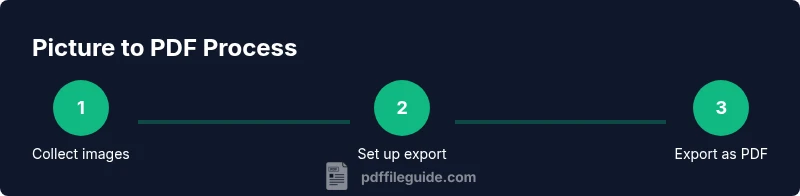
Collect your images
Gather all images you plan to include in the PDF and arrange them in the desired order. This minimizes rework during export and helps you maintain a consistent flow.
Tip: Create a dedicated folder and name files in the desired sequence (e.g., 01_First.jpg, 02_Second.jpg). - 2
Open the conversion tool
Launch your chosen tool and open the first image, or select all images you want to convert at once. If using OS tools, you can start from a right-click menu or a File > Print/Export path.
Tip: If using the OS print path, choose 'Print to PDF' or 'Save as PDF' as the destination. - 3
Set page size and orientation
Choose a standard page size (A4 or Letter) and set orientation (portrait or landscape) to suit the image layout. Order the images as intended for page progression.
Tip: For mixed orientations, consider a layout that accommodates both without excessive whitespace. - 4
Adjust quality and compression
Select a balance between image quality and file size. Higher quality reduces artifacts but increases size; lower quality makes files smaller but may blur details.
Tip: Preview a sample export to ensure the chosen balance meets your needs. - 5
Export or save as PDF
Export the images as a single PDF document, choosing a descriptive filename and destination. If available, embed fonts and metadata during export.
Tip: Enable password protection if the PDF contains sensitive content. - 6
Verify the result
Open the produced PDF and verify page order, margins, and readability. Check on the target device (mobile, desktop, or printed) to confirm fidelity.
Tip: If issues appear, re-export with adjusted settings or try a different tool.
Questions & Answers
What does 'picture to PDF' mean?
It means converting image files into a single PDF document, often for easier sharing, printing, and archiving.
Picture to PDF means turning your images into one PDF document for easy sharing and printing.
Can I combine multiple images into one PDF?
Yes, most tools support merging several images into a single multi-page PDF. You can control the order and page size.
Yes, you can combine multiple images into one PDF and set the order.
Will the resulting PDF preserve image quality?
Quality depends on the DPI or resolution settings and compression. Higher settings keep detail but increase file size.
Quality depends on resolution and compression; higher settings keep detail but larger files.
Are there free ways to convert images to PDF?
Yes. Many OS features and free apps can convert images to PDF without cost, though advanced options may require paid software.
Yes, there are free options on most devices for image-to-PDF conversion.
How do I batch convert many images?
Use a tool that supports batch processing; select all images and export as one PDF or accumulate into one document per batch.
Use batch processing to convert many images at once into a single PDF.
Is OCR required for text images?
OCR is only needed if you want searchable text. Otherwise, the included image remains non-editable text.
OCR makes text searchable, otherwise images remain as pictures.
Can I password-protect the PDF?
Yes, many tools offer password protection and permissions to secure PDFs when sharing sensitive content.
Yes, you can add a password to protect the PDF.
Watch Video
Key Takeaways
- Choose a workflow matching your batch size and quality needs.
- Balance resolution and compression to manage file size.
- Batch processing saves time and ensures consistency across PDFs.
- Always verify output before sharing or printing.