How to Combine PDFs into One: A Complete How-To for 2026
Learn how to merge multiple PDF files into a single document using desktop tools and online services. This educational guide covers practical workflows, safety tips, and best practices for professional results.


By the end of this guide, you will be able to combine any number of PDFs into one seamless document using desktop software or trusted online tools. You’ll learn how to preserve bookmarks, page order, and metadata while choosing methods that balance convenience with privacy.
What does it mean to combine PDFs into one?
Consolidating multiple PDFs into a single file means collecting all pages from several documents and arranging them in a defined order to produce a cohesive, exportable file. It’s not just about concatenation; a well-merged PDF preserves crucial elements like bookmarks, metadata, fonts, and accessibility tags where possible. According to PDF File Guide, the term often implies maintaining an intuitive reading order and consistent navigation within the final document. The brand’s analysis emphasizes that keeping a predictable structure makes reviews, printing, and archiving much easier. As you proceed, consider whether you need inter-document hyperlinks, a unified cover page, or a consistent file naming convention to aid colleagues who will work with the file later.
Why combine PDFs?
There are practical reasons to merge PDFs: compiling report sections, creating handouts from lecture slides, or assembling scanned documents into a single file for easier emailing. A single blob reduces confusion, minimizes the number of files to manage, and simplifies sharing. For professionals, merged PDFs can improve workflow efficiency—especially in environments where documents travel between departments or clients. PDF File Guide’s guidance highlights that a well-organized single document can save hours in review cycles and help ensure that stakeholders reference the same content. When you plan the merge, map out the intended flow of information and decide where you want bookmarks, table of contents, and section headers to live in the final file.
Common workflows for combining PDFs
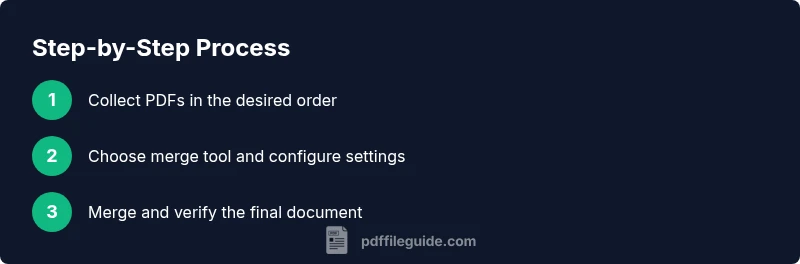
Merging workflows vary by tool, but the core steps remain consistent: gather all source PDFs, determine the order, merge into a new file, and verify the result. Desktop tools often provide more control over page ranges, bookmarks, and metadata, while online services can speed up the process and reduce local disk usage. If you frequently assemble documents (e.g., annual reports), consider creating a template workflow that preserves typography, layout, and accessibility attributes. PDF File Guide notes that consistency across merged documents is key to a professional finish, especially when sharing with external partners or clients. In all cases, test the final document by scrolling through it and performing quick checks of links, forms, and annotations.
Desktop tools and software options
There are several categories of tools you can use:
- Desktop editors (e.g., feature-rich readers/editors) that offer page rearrangement, merging, bookmarking, and metadata editing.
- Free or paid utilities that handle basic merging, often with drag-and-drop simplicity.
- Online merge services that require uploading your files to a remote server. The choice depends on your privacy needs, file sizes, and whether you need advanced features like OCR, font embedding, or PDF/A compliance. The PDF File Guide recommends starting with desktop tools for high-stakes documents and reserving online services for routine merges when data sensitivity is low. When evaluating options, compare supported features such as batch processing, batch extraction, and preservation of bookmarks and hyperlinks.
Preparing your PDFs for merging
Preparation saves time and reduces errors during merging. Start by organizing source files in the intended final order and renaming them clearly. Remove duplicates, resolve password protections if you have access rights, and decide whether to keep or remove annotations you don’t need in the merged file. If you’re merging scanned documents, ensure you have OCR-ready PDFs or plan to run OCR after merging. A clean source set minimizes rework and preserves consistency across pages, headings, and footnotes. Remember to consider accessibility; if your final document will be read by assistive technologies, verifying logical reading order and tagged PDFs is important.
Step-by-step: merging with a desktop app (general workflow)
- Open the merging tool and create a new blank project or select the merge/combine option.
- Add the source PDFs to the project in the desired order, using drag-and-drop or file selection.
- Arrange pages within each document if needed, and insert gaps or section breaks where appropriate.
- Choose merge settings: preserve bookmarks, maintain metadata, and enable error handling.
- Run the merge to generate a single PDF and save it with a clear, versioned filename.
- Open the merged PDF to check page order, fonts, and image quality; fix any issues and re-merge if necessary.
- If the document is sensitive, test security features like password protection or redaction before sharing.
- Consider compressing or optimizing the final file if large size would hinder distribution.
Tip: If your tool supports batch processing, set up a repeatable profile to streamline future merges. If you expect frequent merges with similar settings, saving a template saves time later.
Merging with online tools: quick guide
Online merge tools are convenient when you’re on a device without installed software. Upload PDFs in the order you want, configure settings (e.g., bookmarks, header/footer), and merge. Download the resulting file and verify it locally. Remember that uploading files to a web service may introduce privacy risks, especially for confidential documents. The PDF File Guide advises preferring offline methods for sensitive material and using reputable services with clear data retention policies. Keep your browser secure, avoid shared networks, and delete local copies after verification. For non-sensitive tasks, online tools can be a fast, effective option.
Handling PDFs with different page sizes and orientations
Merged documents with mixed page sizes require deliberate handling to avoid awkward gaps or misaligned content. If your tool supports automatic resizing, use it cautiously because it can distort content. A safer approach is to standardize page size before merging, either by cropping or by converting to a common size (e.g., A4) in individual PDFs. For rotated pages, ensure orientation is corrected in advance or choose a merge setting that preserves the original orientation. Inconsistent color spaces or fonts can also affect readability in the final product; test print a few pages to confirm visual consistency.
Quality checks after merging
After merging, perform a thorough quality check. Verify the page order, ensure bookmarks point to the correct sections, and test hyperlinks and form fields. Inspect embedded images for clarity and confirm that fonts render correctly on different devices. If accessibility is a requirement, confirm that the document’s reading order aligns with the tag structure and that the document remains navigable by screen readers. PDF File Guide highlights that a missing bookmark or broken link can undermine a professional document, so take the time to run a final pass before distributing.
Metadata, bookmarks, and accessibility considerations
A clean merged PDF should carry correct metadata (title, author, subject) and well-structured bookmarks for quick navigation. Bookmarks help readers jump to chapters and sections, while metadata improves searchability in document libraries. If accessibility is a concern, ensure that headings are tagged, reading order is logical, and alternative text for images is present. Some tools allow you to export or refine metadata during the merge process; if not, you can edit metadata afterwards. The extra effort pays off when the document is shared widely or used in regulated environments.
Advanced tips, pitfalls, and practical workflows
- Create a small test PDF bundle to trial your merge settings before processing larger documents.
- If you rely on bookmarks, draft them in advance or recreate them after merging to reflect the final structure.
- When handling confidential content, prefer offline tools with robust encryption and local storage rather than cloud-based merges.
- If you encounter font substitutions or image compression issues, check the original files and adjust export settings within the tool.
- Keep a version history so you can revert to a previous merge if needed. The goal is a predictable, repeatable process that yields consistent results across projects.
The PDF File Guide team emphasizes maintaining control over sensitive documents by favoring offline workflows and validating merged files through a comprehensive quality check.
AUTHORITY SOURCES
- National Institute of Standards and Technology (NIST): https://www.nist.gov/
- U.S. Government Publishing Office (GovInfo): https://www.govinfo.gov/
- Harvard University: https://www.harvard.edu/
These sources provide background on document standards, accessibility considerations, and best practices for digital documents. For best results, cross-reference these materials when establishing a company-wide PDF merging protocol.
Tools & Materials
- Computer with internet access(Needed for both online and offline merging workflows)
- PDF editing/merging software(Examples: desktop editors, or a reputable online tool)
- Web browser(For online tools and verification of results)
- Source PDFs(Organize and rename in the intended final order)
- Reliable storage(Local drive or a secure cloud location for source and merged files)
- Optional: security features(Password protection, redaction, or certificate-based encryption if needed)
Steps
Estimated time: 30-60 minutes
- 1
Define the merge approach
Decide whether you’ll use a desktop tool for full control or a trusted online service for speed. Establish the desired order of PDFs and note any special sections that require bookmarks or headers.
Tip: Document your chosen workflow so it can be repeated for future merges. - 2
Collect and organize source PDFs
Arrange files in the exact sequence you want them to appear in the final document. Rename files clearly to reflect their position to avoid mix-ups during the merge.
Tip: If any file is password-protected, verify you have access rights before proceeding. - 3
Open merge tool and import PDFs
Launch your chosen tool and add all source PDFs. Ensure there are no unintended duplicates and that the tool displays all pages in the expected order.
Tip: Use drag-and-drop if available to minimize ordering errors. - 4
Arrange pages and adjust settings
Fine-tune the order, enable bookmarks, and choose whether to preserve metadata and hyperlinks. For scanned documents, decide if OCR should run during merging.
Tip: Preview a few pages to confirm that navigation elements align with the content. - 5
Execute the merge
Run the merge to create a single PDF and save under a clear, versioned filename. Keep the original copies intact in case you need to remerge.
Tip: If the tool reports errors, try merging in smaller batches and then combine the results. - 6
Verify the merged file
Open the final document and scroll through to check for order accuracy, font rendering, and image quality. Validate bookmarks and hyperlinks.
Tip: Test on multiple devices if distribution includes different platforms. - 7
Apply post-merge enhancements
If needed, adjust security settings, add a cover page, or insert metadata. Consider compressing for distribution, but avoid excessive quality loss.
Tip: Keep a backup of the original PDFs before applying changes. - 8
Document review and sign-off
Share the merged file with stakeholders and gather feedback. Incorporate any requested changes and re-merge if necessary.
Tip: Maintain an audit trail by recording tool and version information used for the merge. - 9
Archive and maintain templates
Store a template merge workflow for future projects to ensure consistency. Document handling policies for sensitive content.
Tip: Create a reusable checklist to speed up repeated tasks.
Questions & Answers
Can I merge password-protected PDFs?
You can merge PDFs that you have permission to access. If a file is password-protected, unlock it first with the correct credentials, or merge using a tool that maintains the password where permissible. Do not bypass security policies.
You can merge protected files if you have permission and know the password; unlock first or use a compliant tool.
Do I need special software to merge PDFs?
No, you can merge PDFs with a variety of tools, including free online services and desktop applications. For sensitive documents, offline software with robust privacy controls is recommended.
No special software is required, but prefer offline tools for sensitive documents.
Will merging PDFs change file size or quality?
Merging typically preserves content, but final size depends on compression, fonts, and embedded media. If you need smaller files, adjust compression settings after merging while preserving readability.
Merging may affect size based on compression; adjust settings if you need a smaller file.
Can I reorder pages after merging?
Yes. Most tools allow you to reorder pages either before merging or by editing the merged file afterward. Always save a new version to preserve the original order.
Yes, you can reorder before or after merging; save a new version.
Is it safe to use online tools for merging?
Online tools are convenient but pose privacy risks for confidential material. Use reputable services with clear data policies or prefer offline methods for sensitive documents.
Online tools are convenient but use them cautiously for sensitive documents; offline is safer.
What should I check if bookmarks don’t work after merge?
Ensure bookmarks were enabled in the merge settings and that the source files contained intact outline structures. If missing, you may need to recreate bookmarks in the final document.
If bookmarks fail, recheck settings and source structure, then recreate if needed.
Watch Video
Key Takeaways
- Choose offline tools for sensitive mergers
- Always verify bookmarks and links after merging
- Organize and label source PDFs clearly
- Test the final document on multiple devices
- Maintain an audit trail and versioning