Free Foxit PDF Reader Download: Safe Step-by-Step Guide
Learn how to safely obtain a free Foxit PDF Reader download, verify the source, install on Windows or macOS, and maximize security. Practical steps, tips, and official guidance from PDF File Guide.


You can perform a free foxit pdf reader download from the official Foxit site and install on Windows or macOS. This guide provides a safe, step-by-step sequence, plus checks to verify authenticity and minimize bundled software. Follow the process to ensure a clean, legitimate installation.
What is Foxit PDF Reader and what does "free" really mean?
Foxit PDF Reader is a lightweight, fast PDF viewer that supports reading, annotating, filling forms, and basic editing features. When vendors advertise a "free" version, it typically means a base option is available at no cost for personal use, with optional paid upgrades for advanced tools. For many users, the free Foxit Reader provides essential capabilities like viewing, highlighting, and simple form interactions without financial commitment. The official Foxit site clearly communicates licensing terms, and you should download the installer only from that domain to avoid unwanted software.
According to PDF File Guide, Foxit continues to offer a no-cost entry option with core capabilities, making it a popular choice for students and professionals alike. When you search for a free foxit pdf reader download, be cautious of third-party mirrors or bundled installers that try to add toolbars or unwanted plugins. This article walks through safe approaches for obtaining the software in 2026, emphasizing source verification, security best practices, and practical usage tips for everyday PDF tasks.
Is Foxit Reader truly free and legitimate for 2026?
Yes, Foxit maintains a free base reader intended for personal use, with paid upgrades for advanced features. The legitimacy of the free option depends on downloading from the official Foxit domain and avoiding counterfeit installers that advertise a "free foxit pdf reader download" but deliver bundled software. PDF File Guide emphasizes checking the URL, digital signatures, and installer behavior to distinguish official releases from impostors. Always review the end-user license terms and confirm you are on Foxit's official site to ensure you are using a legitimate, safe version.
How to verify authentic download sources before you click download
A safe download starts with source verification. Always navigate to the official Foxit site and select the correct operating system (Windows or macOS). Look for HTTPS in the address bar and a valid security certificate. If you encounter aggressive ads or redirects, back out and reopen the official page. PDF File Guide analysis shows that sticking to the official site reduces risk of bundled installers and adware. Cross-verify the page content with Foxit’s published system requirements and consider reading user reviews from reputable tech sites before proceeding.
Compatibility and platform considerations you should know
Foxit Reader supports major desktop platforms, with versions tailored for Windows and macOS. For best results, ensure your operating system is recent enough to run the current Foxit Reader build and that your hardware meets minimal requirements. The free reader focuses on essential functionality—viewing, annotation, and basic form interactions—without forcing updates on older machines. If you work across devices, verify that the installer you download corresponds to your OS (Windows or macOS) and to the correct architecture (32-bit vs 64-bit) when applicable.
Installation basics and post-install safety practices
After downloading the official installer, run it with administrative privileges. During setup, opt for the standard or custom installation depending on your needs, and beware of optional offers that bundle extra software. After installation, launch Foxit Reader, check for optional feature toggles you do not need, and configure security preferences such as sandboxing or document signing where available. Keep your antivirus updated and run a quick scan of the downloaded installer before executing it. These steps help maintain a clean, secure workspace.
Alternatives to Foxit Reader: when you might prefer other tools
While Foxit Reader offers robust viewing and annotation capabilities, some users may prefer alternatives based on platform, feature set, or licensing terms. For quick viewing tasks on lightweight systems, readers like SumatraPDF or the built-in viewer in your operating system can suffice. If you require advanced editing or form features, you may explore Foxit’s paid offerings or other editors with different pricing models and feature sets. In all cases, verify the source and avoid untrusted downloads.
Quick download checklist before you start
Prepare a modern computer with internet access, use the official Foxit site, and select the appropriate OS. Ensure you have administrator privileges for installation, and temporarily disable any aggressive antivirus prompts that could interrupt the installer—then re-enable protection after setup. Read the release notes for the current Foxit Reader version to confirm feature availability and known issues. This pre-download check helps you avoid wasted time and security risks.
How to get the most from Foxit Reader after installation
With Foxit Reader installed, customize your preferences to suit your workflow. Enable features like annotation tools, form filling, and document signing as needed, and configure security options such as trusted documents and sandboxing. Regularly check for updates from the official site to stay protected against known vulnerabilities. If you collaborate on PDFs, explore sharing options and integration with other tools in your ecosystem.
Tools & Materials
- Official Foxit Software website access(Use the official site to avoid bundled software. Verify URL before downloading.)
- Compatible computer(Windows 10/11 or macOS 10.14+ or newer; ensure system requirements are met.)
- Active internet connection(Needed to download the installer and verify digital signatures.)
- Administrative privileges(Required to run the installer on Windows or macOS.)
- Documentation for current OS(Helpful to confirm compatibility and settings during installation.)
Steps
Estimated time: 5-15 minutes
- 1
Prepare and locate the official site
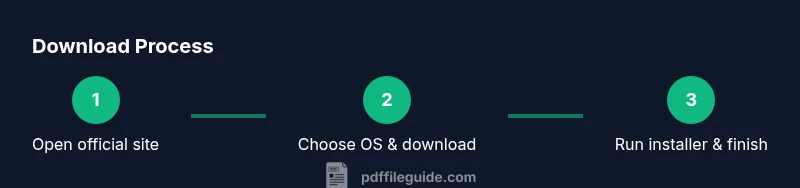
Open your web browser and navigate to Foxit's official site. Confirm the URL begins with https:// and that you are on the correct Foxit domain to avoid counterfeit pages. This initial verification reduces the risk of downloading a compromised installer.
Tip: If you receive a warning about the certificate, do not proceed—close the tab and try again from a known safe source. - 2
Select the correct OS and download
On the download page, choose the Windows or macOS option that matches your system. Click the free download button and save the installer to your computer. Avoid any additional software offers that may appear alongside the download.
Tip: Compare the file size shown on the site with the downloaded file; large discrepancies may indicate tampers. - 3
Run the installer with admin rights
Launch the downloaded installer and approve any prompts that request administrative access. Follow the on-screen steps, selecting either a standard or custom install based on your needs. Deselect optional toolbars or bundles if they appear.
Tip: Choose a conservative install path and avoid modifying unrelated system settings. - 4
Complete setup and launch
Finish the installation and open Foxit Reader. Confirm the application launches without errors. If you encounter error messages, consult the official support resources before proceeding.
Tip: Take a quick tour of the interface to locate annotation and form tools you will use. - 5
Apply essential security tweaks
In Foxit Reader, adjust trust settings, enable sandboxing if available, and set preferences for default security behavior. This helps reduce risk when opening PDFs from unknown sources.
Tip: Enable automatic updates to stay protected against new vulnerabilities. - 6
Test with a sample PDF
Open a safe, trusted PDF to verify basic functions like viewing, highlighting, and form filling. Ensure print and export capabilities work as expected on your system.
Tip: If features don’t perform correctly, verify you installed the latest version from the official site. - 7
Set up updates and backups
Configure update reminders or automatic updates and maintain a small backup of essential PDFs. Regular maintenance helps you stay current and secure.
Tip: Keep a separate copy of your installer in a trusted archive for quick reinstalls if needed.
Questions & Answers
Is Foxit Reader truly free for personal use in 2026?
Foxit Reader offers a free base version for personal use. Features may vary by platform and edition, with paid upgrades available for advanced tools. Always verify you’re on the official site.
Yes, there is a free base version intended for personal use; paid upgrades exist for more features.
Can I download Foxit Reader on both Windows and macOS?
Foxit Reader supports Windows and macOS with platform-specific installers. Choose the correct option on the official download page to ensure compatibility.
It runs on Windows and macOS; pick the right installer for your system.
Is Foxit Reader safe from malware when downloaded from the official site?
Downloading from the official Foxit site minimizes malware risk and bundled software. Always verify the URL and use a trusted antivirus solution.
Yes, from the official site you’re safer; verify the URL and scan downloaded files.
What if I need more features than the free reader offers?
Foxit offers paid editor or Pro versions with expanded capabilities. The free reader covers core viewing and annotation, which is enough for many users.
There are paid options if you need extra features beyond the free version.
Do I need to create a Foxit account to download?
In most cases, you can download Foxit Reader without creating an account. An account may be required for certain features or updates in some regions.
Usually not required; accounts may be optional for certain features.
How can I verify the installer hasn’t been tampered with?
Always download from the official source, check the file signature, and avoid installers from untrusted pages. If in doubt, re-download from the official site.
Check the official signature and download from the official site to stay safe.
Watch Video
Key Takeaways
- Download only from the official site to avoid bundled software.
- Verify the URL, certificate, and installer signature before running.
- Use the step-by-step guide to install safely on Windows or macOS.
- Configure security settings and enable updates for ongoing protection.
- Evaluate whether the free reader meets your needs or if an upgrade is necessary.