PDF Software: A Practical How-To Guide for Editing, Converting, and Securing PDFs
Discover how to pick the right PDF software for editing, converting, and securing PDFs. This guide covers essential features, practical workflows for beginners, and expert evaluation tips.


This quick answer shows you how to pick the right PDF software and start using it to edit, convert, and secure PDFs. You’ll learn how to compare editors and converters, evaluate essential features, and set up efficient workflows. Use the step-by-step plan to move from decision to practical practice quickly.
Why PDF Software matters for professionals
In professional settings, PDF software is not just a viewer. It enables editing, annotating, converting, securing, and distributing documents with consistent quality. The right tools reduce manual rework, improve collaboration, and help you enforce document standards across teams. A unified suite can streamline workflows, especially when tasks involve reviewing feedback, extracting data, or signing agreements. This is why many organizations standardize on a single set of PDF tools and integrate them into their document processes. Choosing robust PDF software also supports accessibility and compliance needs, such as archiving and metadata handling. In this guide from PDF File Guide, you'll learn how to compare options, align with your team’s goals, and implement a reliable PDF strategy that scales with your organization.
Core features to evaluate in PDF software
Key capabilities fall into several buckets: editing, conversion, forms, and security. Editing lets you update text and images in place, while conversion preserves layout when moving content to Word, Excel, or image formats. Forms support enables creating, filling, and exporting data from fillable PDFs, and security features (password protection, redaction, certificate-based signing) protect sensitive material. OCR (optical character recognition) is essential for scanned documents, improving searchability and editability. Finally, performance matters: batch processing, high-fidelity rendering, and cross-platform availability can save time across multiple users. For professional use, you may also value templates, metadata controls, and accessibility features that support assistive technologies.
How to compare PDF editors and converters
To compare tools effectively, build a simple feature matrix. List must-have features (editing, OCR, signing) and nice-to-have items (batch processing, advanced redaction, form data extraction). Evaluate output fidelity by testing on representative PDFs, paying attention to font rendering, image scaling, and table layouts. Compare licensing models (per-seat, per-user, or enterprise-wide) and whether mobile apps sync with desktop installations. Take notes on the user interface, learning curve, and customer support quality. Finally, verify integration with other apps you rely on, such as cloud storage or document management systems.
Practical workflows: common tasks and best practices
A practical workflow starts with a clean source document and a clear objective. Typical tasks include converting native files to PDF, editing text, adding annotations, filling forms, and applying signatures. Use templates to enforce brand standards and metadata to improve searchability in archives. For scanned documents, run OCR with appropriate language settings before editing. When collaborating, enable annotations and track changes to capture feedback. Establish a consistent export profile to preserve fonts and layout, and document each step for future repeats. Finally, schedule periodic reviews of your PDF toolkit to maintain compatibility with evolving formats and security requirements.
Choosing a PDF software plan: pricing, licensing, and accessibility
Budget considerations should include license costs, upgrade policies, and support terms. Look for scalable plans that cover editors, converters, and signing tools; beware of tool sprawl across departments. Accessibility features matter for inclusivity—screen reader compatibility, tagged PDFs, and keyboard navigation should be tested. If you work across teams or clients, a centralized license with role-based access can reduce friction. Balance total cost of ownership with the practical value of time saved, quality, and security across your organization. When in doubt, start with a capable trial and plan for a phased rollout.
Tools & Materials
- Computer or tablet with internet access(OS compatibility: Windows/macOS/iPadOS)
- PDF software (trial or licensed)(Choose edition that fits editing, converting, signing needs)
- Sample PDFs for testing(Include mixed content: text, images, forms)
- Note-taking device or app(For recording findings during evaluation)
Steps
Estimated time: 60-75 minutes
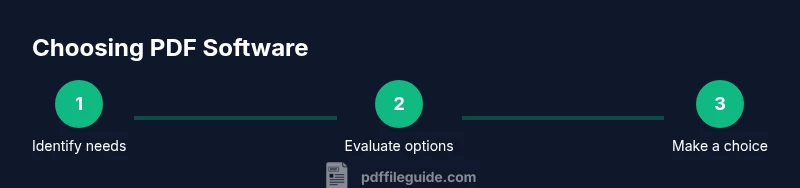
- 1
Define your needs
List the tasks you perform most often (editing, conversion, e-signatures) and identify must-have features. This baseline will guide tool selection.
Tip: Start with a draft task list and rank features by importance. - 2
Gather options
Search for PDF software that covers editing, conversion, and signing. Include at least two different price tiers to compare value. Include both all-in-one suites and best-of-breed editors in your shortlist; reference the comparison chart in your notes.
Tip: Capture screenshots of the UI and note any onboarding friction. - 3
Evaluate features
Create a feature matrix and test core tasks on trial versions. Pay attention to OCR accuracy for scanned documents and output fidelity. Use your real PDFs to judge workflow compatibility.
Tip: Test with a representative mix of PDFs from your day-to-day work. - 4
Run a pilot
Run a short pilot with one team member to validate performance, compatibility, and ease of use. Collect feedback and adjust criteria. If you have diagrams or charts, use them to compare results visually.
Tip: Record time saved per task during the pilot and note any blockers. - 5
Make a decision and implement
Choose the tool that best meets your needs and implement templates, presets, and signing workflows. Plan for onboarding and set up a quick-start guide for teammates.
Tip: Define a rollout plan with milestones and a feedback loop.
Questions & Answers
What is PDF software?
PDF software refers to programs that view, edit, convert, annotate, and secure PDF documents. They range from editors to converters and form tools.
PDF software lets you edit, convert, and secure PDFs. It includes editors, converters, and signing tools.
What features should I look for in PDF software?
Look for editing, OCR, batch processing, form handling, annotations, and security features like password protection and digital signatures.
Key features include editing, OCR, and security like passwords and signatures.
Is there free PDF software that is reliable?
There are free tools with basic editing and viewing; for robust features, paid options or trials are often necessary.
There are free tools for basics, but robust workflows usually require paid options or trials.
Can PDF software edit scanned documents?
Editing scanned PDFs requires OCR to convert images to selectable text before editing.
Yes, but you need OCR to turn scans into editable text.
What’s the difference between a PDF editor and a converter?
An editor changes content in place, while a converter changes PDFs to other formats; many tools combine both.
Editors modify PDFs; converters transform to another format; many tools do both.
How do I test a PDF software before buying?
Use trial versions to perform real tasks, compare performance, and gather feedback from users.
Try the software with real tasks and gather user feedback.
Watch Video
Key Takeaways
- Define clear needs before buying
- Evaluate with real PDFs and pilots
- Prefer unified tools for efficiency
- Test OCR and output fidelity
- Plan onboarding for teams