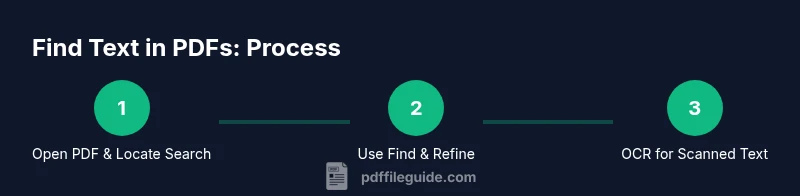
Word Find in PDFs: A Practical How-To Guide
Learn to locate text in PDF documents efficiently with built-in search, OCR, and advanced options. This step-by-step guide covers readers, editors, and best practices for robust word finding in PDFs.


According to PDF File Guide, word find pdf techniques help you quickly locate text in PDFs using built-in search and OCR. This quick answer previews where to search, how to refine results, and what tools support robust text lookup across pages and documents. Whether you’re auditing contracts, reviewing studies, or extracting data, you’ll learn practical steps and common pitfalls to avoid.
What word find pdf means
In the PDF world, a "word find" refers to locating specific text inside a document using a search function, a highlighting workflow, or OCR when the text isn’t natively encoded. For professionals who edit, convert, or optimize PDFs, mastering word search is foundational. According to PDF File Guide, a robust word-find workflow starts with understanding whether the document has selectable text or is image-based. If text is selectable, search will return exact matches; if the document is a scan, OCR must be applied to convert images into searchable text. This block sets the stage for practical search techniques across readers, editors, and processing tools. You’ll learn to distinguish native text from image-based text and why that distinction matters for accuracy and speed.
How PDF text search works
Text in PDFs is stored in a text layer beneath the visible content. When you type a query, your PDF reader searches that layer and returns matches, highlighting them on the page. Some PDFs continuously embed fonts or use ligatures that complicate exact matches, especially with unusual character sets. OCR (optical character recognition) creates a text layer for scanned documents, enabling search after initial processing. The PDF File Guide analysis shows that effective word finding relies on choosing the right tool: a viewer with reliable search, an editor with annotation support, and an OCR engine when needed. Remember, accuracy improves when you search for whole words, not just fragments, and when you verify results against surrounding context.
Quick-start: basic text search in popular readers
Most PDF programs include a Find feature. On Windows and other desktop platforms, press Ctrl+F; on macOS, Cmd+F. The search bar usually appears at the top or under a dedicated menu. Type your keyword or phrase and press Enter to cycle through results. Many readers allow you to refine results with options like case sensitivity, whole words only, or limited search to the current page. For readers focused on editing, you can often switch to a more advanced search pane that supports multiple keywords or synonyms, and offers a lightweight annotation workflow to mark findings.
Searching across pages and multiple documents
To search across a large document, use the multi-page search or global search feature, if available. In many editors, you can search all open PDFs or all PDFs in a folder. This is especially useful for audits, contracts, or literature reviews where you need to locate a recurring term across many files. PDF File Guide notes that batch search capabilities save time but may require enabling indexing or using a dedicated batch-processing tool. When performing cross-document searches, consider exporting results to a text list or spreadsheet to organize matches by file and page.
Case sensitivity, exact words, and wildcards
Advanced search options vary by tool. Start with exact phrase searches to reduce false positives, then experiment with case sensitivity if your documents include mixed-case terms. Some tools support simple wildcards or Boolean operators to broaden or narrow results. If a tool doesn’t support wildcards, consider running multiple searches for related variants. PDF File Guide emphasizes testing the same query across several documents to validate results and avoid missing context.
OCR and scanned PDFs: turning images into searchable text
From invoices to historical scans, many PDFs are image-based. In these cases, OCR is essential for word finding. Choose an OCR engine with language support aligned to your document’s language, then apply it to the file. After OCR, re-run your word find search and verify edits, as OCR can misread characters in noisy scans. Save the searchable version with a distinct filename to preserve the original. If you routinely work with scans, consider establishing a workflow that combines OCR with automatic text extraction for downstream tasks.
Highlighting found words and exporting results
Once you locate the target words, use highlighting, underlining, or note annotations to mark findings. This makes review faster and enables easy sharing with colleagues. Many tools offer export options: copy matches to clipboard, generate a search report, or export a summary as a CSV or TXT file. If you need structured data, map page numbers, coordinates, and surrounding context in your export. PDF File Guide consistently recommends documenting the search terms used and the environment (software, version) to reproduce results later.
Tools and editors: choosing the right PDF tool
There are many tools on the market, from lightweight readers to feature-rich editors. When evaluating, prioritize: reliable text search, robust highlighting/annotation, and OCR accuracy for scanned PDFs. For frequent research or QA tasks, a tool that supports batch processing and indexing can dramatically speed up workflows. Consider compatibility with your operating system, the ability to export results, and the availability of regular updates. The right tool differs by use case—contract review, academic research, or data extraction—and by whether you need offline or cloud-based capabilities.
Best practices for large PDFs
Large documents demand careful search strategies. Start by building a short list of core terms, then search within logical sections or bookmarks to maintain context. Use multi-term queries to capture synonyms and related phrases. When possible, enable indexing or create a searchable summary to ease subsequent reviews. For long workflows, keep a log of searches, results, and actions taken to reproduce outcomes and communicate progress with teammates. This discipline reduces time spent re-running the same searches and helps prevent overlooking important passages.
Troubleshooting common search problems
If text search fails, verify that the PDF isn’t password-protected or encrypted, and confirm you have permission to search. For image-based PDFs, ensure OCR has been applied and language settings match the document. If results seem inaccurate, check for font issues, ligatures, or unusual typography, and re-run OCR with higher resolution or improved segmentation. In rare cases, you may need to recreate the PDF from an original source to ensure a clean text layer. Finally, ensure your software is up to date to benefit from improved search algorithms.
Next steps: practice with real documents
The best way to master word find pdf techniques is to practice across different file types: native text PDFs, scanned PDFs, and mixed documents. Start with a small set of contracts or articles, then expand to reports and manuals. Track your search terms, time yourself, and compare results across tools to identify the fastest, most accurate workflow. As you gain experience, you’ll tailor your approach to your daily tasks and improve accuracy and speed.
Tools & Materials
- PDF editor or reader with text search(Ensure it can search by words and highlight results)
- OCR-enabled tool or feature(Needed for scanned or image-based PDFs)
- Practice PDFs (native and scanned)(Include variety to test search and OCR performance)
- Up-to-date software on a supported OS(Windows, macOS, iOS, or Android with current version)
- Note-taking surface or app(Optional for logging queries and results)
Steps
Estimated time: 60-90 minutes
- 1
Open the PDF and locate the search tool
Launch the target PDF and locate the built-in search field or menu. This initial action primes you for fast results and sets expectations for what you’ll search. If the document is large, consider bookmarking the page you start from for quicker navigation.
Tip: If you can't find the search tool, use the help menu or try a keyboard shortcut (Ctrl/Cmd+F). - 2
Activate the Find function
Activate the search bar by pressing the standard shortcut or selecting Find from the menu. This opens the search pane, where you’ll type the keyword or phrase you need. In some editors, you can toggle between simple and advanced search modes.
Tip: Use quotes for exact phrases to reduce noise in results. - 3
Enter keywords and review results
Type your keyword and press Enter to cycle through matches. Review each result in context by looking at surrounding sentences or paragraphs. If your term has common variants, repeat the search with synonyms or related terms.
Tip: Use the next/previous result buttons to quickly scan occurrences. - 4
Refine search with options
Refine results using options like case sensitivity or whole word matching. Some tools support searching multiple keywords or boolean logic. Apply these refinements to reduce false positives and improve efficiency.
Tip: Start with exact phrases, then broaden with related terms if needed. - 5
Search across pages or documents
If available, switch to a multi-page or multi-document search to find all occurrences across the file or folder. This is especially helpful for contracts, proposals, or research papers where the same term appears in multiple places.
Tip: Export or copy results to a separate document for review. - 6
OCR for scanned PDFs
If the PDF is image-based, run OCR to create a searchable text layer. Choose the correct language, then re-run the search. OCR improves accuracy for backgrounds, fonts, and layouts that hinder recognition.
Tip: Check OCR quality on a sample page and adjust settings if needed. - 7
Highlight and annotate matches
Mark found words with highlights or notes to facilitate review. Annotations help teammates understand where important information appears and support faster collaboration.
Tip: Use a consistent color scheme for related terms to improve readability. - 8
Export findings
Export matches as text, CSV, or a report. Exported data supports documentation, audits, or compliance checks and helps track which pages contain key terms.
Tip: Include page numbers and brief context to aid later review. - 9
Automate repetitive searches
For repeated workflows, set up batch searches or scripts to process multiple files. Automation saves time and reduces manual errors when dealing with large document sets.
Tip: Test automation on a small batch before scaling up to the full library. - 10
Handle large PDFs and indexing
Large documents can benefit from indexing, bookmarks, and a structured outline. Use these features to speed up future searches and maintain context across sections.
Tip: Create a lightweight index or table of contents for frequent terms. - 11
Troubleshoot common issues
If search fails, verify permissions, font embedding, and language settings. Update software and reprocess OCR if needed. For encrypted files, obtain access rights before proceeding.
Tip: Keep a log of problems and steps taken to reproduce solutions.
Questions & Answers
What is word find pdf and why is it important?
Word find pdf refers to locating specific words or phrases inside PDF documents using search, highlighting, or OCR. It is essential for reviews, data extraction, and compliance tasks because it speeds up navigation and improves accuracy.
Word find pdf means locating words in a PDF using search or OCR—useful for fast reviews and data extraction.
Do I always need OCR to search a PDF?
OCR is required when the PDF is image-based and lacks a text layer. If the document already contains selectable text, OCR is not necessary. In mixed documents, OCR can help with image pages and improve overall search reliability.
OCR is needed for image-based PDFs; for text-based PDFs, you can search directly.
How can I search across multiple PDFs at once?
Many PDF tools offer batch or folder-level search to scan several documents. Use indexing, or open all PDFs in a single window when possible to streamline results and export a consolidated list of matches.
Use batch search or folder search to scan multiple PDFs together.
Can I search for variations of a word using wildcards?
Support for wildcards varies by tool. Some editors allow basic wildcards or Boolean logic; others require separate searches for related terms. Check the tool’s help section for supported operators.
Wildcards and operators depend on your tool—check the help guide.
Why can’t I find a word after updating my software?
Software updates can alter search settings or default behaviors. Revisit search options, language, and OCR settings to restore expected results, and re-run searches on sample pages.
Post-update changes may affect search features; check settings and re-run tests.
Is there a browser-based way to find text in a PDF?
Yes, many modern browsers can open PDFs and support text search. However, advanced features like batch search, OCR, or robust annotation tools are typically found in dedicated desktop or web-based PDF editors.
Browsers can search PDFs, but advanced features usually require a dedicated tool.
Watch Video
Key Takeaways
- Learn when to use native search versus OCR-based search.
- Enable exact phrase matching to improve accuracy.
- Highlight and export results to streamline review.
- Practice across native and scanned PDFs to build proficiency.