How to Search a PDF: A Practical Guide for 2026
Learn how to search a PDF effectively, covering text-based, OCR-enabled, and cross-document scenarios for professionals.


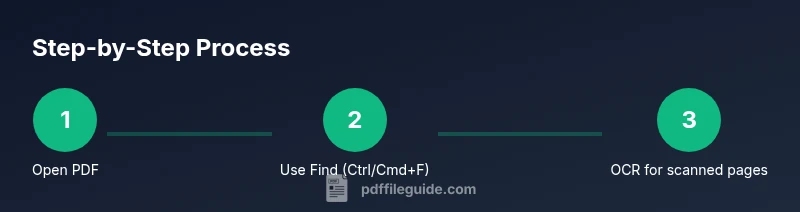
How to search a pdf effectively starts with the Find function (Ctrl/Cmd+F). You can search for exact phrases by using quotes and navigate results with Next/Previous. For scanned PDFs, turn on OCR to convert images to searchable text, and then repeat your search. This guide covers typical tools and best practices.
Why searching PDFs matters
Efficient search is a productivity multiplier for anyone who works with long documents, reports, or manuals. When you can locate a term, clause, or data point in seconds, you reduce manual skimming and improve accuracy. According to PDF File Guide, mastering how to search a pdf saves hours over the course of a project and makes complex documents more navigable. In practice, a well-structured PDF with searchable text or properly OCR’d pages lets you jump to sections, verify figures, and prepare summaries with confidence. This section lays the groundwork for choosing the right methods based on document type, scanner quality, and software capabilities.
Text-based vs image-based PDFs: understanding what you can search
Not all PDFs are created equal. Some contain selectable text, while others are scanned images of pages. The first type lets you use the standard Find feature immediately. The second requires OCR to recognize characters before you can search. If you routinely receive scanned documents, plan to enable OCR as a routine step; this ensures your searches are comprehensive rather than partial. Always verify whether the text layer exists, because it determines how you approach the task.
Basic search techniques in common readers
Across major platforms (Windows, macOS, Linux, and mobile), the basic search workflow is consistent: open the PDF in a capable reader, activate Find (usually Ctrl/Cmd+F), and type your query. Use quotation marks for exact phrases and keep the scope narrow at first. If you don’t see results, try a broader term, then refine with more specific language. Bookmarking or using the Outline panel can help you jump to relevant sections quickly.
Phrasing, operators, and advanced search
Searching becomes smarter when you use exact phrases, synonyms, and Boolean operators. For example, use "contract terms" to find the precise phrase, or combine terms with AND/OR to broaden or narrow results. Some readers support wildcards like * to catch variations (e.g., plan* could match plan, plans, planning). In addition, check whether the tool supports case sensitivity or pattern search—these features can dramatically improve hit quality in dense technical documents.
OCR and scanned PDFs: a practical workflow
When OCR is required, begin by recognizing the text with your OCR tool, then re-run the search. Quality OCR depends on image clarity, language settings, and page orientation. After OCR, verify that key terms are recognized correctly (typos or font peculiarities can cause misses). If pages are noisy or contain non-Latin scripts, run OCR with language packs suited to the document. This ensures reliable search results across the entire file.
Search within bookmarks, outlines, and metadata
Many PDFs include bookmarks or an outline that mirrors the document structure. These features often contain keywords that are easier to locate than raw text. Also consider metadata fields (author, title, subject) if your PDF reader supports searching within properties. Combining content search with structural search helps you pinpoint information in large documents much faster than scanning line-by-line.
Cross-document and multi-PDF search strategies
When you need to search across several PDFs, use an advanced search or batch tool that can scan multiple files in a single pass. Some readers allow you to select a folder and search all contained PDFs; others require a dedicated desktop search utility. Plan your workflow by grouping PDFs by topic or project to minimize irrelevant hits. You can then export results or create a consolidated report for analysis and sharing.
Accessibility and search considerations
Accessible PDFs (tagged, properly structured) improve search results for screen readers and people with disabilities. If accessibility is a priority, verify that the document has proper headings, alt text for figures, and meaningful metadata. When you search, consider how results are presented by assistive technologies; provide clear navigation cues like headings and anchor points to improve comprehension.
Tools & Materials
- PDF reader software(Examples include Adobe Acrobat Reader, Foxit Reader, Preview (macOS), or mobile PDF apps. Ensure you have a recent version that supports Find, Advanced Search, and bookmarks.)
- OCR software or built-in OCR(Needed for image-based scans. Look for language support and batch processing capabilities.)
- A folder with PDFs to search(Organize by project or topic to enable efficient batch searches.)
- Optional: Advanced search tools or indexing(May help you search across multiple PDFs or across a large library more quickly.)
- Keyboard shortcuts cheat sheet(Keep handy shortcuts for Find, Next, Previous, and OCR toggles.)
Steps
Estimated time: 20-40 minutes
- 1
Open the PDF in a capable reader
Launch your PDF viewer and open the document you need. Verify you have access rights and that the document isn’t password-protected in a way that blocks text searching. A fast start ensures you don’t waste time before you begin the actual search.
Tip: If you expect frequent searches on this file, keep the window maximized and use a vertical split to compare text with notes. - 2
Activate the Find tool and enter your term
Press Ctrl/Cmd+F to open the search bar and type the word or phrase you’re seeking. Use quotes around exact phrases to limit hits to your intended string. If the first term yields too many results, refine with a more specific keyword.
Tip: For exact phrases, include quotes like "annual report" to avoid partial matches. - 3
Navigate results efficiently
Use Next/Previous or the results panel to move through hits. If you’re using a long document, jump to the relevant pages indicated by the results. Track context by looking at surrounding sentences to confirm relevance.
Tip: Some readers let you highlight all hits at once; use this to scan quickly before selecting the most relevant section. - 4
Refine with advanced search options
If available, switch to Advanced Search to limit by page range, annotations, or metadata. Boolean operators (AND, OR) help you combine terms and control result precision. This step is crucial for technical documents with many similar terms.
Tip: Experiment with synonyms and related terms to broaden or tighten results as needed. - 5
Search within bookmarks or outlines
Open the Bookmarks or Outline pane to search within the document structure. This often leads you to chapters or sections where your term appears. It’s a fast alternative to paging through content.
Tip: If bookmarks are missing, rely on heading style in OCR’d text to locate sections quickly. - 6
OCR for scanning-heavy PDFs
When search returns nothing due to images, run OCR on the document. Choose appropriate language packs and verify accuracy after recognition. Re-run the Find to confirm that the text is now searchable.
Tip: OCR quality improves with clearer scans; consider rescanning pages if quality is poor. - 7
Search across multiple PDFs
If you must search many files, use a batch or library search tool. Specify a top-level folder as the source and review a consolidated hit list. Export results if you need to share findings with teammates.
Tip: Organize files before search to avoid missing hits due to misfiled documents. - 8
Save or export search results
Many readers allow exporting hits or copy-pasting excerpts with context. Saving results helps with reporting or auditing later. Use annotations to capture exact pages and quotes.
Tip: Create a short summary for each hit to speed future reviews. - 9
Confirm results with context and accessibility
Always verify hits in context and consider accessibility implications. If you rely on screen readers, ensure your PDF is properly tagged and that your search results are navigable by assistive tech.
Tip: Test your workflow on a representative sample to ensure reliability across documents.
Questions & Answers
Can I search a PDF if it's image-based?
Yes. If a PDF is image-based, you must run OCR to convert the images into searchable text, then perform your search again. The quality of OCR depends on the scan clarity and language settings.
Yes. If the PDF is just images, run OCR to turn it into searchable text, then search again.
How do I search for an exact phrase in a PDF?
Enter the phrase in quotes in the Find box to limit hits to the exact sequence of words. If your reader supports it, use the advanced search to enforce phrase matching across the document.
Put the phrase in quotes in the Find field to search for the exact sequence.
Can I search across multiple PDFs at once?
Yes. Use an Advanced or Batch Search to target a folder or index several PDFs simultaneously. Some tools let you compile a consolidated list of Hits for review.
Yes, you can search across many PDFs at once with batch search features.
Why is my search returning no results sometimes?
No results can occur if the PDF lacks embedded text, is encrypted, or the search scope is too narrow. Ensure OCR is applied for scans, check permissions, and widen the search terms if needed.
If nothing comes up, you may need OCR or a broader search term.
Is PDF search accessible for screen reader users?
Accessible PDFs with proper tagging allow screen readers to render search results. Ensure headings, alt text, and metadata are present to improve navigability.
Yes, with properly tagged PDFs search results are accessible to screen readers.
Are there good external tools for searching PDFs?
Several desktop applications and plugins offer enhanced search across PDFs, metadata, and notes. Evaluate privacy, offline capabilities, and cross-platform support when choosing tools.
Yes, several tools can enhance PDF search across multiple files.
Watch Video
Key Takeaways
- Know whether a PDF is text-searchable before starting.
- Use Find for quick hits and exact-phrase quotes for precision.
- Enable OCR for image-based PDFs to unlock full search.
- Employ bookmarks and metadata to narrow searches.
- Export results for reporting and cross-document analysis.