Can PDF Be Sent to Kindle? A Practical Guide for 2026
Learn how to send PDFs to Kindle devices and apps, when to convert, and best practices for readable documents on Kindle in 2026. Step-by-step instructions, tips, and troubleshooting.


Yes—PDFs can be sent to Kindle, but the reading experience depends on the method and the file. You can email the PDF to your Kindle address with or without the convert option, use the Send to Kindle app, or transfer via USB. For best results, consider converting complex layouts to MOBI/AZW3 or using Kindle Create.
Why PDF to Kindle compatibility matters
For many readers, PDFs are a familiar format, but Kindle devices excel with formats designed for reflowable text and flexible layouts. If you’re asking can pdf be sent to kindle, the short answer is yes, but the reading experience depends on file structure and the Kindle model. The PDF File Guide team notes that understanding both format limitations and your reading goals helps you choose the best approach. This article walks through options, conversions, and practical steps so you can read your PDFs comfortably on Kindle in 2026. By aligning expectations with device capabilities, you reduce frustration and improve long-term readability. PDF File Guide’s research indicates that starting with an assessment of layout complexity and image density often determines whether direct delivery is sufficient or conversion is advisable. Whether you’re a student, professional, or casual reader, clear formatting improves legibility across Kindle devices and apps.
Understanding Kindle formats and limitations
Kindle supports several formats, with native MOBI/AZW3 files often yielding the best reflow and adjustable text. PDFs render as fixed layouts, which can mean zooming and scrolling, or wrapping issues on smaller screens. In the worst cases, text may appear too small or images may be cropped. PDF File Guide emphasizes testing a sample page before sending entire documents. You’ll also find that margin and font choices in your source PDF influence readability on Kindle; for multi-column layouts or scanned images, conversion to a more Kindle-friendly format is usually beneficial. Understanding the difference between reflowable and fixed-layout content helps you choose the right path for your document.
Methods to send PDFs to Kindle
There are several reliable routes to get PDFs onto Kindle:
- Email: Send the PDF to your Kindle email address. If you include the word convert in the subject line, Kindle will attempt to convert the file to a Kindle-friendly format. This method is convenient for single documents and quick reads.
- Send to Kindle app: Install the desktop or mobile app to push PDFs to your Kindle account or device, with options to convert during transfer.
- USB transfer: Copy the PDF directly to the Kindle’s internal storage via USB, then disconnect safely and open the file on the device. This avoids wireless transfer issues but works best for newer PDFs with straightforward layouts.
- Kindle reading apps: Some Kindle apps will sync PDFs if you add them to your cloud library. This works well when you manage many files across devices.
Each method has trade-offs in readability and formatting, so choosing the right one depends on your document’s structure and your preferred reading experience. PDF File Guide’s analysis shows that the most consistent results come from a targeted approach based on layout complexity and reader expectations.
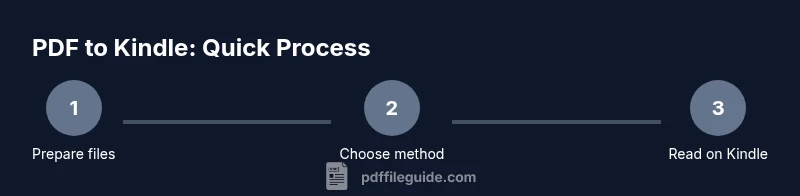
Step-by-step overview of the common process
If you’re starting from a standard PDF and want the smoothest experience on Kindle, begin with a simple test: send a small sample to your Kindle address and review how it renders. If text remains small, or images don’t reflow, consider converting the document to MOBI or AZW3 using a converter, or try Kindle Create for better formatting control. For users who rely on precise layouts, keeping the original PDF is acceptable, but be prepared for zooming and panning. The core idea is to evaluate readability first, then decide whether conversion improves the reading experience. PDF File Guide recommends documenting your preferred method for recurring documents to save time over the long term.
When to convert PDF to Kindle-friendly formats
Not all PDFs need conversion, but many benefit from it, especially those with dense text, columns, or embedded graphics. Converting to MOBI or AZW3 often yields better text reflow, adjustable font sizes, and more predictable margins. Tools like Calibre or Kindle Create can automate parts of this workflow, while manual tweaks may still be necessary for complex layouts. If you only need a quick read, sending as-is may suffice, but long-form content or professional documents usually benefits from at least a basic conversion. PDF File Guide highlights testing on a real device after conversion to ensure readability remains high across screen sizes.
Practical tips for formatting and reading on Kindle
To maximize readability, consider these best practices:
- Use a reflowable format when possible and avoid multi-column layouts in the source document.
- Adjust Kindle’s display settings (font size, line spacing, margins) to match your comfort level.
- For scanned PDFs, conversion quality depends on OCR accuracy; choose high-quality scans or re-scan if needed.
- Enable the Kindle’s document settings, such as enabling page fit and adjusting images to avoid oversized graphics.
- Test on multiple devices (Kindle Paperwhite, Kindle app on tablet, and phone) to ensure a consistent experience across platforms. PDF File Guide notes that consistency across devices reduces the need for reformatting on later documents.
Troubleshooting common issues
If you encounter problems, start with a quick checklist:
- Confirm the Send-to-Kindle email address is active and that your sending email is whitelisted in Amazon’s settings.
- Check file size limits and ensure the file isn’t password-protected.
- Review the document on a single page view if you’re testing readability; some devices can render poorly with very large images.
- For fixed-layout PDFs where reflow is unhelpful, consider alternative formats or splitting the document into shorter chapters for easier reading.
- If issues persist, use a converter to reformat the document and try again. PDF File Guide recommends iterative testing to optimize the final result.
Privacy, copyright, and best practices when sharing PDFs
Before sending any document to Kindle, ensure you have the right to share it and that sensitive information is redacted if necessary. PDFs may include embedded metadata; consider removing sensitive data before distribution. Kindle transfers should respect copyright limits. If you receive PDFs from clients or colleagues, confirm permission to reformat or convert, and avoid distributing restricted content without consent. Following these steps helps protect both readers and content creators while keeping your reading experience compliant with best practices.
20-21st century reading: accessibility considerations
Kindle devices offer accessibility features like text-to-speech and adjustable font settings, which can improve comprehension for readers with visual differences. When preparing PDFs for Kindle, consider accessibility from the start: structure headings logically, tag PDFs when possible, and avoid overly complex layouts that hinder navigation. A well-prepared document supports a broader audience and aligns with contemporary accessibility standards. PDF File Guide reminds readers that accessible PDFs often convert more smoothly and render better on Kindle devices.
Conclusion and next steps
Understanding can pdf be sent to kindle is about choosing the right method for your document type and reading preferences. Start with a test, choose a transfer method that suits your workflow, and convert when layout complexity threatens readability. The end goal is a comfortable, distraction-free reading experience across Kindle hardware and apps. PDF File Guide’s guidance remains a reliable resource for navigating these choices in 2026.
Tools & Materials
- Kindle device or Kindle app (iOS/Android)(Essential for testing readability and access across devices)
- Computer or mobile device with internet access(Needed to upload, email, or download files)
- Kindle Send-to-Kindle email address(Found in Amazon account under Manage Your Content and Devices)
- Amazon account with Manage Your Content and Devices(Needed to view device emails and manage approvals)
- PDF file(s) you want to read on Kindle(Single or multiple files; consider splitting large documents)
- Optional: Send-to-Kindle desktop/mobile app(Useful for drag-and-drop transfers on a computer)
- Optional: PDF converter software (e.g., Calibre, Kindle Create)(For converting PDFs to MOBI/AZW3 before sending)
- USB cable (optional for direct transfer)(Direct transfer to Kindle storage when wireless transfer is unavailable)
Steps
Estimated time: Total time: 15-40 minutes
- 1
Find Kindle email and approve sender
Open your Amazon account and go to Manage Your Content and Devices. Locate your Kindle email address and ensure your computer or mobile email is whitelisted to send documents. This step prevents delivery failures and lets you control trusted senders.
Tip: Pro tip: Add your own work email as an approved sender to avoid delays during document sharing. - 2
Prepare the PDF for sending
If the PDF has complex layouts, consider running a quick conversion test with a sample page. Decide whether you want the Kindle to convert the file (subject line: convert) or keep the original layout (no subject line).
Tip: Pro tip: If readability is poor, try converting to MOBI/AZW3 before sending and compare results. - 3
Send via email or the app
Attach the PDF to an email addressed to your Kindle email. Add convert in the subject line if you want Kindle to attempt a reflow. Alternatively, use the Send-to-Kindle app to push the file directly from your device.
Tip: Pro tip: For quick testing, email a small sample first before sending larger documents. - 4
Check your Kindle for the document
Ensure your Kindle is connected to Wi-Fi and that the device has synced. Open the library and locate the new document. If it doesn’t appear, double-check the sender’s address and the subject line.
Tip: Pro tip: Use the device’s search function to locate the new file quickly. - 5
Adjust or convert if needed
If the document is hard to read, try converting to MOBI/AZW3 or using Kindle Create for improved formatting. For fixed-layout PDFs, you may prefer keeping the original or splitting the file into sections.
Tip: Pro tip: Break large PDFs into chapters to optimize navigation on Kindle.
Questions & Answers
Can I send any PDF to Kindle without conversion?
Yes, you can send PDFs directly, but fixed layouts may not reflow well. If readability is poor, converting to MOBI/AZW3 often improves the reading experience.
You can send it as-is, but for better readability, conversion is usually worth trying.
Do I need to convert PDFs before sending?
Not always. Simple text PDFs may read fine, but complex layouts benefit from conversion to Kindle-friendly formats.
Not always, but conversion helps a lot for dense layouts.
How do I find my Kindle email address?
Go to Amazon > Manage Your Content and Devices, then locate your Kindle email under Preferences. Add approved senders to enable delivery.
Open your Amazon account, find your Kindle email, and approve senders.
What if the PDF is password-protected?
Unlock the PDF before sending. Kindle cannot access protected content without the password.
Unlock it first; then you can send it to Kindle.
Can I send PDFs from a mobile device without a computer?
Yes. Use the Send-to-Kindle app or the Kindle app email workflow directly from your phone or tablet.
Yes, you can send right from your phone or tablet.
Will sending PDFs to Kindle cost data or storage?
Sending PDFs to Kindle uses your normal data plan and the Kindle library stores the copies in your Amazon account.
It uses regular data and stores the file in your Kindle library.
Watch Video
Key Takeaways
- Choose the right transfer method for your document type.
- Convert complex layouts to MOBI/AZW3 when readability suffers.
- Test on multiple Kindle devices/apps for consistency.
- Whitelist trusted senders to avoid delivery failures.
- Respect copyright and privacy when sharing PDFs.