Do PDFs Work on Kindle? A Practical Guide
Explore how PDFs render on Kindle devices and apps, when to read directly versus convert, and how to optimize PDFs for a smooth, accessible reading experience.


Do pdfs work on kindle? Yes, PDFs are natively supported on Kindle devices and apps, but the reading experience varies by device. According to PDF File Guide, PDFs render with fixed layouts on most Kindles, which can require zooming on small screens. For a smoother experience, consider converting to Kindle format or using the Kindle app's reader features.
Do PDFs Work on Kindle: A Quick Reality Check
For readers wondering do pdfs work on kindle, the short answer is yes—but success depends on device and document design. PDF support is built into Kindle e-readers and the Kindle app, so you can open files directly without additional apps. According to PDF File Guide, most Kindles render PDFs with their original pages, which preserves layout but can hinder readability on small screens. If your goal is easy scrolling and adjustable text, reading PDFs on Kindle is workable but not always ideal. For longer documents and manuals, you may prefer conversion to Kindle formats or using the app's reader features.
Rendering on Kindle: Fixed Layouts, Zoom, and Pan
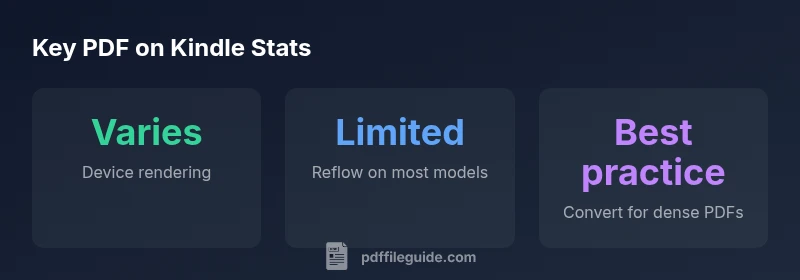
PDFs on Kindle typically render with fixed pages that preserve the original design. This makes diagrams, tables, and columned layouts look familiar, but it can also force a lot of zooming and panning on phones or smaller Kindles. Newer Paperwhite/Oasis devices manage zoom and margins more smoothly, yet reflow remains limited, meaning long text blocks don’t automatically reflow into a new column. If your document relies on precise formatting, expect occasional scrolling instead of seamless line-wrapping.
When to Read Directly vs Convert
If your PDF is primarily text with consistent margins, reading it directly on a Kindle is perfectly acceptable. For documents with complex layouts or high-density graphics, conversion to Kindle formats (AZW/MOBI) can improve navigation and readability. PDF reflow is not universally available across all Kindle models, so start by testing a sample on your device before committing to a full conversion.
How to Prepare PDFs for Kindle
Preparation matters: start with a reasonably sized file, compress images, and avoid layers that bloat the document. Embedding fonts helps preserve readability, but oversized fonts can hinder rendering. If you anticipate long reading sessions, flatten complex elements to prevent misalignment during zoom. Consider converting large or multi-column PDFs to Kindle formats for the cleanest experience, then send via email or USB for quick access.
Transfer and Reading on Kindle Apps
Deliver PDFs to Kindle via the Send-to-Kindle service, USB, or cloud sync, depending on your setup. The Kindle app on tablets often handles zoom and scrolling more fluidly than a dedicated e-reader, which can be a practical option for mobile reading. Always verify that the document appears correctly after transfer, especially links and embedded images.
Accessibility and Cross-Device Reading
Kindle’s accessibility features assist with reading PDFs to some extent, but not all PDFs are tagged for screen readers or reflow. If accessibility is essential, prefer reflowable formats or use tools to extract text before reading. Kindle devices provide options like larger font sizes and higher-contrast modes to improve readability, but the experience remains document-specific.
Troubleshooting Common Issues
If a PDF renders oddly or fails to display content correctly, try re-sending with the Convert option, reducing image resolution, or exporting the PDF as a new file with inline images. Testing a sample page on your target device can save time. Keep your Kindle firmware updated for improved rendering and compatibility.
PDF reading experience by Kindle device
| Device | PDF Experience | Notes |
|---|---|---|
| Kindle (basic) | Fixed-layout; basic zoom | Limited navigation on small screens |
| Kindle Paperwhite | Better readability; fixed layout | Best balance of size and clarity |
| Kindle Oasis | High-resolution display; fixed layout | Ideal for dense PDFs |
Questions & Answers
Do all Kindle devices support PDF files?
Most Kindle devices support PDFs, but older basic models may have limited zoom and navigation. The reading experience improves on Paperwhite and Oasis due to better screens and UI for document navigation.
Most Kindles can open PDFs, but your experience depends on the model; newer Kindles handle zoom and panning more smoothly.
Is it better to convert PDFs to Kindle formats?
For lengthy manuals or multi-column layouts, converting to Kindle formats (AZW/MOBI) typically improves readability and navigation, though some formatting may be lost in conversion.
Converting often gives better reading control.
What is the best way to transfer PDFs to Kindle?
Use Send-to-Kindle, USB transfer, or Kindle Cloud, ensuring the file size remains manageable and that you’re sending to the correct Kindle email address.
Use Send-to-Kindle for easy delivery.
Will hyperlinks in PDFs work on Kindle?
Hyperlinks may work if supported, but navigation is not as interactive as on a tablet; some links open in the device browser where available.
Links might work, but not always full interactivity.
How can I optimize a PDF for Kindle reading?
Reduce file size, flatten fonts, remove complex layouts, and consider converting to Kindle format for best readability.
Keep it light and simple; conversion helps.
Are PDFs accessible on Kindle for screen readers?
Kindle accessibility features help with some PDFs, but text extraction and reflow are not guaranteed; consider reflowable formats or using assistive features.
PDF accessibility varies; alternative formats may be better.
Should I read PDFs on Kindle apps or device hardware?
Kindle apps on tablets or phones often offer better zoom and navigation; use the app for mobile reading, and the device for dedicated e-ink experiences.
Apps can provide smoother reading, depending on document.
“PDFs on Kindle are practical for reading references, but dense layouts benefit from conversion or reflow-friendly formats.”
Key Takeaways
- Test PDFs on your device before a long read.
- Convert to Kindle format for complex layouts.
- Use Send-to-Kindle to streamline delivery.
- Optimize file size and embed fonts for readability.
- Explore accessibility options for screen readers.