Can You Download PDFs on Kindle? A Practical Guide
Learn how to read PDFs on Kindle devices and apps, transfer methods, conversion options, and tips to optimize reading on Kindle for professionals working with PDFs.


Yes—Kindle devices and apps can open PDFs, and you can improve readability by converting PDFs to Kindle formats when needed. Transfer PDFs via USB, email, or the Send-to-Kindle service, and optimize on-device reading with reflow, font size, and margin adjustments. This guide explains workflows and troubleshooting.
Can PDFs Be Read on Kindle Today?
PDFs are supported on Kindle devices and apps, but the reading experience varies by model and format. Can you download pdf on kindle? The short answer is yes, but the best approach depends on your priorities—fidelity to the original layout or comfortable, readable text that scales with your preferences. On Kindle Paperwhite and Oasis, PDFs appear as fixed pages you navigate by panning and zooming; this is fine for short documents but can be tiring for long reports or manuals. On Fire tablets, you’ll notice better navigation and easier text reflow when you choose to convert. According to PDF File Guide, most Kindle users can view PDFs without extra software, but complex formatting or large image-heavy PDFs often benefit from conversion or reflow options.
How Kindle Handles PDF Formatting
PDFs preserve exact page layouts, fonts, and graphics, which is why they look the same on every screen. However, that fidelity can be a constraint on small e-ink screens. In practice, Kindle supports viewing PDFs natively, but text reflow is limited. If you want a true Kindle-like reading experience, consider converting the file to AZW3 or MOBI. When you convert, the text becomes reflowable and you gain adjustable font sizes and margins. Based on PDF File Guide analysis, converting is often worth it for text-heavy documents, but you may lose some precise layout for complex charts or multi-column pages.
Methods to Move PDFs to Kindle
There are several reliable ways to get PDFs onto a Kindle, depending on your setup and device. The simplest is emailing the PDF to your Kindle email address via Amazon's Personal Documents Service; you can add the Convert subject line to enable reflow. Another option is the Send-to-Kindle app, which forwards the file directly from your computer or mobile device. If you prefer an offline method, copy the PDF to your Kindle using a USB connection. Each method has its own timing—delivery can take a few minutes to several hours, and large files may require longer processing.
Optimizing PDFs for Kindle Reading
To maximize readability, keep PDFs reasonably sized and avoid multi-column layouts where possible. If you plan to read primarily on a Kindle, try converting to AZW3 or MOBI to enable reflow and font control. When reading in fixed-layout mode, use the zoom function sparingly, as excessive zooming can blur text. On Fire tablets, you might get a more comfortable experience with landscape orientation and larger margins; on e-ink Kindles, reflow conversion is usually preferred for long documents. Simple steps like removing unnecessary images before transfer can also reduce file size and speed up rendering.
When and Why to Convert PDFs for Kindle
Converting PDFs to Kindle formats often delivers the biggest usability gains for long-form reading, searchable text, and consistent font sizing. If your document is largely text with occasional images, conversion is typically worthwhile. For image-heavy manuals or scans, the resulting Kindle file may alter image fidelity, so test a sample page first. PDF File Guide notes that conversion can improve navigation and selection beyond basic PDF viewing, especially on Paperwhite and Oasis.
Troubleshooting Common Problems
If a PDF won’t appear on your Kindle, verify that the file isn’t password-protected and that your approved sender email is correct in Kindle Personal Documents Settings. Check the device’s Wi-Fi connection and ensure the Kindle is registered to the same Amazon account. For large PDFs, consider splitting the document into smaller files or compressing the PDF before sending. If you still can’t access the file, try a USB transfer or manually refresh the library. DRM restrictions may prevent access to certain PDFs.
Best Practices for PDF Workflows on Kindle
Create a small, text-friendly PDF specifically for Kindle when possible, and reserve the full-layout version for archival use. Use Calibre or similar tools for batch conversions, but test a couple of pages first to confirm the reading experience on your device. Maintain a simple organizational scheme for PDFs with clear file naming and folder structure, and keep a backup of the original documents. The PDF File Guide team recommends establishing a consistent process: decide whether to keep or convert, test on one file, then apply your chosen method to the rest.
Tools & Materials
- Kindle device (e-ink or Fire/tablet)(Ensure firmware is up to date)
- USB cable(For USB transfer from computer)
- Computer or mobile device with email(For sending PDFs via email or Send-to-Kindle)
- PDF files ready to transfer(Prefer non-password-protected PDFs)
- Calibre or similar converter (optional)(Use for batch conversions or advanced formatting)
- Kindle email address and approved sender email(Configured in Amazon Kindle Personal Documents Settings)
- Stable Wi-Fi or USB connection(Needed for delivery or syncing)
Steps
Estimated time: 20-40 minutes
- 1
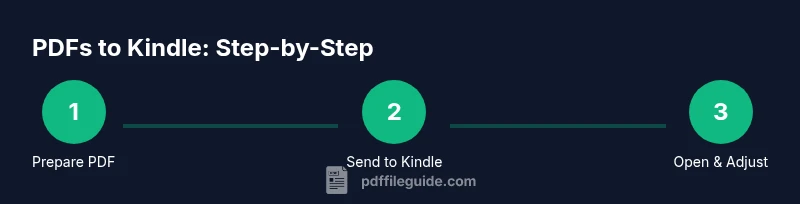
Prepare PDF and Kindle details
Identify the PDFs you want on Kindle and confirm which device you’ll use (paperwhite, Oasis, or Fire). Check file size and password protection. This helps you choose the most reliable transfer method.
Tip: If the PDF is large, consider compressing before transfer. - 2
Choose transfer method
Decide whether you’ll USB transfer, email to your Kindle address, or use the Send-to-Kindle app. Each method has pros and cons depending on your workflow.
Tip: For quick moves on a single file, email or Send-to-Kindle is fastest. - 3
Send or connect to Kindle with/without conversion
If you want reflow, attach the PDF and use the Convert subject line when emailing, or choose Convert in the Send-to-Kindle options. Without conversion, you’ll view the original layout.
Tip: Conversion may alter layout for visuals; test with one page before bulk transfers. - 4
Open and adjust settings on Kindle
Once delivered, open the PDF on your Kindle and adjust font size, margins, and brightness. On devices with reflow, switch to a reflow-friendly view if available.
Tip: Use 1x or 1.25x zoom for legibility without losing context. - 5
Consider conversion for better navigation
Evaluate whether AZW3/MOBI provides better reading comfort and searchability. If the PDF contains a lot of text, reflow is typically advantageous.
Tip: Searchability improves in converted formats; try a sample chapter. - 6
Verify accessibility and organize files
Ensure the file shows up in the correct collection and is accessible in your library. Create folders to keep PDFs organized for future retrieval.
Tip: Keep a backup copy of the original PDF.
Questions & Answers
Can Kindle read PDFs natively, or do you need to convert?
Kindle can read PDFs natively, but conversion to AZW/MOBI often improves reflow and navigation on many devices. Test both to see which works best for your documents.
Kindle can open PDFs directly, but conversion often improves readability.
How do I transfer a PDF to Kindle using email?
Email the PDF to your Kindle email address with or without the Convert subject line. You must approve the sender in your Kindle account settings.
Email the PDF to your Kindle address and confirm the sender in settings.
Is there a size limit for PDFs on Kindle?
Kindle can receive reasonably large PDFs, but very large files may take longer to transfer or render. If a PDF is too big, consider compressing or splitting it.
Large PDFs may take longer to transfer; consider splitting.
Will images lose quality after conversion?
Conversion can affect images; some diagrams may shift. Check a sample page after conversion before converting many files.
Images can shift after conversion, preview a page first.
Can DRM-restricted PDFs be read on Kindle?
PDFs with DRM may require authorization or the original app that created them. If you don’t own the file, you may not access it on Kindle.
DRM-restricted PDFs may not be readable without permission.
Do Kindle apps on iPhone and Android support PDFs?
Yes, the Kindle apps on iOS and Android can open PDFs, but the experience may vary; conversion can improve cross-device readability.
Yes, Kindle apps can open PDFs with varying quality.
Is Send-to-Kindle free?
Send-to-Kindle is a free service from Amazon, though data transfers may incur network costs.
Send-to-Kindle is free, but data usage may apply.
When should I use USB transfer instead of email?
Use USB when you have large files or no internet access, or when you’re duplicating many documents to multiple Kindles.
Use USB for offline transfers or bulk copies.
Watch Video
Key Takeaways
- Know your transfer option before sending files
- Convert for best reading on most devices
- Test with one file to fine-tune settings
- Organize PDFs for quick access on Kindle
- Respect DRM and file permissions