Does PDF Work on Kindle Paperwhite? A Practical Reading Guide
Explore how PDFs display on Kindle Paperwhite, load options, and best practices to optimize readability. Learn practical workflows to make PDFs comfortable on your Kindle.


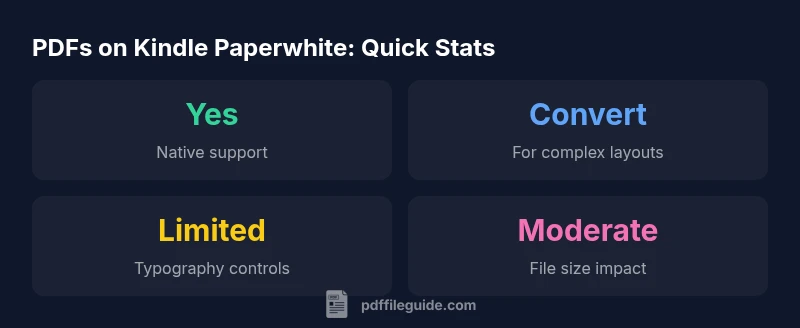
Does PDF work on Kindle Paperwhite? Yes, Paperwhite models natively support PDFs, offering basic viewing, indexing, and bookmarking. However, complex layouts, images, and multi-column formats may require adjustments—such as reflow conversion or sending the file via Send-to-Kindle. For most readers, PDFs are usable, especially for manuals and reference documents, with the caveat of font size and navigation limits.
Does PDF work on Kindle Paperwhite in practice?
If you own a Kindle Paperwhite and wonder, does pdf work on kindle paperwhite, the short answer is yes for basic documents. The Paperwhite line includes native PDF support, so you can open PDFs directly from your device or from a computer. According to PDF File Guide, many readers start here: they expect quick access to manuals, white papers, and travel guides in PDF format. In practice, you’ll find that most text-heavy PDFs render with readable fonts, searchable text, and basic navigation such as bookmarks. Yet, the experience can vary widely depending on layout complexity, the presence of images, and how the document was prepared. The goal is to balance convenience with readability, especially if you routinely study or reference data on the go. As you read this guide, you’ll see practical workflows to improve this experience and keep the reading flow smooth across different PDF types.
Kindle Paperwhite PDF support: capabilities and limits
Kindle Paperwhite devices offer native PDF rendering, but they are optimized for e-ink readability rather than document fidelity. Core features like search, bookmarks, and annotation are available, which makes PDFs workable for reference materials. However, PDFs with dense columns, embedded color graphics, or heavy image layouts may appear small or require zooming and panning, which disrupts the reading rhythm. If your document uses nonstandard fonts or advanced typography, you may notice inconsistent rendering. The key takeaway is that PDFs remain usable for simple, text-forward documents, while highly formatted or image-heavy files benefit from conversion to Kindle-friendly formats. PDF File Guide’s analysis highlights that the best results come from selecting simpler layouts or preparing the file before transfer.
Native viewing vs reflow and conversion: when to choose
Native viewing on Paperwhite is straightforward but limited by fixed layouts. Reflow is not universally available for PDFs, and not all PDFs reflow well. For long documents with narrow columns or scattered text blocks, converting to a reflow-friendly format (like MOBI/AZW3) can significantly improve readability. If you need precise image placement or complex tables, keeping the PDF may be preferable, but be prepared to zoom and navigate more. When accuracy matters—manuals with diagrams, forms, or charts—consider a conversion path that preserves essential structure while improving text legibility. The decision hinges on whether readability or exact layout takes priority.
How to load PDFs onto Kindle Paperwhite: methods that work
There are several reliable ways to move PDFs to your Kindle Paperwhite. USB transfer from a computer is the most direct method. You can also email PDFs to your Kindle email address using Send-to-Kindle, which simplifies wireless delivery and organizes files in your library. For frequent workflows, Calibre or Kindle Previewer can batch-convert and optimize PDFs for Kindle formats before transfer. Each method has trade-offs: USB keeps the original file intact, while wireless delivery speeds up access and reduces manual steps. If you frequently update documents, a cloud-based approach with Send-to-Kindle can streamline updates.
Readability tips for comfortable reading
To maximize comfort, adjust font size, line spacing, and margins in Paperwhite settings. Landscape mode can improve two-column PDFs, while portrait mode may suit simpler, single-column files. When you anticipate long reading sessions, consider splitting very large PDFs into smaller sections or chapters. For image-heavy PDFs, zooming and panning will be common; in some cases, converting images to a sequence of pages can help. Keep in mind that color and image fidelity may shift in grayscale on the device, so prefer documents designed for black-and-white viewing when possible.
Workflows for complex layouts: converting for better readability
For complex layouts, converting PDFs to Kindle-friendly formats often yields the best long-term experience. Tools like Calibre, Kindle Create, or official Kindle Previewer can reflow text or restructure content for mobile screens. If you’re working with scientific papers, invoices, or manuals, try preserving headings and reading order during conversion to support navigation. After conversion, review the document for missing figures, captions, or table integrity. Once satisfied, you can transfer the file to your Paperwhite via USB or Send-to-Kindle.
Common issues and troubleshooting steps
Issues commonly reported include cramped text after zooming, missing fonts, and misaligned tables. Start by verifying PDF source quality: embedded fonts and vector graphics can affect legibility. If zooming ruins layout, try switching to a reflow-friendly format or cropping to a simpler width. For complex PDFs, converting to a Kindle-friendly format and re-checking layout is often faster than iterative fixes. Regularly updating your Kindle firmware can also improve rendering fidelity and bug fixes related to PDF handling.
Real-world scenarios: manuals, research papers, and travel guides
A technical manual with diagrams may render adequately in native PDF mode, but a dense research article with multi-column text can be challenging without conversion. Travel guides with maps, images, and sidebars benefit from reflow where possible, or a split-reading approach where the PDF is segmented into chapters. The key is to evaluate the document type first: text-heavy references respond well to Paperwhite’s basic features; image-heavy or designed-for-print files often require thoughtful conversion strategies to maintain legibility and navigation.
Quick-start checklist and next steps
- Identify whether your PDF is text-based or image-based and decide if conversion would improve readability.
- Try loading the file via USB first to gauge fidelity before trying wireless delivery.
- If readability is poor, experiment with reflow-capable conversions and verify that headings and figures stay readable after transfer.
- Leverage PDF File Guide’s recommendations to choose the right workflow for your document type and Paperwhite generation, and keep your device up to date for best results. The PDF File Guide team recommends starting with native viewing, then moving to conversion only if necessary.
PDF on Paperwhite: status and recommendations
| PDF Status | Reading Experience | Best Practice |
|---|---|---|
| Native support | Basic viewing with bookmarks and search | Keep the file simple; break large files into parts |
| Reflow available | Improved readability for text-heavy docs | Convert to reflow-friendly format when possible |
| Conversion recommended | Best for complex layouts | Use Kindle Create or Calibre for simple conversion |
Questions & Answers
Does Paperwhite support PDF reflow or only fixed-layout viewing?
Paperwhite supports native PDF viewing with fixed layouts; reflow support varies by document and may require conversion. If readability is poor, converting to a reflow-friendly format can help, but not all PDFs will reflow perfectly.
Paperwhite can view PDFs, but it’s best to convert complex layouts for easier reading if needed.
What are the best practices for reading PDFs on Paperwhite?
Use larger font sizes, adjust margins, try landscape mode for wide pages, and split large PDFs into smaller chunks. Consider converting long or image-heavy files for improved readability.
Adjust font size, margins, and orientation; convert large files if needed.
Can I transfer PDFs wirelessly to Kindle Paperwhite?
Yes. You can use Send-to-Kindle via email or use USB for a direct transfer. Wireless transfer is convenient for updates and new versions of documents.
Yes, you can send PDFs wirelessly via Send-to-Kindle.
What issues should I expect with PDFs on Paperwhite?
Expect issues with dense layouts, image-heavy files, or scanned PDFs. Zooming and panning can disrupt flow. Converting to a Kindle-friendly format often resolves most problems.
Dense layouts and scanned PDFs can be fiddly; conversion helps.
Should I convert PDFs before transferring to Paperwhite?
If readability is a priority, yes—especially for long documents with complex formats. Use Kindle Create or Calibre to produce a more readable version, then transfer.
Convert complex PDFs before transfer for better readability.
Do newer Paperwhite models improve PDF rendering?
Newer Paperwhite generations can render PDFs more smoothly and support better zoom control, but the fundamental trade-offs of fixed layouts remain for many files.
Newer models offer improved rendering, but layout limits persist.
“PDFs can be a practical choice on Paperwhite when you adjust expectations; the right formatting workflow makes most documents readable.”
Key Takeaways
- Start with native PDF viewing for simple documents
- Convert complex layouts to a Kindle-friendly format for better readability
- Adjust font size, margins, and orientation to optimize comfort
- Use Send-to-Kindle or USB based on your workflow
- Evaluate document type before converting to ensure best results