Print to PDF on iPhone: A Complete How-To
Learn how to print to PDF on iPhone using built-in iOS tools. This step-by-step guide covers Safari, Notes, Mail, Files, and more—so you can save, organize, annotate, and share PDFs directly from your iPhone.


Goal: print to pdf for iphone using built-in iOS tools. You don’t need third‑party apps—use the Share or Print options in Safari, Notes, Mail, or Files to Save as PDF, then rename, organize, and share the file. This guide walks you through exact steps and common apps so you can produce portable PDFs quickly on your iPhone.
Why PDF on mobile matters
In today’s fast-moving workflow, having portable, print-ready documents on your iPhone is essential. A PDF preserves formatting, fonts, and layout across devices, making it ideal for contracts, receipts, travel itineraries, and lecture notes. For professionals, being able to print to PDF on iPhone minimizes the need for printers or desktop software while enabling seamless sharing with colleagues, clients, and students. The convenience also extends to archiving and version control, since a single PDF can be stored, searched, and referenced later. The PDF File Guide team notes that many mobile users underestimate how capable iPhone tools are for creating and managing PDFs, which can save time and avoid compatibility issues described in PDF File Guide Analysis, 2026.
Understanding what print to PDF means on iPhone
“Print to PDF” on iPhone is not a separate app; it’s a built‑in workflow that uses the iOS Print dialog to generate a PDF snapshot of content. When you tap Print from a Share sheet, you see a preview. Pinching outward on that preview converts it into a PDF, which you can save to Files or share. This approach works across apps that support the system Print/Share interfaces, including Safari, Notes, Mail, and third‑party apps. The result is a consistent, high‑quality document that remains faithful to the source material.
iOS built-in paths to PDF: Files, Print, Share
iPhone provides several built‑in routes to create PDFs without third‑party software. The most common is through the system Print dialog, accessible via the Share sheet in nearly any app. From there, you can choose Save as PDF, or, on supported devices, use the Pinch‑out gesture on the PDF preview to export. You can also export or save PDFs directly from the Files app, where you can organize by folders, rename files, and sync with iCloud Drive for access on other Apple devices. This multi‑path approach ensures you can create PDFs from web pages, emails, notes, and documents with minimal friction.
Save as PDF from Safari
Safari users often convert web pages into PDFs for offline reading or sharing. Start by tapping the Share button, then select Print. In the Print Options screen, perform a two‑finger pinch to reveal the PDF preview. Tap the Share button again to Save to Files, copy to another app, or send via email. For lengthy pages, consider splitting content into logical sections before exporting to keep the PDF manageable and navigable. Naming the file clearly helps future retrieval.
Save as PDF from Notes, Mail, and other apps
Many iPhone apps offer a Share option that includes Print. In Notes, tap the share/output icon and follow the Print → Save as PDF path. In Mail, open the email, use the reply/share menu, choose Print, and then export as a PDF. If a given app lacks a direct Save as PDF option, the Print route still provides a PDF through the same pinch‑out preview. Consistency in naming and folder placement makes retrieval easier across apps and devices.
Using Files to save, rename, and organize PDFs
Files is the central hub for PDF management on iPhone. After exporting a PDF via the Print flow, save it to a targeted folder in Files (for example, Documents > PDFs). Rename the file with a concise, descriptive title and include dates or project codes if applicable. Use folders and tags to categorize PDFs by project, client, or content type. Regularly back up these PDFs to iCloud Drive or another cloud provider to ensure access across devices and to prevent data loss.
Annotating and signing PDFs on iPhone
iPhone supports basic annotations and signatures using the Markup tool embedded in many PDF viewers and in the Print/Share flow. After saving, open the PDF in an app that supports Markup (Files, Books, or third‑party apps) to add highlights, notes, or a scanned signature. These features are ideal for quick reviews, approval marks, or educational feedback. If you require advanced markup or forms, some apps offer enhanced tools; evaluate your needs before choosing a solution.
Password protection and security basics
iOS does not natively password‑protect every PDF created via the Print path; password protection typically requires third‑party apps or desktop software. If security is a priority, export or share the PDF through apps that offer built‑in encryption or add a password in a trusted editor before distribution. Always assess the sensitivity of the content and choose secure sharing methods, such as links with expiration or recipient access controls when available.
Merging, splitting, and managing multiple PDFs on iPhone
Merging multiple PDFs on iPhone generally requires a third‑party tool or the Files app’s combined features within compatible workflows. For simple needs, you can copy content into a single PDF by exporting pages sequentially and using a merging app. Splitting large PDFs into smaller files is similarly handled in dedicated apps or via the Files interface when you create new PDFs from individual pages. Consider a consistent naming convention to keep related documents together.
Troubleshooting common issues
If you don’t see Save as PDF in the Print dialog, ensure you’re on a page or document that supports printing and that you’re using a compatible iOS version. If the PDF export is blurry or misformatted, adjust the page scale or margins if the app exposes those options. When the pinch‑to‑export gesture doesn’t work, try restarting the source app or exporting from a different app to verify whether the issue is app‑specific. Finally, ensure there’s adequate storage on the device or iCloud for new PDFs.
Real-world workflows: travel, work, education
Travelers often save itineraries and boarding passes as PDFs for offline access. Professionals save client briefs and receipts for audit trails, while students convert lecture slides and readings for offline study. By using the Print to PDF workflow on iPhone, you can capture content on the fly, annotate during review, and share final versions instantly—without leaving the device.
Next steps: sharing, backup, and archiving
After saving a PDF, establish a routine for sharing and backup. Use Files to store PDFs in organized folders, enable iCloud Drive syncing for cross‑device access, and back up critical documents to a trusted cloud service. Regularly review and prune outdated PDFs to keep your library lean and accessible. Integrate PDF workflows into your broader document management strategy for consistent results.
Tools & Materials
- iPhone or iPad with current iOS(Keep device up to date to ensure Print and Save as PDF features are available)
- Files app or other app with export/print support(Used to Save as PDF and organize files in folders)
- Safari, Notes, Mail, or other apps with Print/Share options(Access the built‑in Print dialog to generate PDFs)
- Cloud storage (optional)(For backup and cross‑device access)
Steps
Estimated time: 10-20 minutes
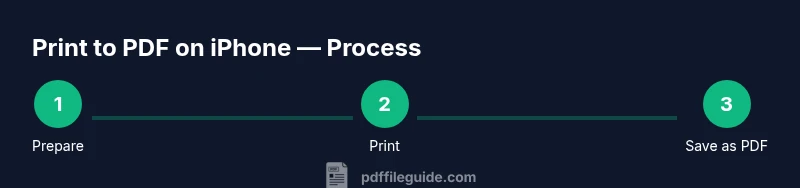
- 1
Prepare content and device
Identify the page or content you want as a PDF and ensure your iPhone has enough storage. Close unnecessary apps to free RAM and avoid interruptions during export.
Tip: Keep the source content in a clean, readable format to improve PDF quality. - 2
Open the content and access the Share/Print menu
Navigate to the content (webpage, email, note, etc.). Tap the Share button or three‑dot menu, then choose Print to open the Print dialog.
Tip: If you don’t see Print, try tapping the action button again or check if the app supports printing. - 3
Pinch to Save as PDF
On the Print options screen, perform a two‑finger pinch to reveal the PDF preview. This converts the content into a PDF that you can preview.
Tip: Use the two‑finger pinch to ensure the resulting PDF looks correct before saving. - 4
Choose Save location in Files
Tap Share again from the PDF preview and select Save to Files. Pick a folder (e.g., Documents/ PDFs) and confirm.
Tip: Create a standard folder structure for PDFs to aid retrieval later. - 5
Rename and organize the PDF
Rename the file with a clear, descriptive title and date, then move it into a project or category folder.
Tip: Use consistent naming conventions (YYYY-MM-DD_ProjectName_Version) for easy sorting. - 6
Verify, share, and back up
Open the saved PDF to verify integrity. Share via email or messaging if needed and back up to iCloud or another cloud service.
Tip: Always verify the final PDF before distributing sensitive information.
Questions & Answers
Can I print to PDF from any iPhone app?
Most apps that support the system Share or Print options can export content as PDF using the built‑in workflow. If an app lacks these options, you can often use the Print route to generate a PDF anyway.
Usually yes—most apps support a Share or Print path to create a PDF. If an app doesn’t, try using a different app or the Safari Print method.
Where is the Save as PDF option in iOS?
The Save as PDF option appears in the Print dialog after you access the Share menu. Use the pinch‑out gesture on the preview to reveal the PDF, then share or save to Files.
Open Print from the Share sheet, pinch out on the preview to reveal the PDF, then save or share.
Can I password‑protect a PDF saved from iPhone?
iPhone’s built‑in tools don’t always provide password protection for PDFs. Use a trusted third‑party app or desktop software if password protection is required.
Not with the basic iPhone export; for password protection, use a dedicated app or desktop tool.
Can I merge multiple PDFs on iPhone?
Merging typically requires a third‑party app or a cloud service with merging capabilities. The Files app can help, but complex merges are easier with an editor.
You may need a third‑party tool or cloud service to merge PDFs on iPhone.
Is there a size limit for PDFs created on iPhone?
There is no strict universal size limit imposed by iOS for PDFs created via the system workflow, but very large files may be slow to export or share depending on available storage and network conditions.
No fixed limit, but very large PDFs can be slow to export or share depending on storage and connection.
How do I annotate a PDF on iPhone after saving?
Open the PDF in an app that supports Markup (like Files or Books) to highlight, draw, or add notes. For advanced features, consider a dedicated annotation app.
Open your PDF in an app with Markup to annotate, or use a dedicated annotation tool for more features.
Watch Video
Key Takeaways
- Export content as PDF using the iPhone Print flow without extra apps.
- Organize PDFs in Files with clear naming and folders.
- Annotate and sign PDFs on iPhone using built‑in Markup features when available.
- Back up PDFs to iCloud or preferred cloud storage for cross‑device access.