How to PDF in Notes on iPhone: A Step-by-Step Guide
Learn how to convert Notes to PDF on iPhone, export with the Print trick, annotate, and share. A practical, professional guide for effortless PDF creation from Notes on iOS.


If you’re wondering how to pdf in notes iphone, start in the Notes app by selecting a note, tapping the Share icon, and choosing Print. In the Print Preview, perform a two-finger pinch to open the PDF, then use the Share sheet to Save to Files, Mail, or Books. This quick path unlocks portable, high-quality documentation from your notes.
What you can do with PDFs in Notes on iPhone
The Notes app on iPhone makes it easy to convert your written content into a portable PDF, then export, annotate, and share it with colleagues or clients. By turning a note into a PDF, you preserve layout and formatting, ensuring your information remains consistent across devices. In this guide from PDF File Guide, you’ll learn how to export a single note as a PDF, annotate it after export, and handle common edge cases such as embedded images or attachments. The ability to convert notes to PDF is a practical workflow for meeting minutes, project briefs, or client notes, especially when you need a universally readable format on the go.
For professionals who rely on well-structured documents, the PDF export from Notes provides a reliable baseline. PDF File Guide analysis shows that this built-in feature reduces the need for additional apps and streamlines sharing. Keeping this capability in mind can save time during client deliverables or internal reviews.
Why exporting Notes to PDF is useful for professionals
Exporting notes as PDF creates a stable, universally readable document that preserves fonts, styles, and images. It’s particularly helpful for creating meeting summaries, project briefs, and checklists that must be shared with teams or external partners. PDFs are easy to archive, annotate, and print, which makes them ideal for audit trails and version control. On iPhone, the ability to generate PDFs without third-party tools keeps your workflow lean and secure. The PDF File Guide team notes that many users prefer this built-in approach because it reduces friction and avoids licensing or compatibility issues with external software.
Prerequisites and setup
To export a note as a PDF on iPhone, ensure you’re using a compatible iOS version (Notes will present the Print-to-PDF option reliably on supported updates). A stable internet connection helps with iCloud syncing if you depend on notes across devices. You should also confirm your storage location preferences (Files, Books, or Mail) before exporting, so you can route the PDF where you need it. The setup process is minimal, but keeping iOS up to date ensures you have the latest export features and bug fixes.
Step-by-step overview
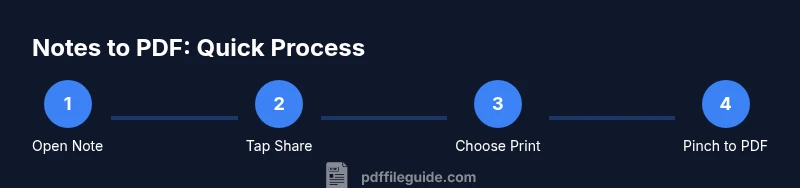
This section provides a high-level roadmap for turning a note into a PDF, saving it, and sharing it. The detailed step-by-step instructions follow below in the dedicated STEP-BY-STEP block, but here you’ll get a sense of the flow: open the note, access the Share menu, pick Print to trigger the PDF preview, use the zoom gesture to open the PDF, and finally share or save the PDF to your preferred location. If you regularly export PDFs, you’ll appreciate how this built-in method keeps your workflow efficient and consistent.
Common pitfalls and troubleshooting
Users sometimes encounter missing export options due to iOS version differences or note content with unusual formatting. If you don’t see Print in the Share menu, update iOS or check for Notes app updates. Large notes with many images may render differently in the PDF preview; in such cases, consider simplifying the note or splitting content into multiple notes before exporting. Ensure that the note you export doesn’t contain sensitive data that you don’t want to share, especially when using cloud-based sharing.
Annotating and sharing PDFs saved from Notes
After exporting to PDF, you can annotate using built-in Markup tools in the Files or Books app, depending on where you saved the PDF. This is useful for adding highlights, signatures, or comments before final distribution. Sharing options include Mail, Messages, AirDrop, or saving back to Files for centralized storage. Keeping a consistent annotation workflow helps teams review documents quickly and reduces back-and-forth when clarifications are needed.
Security and privacy considerations
PDFs created from Notes may contain confidential information; protect them by choosing secure storage locations and limiting sharing to intended recipients. If your organization requires additional security, consider encrypting PDFs or applying password protection through supported apps after export. Remember that the export process itself is local to your device, but the final distribution method determines who can access the content.
Alternatives and edge cases
If you need more control over the PDF output (such as custom headers, fonts, or persistent metadata), you might explore third-party apps or macOS workflows. Some users also export Notes content to other formats first (like Word) and then convert to PDF for advanced layout control. For iPad users, the same steps generally apply, with slight UI differences in newer iPadOS versions.
Real-world use cases and workflow tips
Project managers often use the Notes-to-PDF workflow to capture meeting decisions and action items in a portable document that’s easy to share with stakeholders. Students export lecture notes as PDFs for study packets, then annotate during review. Across industries, the built-in export-to-PDF feature saves time and reduces the need to juggle multiple apps, which PDFs File Guide highlights as a key efficiency driver in modern mobile workflows.
Tools & Materials
- iPhone with Notes app (iOS 13+)(Keep iOS updated to access the latest export options.)
- Stable internet connection(Helpful for iCloud syncing across devices.)
- Storage location(Choose Files, Books, or Mail as the export destination.)
- Optional annotation app(Use for advanced PDF editing after export (e.g., Markup, Book, or third-party editors).)
Steps
Estimated time: 5-10 minutes
- 1
Open the note you want to convert
Launch the Notes app and select the specific note containing the content you need as a PDF. Verify that all intended information is visible and correctly formatted before exporting.
Tip: If the note is long, consider splitting it into logical sections first to keep the PDF clean. - 2
Tap the Share icon
In the note, tap the share button (a square with an arrow) to reveal share options. This step prepares the content for export.
Tip: If you don’t see the share icon, ensure you’re viewing the note itself, not a list or search results. - 3
Choose Print to access the PDF preview
From the Share sheet, select Print. The system renders a print preview, which you can transform into a PDF with a gesture.
Tip: Tip: If you don’t see a Print option, it may be hidden behind another menu; go back and check the available actions. - 4
Pinch out to generate the PDF
In the Print Preview, perform a two-finger pinch-out gesture to open the PDF version of the note.
Tip: Ensure the entire note appears in the preview; scroll if needed to confirm all content is captured. - 5
Share or save the PDF
From the PDF view, tap the Share icon again and choose your destination (Save to Files, Books, or Mail).
Tip: Name the file clearly and choose a folder that’s easy to locate later. - 6
Annotate if needed
Open the saved PDF in an app that supports Markup to highlight, annotate, or sign the document.
Tip: Use consistent annotation styles to keep PDFs readable across your team. - 7
Verify and share final version
Open the final PDF to confirm content accuracy, then share via your preferred channel.
Tip: Consider creating a version history or archived copy for future reference.
Questions & Answers
Can I export multiple notes at once to PDFs on iPhone?
The built-in workflow exports one note per PDF. For multiple notes, repeat the process for each note or look for automation within iOS Shortcuts as a workaround. Third-party apps may offer batch export options, but reliability varies by iOS version.
You can export one note at a time using the standard method. For multiple notes, repeat per note or explore Shortcuts automation.
Does this work on iPad or Mac as well?
Yes. The same Print-to-PDF flow applies on iPadOS and macOS when using Notes. On Mac, you may have more direct options through the Print dialog, but the core method remains the same.
The export method works on iPad as well; Macs have a similar approach via the Print dialog.
Will the PDF include attachments or images from the note?
Images and most attachments in the note should appear in the PDF if they are visible in the note at export time. If something is missing, re-open the note and ensure all media is loaded before exporting.
Images usually show up in the PDF, but confirm by checking the preview before finalizing.
Can I password-protect the exported PDF on iPhone?
Password protection isn’t built into the basic iOS export flow. To secure a PDF, use a third-party app or computer-based tool that supports encryption after export.
The built-in export doesn’t password-protect PDFs; use a third-party tool if encryption is needed.
What should I do if the Print option is missing?
Update iOS and Notes to the latest version, then retry the Share menu. If the option is still missing, reset settings or check for any device-specific restrictions.
Update your device and retry; if needed, check for settings that might hide the Print option.
Is the PDF accessible for screen readers?
PDFs created from Notes are generally accessible if the original note uses proper headings and alt text for images. For full accessibility, verify the PDF with screen reader software and adjust content accordingly.
PDF accessibility depends on the note’s structure; test with a screen reader to confirm.
Watch Video
Key Takeaways
- Export from Notes via Print to PDF to preserve layout.
- Save and share the PDF using the built-in iOS share sheet.
- Annotate after export to support review and collaboration.
- Be mindful of content sensitivity when sharing PDFs.