Read PDF Downloads: A Complete How-To Guide
Learn to read pdf download files safely and efficiently across devices. This guide covers trusted sources, reader apps, accessibility, and tips for staying organized.


You will learn how to read pdf download files effectively across devices, with app recommendations, safety tips, and viewing best practices. By the end you’ll know which tools to use, how to verify downloads, and how to optimize readability on desktops, tablets, and smartphones. Core requirements: a trusted PDF viewer, up-to-date software, and careful source checks.
What reading pdf downloads means in practice
The phrase read pdf download refers to the process of opening, viewing, and storing PDF files that you download from online sources. For professionals who edit or review documents, this task is foundational. In this guide, we’ll focus on practical steps you can take to read, verify, and organize PDFs—across devices and apps. PDF File Guide emphasizes that starting with trusted sources reduces risk and improves the reading experience. You will learn how to identify legitimate download pages, choose the right viewer, and customize the reading environment for comfortable, distraction-free study or work. The goal is to help you access content quickly while keeping your device secure and your reading flow uninterrupted.
Preparing your reading environment
A calm, consistent reading setup improves comprehension. Start by ensuring your device has a recent OS update, stabilizing your internet connection when downloading, and setting a readable screen brightness. Consider font size, contrast, and page layout in your PDF viewer. For longer documents, enable single-page view or continuous scrolling as it suits your reading style. If you work in bright offices or on the go, a blue-light filter can reduce eye strain over extended sessions. PDF File Guide recommends bookmarking your starting page for easy return, and organizing downloads in a clearly labeled folder to avoid misplacing files.
Selecting a reliable PDF downloader and viewer
The first step to a smooth read is choosing safe sources and a dependable viewer. Prefer official vendor apps or reputable platforms for downloads, and avoid suspicious links or unsolicited attachments. When selecting a viewer, prioritize features such as search, annotation, bookmarks, text reflow, and accessibility support. A good viewer should render embedded fonts accurately and permit quick navigation with keyboard shortcuts. Keep multiple readers on hand for different tasks—some readers may offer stronger accessibility features or better performance on older devices.
Understanding common file formats and compatibility
PDF is the standard, but many documents ship as PDF/A for archiving or as a lightweight PDF for mobile reading. Some files include embedded fonts, forms, or multimedia; others are plain text. Before opening, check file size and version to anticipate performance issues. If you encounter a non-native PDF viewer error, try updating the viewer or exporting the document in a compatible format from the source. This awareness helps you avoid formatting surprises that interrupt your reading flow.
Desktop viewing: setup and preferences
On desktop, take control of layout for readability. Use full-screen mode to minimize distractions, enable dark mode if available to reduce glare, and adjust the zoom so text lines fit comfortably within your monitor width. Use search to find sections quickly, and leverage bookmarks to jump between chapters. If you frequently annotate, choose a viewer that supports highlights, notes, and exportable annotations. Regular backups of important PDFs ensure you don’t lose your annotations or highlights.
Reading on mobile devices: apps and tips
Mobile reading requires lightweight, responsive apps. Install a trusted PDF app that supports offline viewing, pinch-to-zoom, and offline annotating if needed. Enable text reflow or reading mode to adapt layouts to smaller screens. When possible, download PDFs over a secure Wi-Fi network to minimize data risk and protect your device from malware. Organize your library with folders by topic or project, and use offline access for critical documents during travel.
Accessibility features for reading PDFs
Accessibility is essential for inclusive reading. Look for PDFs with proper tags, selectable text, and logical reading order. For screen readers, ensure the app exposes text content clearly and supports navigation by headings and landmarks. If a document is scanned, use OCR (optical character recognition) enabled viewers to convert images into selectable text. Adjust contrast, font size, and reading order to fit your needs. These features empower users with visual impairments or cognitive differences to engage with the material effectively.
Annotating, bookmarking, and organizing downloaded PDFs
Annotation tools let you highlight key ideas, add notes, and attach comments for collaboration. Create a consistent workflow: open, read, annotate, and save with a descriptive filename. Use bookmarks for chapters and sections, then export a summary with highlights to share with teammates. Integrating a filing system—by project, client, or topic—helps you locate PDFs quickly in the future. Regularly prune outdated files and archive completed work.
Security and privacy considerations when downloading PDFs
Always verify the source before downloading. Use antivirus and sandboxed environments or trusted apps to mitigate risk from malicious files. Be mindful of permissions and what data PDFs may expose, such as embedded scripts or external links. When sharing documents, consider redacting sensitive information and using password protection where appropriate. Staying cautious ensures your reading workflow remains uninterrupted and your data stays secure.
Quick recap and best practices for long-term readability
To maximize readability, pair a trustworthy viewer with well-chosen display settings and accessibility features. Keep files organized with a simple taxonomy and maintain regular backups. Always prioritize secure sources and offline viewing for reliability, especially when traveling. By following these steps, you’ll read pdf download content efficiently, without sacrificing security or comprehension.
Tools & Materials
- Trusted PDF viewer(Ensure it supports bookmarks, text search, and annotations.)
- Device with up-to-date OS(Keep security features enabled and auto-updates on.)
- Stable internet connection for downloads(Prefer a secure network; avoid public Wi-Fi for sensitive documents.)
- Safe source verification method(Check domain, avoid suspicious links, and scan downloads with antivirus.)
- Organized download folder(Label files by project and date for quick retrieval.)
- Annotation and note-taking tool(Useful for collaborative workflows or study notes.)
Steps
Estimated time: 60-90 minutes
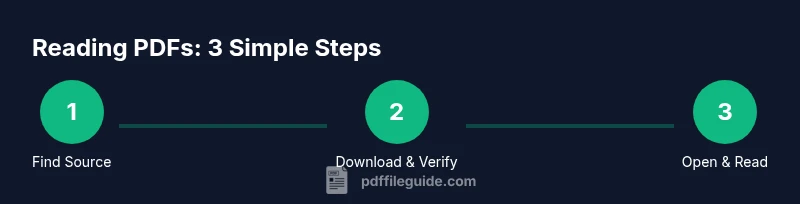
- 1
Find a safe PDF source
Identify official pages or reputable repositories. Avoid links from unsolicited emails or shady popups. Confirm the domain matches the publisher before downloading.
Tip: When in doubt, use the publisher’s site or a well-known archive. - 2
Download the PDF to your device
Click the download button and choose a known directory. If prompted, verify the file name and extension to ensure it ends with .pdf.
Tip: Pause other downloads to prevent file corruption on slower connections. - 3
Open with a trusted viewer
Launch your PDF viewer and open the downloaded file from within the app. Check that fonts render correctly and the document isn’t distorted.
Tip: Use the viewer’s reflow or fit-to-width mode for easier reading on small screens. - 4
Adjust display for readability
Set zoom, contrast, and page layout to your preference. Enable full-screen mode to minimize distractions during reading.
Tip: Save your settings as a default profile for future documents. - 5
Enable accessibility features
If needed, turn on text-to-speech, screen reader compatibility, or OCR for scanned PDFs. Verify reading order in tagged PDFs.
Tip: Test navigation by headings and tables of content to ensure smooth flow. - 6
Annotate and bookmark as you read
Highlight important passages and add notes. Create bookmarks to jump between sections and export annotations if required.
Tip: Keep a separate notes file summarizing insights from each section. - 7
Verify file integrity after download
Compare file size with the source estimate and run a quick virus scan if your software provides it. Re-download if anything seems off.
Tip: If the file won’t open, try a different viewer before concluding corruption. - 8
Store or share securely
Move finished PDFs to an organized archive. Use password protection or encryption if sensitive.
Tip: Avoid sharing unencrypted files over insecure channels.
Questions & Answers
What does read pdf download mean for daily tasks?
Read pdf download refers to opening and viewing PDF files you have downloaded, ensuring they come from trusted sources and can be read comfortably on your device.
Read pdf download means opening downloaded PDFs with a trusted viewer and reading them comfortably on your device.
Can I read downloaded PDFs offline?
Yes. Most PDF viewers support offline access once the file is downloaded. Just ensure the file is saved locally and the app has permission to access local storage.
Yes. After you download, you can read offline using your PDF viewer.
How can I verify a PDF file's safety before downloading?
Verify the source domain, use secure connections, and run a quick antivirus check on the downloaded file. If the site looks suspicious, don’t download.
Check the source, use a secure connection, and scan the file for malware before opening.
Which devices and apps work best for reading PDFs?
Most devices can read PDFs well using reputable reader apps. Choose one with strong search, annotation, and accessibility features that fits your workflow.
Most devices work with reliable PDF readers; pick one with good search and annotations.
How do I annotate PDFs on mobile devices?
Use a mobile PDF app that supports highlights, notes, and bookmarks. Sync your annotations if possible to your desktop for continuity.
Use a mobile reader that lets you highlight and add notes, and sync when possible.
Is there a limit to how many PDFs I can download?
There is no universal limit; it depends on your device storage and the app you use. Regularly prune unused files to free space.
There isn’t a fixed limit; it depends on your device storage and app capacity.
Watch Video
Key Takeaways
- Identify trusted sources before downloading.
- Choose a capable PDF viewer with annotation features.
- Tailor display settings for readability on each device.
- Leverage accessibility options to enhance reading.
- Organize downloads and backups for long-term use.