How to Fix a Damaged PDF That Won’t Open
Learn how to diagnose and fix a damaged PDF that won’t open. This step-by-step guide covers file integrity checks, safe repair tools, and prevention tips from PDF File Guide.


If pdf is damaged and cannot be opened, start by confirming the file’s integrity, trying a different PDF viewer, and using a trusted repair tool. This quick answer sets up a safe, step-by-step diagnostic flow to recover access, minimize data loss, and identify whether the issue is with the file itself or the device. For professionals, this approach reduces downtime and protects content.
The Immediate Reality: Why PDFs Fail to Open
When you double-click a PDF and instead see an error message, it can feel urgent. The phrase pdf is damaged and cannot be opened is a frequent sign of file trouble that can stem from interrupted downloads, storage faults, or software glitches. According to PDF File Guide, the first response should be to distinguish whether the problem is with the file or with the reader. If the file is truly corrupted, trying multiple readers and starting with a clean, safe repair workflow often restores access without altering the original content. This mindset helps you avoid scrambling for hurried fixes that can compound data loss. By following a measured, methodical process, you’ll know quickly whether you can repair the file in place or must revert to a clean copy from a trusted source.
The Immediate Reality: Why PDFs Fail to Open
When you try to open a PDF and encounter an error message, it can feel urgent. The phrase pdf is damaged and cannot be opened is a common sign of trouble caused by interrupted downloads, faulty storage, or software glitches. The PDF File Guide recommends first discerning whether the problem is the file or the reader. If corruption is real, attempting alternate readers and a safe repair workflow often restores access without altering the original. A calm, methodical approach saves time and protects data.
Steps
Estimated time: 45-90 minutes
- 1
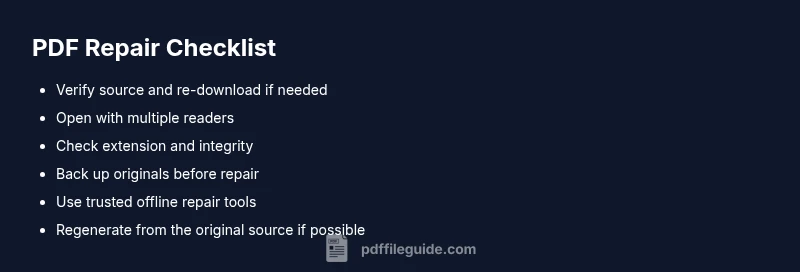
Verify source and re-download
If possible, download a fresh copy from the official source. A clean download minimizes corruption from transfer errors. Confirm the size matches the expected file size and try again if it feels abnormally small or large.
Tip: Always use a trusted network and avoid ZIP wrappers that can mask corruption. - 2
Try another PDF viewer
Open the same file in a different reader to determine if the problem is reader-specific. Some free readers handle damaged PDFs differently, which can help you diagnose the issue quickly.
Tip: If the file opens in another app, the problem may be with your default viewer settings. - 3
Check the file extension and integrity
Ensure the file extension is .pdf and that the file isn’t misnamed. A misnamed or disguised file can trigger false corruption warnings.
Tip: Do not rely on icons alone; verify with a file properties view if needed. - 4
Create a copies and attempt repair
Backup the original file, then attempt repair on a copy using a trusted offline repair tool or built-in feature of your reader. Recovery attempts should never modify the original unless you’ve confirmed a successful restore.
Tip: Always work on a duplicate to prevent accidental data loss. - 5
Update or reinstall your PDF software
Check for available updates or reinstall the PDF reader to rule out compatibility issues. Newer versions often fix parsing errors that cause corruption symptoms.
Tip: Keep software updated to reduce similar issues in the future. - 6
Use a trusted repair workflow online only if offline fails
If offline tools fail, consider a reputable online repair service as a last resort, but ensure you review privacy policies before uploading sensitive content.
Tip: Prefer offline tools for sensitive documents to minimize data exposure. - 7
Rebuild from the original source if possible
If you have access to the document’s original source (e.g., a source file or producer), regenerate the PDF and verify the integrity before storage.
Tip: Regenerated files are often cleaner and less prone to corruption. - 8
Verify integrity after repair
Open the repaired file in multiple readers and run a quick check against core content to ensure no data was lost during repair.
Tip: Keep a small, non-sensitive sample to test repeatedly. - 9
Document the process for future prevention
Record the steps you took and the conditions that caused the issue to improve future handling and backups.
Tip: A simple log helps if the problem recurs.
Diagnosis: PDF file won't open; error messages like 'Cannot open file' or 'The file is damaged' appear on load.
Possible Causes
- highInterrupted download or transfer
- highFile corruption during storage or editing
- mediumOutdated or incompatible PDF reader
- lowUnsupported features or encryption in the PDF
Fixes
- easyRe-download or obtain a fresh copy from the original source
- easyOpen with a different, up-to-date PDF reader to confirm if the issue is reader-specific
- mediumUse a trusted PDF repair tool or feature (offline preferred) to attempt recovery without altering the original file
- easyCheck device storage and RAM; run a quick health check on the disk if corruption persists
Questions & Answers
Why can't this PDF be opened?
There are several reasons a PDF won’t open: corrupted download, storage damage, or reader incompatibility. Start by verifying the file source and trying another reader, then proceed with safe repair steps if needed.
PDF won’t open typically due to corruption or compatibility. Try another reader and verify the file source.
How can I repair a damaged PDF?
Repair approaches include re-downloading, opening with a different viewer, using a trusted repair tool, and, if possible, regenerating the PDF from the original source. Always work on a copy of the file.
Repair involves re-downloading, trying another viewer, and using a trusted repair tool.
Will repairing affect the original file?
Repair attempts are best done on a copy to avoid risking loss of the original. If the repair succeeds, replace the original only after confirming the content remains intact.
Always work on a copy to avoid risking the original file.
Is it safe to use online repair tools?
Online tools can help, but they pose privacy and malware risks. Prefer offline tools for sensitive documents; if you must use online services, review privacy policies and ensure no sensitive data is exposed.
Use online tools with caution, especially for sensitive files.
What causes PDF corruption in the first place?
Common causes include interrupted downloads, faulty storage, software crashes during save, and file conversions that fail mid-process. Regular backups help mitigate these risks.
Corruption often comes from downloads, storage, or save failures.
When should I contact a professional?
If the document is business-critical, contains sensitive data, or cannot be recovered after standard repairs, consult a data-recovery or document-recovery professional for specialized assistance.
Contact a pro for critical files that won’t repair.
Watch Video
Key Takeaways
- Verify file integrity before repair.
- Try multiple readers to isolate the issue.
- Use trusted, offline repair tools when possible.
- Back up originals; avoid data loss.
- If all else fails, regenerate from a clean source.