How to Fix a Corrupted PDF: Troubleshooting Guide
Learn how to diagnose and recover from a corrupted PDF. This urgent guide covers safe steps, common causes, and reliable repair methods to restore access quickly, plus tips to prevent future damage and protect important documents.


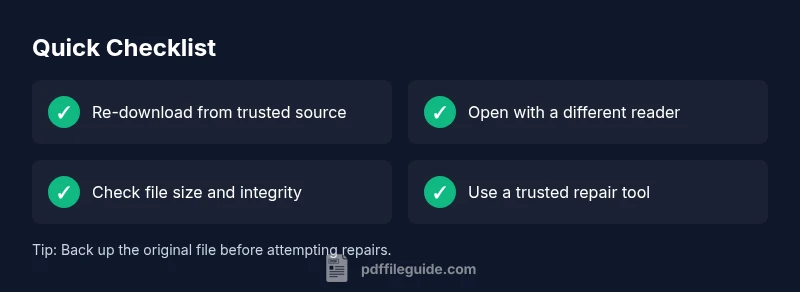
If you suspect pdf is corrupted, start by re-downloading the file from a trusted source and trying a different PDF reader. In many cases the issue is due to an incomplete download or a broken transfer, and simple re-download resolves it. If the problem persists, check file size and compare checksums, or attempt to repair with a reputable tool.
Why pdf is corrupted
According to PDF File Guide, the phrase pdf is corrupted describes a condition where the file's internal structure can't be parsed by readers. This often results in error messages such as 'Cannot open document' or 'The file is damaged and could not be repaired.' The underlying causes vary, but the impact is immediate: you may lose access to data, images, forms, or embedded fonts. In many cases the root problem is not malicious but environmental: interrupted downloads, unstable transfers, or improper saving during editing. For professionals who rely on PDFs for contracts, reports, or client communication, downtime translates to productivity loss and potential reputational risk. The good news: most corrupted PDFs are recoverable with a structured approach. The key is to start with safe, reversible steps and escalate only when you preserve the original file.
Immediate steps you should take
- Stop editing or moving the file further to avoid worsening corruption. 2) Save a copy of the original in a backup location before attempting repairs. 3) Re-download the PDF from the official source or sender and verify the file size matches expectations. 4) Try opening the file in an alternate PDF reader to determine if the issue is reader-specific. 5) If the file came via email or cloud sync, re-save it from the source instead of opening the downloaded attachment. 6) Check your device for malware and run a quick scan, as infections can corrupt files during transfer. 7) Use a dedicated recovery tool or trusted online service only if you understand privacy implications and keep backups. 8) Document the steps you take, so you can reproduce or revert any changes if needed.
Common causes of PDF corruption
- Incomplete download or broken transfer during saving or sending.
- Disk errors, bad sectors, or sudden power loss while writing the file.
- Software crashes or abrupt termination of a PDF editor or viewer.
- Malicious software or corrupted memory affecting file writes.
- Embedded fonts or images that fail to load correctly, causing structural issues.
- Compatibility issues between PDF versions and reader engines leading to unparseable objects.
Diagnostic steps: how to identify the problem
Begin by confirming whether the issue is with the file itself or the environment. Attempt to open the PDF on a different device and with multiple readers. If the file still fails, compare its size to the original or expected size and check for a mismatch. Use a checksum or hash if available to compare against a verified copy. If the file opens in one reader but not another, the problem is likely reader compatibility. If it fails across all readers, the corruption is likely in the file's structure itself. Document any error messages and note when the problem began to help trace back to the cause.
Quick fixes you can try (low risk)
- Re-download from a trusted source and open the new copy.
- Open with a different PDF reader or browser plugin to rule out a reader issue.
- Save the file to a new name or location to avoid overwriting the original, preserving a fallback.
- If the PDF is password-protected, ensure you provide the correct credentials before attempting repair.
- Use built-in repair or export-to-PDF options in reputable software to attempt a non-destructive fix.
- Check for updates to your PDF viewer; sometimes a bug in the reader causes false corruption reports.
Safe recovery tools and methods
Consider using reputable, offline PDF repair tools that don't upload your document to the cloud. Prefer tools that offer a preview before saving the repaired file. If you must use online services, choose providers with transparent privacy policies and clear data handling practices. Always work from a copy, not the original, and verify results by opening the repaired file in multiple readers. If the content is highly sensitive, avoid online tools and pursue desktop software instead. For scanned PDFs, OCR-based recovery may extract text even if images are corrupted.
When to escalate to professional help
If the corrupted PDF contains critical legal, financial, or archival content, or if attempts to repair repeatedly fail across devices, seek professional data-recovery services. They can perform advanced diagnostics, recover fragmented objects, and restore data without compromising security. Also consider contacting the file's source to obtain an intact version or a fresh copy. In organizational contexts, involve IT or information governance teams to assess risks and ensure compliant recovery.
Preventing future PDF corruption
- Maintain robust backups and versioning for all PDFs, especially important contracts and reports.
- Use trusted download channels and confirm file integrity after transfers.
- Avoid editing PDFs directly in unstable editors; instead, extract and reassemble content when possible.
- Keep software up to date, including PDF readers and plugins, to reduce compatibility issues.
- Enable antivirus scanning and enable cloud backup with version history to catch corruption early.
- When sharing files, use checksums, secure links, or trusted collaboration platforms to minimize corruption risk.
Steps
Estimated time: 30-60 minutes
- 1
Confirm file integrity and source
Verify that you downloaded the correct file and that the source is trustworthy. If possible, compare file size with the original. Start with a fresh download to rule out a transfer error.
Tip: Always download from the official source or request a new copy from the sender. - 2
Try a different PDF viewer
Some corruption is reader-specific. Open the file in another viewer or browser to determine if the issue is due to a viewer engine or the file itself.
Tip: If one viewer formats the file differently, avoid relying on that viewer for critical documents. - 3
Save as a new copy and rename
Save the opened file as a new copy in a safe location. This preserves the original and creates a separate working copy for repair attempts.
Tip: Use a descriptive name like project_title_repaired.pdf. - 4
Attempt non-destructive repair
Use built-in repair options in reputable software or export-to-PDF features to rebuild the file structure without overwriting the original.
Tip: Prefer offline tools to protect privacy of sensitive documents. - 5
Restore from backup or a clean version
If you have a recent backup or a non-corrupted version, restore from that copy and replace the damaged file.
Tip: Maintain regular backups to minimize downtime when corruption occurs. - 6
Escalate if needed
If all attempts fail, escalate to IT or data-recovery professionals, especially for critical files or archival material.
Tip: Document the steps you tried; this helps the recovery team act quickly.
Diagnosis: PDF file won't open or shows error messages like 'The document could not be repaired' or 'File is corrupted.'
Possible Causes
- highPower interruption or sudden shutdown during save
- highIncomplete download or transfer
- mediumDisk errors or hardware issues
Fixes
- easyRe-download the file from a trusted source and try again
- easyOpen with an alternative PDF reader to isolate the issue
- mediumCheck disk health and run a file system check to fix potential corruption
Questions & Answers
What causes a PDF to become corrupted?
PDF corruption can stem from incomplete downloads, broken transfers, disk errors, or crashes during editing. Some issues are reader-specific, while others affect the file's internal cross-reference table. Identifying the exact cause helps you choose the right repair approach.
PDF corruption can be caused by incomplete downloads, broken transfers, disk errors, or crashes during editing. Identifying the cause guides the repair approach.
Can I repair a corrupted PDF for free?
Yes, some repair options are built into PDF readers or free desktop tools. However, free tools may have limitations on file size or data privacy. For sensitive documents, prioritize offline, reputable software and backups.
Yes, there are free repair options, but be mindful of size limits and privacy. For sensitive files, prefer offline tools.
Will repairing a PDF affect data integrity?
Repair attempts may alter the file structure but should preserve the visible content if successful. Always compare the repaired file to the original where possible and verify critical data before use.
Repairing the PDF should preserve content, but always verify data after repair.
Is it safe to use online repair tools?
Online tools can risk privacy and may not recover all data. Use offline tools when dealing with confidential documents, and read privacy policies before uploading files.
Online tools can jeopardize privacy; use offline tools for sensitive docs.
How can I prevent pdf corruption in the future?
Maintain regular backups, verify downloads, avoid editing in unstable editors, and keep software up to date. Use trusted transfer methods and enable version history in cloud storage.
Prevent corruption with backups, trusted sources, and up-to-date software.
Watch Video
Key Takeaways
- Start with a safe re-download before complex fixes
- Use multiple readers to isolate the problem
- Back up before attempting repairs
- Consider professional help for critical files
- Prevent future corruption with backups and trusted sources