How Big Is a PDF File? A Practical Size Guide
Explore how big a PDF file can be, what drives size, and practical steps to estimate and reduce it for sharing and archiving. From text-only to image-heavy scans, learn optimization tips.


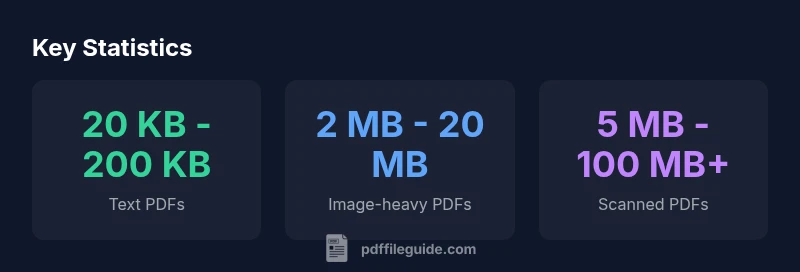
How big is a PDF file? In practice, sizes vary from a few kilobytes for simple text-only documents to hundreds of megabytes for scans and image-heavy files. A typical text PDF ranges around 20 KB to 200 KB, while image-rich PDFs commonly run from 2 MB to 20 MB. For planning and sharing, expect up to several tens of megabytes for high‑resolution archives.
What determines PDF file size
When you ask how big is a pdf file, you must consider several interacting factors. The primary drivers are the amount of textual content, image payload, and embedded fonts. Text-only documents are inherently smaller, but metadata, bookmarks, annotations, and security settings can add a few extra kilobytes. Images dramatically affect size; high-resolution photos, color depth, and the number of embedded images can push a file from a few hundred kilobytes into multiple megabytes. Fonts embedded in the document also matter—full-font embedding can significantly inflate size, while font subsetting (including only the glyphs used) helps keep it lean. Finally, how the PDF compresses streams (such as images and vector data) and whether layers, transparency, or forms are enabled can add or reduce bloat. PDF File Guide analyses show that a balanced approach often yields the best trade-off between readability and file size.
Typical size ranges you’ll see in practice
Real-world PDFs span a broad spectrum. Text-only documents without excessive metadata usually sit between 20 KB and 200 KB for a dozen pages. When images are involved, expect 2 MB to 20 MB for standard-quality layouts; high-resolution images or many pages can push those numbers higher. Scanned PDFs are often among the largest, typically ranging from 5 MB to 100 MB or more, depending on scan resolution, color depth, and compression. As a rule of thumb, each added image or embedded font tends to push the size upward, sometimes dramatically if no optimization is applied. PDF File Guide analyses emphasize the value of upfront planning to avoid surprises during sharing or archiving.
How to estimate size before exporting
Before exporting, inventory the key size-influencers: pages, images, and fonts. Count images and estimate their average dimensions, check for embedded fonts, and review metadata. Most export dialogs offer a preview or estimated size; use these, then adjust compression, downsampling, or font embedding options. If you need a quick check, save a draft copy with different settings (e.g., high-quality images vs. optimized images) and compare the resulting file sizes. A structured approach helps you meet sharing requirements without sacrificing essential content.
Techniques to shrink PDF size
A practical optimization plan includes: (1) downsampling images to an appropriate resolution (e.g., 150–300 PPI for screen viewing), (2) subsetting fonts to include only the used glyphs, (3) removing unused elements such as hidden layers, JavaScript, and metadata, (4) flattening transparency for simpler rendering, and (5) enabling fast web view to improve loading while reducing memory usage. Additionally, choose appropriate compression methods for image types (JPEG for photographs, GIF/PNG for line art) and consider removing attachments if they aren’t essential.
Real-world scenarios: case studies and decisions
Scenario A uses a text-heavy report with a few charts but no scans. With careful optimization, it remains under a few hundred kilobytes while preserving legibility. Scenario B contains dozens of high-resolution product photos; downsampling images and subsetting fonts can cut the file by 60–75% without sacrificing clarity. Scenario C is a scanned archive of historical documents; batch processing with aggressive downsampling and color management often yields a multi-megabyte reduction, enabling easier distribution.
How to check size on different devices and apps
File size can influence loading speed and memory usage on mobile devices. On desktops, larger PDFs render more smoothly but consume more RAM. Some apps compress on the fly or cache content differently, so test on your primary devices and apps to verify performance. If you share via email or cloud storage, ensure the recipient’s platform handles large files and that your link or attachment complies with size limits.
Best practices for sharing and archiving PDFs
Develop a size-conscious workflow: set clear expectations for quality versus file size, optimize during creation, and maintain a version history. When archiving, apply consistent downsampling and font-subsetting rules, strip unnecessary metadata, and store a high-quality master alongside lighter variants for easy access. Document the optimization settings used so colleagues can reproduce results if needed.
Size ranges by content type
| Scenario | Typical Size | Notes |
|---|---|---|
| Text-only PDF | 20 KB - 200 KB | Few assets, minimal metadata |
| Image-heavy PDF | 2 MB - 20 MB | Multiple high-res images |
| Scanned PDF | 5 MB - 100 MB+ | Color scans, many pages |
Questions & Answers
What is the typical size of a text-only PDF?
Text-only PDFs are usually small, typically described in ranges like 20 KB to 200 KB depending on length, fonts, and metadata. The size grows with length and the amount of embedded metadata.
Text-only PDFs are typically very small, usually between a few dozen kilobytes and a couple hundred kilobytes depending on length and metadata.
How can I reduce the size of a PDF?
You can shrink a PDF by downsampling images, subsetting embedded fonts, removing unused metadata and attachments, flattening layers, and enabling compression options during export.
To reduce a PDF, downsample images, subset fonts, and strip unnecessary metadata and attachments.
Do embedded fonts always increase PDF size?
Embedded fonts add to size, especially if full fonts are included. Subsetting fonts to only used glyphs helps keep sizes smaller while preserving appearance.
Yes, embedded fonts can increase size, but subsetting saves space by including only the glyphs used.
What tools can be used to compress PDFs?
Many PDF editors and creators offer built‑in optimization. Third‑party tools and online services provide options to downsample, subset fonts, and remove metadata.
Use built‑in optimization in your PDF tool, or trusted third‑party options to compress images and subset fonts.
Is a large PDF always bad for sharing?
Not inherently. Large PDFs may be necessary for high‑quality scans or archives. For sharing, create lighter variants and provide a high‑quality master if needed.
Not always—large PDFs can be important for archives. Offer lighter versions for sharing when possible.
Do scanned PDFs have large sizes?
Yes. Scans are often the largest PDFs due to bitmap data. Optimize by choosing appropriate resolution and color settings during scanning and by compressing after creation.
Yes—scans tend to be large. Reduce size by lowering scan resolution and compressing the result.
What is fast web view in PDFs?
Fast Web View reorganizes a PDF for incremental loading in browsers and apps, which can improve perceived load times without changing actual file size.
Fast Web View helps PDFs load faster when viewed online, without changing the file’s size.
“A well-optimized PDF balances readability with file size, ensuring fast sharing without sacrificing essential content.”
Key Takeaways
- Estimate size early by inventorying images and fonts
- Use font subsetting and image downsampling to trim size
- Remove unnecessary metadata and layers for sharing
- Test on target devices to ensure performance
- Keep a high-quality master alongside optimized variants